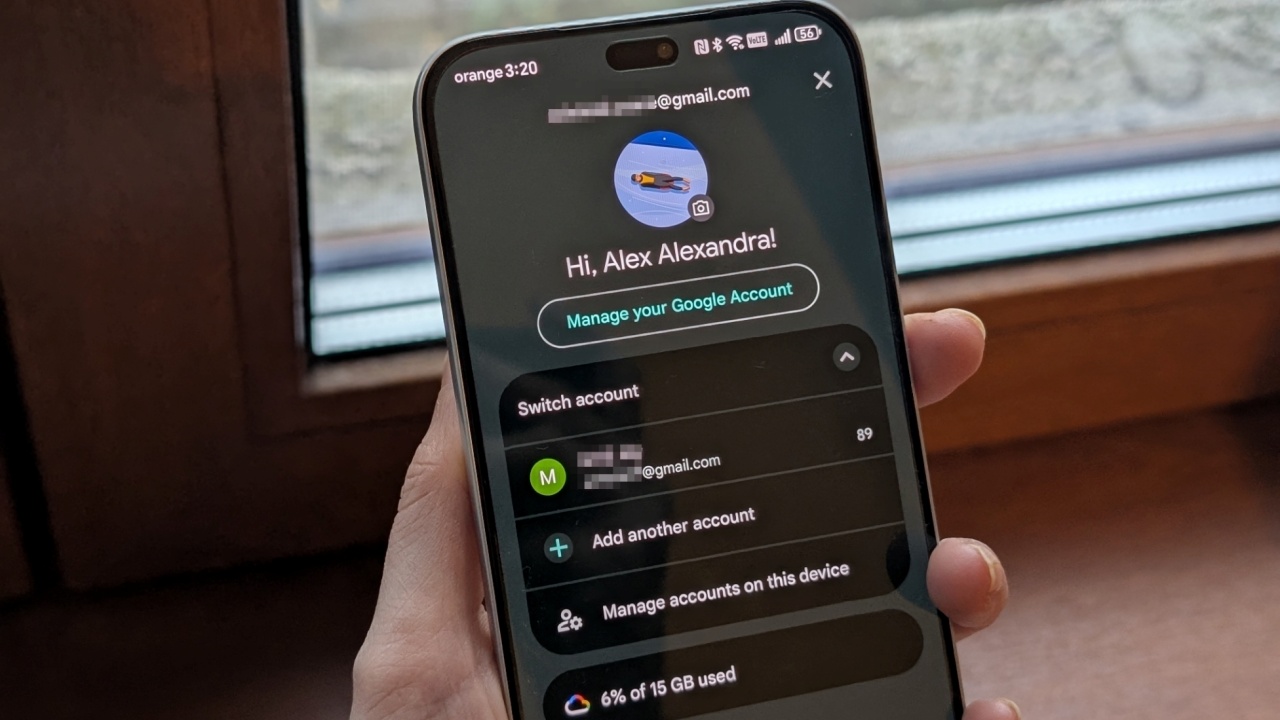
When setting up a new Android device, most people will usually add their primary Google account as part of the setup process. However, down the road, some of us may want to access additional accounts on the same handset. Luckily, Google has made it very easy to switch between multiple accounts on a single device. In this post, we’ll walk you through adding and managing multiple Google accounts on your Android handset.
Good to know: you can let Google handle your holiday shopping this year with agentic AI.
Add a New Google Account to Your Phone
There are two ways you can add a new Google account to your device. The first method enables you to have a general view of all the accounts you’ve signed in to on the device.
Open the Settings app on your phone. Scroll down until you find Password, passkeys & accounts and select this option. Depending on your Android phone model, you might need to tap on Accounts instead.
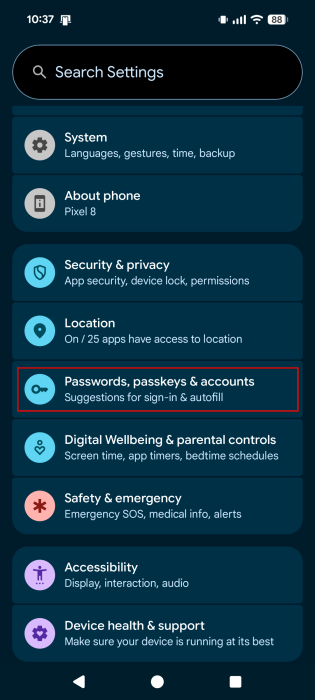
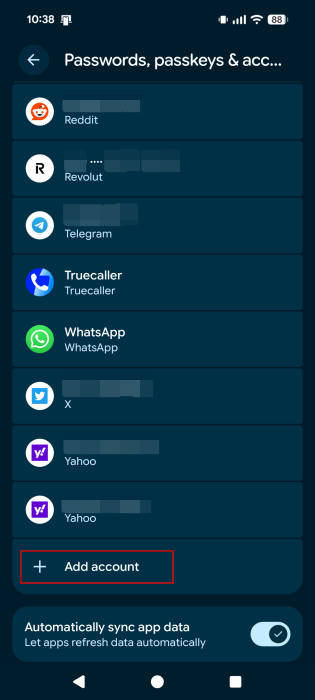
Here, you can view a list of your accounts, including the Gmail/Google accounts you’ve added in the past. On some Android phones, the accounts are grouped based on the app. At the bottom, tap on the Add account option.
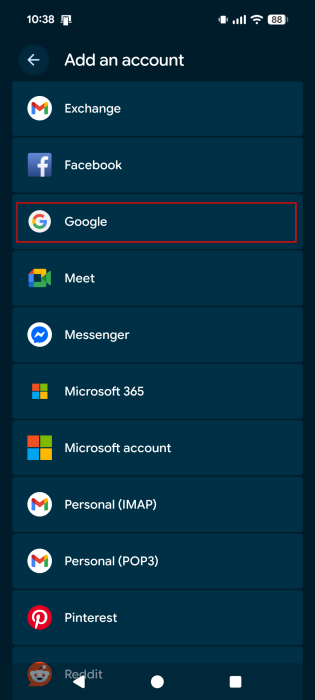
Select Google from the list of apps on your device that allow you to add extra accounts. From the same screen, you can also opt for Personal (IMAP) if you want to access your inbox from different devices (emails are stored on remote servers), or Personal (POP3) if you’re going to use just this device to view your emails, which will be downloaded locally.
Enter the details of the account: your email/phone number, and password. You can also set up a new account if you don’t have one already by tapping on Create account.
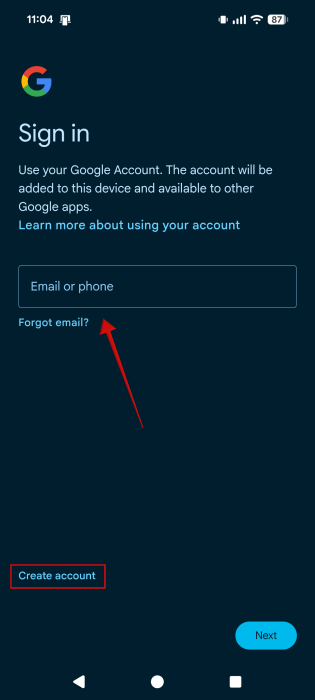
That’s it, your new Google account should now appear in the Password, passkeys & accounts section. Once you’ve added the new account, all synced data associated with that Google account will load on your current Android device. This is also the way to sync your web Gmail signatures, if you use them.
Alternatively, you can add a secondary email address right from the Gmail, Google, Chrome or even the Play Store app on your phone.
Open Gmail on your Android device. Tap on your profile icon that’s located in the upper-right side of the display.
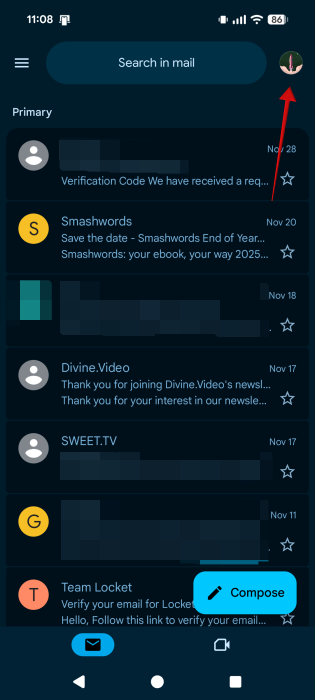
Select Add another account.
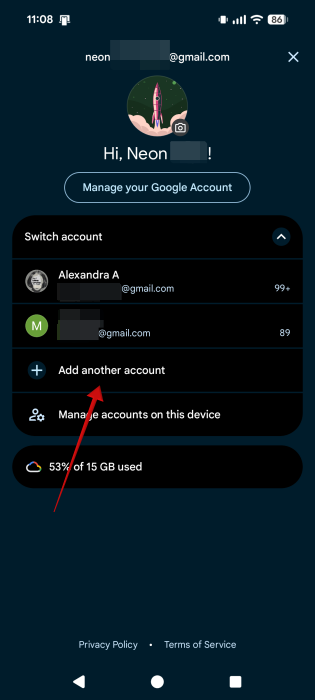
Select Google.
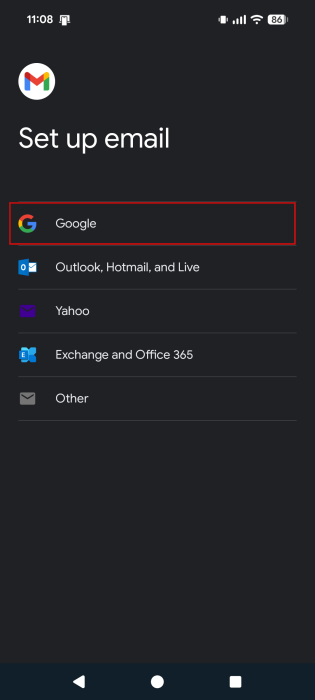
Sign in with your address and password. You can also use the Create account option.
The new account should be added to your existing list of Google accounts.
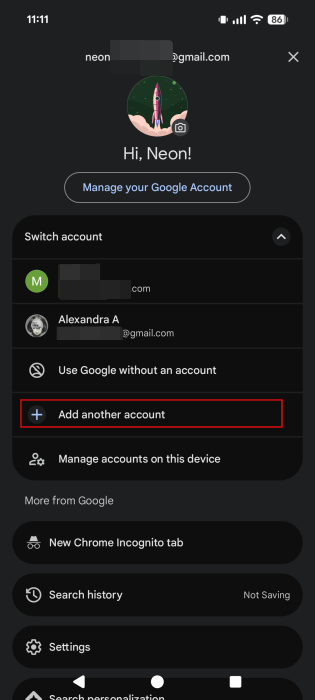
If you’re doing this from the Google app, press Switch account after tapping on your profile picture. In the Chrome app, the option appears as Show more accounts.
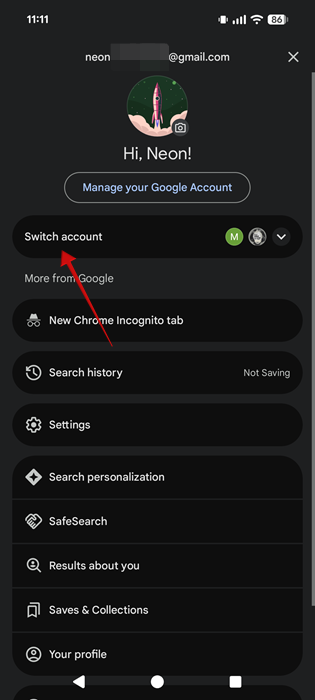
Tap on Add another account from there to continue the process.
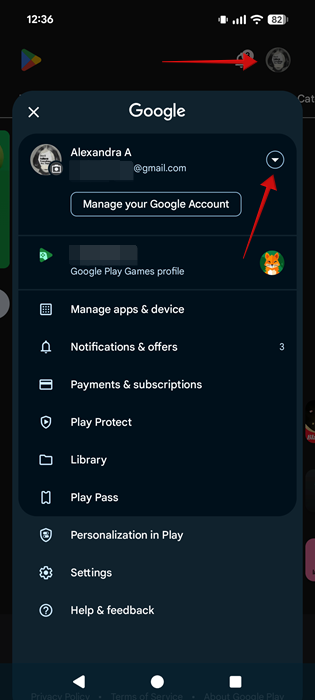
In case you opt to do this via the Google Play Store, you need to tap on your profile picture in the upper right and then press on the downwards icon to view the Add another account option.
Tip: have you tried remixing your images in Google Messages with Gemini yet? Here’s how
Easily Switch Between Google Accounts on Android
Once you’ve added the second account to your phone, it’s super easy to switch between them. Simply fire up Gmail, Google or any of the other apps above once again and tap on the profile icon and select your other account.
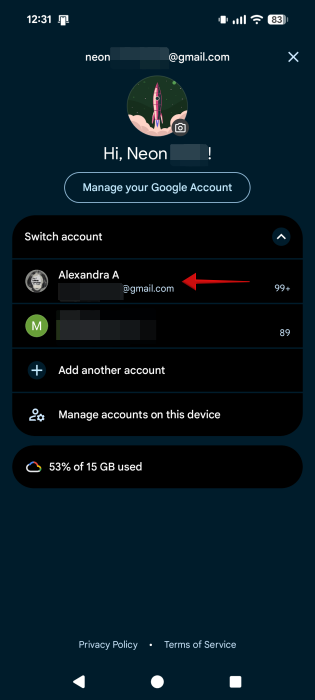
All your email addresses should be listed here so that you can seamlessly get access to them.
FYI: here’s how to add preferred sources in Google Search for better res
Delete a Google Account from Your Android Phone
Getting rid of a Gmail account is also quite straightforward. Again, you can go through Settings or do this from any of the apps listed above.
If you prefer the first method, go to Settings -> Password, passkeys & accounts again. Find the account you want to delete in the list and tap on it.
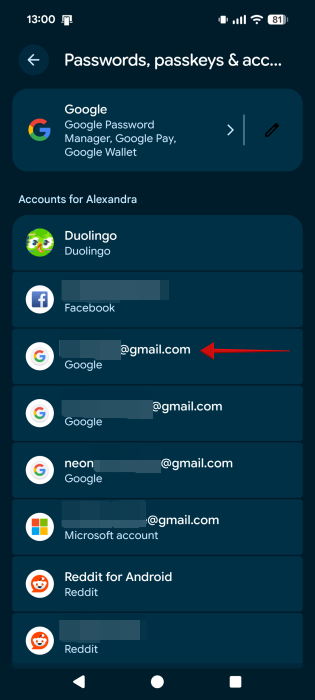
Click on the Remove account button.
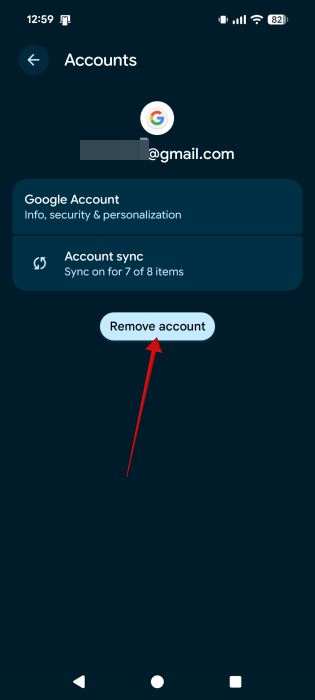
Confirm your selection by tapping on Remove account once again.
Your Google account has been deleted from your device and will no longer appear in other apps you used the address.
You can also delete a Google account by going through the Gmail or Google app where you have to tap on your profile icon again and select the Manage accounts on your device option.
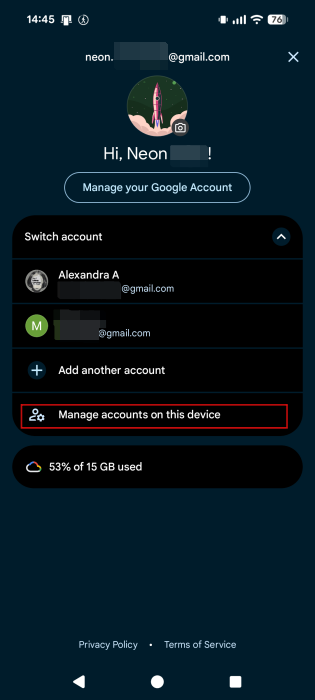
Select the account you want to delete, then press on the Remove account button and confirm your selection again to fully remove the address from your device.
Be sure that this is what you want to do, though, since the process removes all contacts and information stored on that account. The better alternative would be to keep both and to just switch between your accounts. However, if you want to change your phone’s default Google account, you will have to remove older ones as explained. Android gives you plenty of freedom when it comes to setting defaults. For instance, check how to change your default messaging app on Android.
On the other hand, if you wish to simply sign out of your Google account on your Android device (or others), here are the steps you need to follow.








