Tired of searching for relevant content only to get a list of sources you don’t quite vibe with? Now, you can add preferred sources in Google search to see more from the sites and content providers you like best.
What is Preferred Sources in Google Search?
Typically when you search for news, results are based on a mix of date, relevancy, and authority of the site. Supposedly, results aren’t personalized, even when you’re logged in.
But, if you keep getting the same sources and don’t really like them, you can tell Google which sources you prefer.
It’s important to note that this won’t limit search results to just your chosen sources. Instead, Google prioritizes results from those sources. As long as they’ve published something relevant recently about the topic you’re searching for, they’ll appear in the Top Stories section of the search results.
Additional sources you haven’t chosen also appear within Top Stories and within the rest of the results. So, you’ll still get more options.
This feature was released a few months ago as a Google Labs feature. If you already enabled the Lab, your preferences will carry over now that the feature has rolled out to all search users in the US and India. Google plans to roll out the preferred sources feature to other regions later this year.
Set Your Preferred Sources for News
First, you have to sign in to your Google account. This ensures your preferences sync no matter what device or browser you’re using. This includes both specialty and private browsers. The process works the same on both desktop and mobile devices.
Perform a Google search around a news topic and scroll down to the Top Stories section. Click the star button next to Top Stories. If you don’t see this button, make sure you’re logged in and using the All filter under the search box. It won’t appear if you filter it by News.
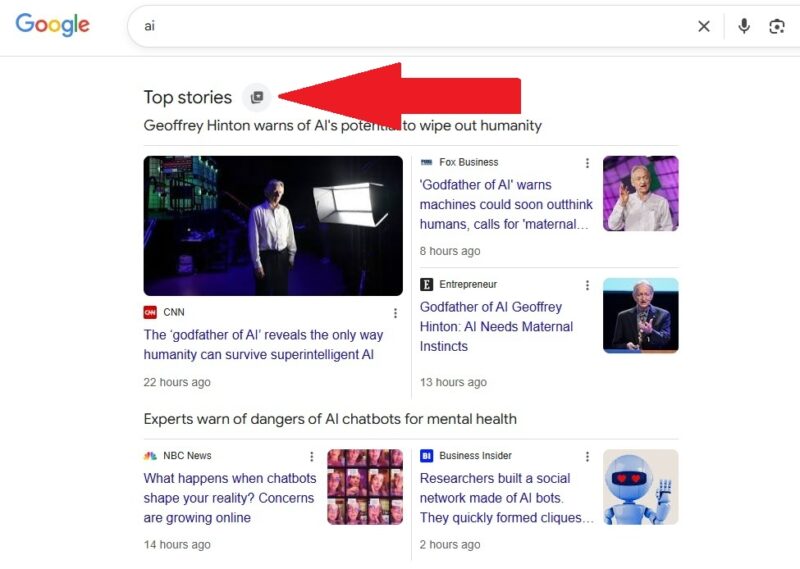
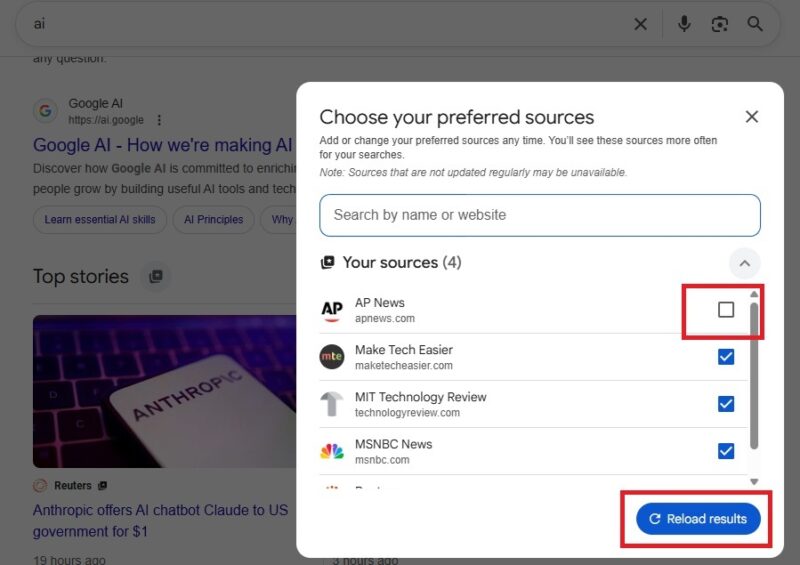
Start typing the name or URL of the source you want to add. When it appears, check the box to add it. Press Reload results to start your search again with your preferred source(s).
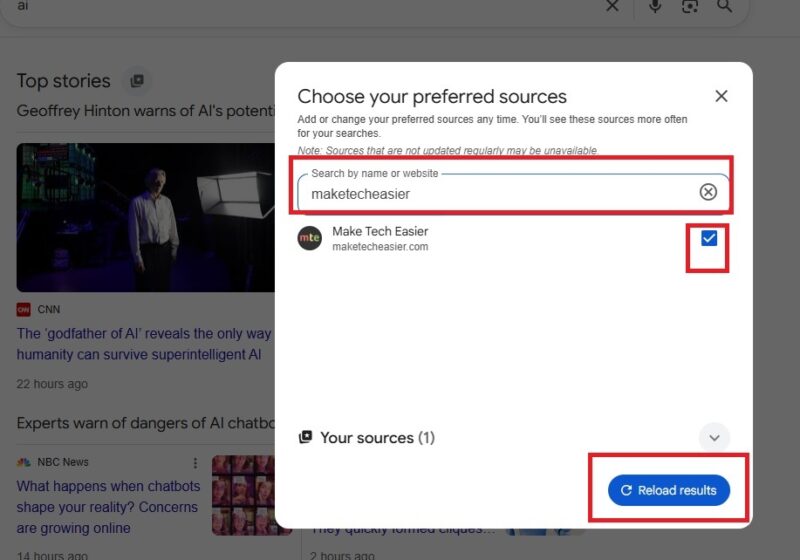
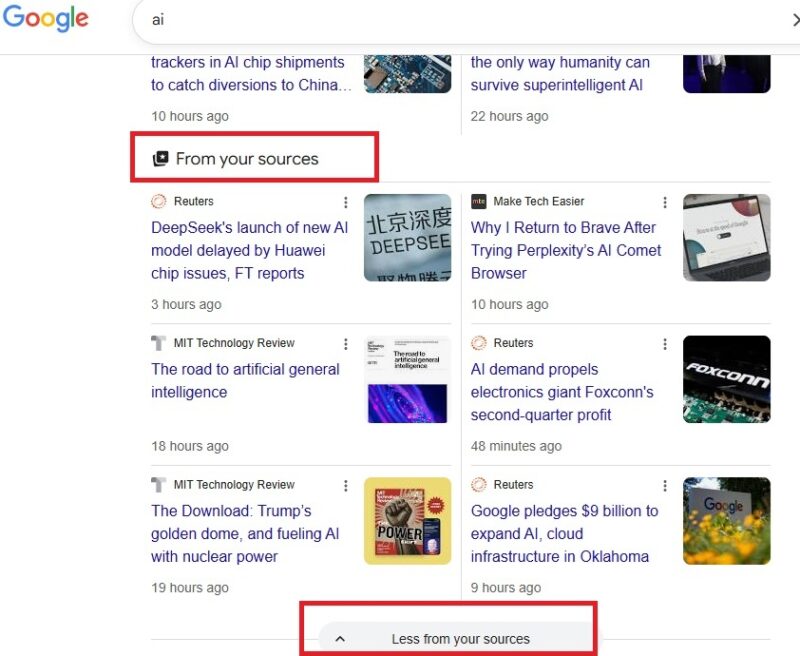
You can add as many sources as you want. Just to test it out, I added Make Tech Easier, MSNBC, AP News, Reuters, and MIT Technology Review. After reloading, my results changed drastically. The first few results in Top Stories were a mix of my sources and other sources.
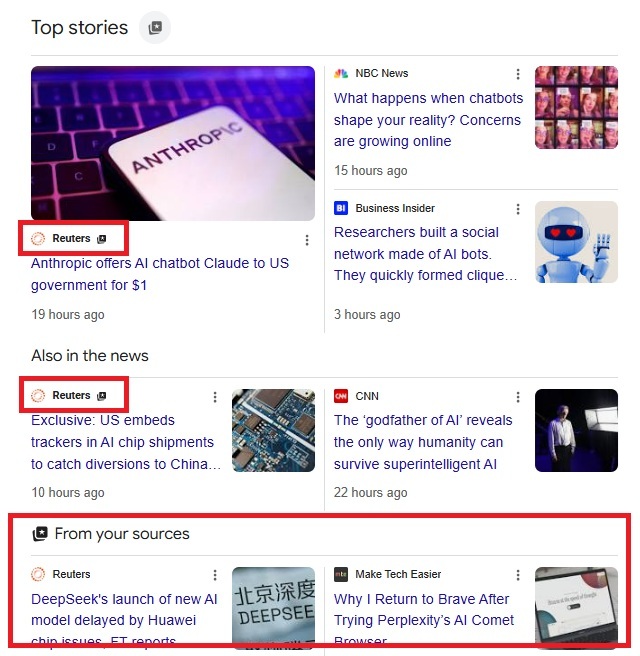
Below that, it was just my preferred sources in Google search. You’ll see a From your sources section just below Top Stories. Expand it to see more or collapse it to see less.
Managing and Removing Preferred Sources
Decide you don’t like your sources or want to add more? Perform a Google search about a news topic while signed in. Click the button beside Top Stories in the results. This shows you all the sources you’ve already added.
Search for new sources to add more to your list. According to Google, most users have at least four sources.
If you want to remove a source, uncheck the box next to it. Then, click Reload results to see new results based on your new choices.
How to Tell Which Results Are From Your Sources?
In the Top Stories area of the regular Google search results (not the News filter), all stories from your sources have the preferred sources icon beside the source name. It looks like a little square with a star in it. Any sources you haven’t chosen won’t have this mark.
Of course, if the stories are in the Preferred Sources section, they’re all your sources. These don’t have an icon beside them.
Add a Source Directly from a Website
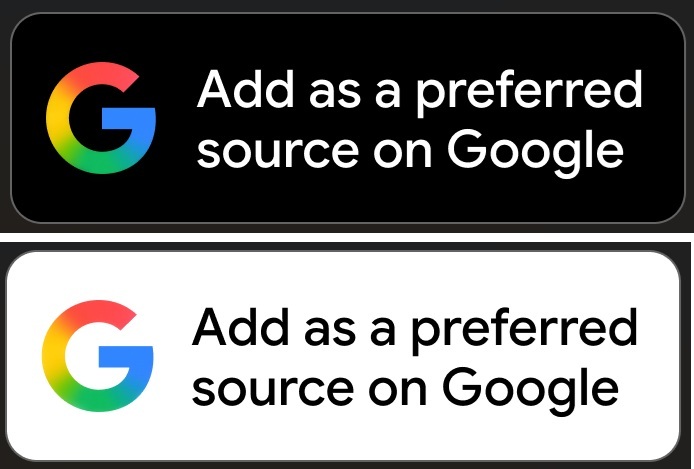
Website owners can add a Preferred sources button directly to their site, within emails, or other promotional areas, such as social media. This lets you add the site directly to your sources as long as you’re logged into your Google account.
Look for one of the following buttons on your favorite news sites:
If you’re a site owner, you can also include a link – https://google.com/preferences/source?q=
Personalize Your Google Search Results
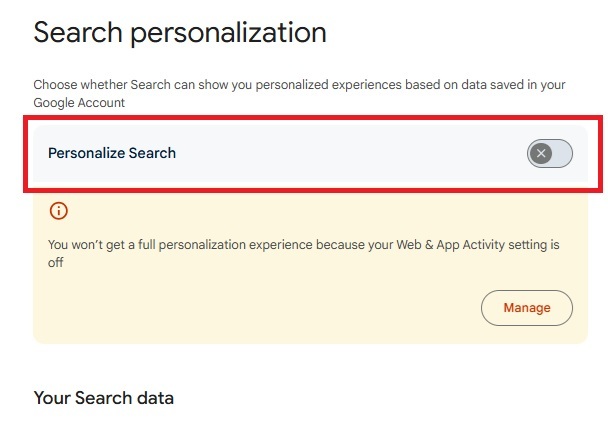
If you want the rest of your search results to feel more personalized, you can also turn on Search personalization. Google collects data based on your search history, location, and the sites you interact with to provide more relevant search results for you.
Click your user icon at the top right. You must be logged in. Click Search personalization and turn on Personalize search. In this same section, click Source preferences to see your preferred sources in Google search. And, click Image feed preferences to better personalize image results.
Of course, if you prefer Google not collecting any extra data about you, there are multiple ways to prevent Google from showing personalized results. Or, you can also use a Google search alternative.








