


Google often collects users’ personal data, search history, activity, and location so they can show you personalized search results. Google tailors search results to match what a user is most interested in and likely to click on. However, these personalized results add a bit of a privacy concern and bias in results. To avoid reinforcing such biases, you can (and should) stop Google from showing personalized search results to you.
1. Use “Try Without Personalization” Link From the Search Results
To showcase non-personalized search results, Google has implemented a friendly way to improve search quality. This could be the easiest way possible to disable personalization.
After doing a search on Google, scroll down to the bottom of the result page. Below the pagination control (marked by the “Goooooogle” label), click the Try without personalization link.
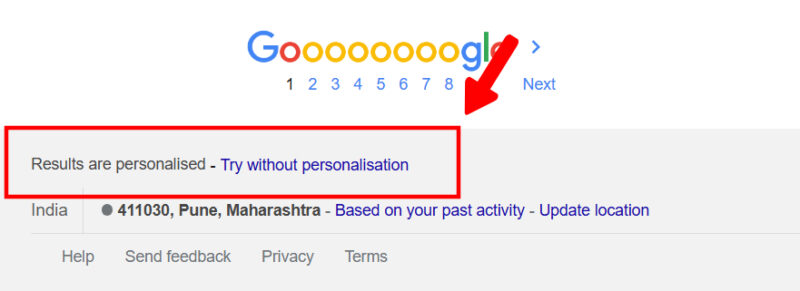
This will refresh the search page and display the search result without personalization.
2. Add Parameters to the Search URL
If you don’t want to lose all the personalization, you can opt out of such results for a specific query or a search term.
For example, if you are running a custom search for “Make Tech Easier,” replace the spaces in your query with +, and add the &pws=0 parameter to the end of the search URL. Your final search URL should look like this:
https://www.google.com/search?q=Make+Tech+Easier&pws=0
Here, ‘pws’ stands for “personalized web search,” and setting the value to 0 informs Google that you want to see non-personalized search results.
3. Turn Off Personalized Results from Search Personalization
As the personalized results are linked to your Google account, ensure that you have signed in to your preferred account.
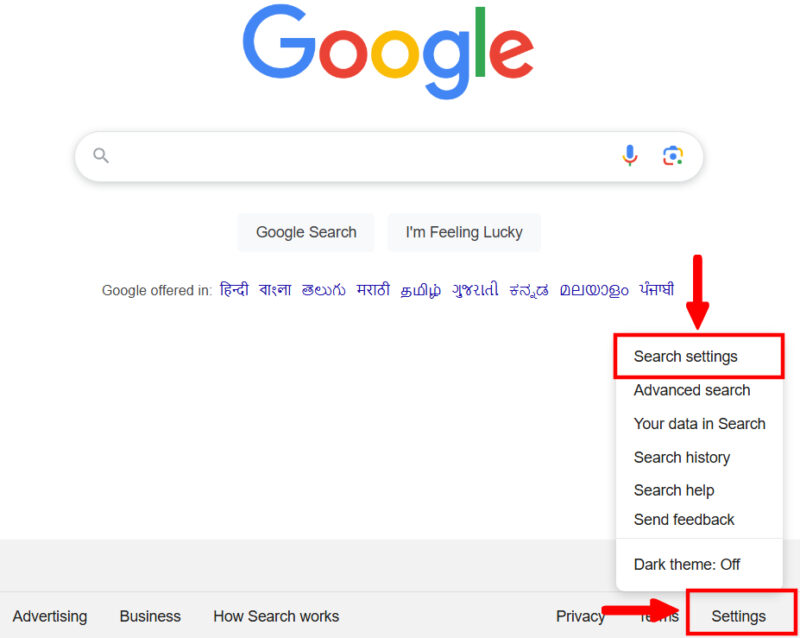
Visit Google’s homepage, click on Settings in the bottom-right corner, and choose Search settings from the pop-up menu.
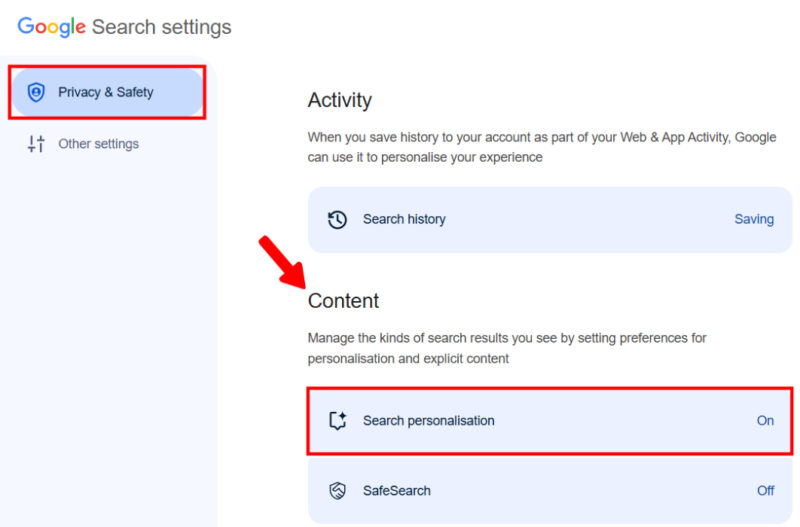
Under the Privacy & Safety menu, locate the Search personalization settings under the Content tab. Google will redirect you to the personalized experience settings.
Click Personalize Search to toggle it off. You’ll receive a notification that says, Personalize Search is off.
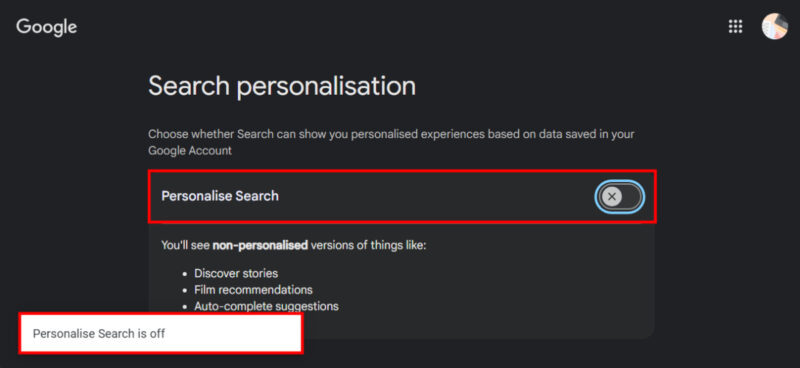
It is important to note that by turning off the Search personalization, Google will not be able to show personal interest-based Google Discover stories, film recommendations, or auto-complete suggestions.
You can change Google settings from your mobile phone too. On your mobile browser, head to Google’s homepage. Tap on your Google account profile in the top-right corner.
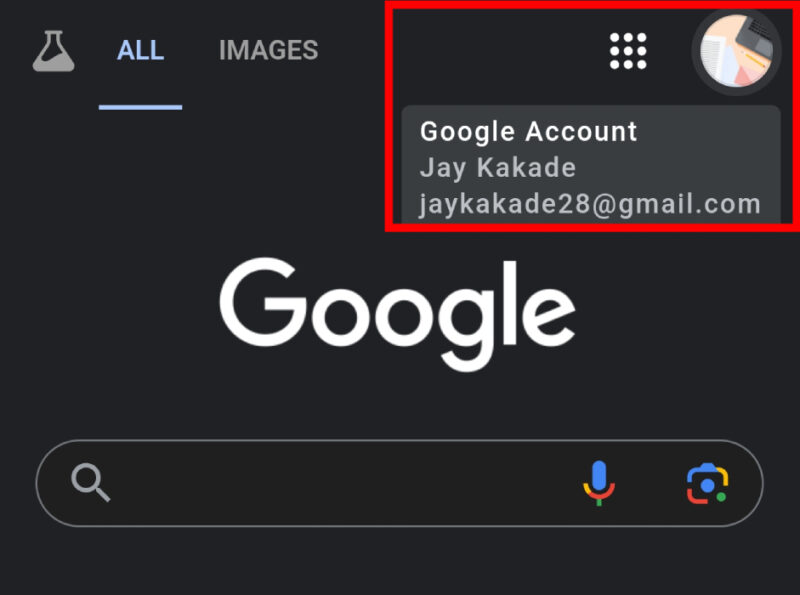
Scroll down and click on More settings.
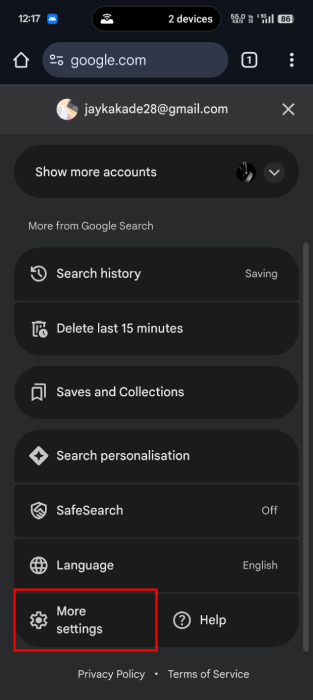
Under Content, click on Search personalization.
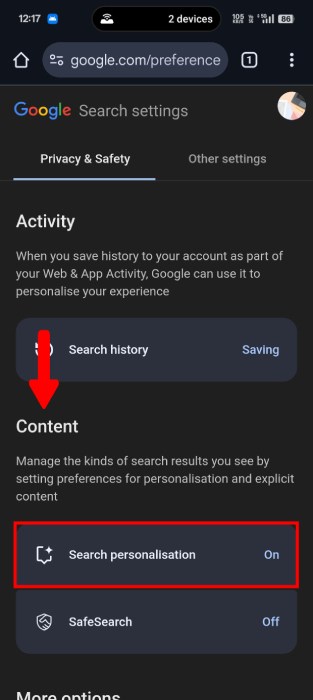
Under the Search personalization menu, tap on the Personalize Search toggle to stop personalized search results.
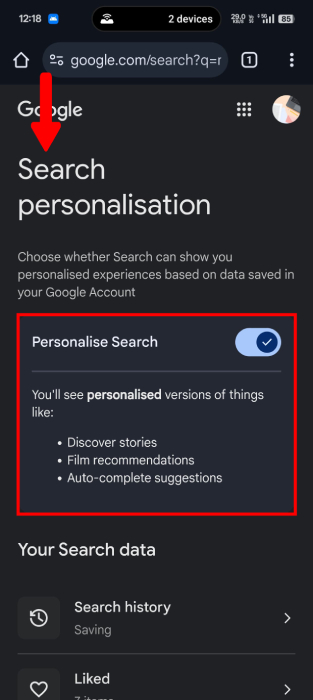
The steps for mobile users are similar to desktop, with minor user interface modifications to accommodate smaller screens.
4. Turn off Google Web & App Activity
Since Google’s personalized search results rely on your search history, turning off the Web and app history can heavily restrict Google from displaying interest-based results.
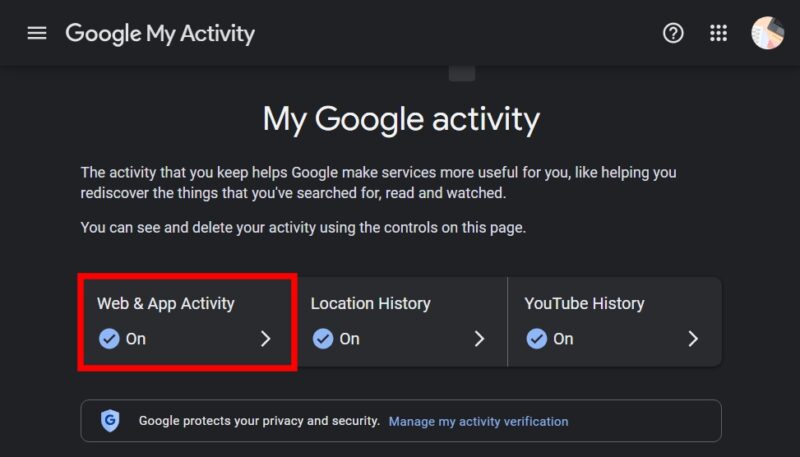
Go to Google My Activity, and click Web & App Activity. If Web & App Activity is turned off, personalization has already been greatly diminished.
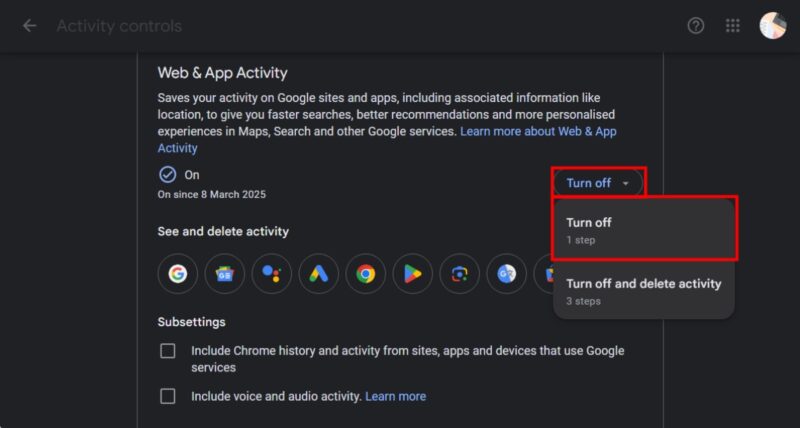
Under the Web & App Activity menu, click on Turn off, and choose Turn off. If you want to have a completely fresh search results, choose the Turn off and delete activity option.
Note: Among the given methods, one of the easiest ways to get non-personalized results is by accessing Incognito mode. However, the only reason not to use this method is that Google may still use your location and general device info to furnish interest-based searches.
While personalized results may align your search results to your interests, they may bring along privacy concerns. Whether you disable search personalization entirely or opt out for a specific query, these methods ensure access to a broader range of information with minimal bias.
Image credit: Pixabay. All screenshots by Jay Kakade.