While iOS 18 brought several headline-grabbing features, some of its lesser-known additions are just as valuable. For example, Apple Maps now lets you save places to your personal Library and add custom notes for them too. Here’s how to make the most of these new tools.
Good to know: here’s what improvements the iOS 18.4 update brings to the table.
How to Add a Place to Your Library in Apple Maps
You can now easily add places you favor or would like to visit to your Library in Apple Maps. Open the app on your iPhone and use the search bar at the top to search for the place. Alternatively, you can find it on the map by swiping with your finger.
Tap the + button that appears next to the location’s name.
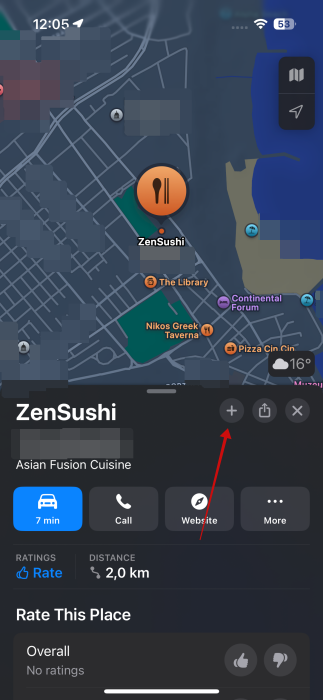
Your phone will immediately notify you that the place has been added to Your Library. The + sign will now turn into a tick mark.
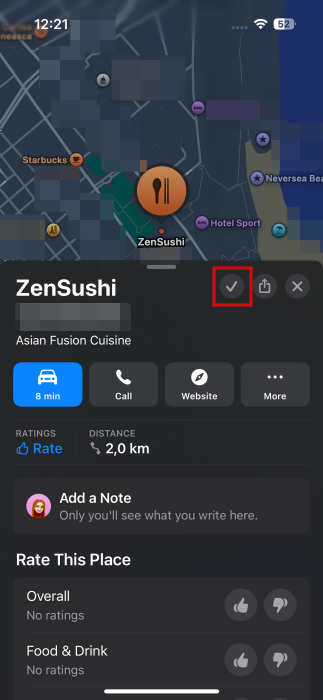
If you’ve changed your mind and wish to remove it, press the tick mark. It will change back to the + sign.
Tip: did you know that you can now give Apple Maps a try on your Android device? Here’s how.
How to Add a Note for a Place in Apple Maps
Once you’ve added a place to your library, you’ll immediately see the Add a Note field appear underneath.
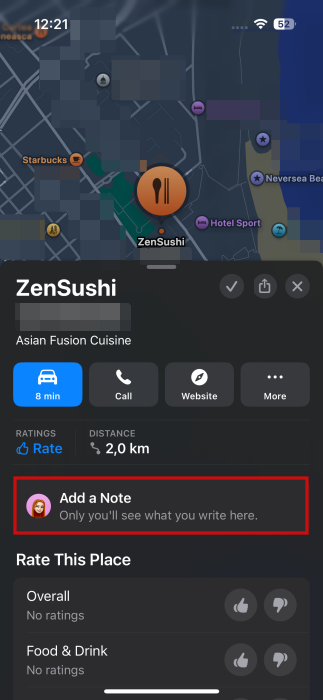
Tap it and start writing your thoughts and observations about the specific location. Press Done to save.
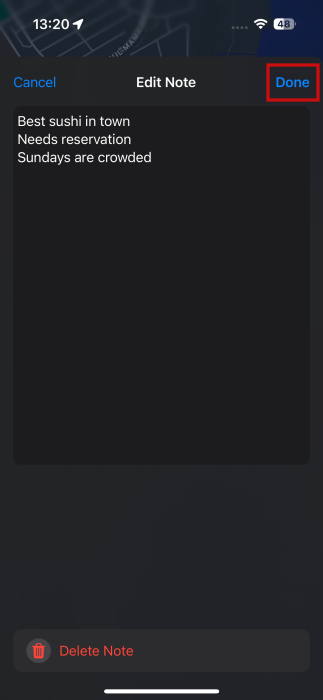
Now, the note will appear underneath the main buttons on the location page. You can only add one note for each place, but fortunately, it seems that the note can accommodate quite a lot of text.
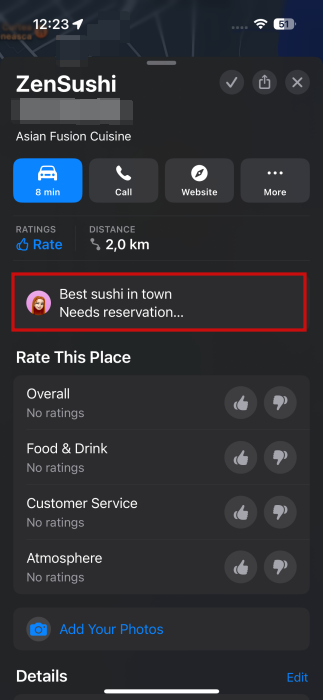
If you wish to edit the note, tap on it when it appears and continue adding or deleting text. Then save it again.
You don’t necessarily have to save a spot to your Library to add a note for it. Navigate to another place on the map, tap it, and press the More button.
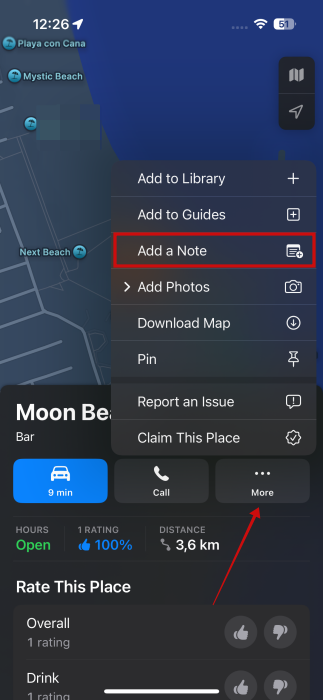
Select the Add a Note option from the menu.
This will take you to the same note-writing screen as before. Add your thoughts and save.
The note will appear below, just like in the previous example.
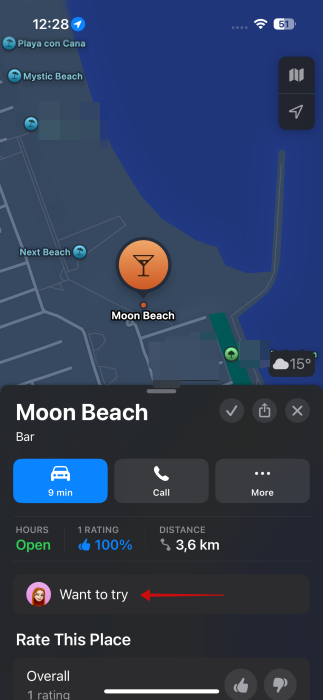
Now, whenever you run across this place while you’re browsing on the map, you’ll see the note.
How to Add a Note to a Dropped Pin
Interestingly, it’s also possible to add a note to a dropped pin in Apple Maps. For instructions on how to pin a spot on the map, check our guide on the matter.
Once you’ve added the pin, you should see the Add a Note field appear. Tap it to write your thoughts down.
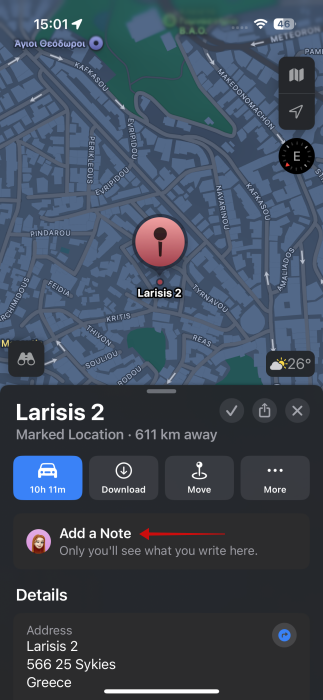
How to Delete a Note for a Place in Apple Maps
If you want to remove a note from a place, it’s pretty simple. Find it and access it by tapping it.
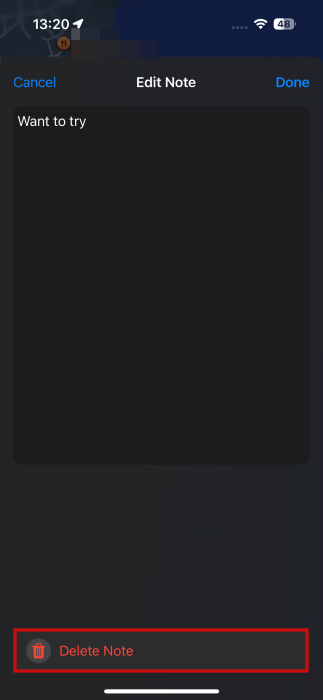
Press the Delete Note option at the bottom.
Tip: here’s how to change your iPhone’s lock screen shortcuts.
How to Access Saved Places in Apple Maps
There will come a time when you’ll need to access your saved places. First, you need to go to your Library. That’s easy. Just open the Apple Maps app.
You should see the Library section right underneath the Search Maps bar in the lower part of the screen. Tap on the bar underneath the Home/Work buttons.
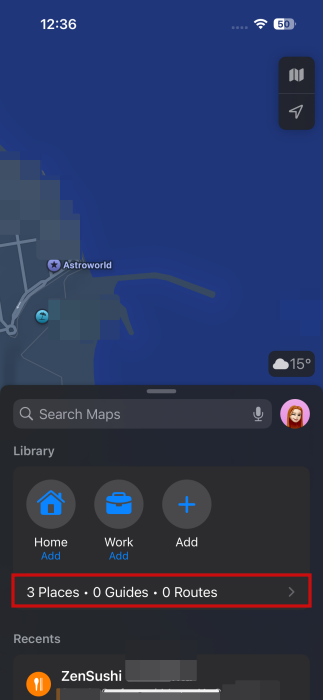
Select Places from the menu.
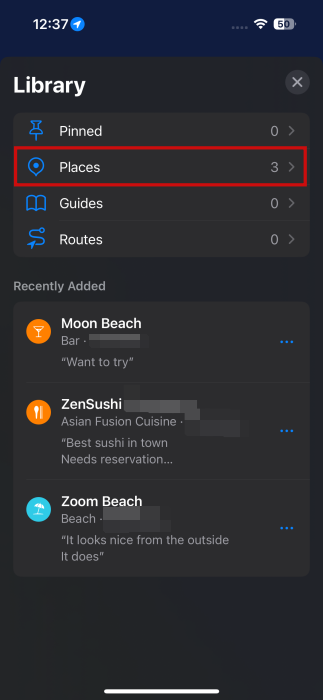
Check out your saved places. If you want, you can add a new place directly from here by pressing the + Add button in the upper right corner.
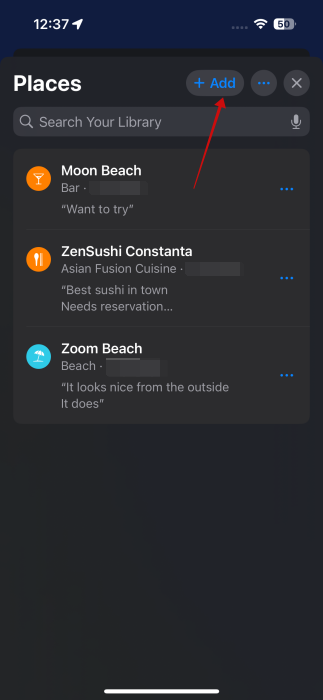
Search for the name of the location and tap the + sign when you find it in the results below.

Best of all, you can also add a note for a place through the Library. Tap on the three dots next to a location you’ve added and press Add a Note.
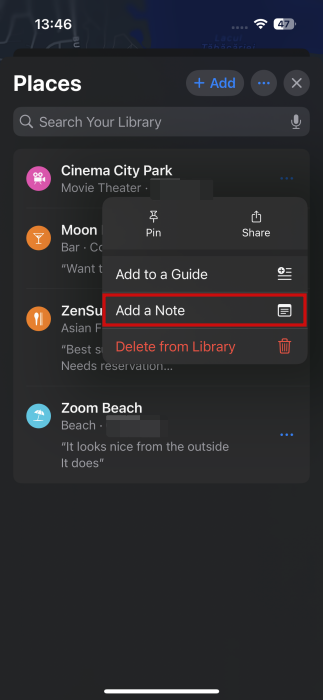
It will be shown underneath the location in Places. If you want to edit its text, tap on the three dots again next to the location in question and select Edit Note.
How to Pin a Location to Your Library in Apple Maps
For particularly significant locations, it might be useful to prioritize them by displaying them front and center in your Library.
Access your Library as we discussed above and navigate to Places. Tap the three dots next to the target location and select Pin.
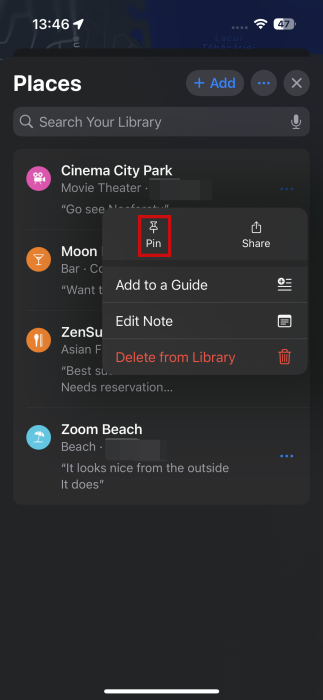
The location will show up next to the Home/Work buttons in the Library slide.
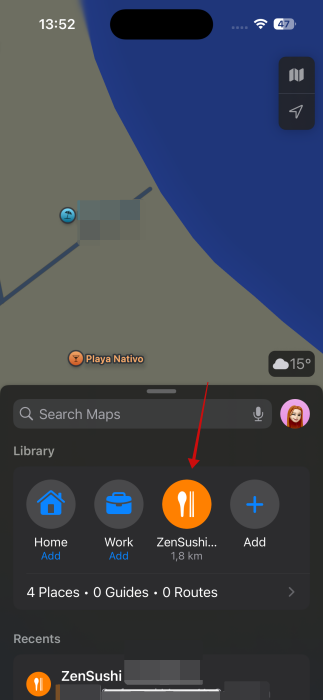
Tapping on this location will immediately take you to the Directions screen.
To unpin a saved location, go back to Places, tap the three dots next to the place, and select Unpin.
How to Delete a Location from Your Library in Apple Maps
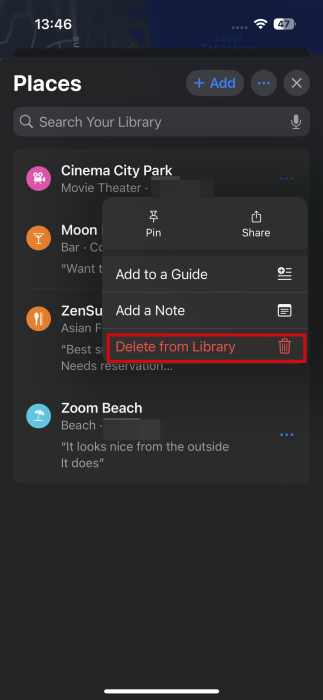
In case you want to remove a location from your library, go to your Places and find the location in question. Tap the three dots on the right and tap Delete from Library.
Need more Apple Maps tips? Read on to learn how to report incidents in Apple Maps. On the other hand, if you think you might enjoy a superior experience by using another app, check these Apple Maps alternatives you might want to switch to.








