
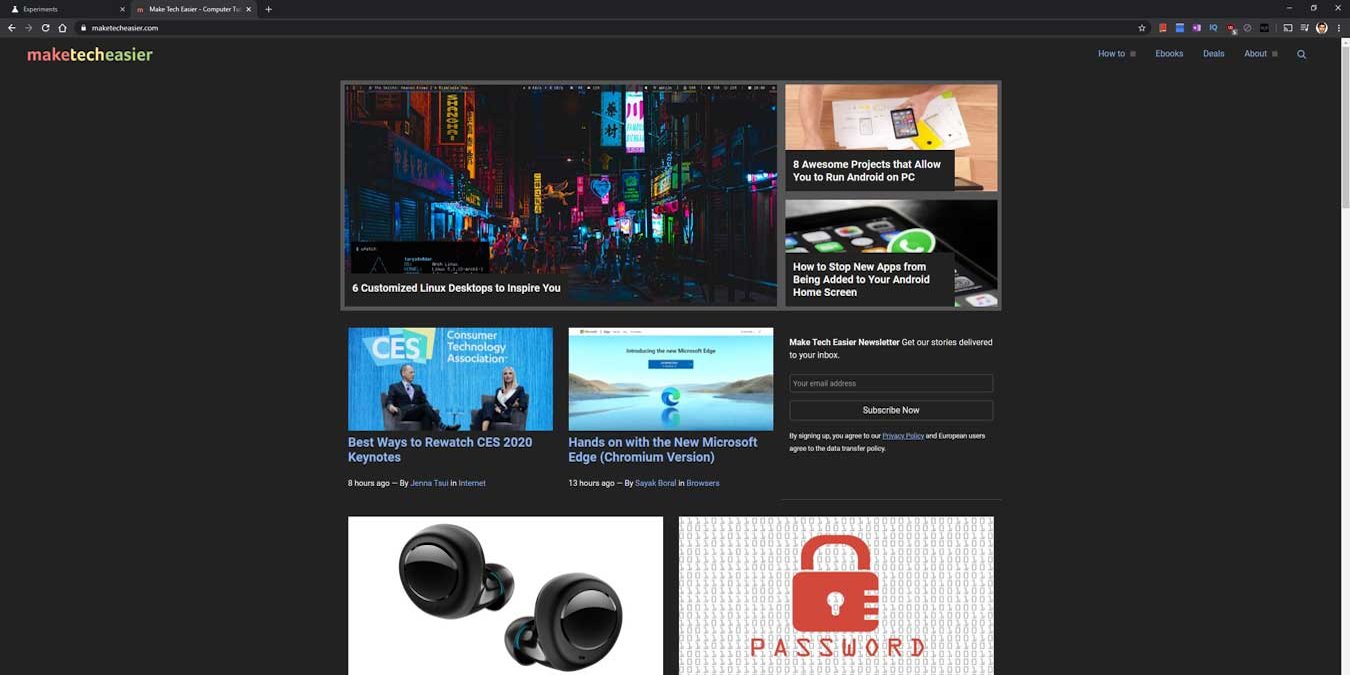

Google Chrome is by far the world’s most popular web browser. But with that, users have grown to have certain expectations. One of those is a dark mode. The idea of dark mode is that it makes the screen easier on your eyes in a low- or no-light setting. Of course, there are still some questions about the extent to which dark themes are really better for your eyes, but it’s certainly useful in certain circumstances.
There are a few different ways to enable dark mode in Chrome, though weirdly it’s not quite as simple and obvious as it should be. Here’s how to do it.
[mte_toc]Enable Chrome Dark Mode in Desktop
Whether you’re using Windows or macOS, the simplest – though not most effective – way of enabling dark mode in Google Chrome is to do it through your desktop. Note that this method will enable dark mode in all windows on your computer, not just Chrome, and it will only change the Chrome window into dark mode, not actual online content. But it’s a start.
Here’s how to enable dark mode in Windows:
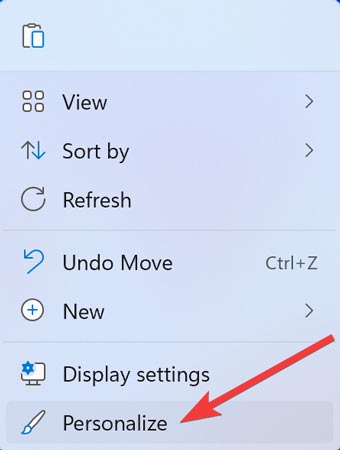
- Right-click the desktop background and click “Personalize.”
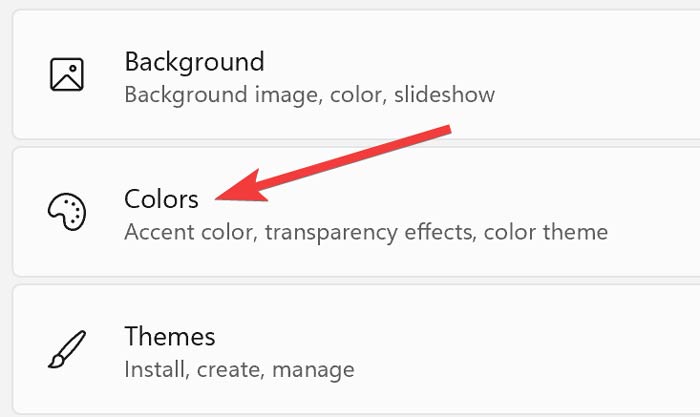
- When the Personalization window opens, select “Colors.”
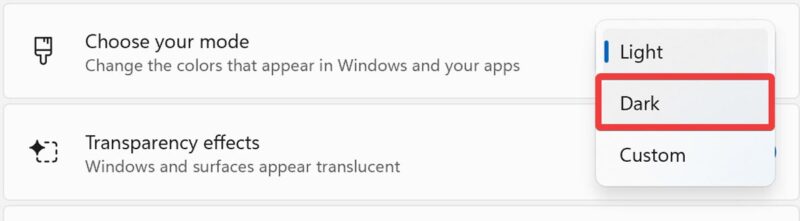
- Open the dropdown menu next to “Choose your mode” and click “Dark.”
Here’s how to enable dark mode in macOS Ventura:
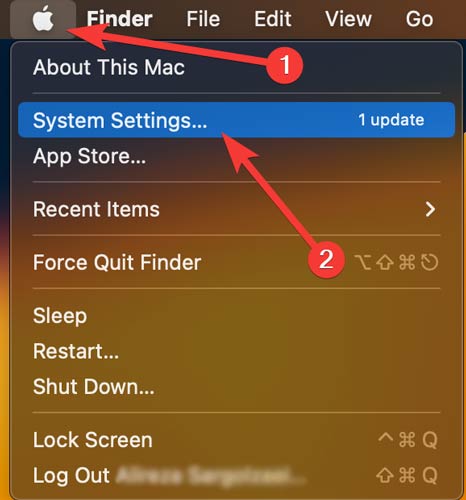
- Click on the “Apple” logo at the top left of the menu bar and select “System Settings.”
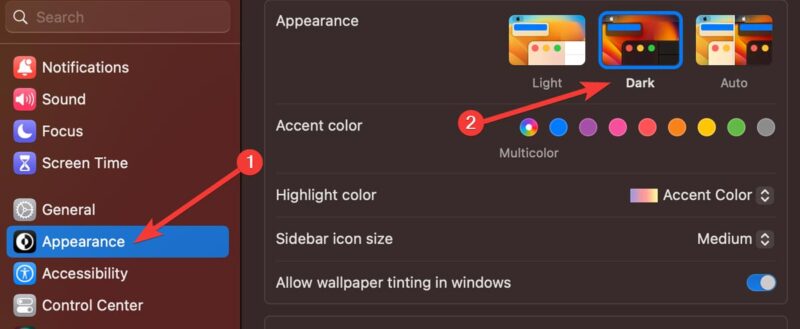
- Open the “Appearance” section, and click on the “Dark” option from the top.
You should now be able to enjoy the dark mode on your desktop computers.
Enable Chrome Dark Mode in Flags
The previous option has its limitations. Within Windows apps it may invert all the blacks and whites, but it doesn’t change the actual content of websites you’ll be browsing. To convert the contents of every website you visit into dark mode, you’ll need to go into Chrome Flags (note that this method also works for the Android version of Chrome).
Here’s how to enable the dark mode in Chrome Flags:
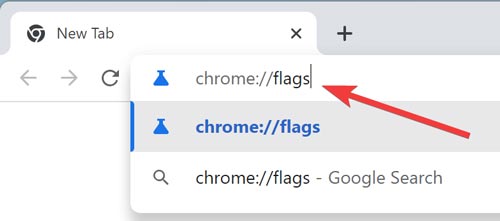
- In the Chrome address bar, type chrome://flags and press “Enter.”
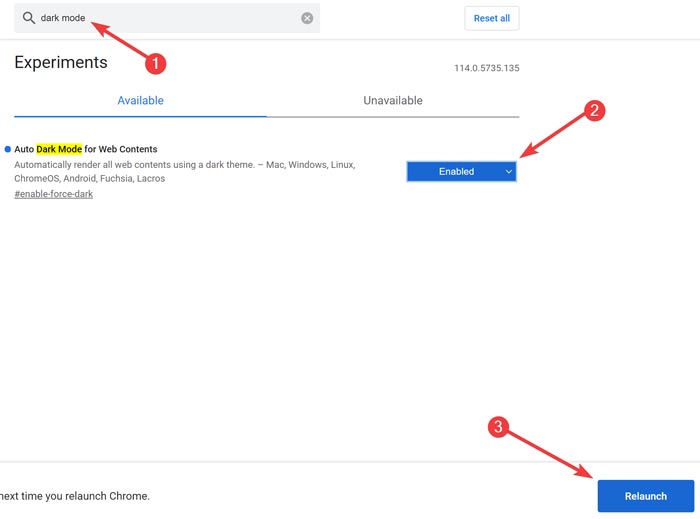
- In the Chrome Flags window, search for “dark mode,” open the dropdown next to “Auto Dark Mode for Web Contents,” click “Enabled,” then hit “Relaunch” from the bottom.
You should now be able to enjoy the dark mode on your devices.
Enable Chrome Dark Mode on iOS
The dark mode entered iOS in 2019. So, if you have an Apple device running on iOS 13 or higher, you can conveniently enjoy the feature and avoid hurting your eyes in a dark room.
Here’s how to enable the dark mode on an iOS device:
- Find and open the “Settings” app on your device.
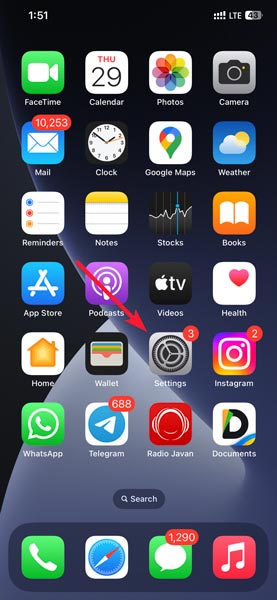
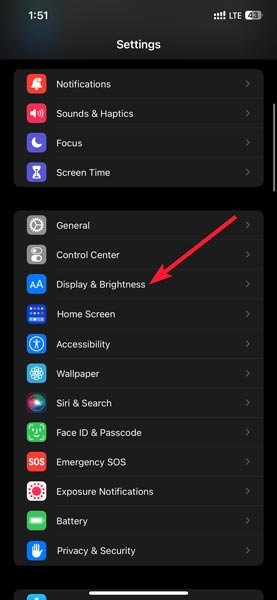
- Go to “Display & Brightness.”
- Choose “Dark” from the top.
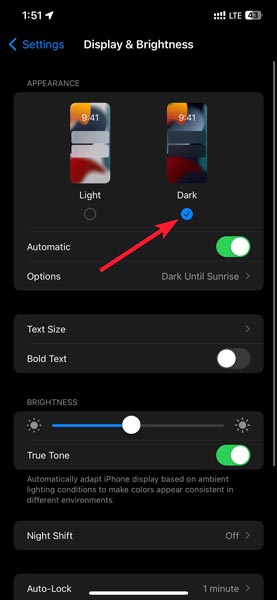
You should now be able to enjoy the dark mode on your iOS devices.
Enable Chrome Dark Mode on Android
Similar to iOS, the dark mode also entered Android in 2019. So, if you have an Android device running on Android 10 or higher, you can conveniently enjoy the feature and avoid hurting your eyes in a dark room.
Here’s how to enable the dark mode on an Android:
- Open the Chrome browser, tap the three-dotted menu icon at the top right corner, then select “Settings.”
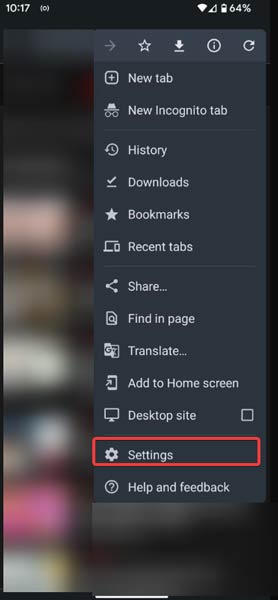
- Click “Theme” from the list, and pick “Dark.”
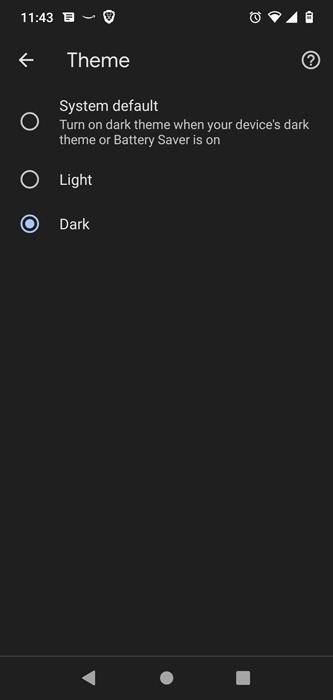
You should now be able to enjoy the dark mode on your Android devices.
Use Third-Party Dark Mode Extension
As you can see above, enabling dark mode isn’t as simple a process as it should be. So instead of jumping through those hoops, you can download a ready-made third-party Chrome extension that will let you turn on dark mode at the click of a button.
Super Dark Mode is a good option, giving you a dark mode toggle and many options, including a whitelist to stop specific sites using dark mode. It also has a specialized dark mode for many famous sites and social media platforms.
Here’s how to enable the dark mode using the Super Dark Mode extension:
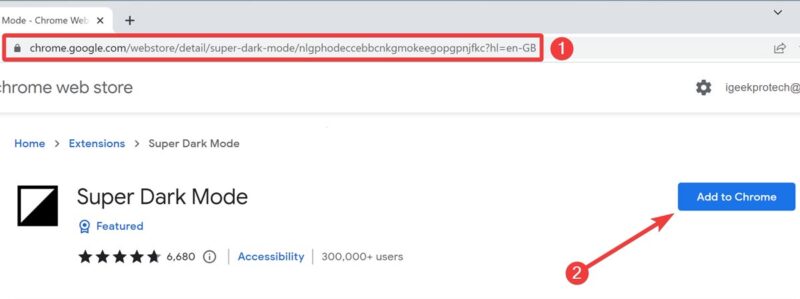
- Go to the Super Dark mode page in the Chrome web store and click “Add to Chrome.”
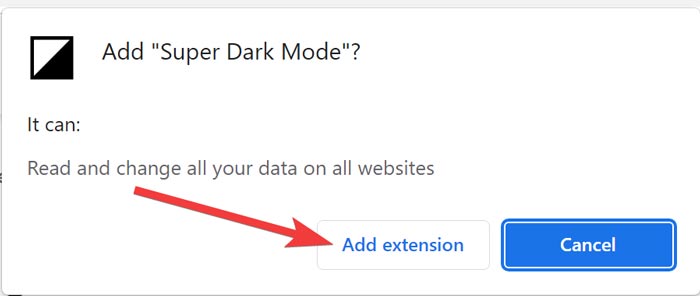
- Confirm the installation by choosing “Add extension.”
- Then select the “Extensions” icon and hit the “Pin” icon to attach Super Dark Mode to Chrome’s toolbar.

You should now be able to enjoy the dark mode on your devices.
Tip: You can also turn on dark mode in Microsoft Word, Snapchat, Facebook, and YouTube.
Frequently Asked Questions
Why doesn't Chrome have a dark mode?
Chrome’s dark mode (or other apps, for that matter) relies on the default color theme set on your operating system. Accordingly, if you want to use dark/light mode on Chrome, you must first set it on your OS. As a result, your operating system must support the feature before you can enable it; otherwise, it won’t work.
Does dark mode save battery?
Yes, the dark mode does help preserve battery life. However, the amount of battery life saved will vary depending on the screen technology used on the device.
Due to the lack of a backlight, the battery life savings in dark mode are more significant on OLED screens than on LCD (liquid crystal display) devices. As a result, OLEDs use less energy while showing dark-colored pixels. The difference is most noticeable when using an OLED screen outside and in sunlight.
Is dark mode better for eyes?
At this time, there is insufficient evidence to conclude that switching to dark mode reduces the risk of eye strain. More importantly, as dark mode causes your pupils to dilate more, it could possibly affect your vision, especially in intensely illuminated environments. However, dark mode may help reduce eye strain in low-light settings.
According to health experts, the best course of action is to turn off all electronic devices at least an hour or two before going to sleep.