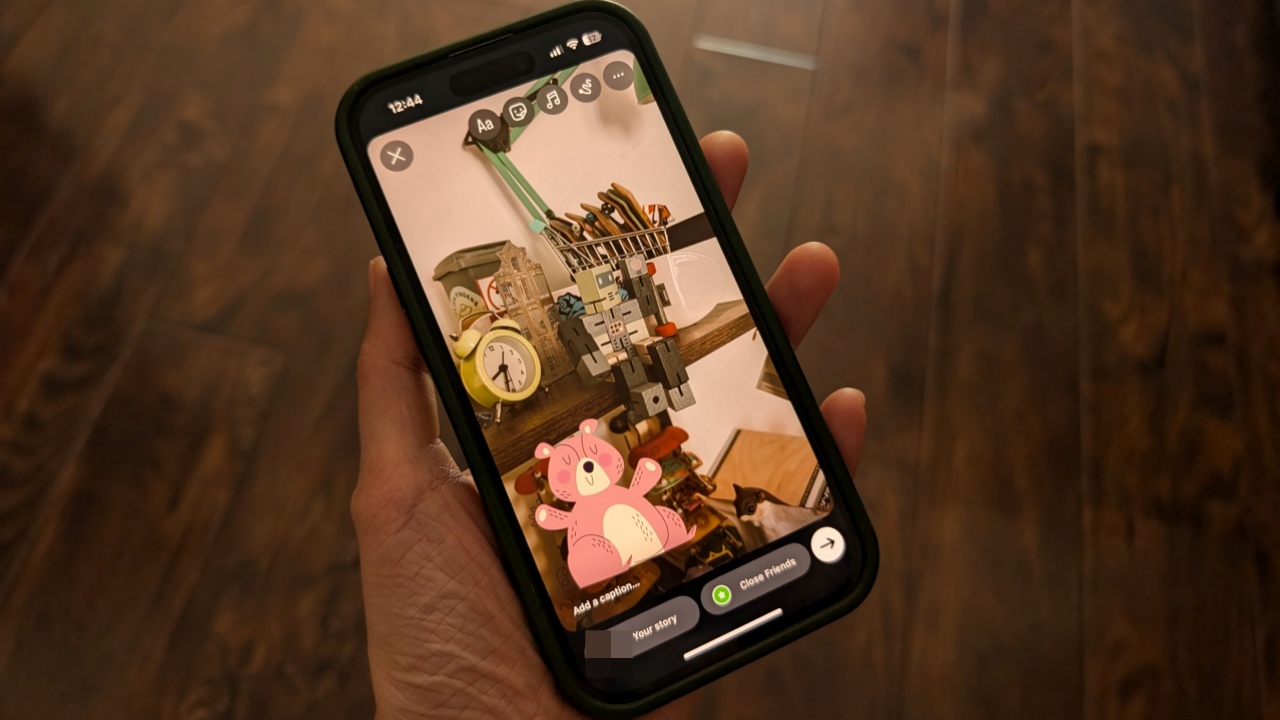
Adding stickers to your Instagram Stories is a fun way to make them pop. The feature taps into Instagram’s built-in sticker library, but sometimes you want something more personal. Luckily, you can upload your own custom stickers. This article explores the different ways you can do that.
Good to know: you can now reset your Instagram algorithm for a fresh feed. Here’s how.
1. With Instagram’s Cutouts Option
If you have a picture that you think might make a good sticker, you can transform it using Instagram’s Cutouts option in the mobile app.
Open the Instagram app and tap the + button at the bottom of your feed to create a new story. Snap a photo/video or upload it from your device.
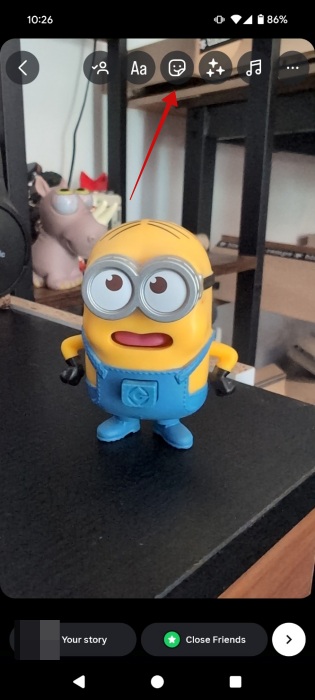
On the next screen, tap the Sticker icon at the top.
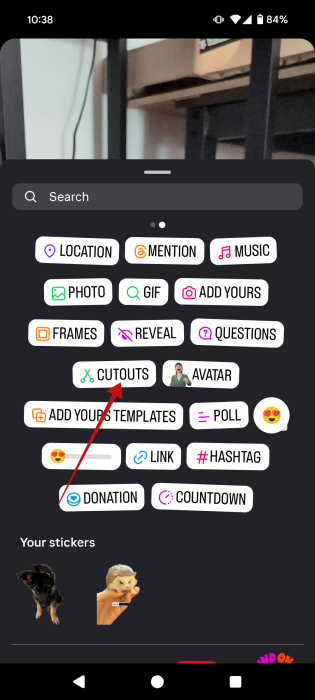
Select the Cutouts option.
Now browse your device for an image you wish to turn into a sticker. Tap it to select it. Instagram will automatically cut out the main subject in the photo. If you’re not satisfied with the result, you can opt to do it manually.
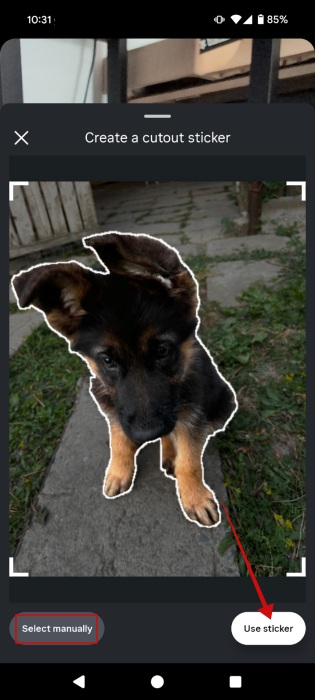
When you’re done, tap Use sticker to add it to your story. You can position it anywhere you want, or enlarge/shrink it.
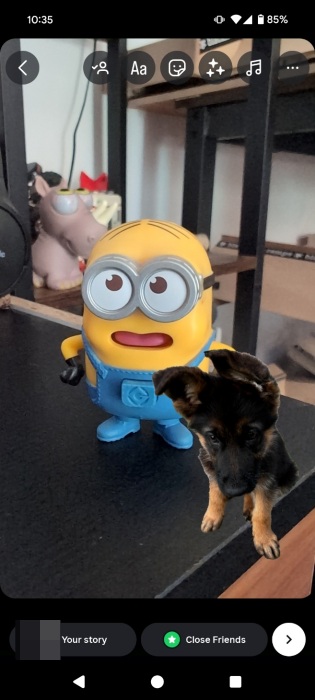
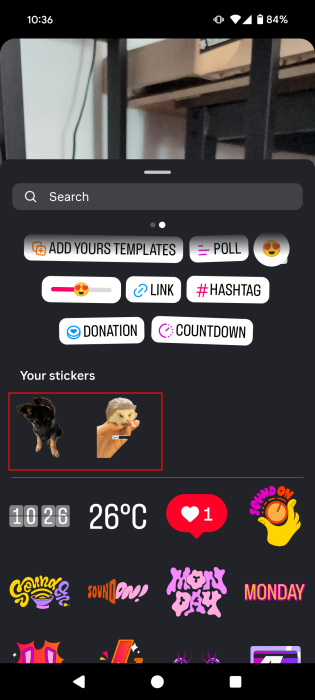
The sticker will be saved to your library, so you can access it later from Stickers.
Tip: here’s how to remove ads on Instagram for a cleaner experience.
2. Use Copy/Paste on iPhone
What if you have some cool stickers you’ve downloaded off the web or that someone made for you? The good news is that you can also use these on your Instagram story.
For the purpose of this article, we’ve assumed you’ve downloaded the sticker from the web from a website like Flaticon.
First off, create the story in the Instagram app as you’d normally do.
Next up, open the Files app on your iPhone. Find the sticker you’ve downloaded and tap to open it. Tap the Share button in the lower left corner.
Note: if the sticker is stored in the Photos app, the Share button should also be at the bottom.
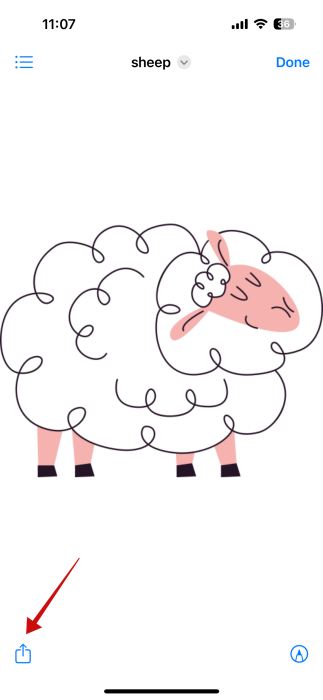
Tap Copy in the menu at the bottom.
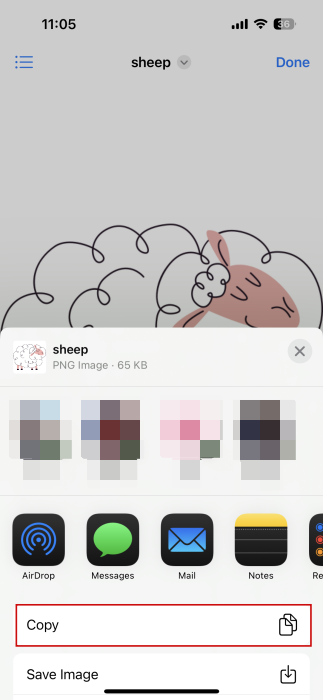
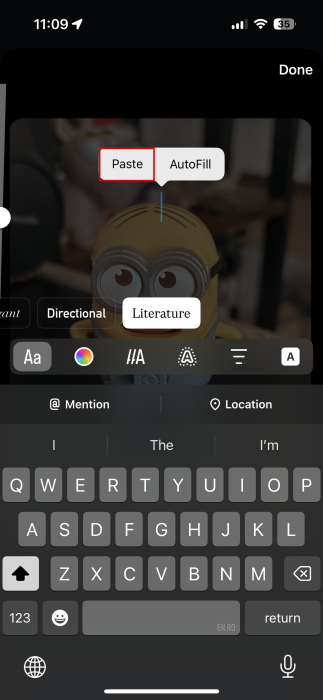
Return to your Instagram story. Press anywhere on the screen. This will activate the keyboard and text option. Ignore this. You should also see the Paste menu appear. Tap on the option.
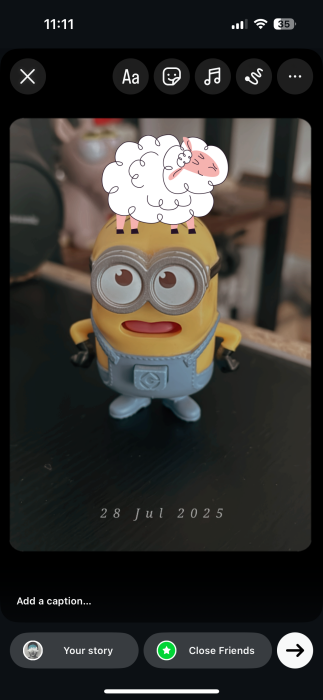
The sticker will now appear on the story. Like before, you can move it around, as well as enlarge it or make it smaller.
3. Use Copy/Paste on Android
On Android, we couldn’t find a similar embedded copy/paste functionality (despite reports on Reddit that the option exists, at least on Pixel devices). Fortunately, this can be solved by installing a third-party clipboard app such as Copy to Clipboard.
Install the app on your device and log into your main Google account if you want to, but it’s not necessary to paste custom stickers on your Instagram story.
Create the story on Instagram.
Then navigate to the custom sticker. In our case, we found the stickers in our Gallery app under downloads. Tap on the sticker to open it.
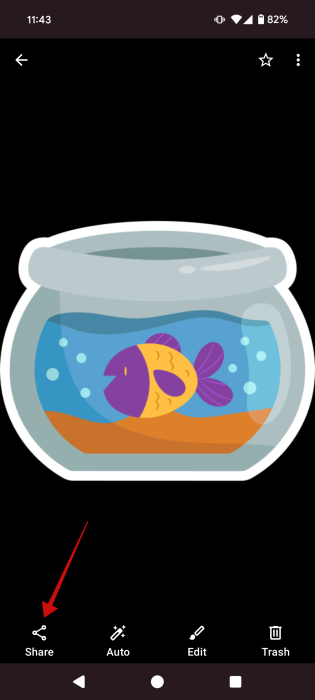
Press the Share button at the bottom.
Use the Copy (from Copy to Clipboard) option that appears in the menu below.
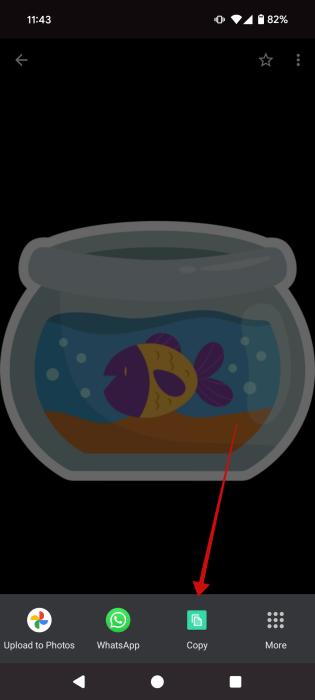
The image is now in your phone’s clipboard.
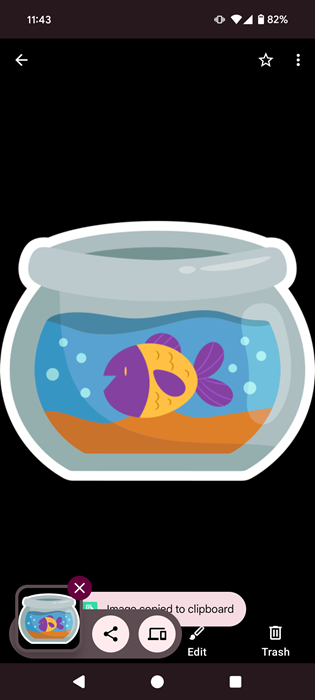
Go back to the Instagram app on the story screen.
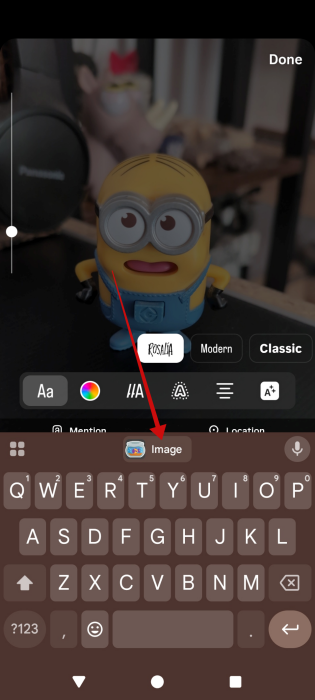
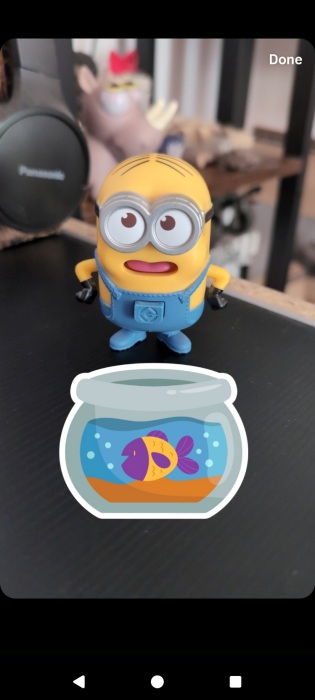
Tap anywhere to bring up the keyboard. Check the suggestion bar at the top of the keys. You should spot the sticker. Tap it to insert it.
Now you can arrange it as you want.
FYI: learn this trick that transforms Instagram Reels into travel itineraries within seconds.
4. Adding Custom Stickers With Gboard
Finally, you can import additional stickers to Instagram from your virtual keyboard. Most Android phones offer Gboard by default, so we’re going to use this for this example.
Create a story in Instagram and press anywhere on it to bring up the virtual keyboard. Tap on the Sticker icon.
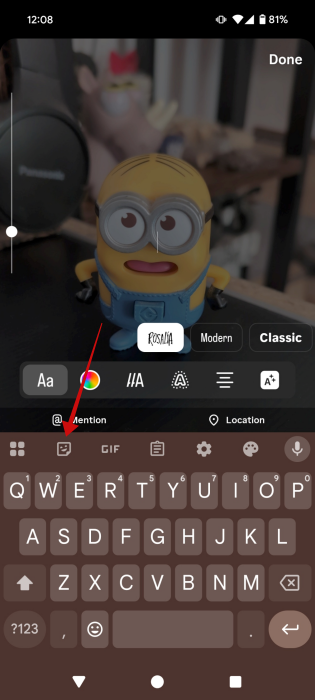
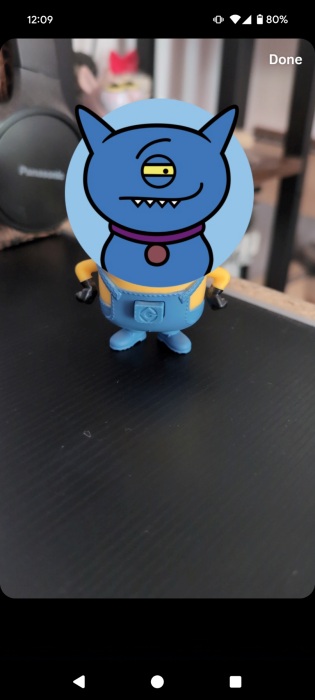
Swipe through the available stickers and tap on one to insert it into the story.
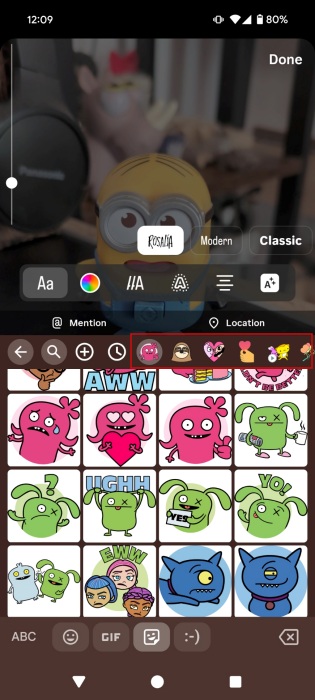
Arrange the sticker however you want.
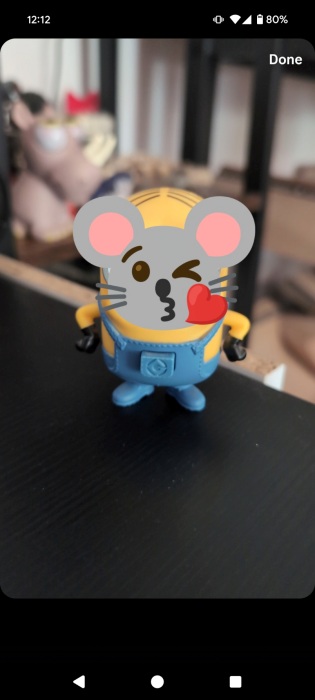
Alternatively, tap the emoji icon next to the Space bar.
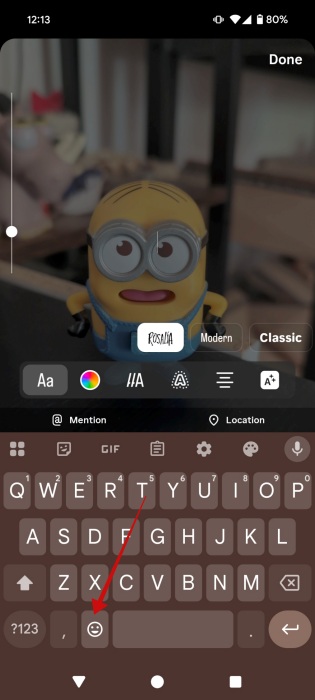
This way, you can access the Emoji kitchen and insert emoji combinations in sticker format from there. You can also insert GIFs.
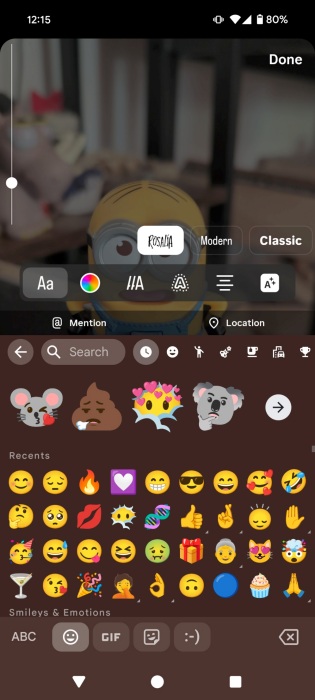
Then you can move the emoji around on your story.
If you need more tips on how to enhance your Instagram stories, read our post on how to change the background color of a story. Alternatively, here’s how to create a poll on Instagram.








