Terminal multiplexers didn’t just organize your workflow; they completely transformed how you interact with your development environment. They help you perform smooth operations while deploying code, debugging servers, or just tinkering with scripts. There are quite a few terminal multiplexers out there, such as Tmux and Screen. But if you are a beginner, you might find these complex or difficult to configure. That’s where Zellij comes in. It offers an easier alternative and works right away without any setup.
Key Features of Zellij
Zellij provides all the necessary features that modern terminal multiplexers need. Let us examine some of its features:
- Zellij is designed to be usable immediately after installation, without requiring users to create or maintain complex configuration files.
- It provides a built-in terminal user interface with a persistent status bar that displays active keybindings, the current interaction mode, and pane or tab information.
- Zellij uses a clear mode-based interaction system for managing panes, tabs, and resizing, while presenting available actions for each mode directly on screen.
- The pane system supports horizontal and vertical splits, intuitive keyboard navigation, dynamic resizing, floating panes for temporary tasks, and optional mouse interaction.
- Tabs allow you to group related panes into separate workspaces, making it easier to organize multiple tasks or projects within a single session.
- Zellij enables you to define reusable layout templates that specify pane positions and startup commands, allowing complete work environments to be launched instantly.
- Zellij runs as a background server process, allowing sessions to persist across terminal crashes, network disconnects, and system restarts, with support for reattaching and session resurrection.
- Zellij includes a WebAssembly-based plugin system for safe extensibility and provides a web client for accessing sessions through a browser.
Installation and Configuration
Installing Zellij through the system package manager is the recommended approach, as it integrates cleanly with the rest of the system. For example, to install it on Arch Linux, run:
sudo pacman -S zellijOn Fedora Linux, use this:
sudo dnf install zellijAlthough Zellij is available in most package repositories, it is not available on Ubuntu or Debian distributions. On those distributions, you can install through Snap.
sudo snap install zellij --classicAlternatively, for users who have the Rust toolchain installed, Zellij can also be installed via Cargo with:
cargo install --locked zellijHere, the --locked flag ensures the version and dependencies match what the project has tested.
In addition, Zellij provides a lightweight launch script that allows it to be run without permanent installation. It can be useful for quick evaluation or for temporary environments.
bash Lastly, on macOS, Zellij is commonly installed using Homebrew:
brew install zellijOnce you install it using any supported method, you can launch Zellij by typing:
zellij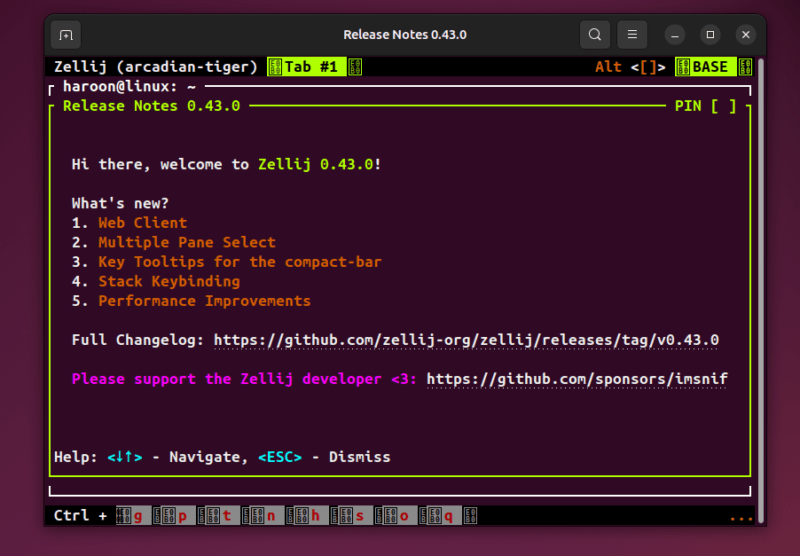
The interface opens immediately inside the terminal with a functional default layout. You can now use panes, tabs, and sessions without any prior configuration.
Note: Currently, Zellij is designed for Unix-like systems (Linux and macOS). Windows users can run it via WSL (Windows Subsystem for Linux) with great results.
Customizing configuration file
Zellij does not require a configuration file to be usable. However, if you wish to customize behavior, you can do so through a configuration file written in KDL (KDL Document Language), which emphasizes readability and flexibility. The configuration file is located at “~/.config/zellij/config.kdl”.
Through this file, you can customize keybindings, define default layouts, adjust interface behavior, configure plugins, and change themes. You can use these options entirely optional and introduce them gradually as your workflow requirements evolve.
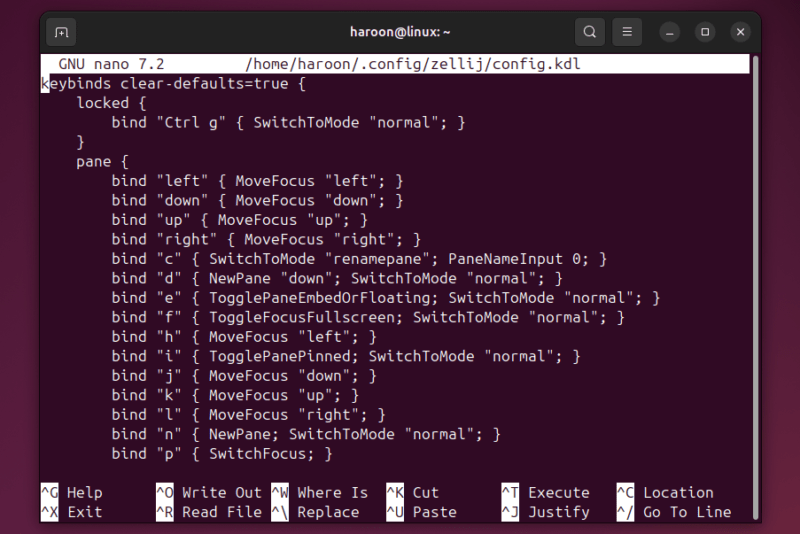
After making changes, save the file and restart Zellij for the changes to take effect. You can then gradually adjust settings based on your workflow needs.
Layouts, Sessions, and Keybindings That Finally Make Sense
The Zellij layout makes everything visible. As soon as you open it, a persistent status bar shows your current mode and available keys, so you never have to guess how to manage panes or tabs. This removes the constant context-switching that slows you down in other terminal multiplexers.
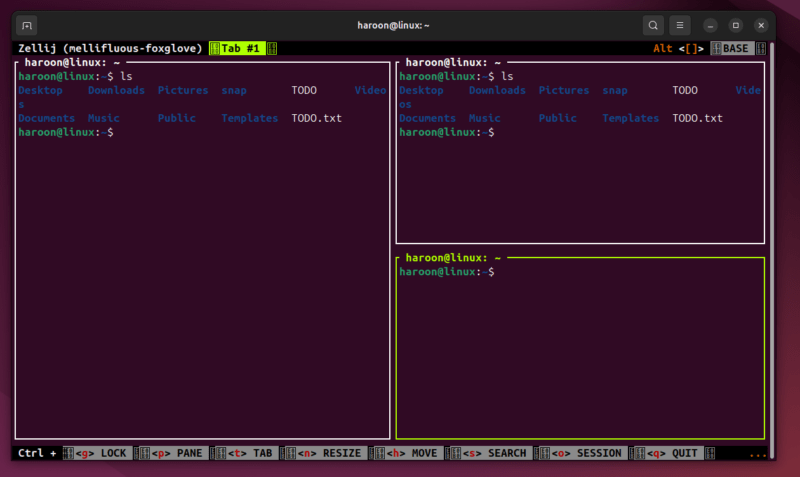
You define your layout once, and Zellij restores everything exactly as you left it, including running processes, logs, pane positions, and scroll history. Switching between projects takes seconds, with no manual rearranging every time you start work.
Another important aspect is that Zellij ties keybindings through modes. This means that instead of complex key combinations, you enter a mode and use simple, memorable keys. This makes Zellij easy to learn and fast to use.
Extending Zellij With Plugins and Extensions
This is where Zellij shifts from a simple tool to a powerful workspace. The plugin system uses WebAssembly (WASM), which means that it is fast, crash-proof, and works identically across any computer. Because they run in a secure sandbox, you can try out community tools without worrying about them crashing your entire terminal session.
Out of the box, Zellij includes essentials that make life easier. My favorite is Strider, a built-in file manager that looks like the sidebar in VS Code; it lets you browse and open files without ever leaving your terminal. You also get a Session Manager, which acts as a visual dashboard to help you name, organize, and switch between different projects instantly.
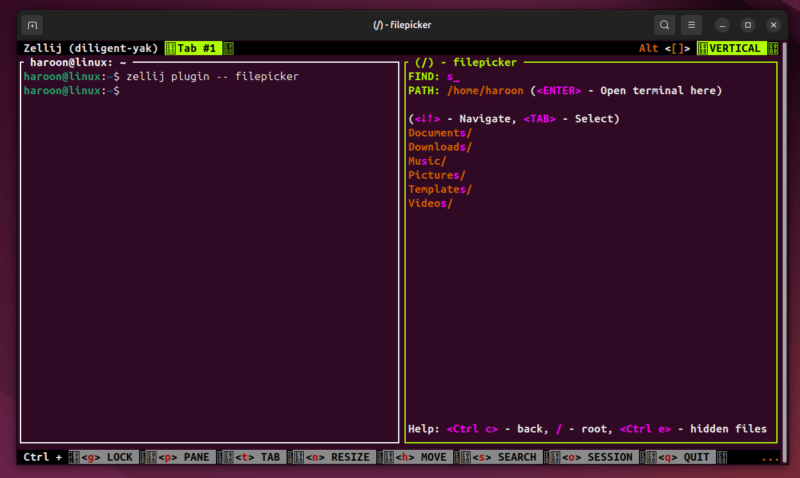
You can even customize your Status Bar to show exactly what you need, like your current battery life or active git branch.
Zellij vs Tmux: Should You Actually Switch?
Tmux is a tried-and-true terminal multiplexer that is lightweight, reliable, and found on almost every server. It’s ideal for working on remote machines where installing new software isn’t an option. Although Tmux can handle almost anything, it often feels complex to beginners.
In contrast, Zellij supports modern development workflows, especially on local machines. It works well out-of-the-box, with intuitive mouse support, a persistent status bar showing active keys, and a flexible layout engine that supports floating panes. These features make managing multiple windows feel natural, reducing the friction that slows you down in Tmux.
So should you switch? If you are a developer who spends most of your time on local machines, a beginner intimidated by Tmux, or anyone frustrated by complex configuration, you will find Zellij easier to adopt and more productive. Those who primarily work on remote servers or already have a perfected Tmux setup may not need to switch.
Final thoughts
If you spend a significant amount of time in the terminal, you should give Zellij a shot. It’s a great fit for terminal users who want to work efficiently in an organized workspace. Additionally, if you’re looking for tools that make the terminal more enjoyable, this guide is worth checking out.








