Staying productive depends a lot on using the right tool. I learned this after trying many “all-in-one” project management and team collaboration tools. None of them really worked for me. Things changed when I started self-hosting my own tools and discovered YouTrack. It makes my daily work far more productive. It helps me organize both my routine tasks and personal projects with ease.
How Discovering YouTrack Changed My Workflow
YouTrack is a project management and issue-tracking tool made by JetBrains. While it was meant for project management for teams, I realized it works perfectly for personal productivity too.
The interface is clean, tasks are easy to create, views are customizable, and nothing feels forced. I finally found a tool that adapts to how I want to work, not the other way around.
Self-hosting it gave me another benefit: I no longer depend on cloud services to plan my day. Everything runs on my own machine, and I can shape my workflow exactly how I need it.
Getting YouTrack Up and Running in Minutes
Setting up YouTrack with Docker is one of the simplest and quickest ways. For this purpose, I just created the required directories, ensuring my data would persist even if the container restarts.
mkdir -p /opt/youtrack/data
mkdir -p /opt/youtrack/conf
mkdir -p /opt/youtrack/logs
mkdir -p /opt/youtrack/backups
After this, I use the official Docker run command recommended by JetBrains to run YouTrack.
sudo docker run -d \
--name youtrack \
  --restart unless-stopped \
  -p 8080:8080 \
  -v /opt/youtrack/data:/opt/youtrack/data \
  -v /opt/youtrack/conf:/opt/youtrack/conf \
  -v /opt/youtrack/logs:/opt/youtrack/logs \
  -v /opt/youtrack/backups:/opt/youtrack/backups \
  jetbrains/youtrack:2025.3.110568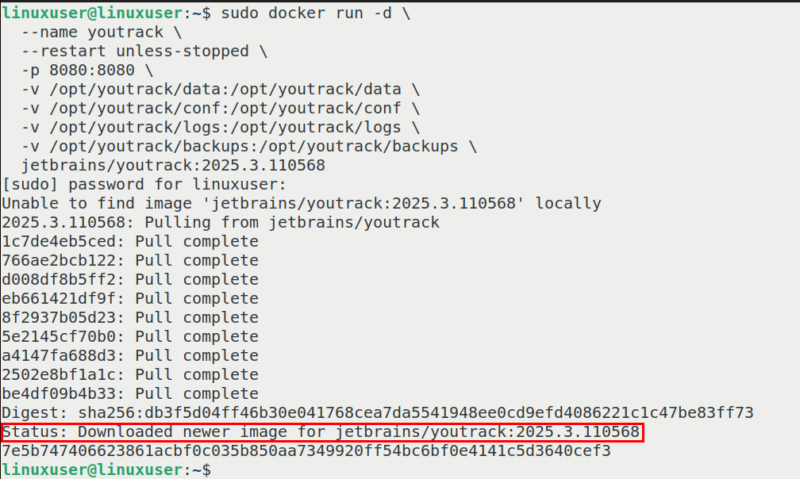
Once the container starts, type http://your-server-ip:8080 in your browser to open YouTrack. You’ll see the initial setup screen, where you can create your admin account.
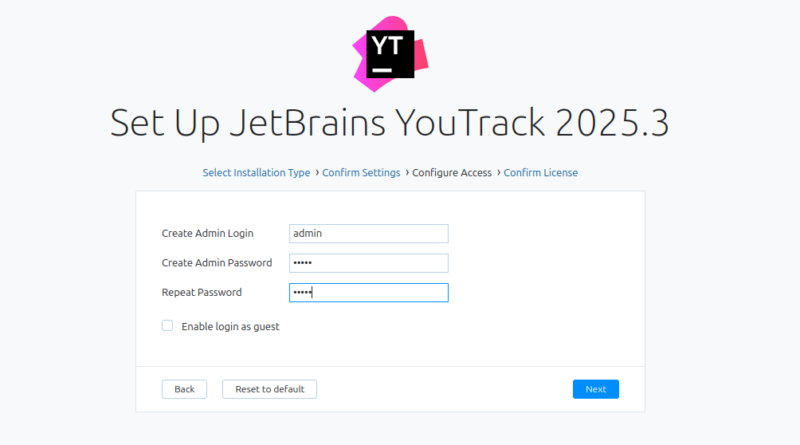
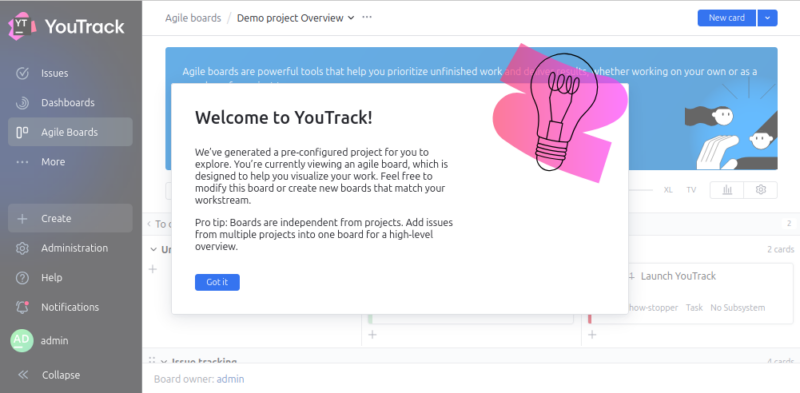
Click the Finish button to finalize the JetBrains YouTrack setup.
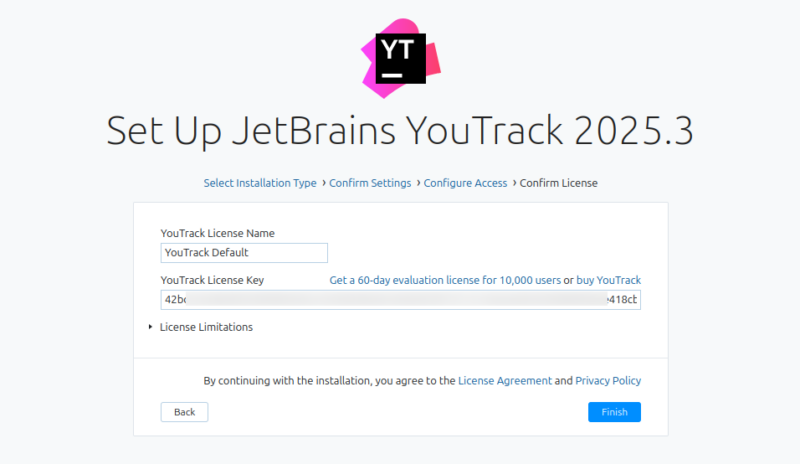
After completing the setup, you are all set to manage your projects with YouTrack!
How Personalized Dashboards Help Me Focus
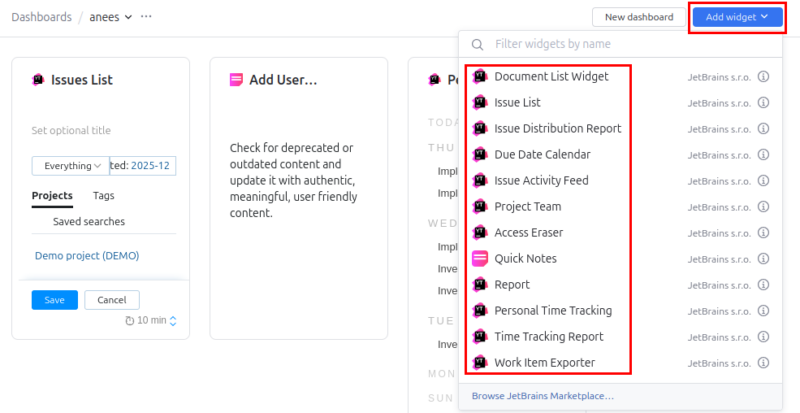
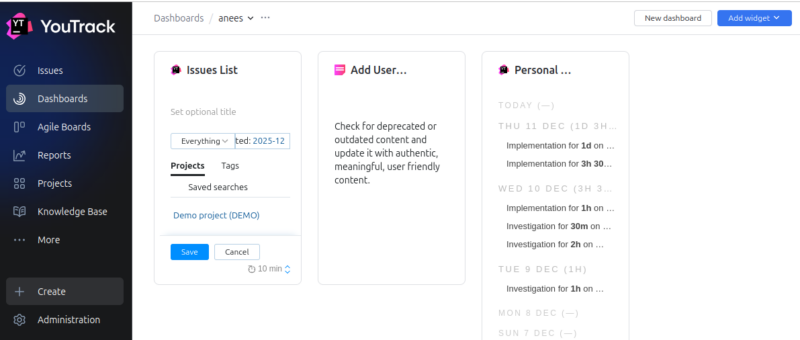
YouTrack’s custom dashboards are the first thing I check every morning. I set up widgets like my active tasks, upcoming deadlines, time spent this week, and tasks grouped by priority.
I can add widgets from categories like Issues, Reports, Agile Boards, and more. Each widget can be configured to show the projects or saved searches I care about, and I can adjust how the data is displayed to suit my workflow.
I can also arrange and resize the widgets, drag them around, and create sections like “My Tasks”, “Team Progress”, and “High-Priority Bugs”.
Having a personalized YouTrack dashboard has completely changed how I plan my day and stay focused. It acts like a control center for everything I need to get done.
Seeing My Progress with Agile Boards
Agile boards have been a game-changer for how I manage my work. YouTrack lets me create different types of boards for each project, including Kanban boards, personal boards, and version-based boards.
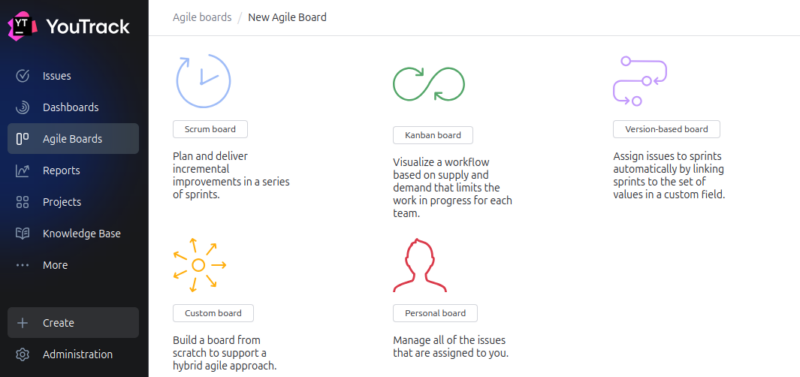
For most of my workflow, I stick to a simple Kanban setup with columns like To Do, In Progress, Review, and Done, which makes it easy to track the status of every task at a glance.
Dragging tasks across the board gives me a clear picture of where I stand and highlights what needs immediate attention. I can see which tasks are close to completion and which ones are pending, helping me prioritize my day effectively.
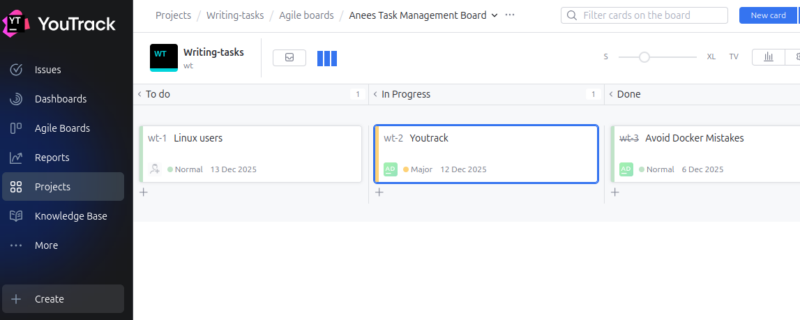
The visual nature of Agile boards also keeps me motivated. Moving a card to the Done column isn’t just satisfying; it provides a real sense of progress.
Before YouTrack, my tasks were usually just short notes like “write article”, “update website”, or “fix issue”. They didn’t give me directions. YouTrack taught me to add details. Now each task includes a short but clear title, notes or steps, priority, estimated time, and attachments when needed.
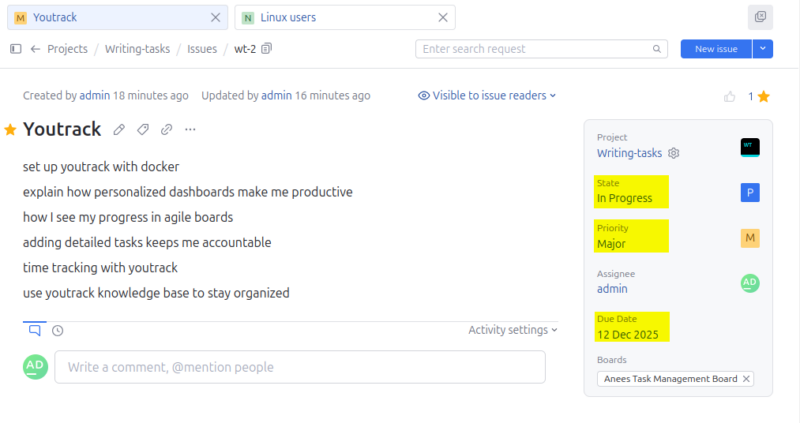
Writing tasks this way keeps me accountable. When a task has structure, I’m more likely to finish it. It also saves time because I no longer have to “remember” what I meant when I wrote the task.
Time Tracking Is a Bonus
I always struggled with time tracking. Most tools made it feel like a chore. YouTrack handles it differently. Its time tracking feature blends naturally with tasks. I simply log the hours when I finish something or track time as I work. The timesheet report shows: how long each task took, how accurate my estimates were, and where my time goes every week.
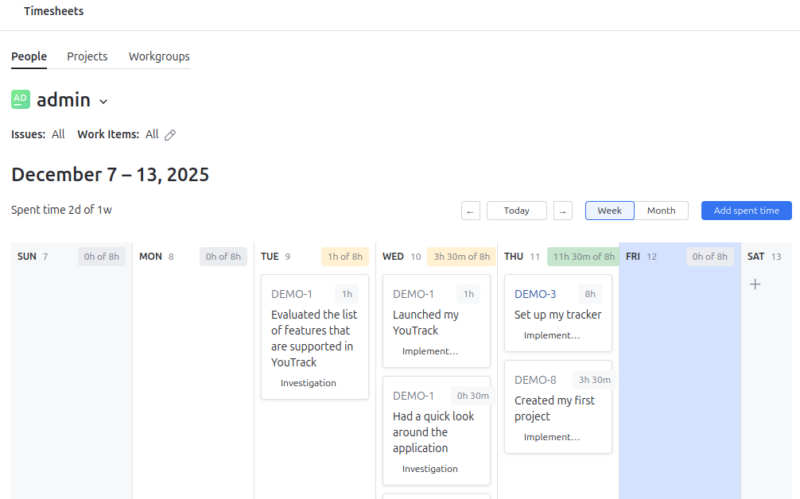
Seeing these patterns helped me improve my planning. I now estimate my work better and avoid overloading my schedule.
It Comes with Knowledge Base too
YouTrack also comes with a built-in knowledge base. I use it to store: notes, guides, research, meeting summaries, and project documentation.
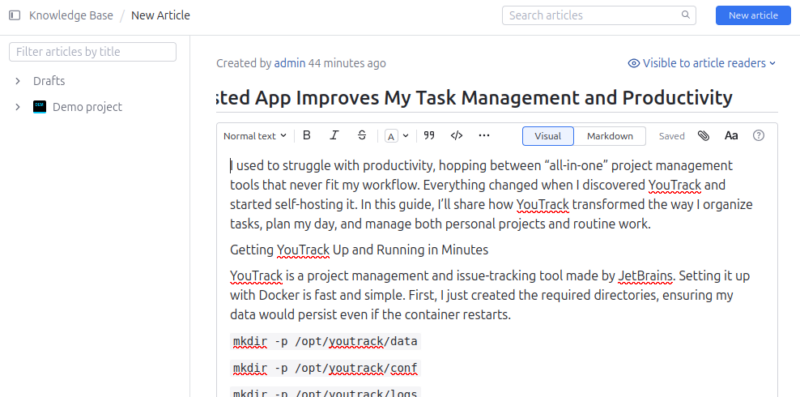
Everything stays connected to my tasks. When I open a project, the related notes are just a click away. It feels like having my own personal wiki, integrated directly into my task manager.
Wrapping Up
If you like simple tools, prefer full control, or want something powerful but not overwhelming, YouTrack is worth trying. It works for individuals, freelancers, developers, and even small teams. Apart from YouTrack, you can also explore other team and project management tools to boost your productivity.








