
There are many reasons to use a terminal-based file manager over a GUI tool. For me, it’s the ability to stay within a single app, avoid using a mouse, and benefit from tab completion. I’ve used Midnight Commander as my go-to file manager for the longest time, but I recently switched to Yazi. It’s a Rust-based tool that’s fast, feature-packed, and easily the best terminal-based file manager I’ve used so far.
What Is Yazi?
Yazi is a terminal file manager written in Rust that uses non-blocking async I/O. This allows you to handle multiple tasks at the same time, such as loading directory contents or previewing files, without freezing or slowing down. It’s one of those tiny utilities that can make your Linux experience even better. And in case you’re wondering, “Yazi” means duck in Chinese.
Speed is where Yazi really shines. Unlike tools like ls or eza that load everything at once, Yazi loads large directories in chunks. It fetches and displays only the files visible in your terminal, usually around 10 to 20 at a time, and this keeps the interface fast and responsive.
It detects file types, generates image previews, and calculates directory sizes in the background using multiple threads. Yazi only runs these operations when needed and handles them in small batches to reduce the load on your system.
When you scroll through files quickly, Yazi cancels any ongoing preview or background task related to the previous files. This way, it avoids wasting time and processing power on tasks you no longer need.
Good to know: Check out this simple terminal tool that provides a cheatsheet for any Linux command.
Installing Yazi
Yazi’s installation process is straightforward on both Linux and macOS. On Linux, the easiest method is to install it via Snap. Open your terminal and type:
sudo snap install yazi --classicIf you’d rather stay on the bleeding-edge version, use:
sudo snap install yazi --classic --edgeOn macOS, you can install Yazi even more easily since it’s available through Homebrew. Just type the following:
brew install yazi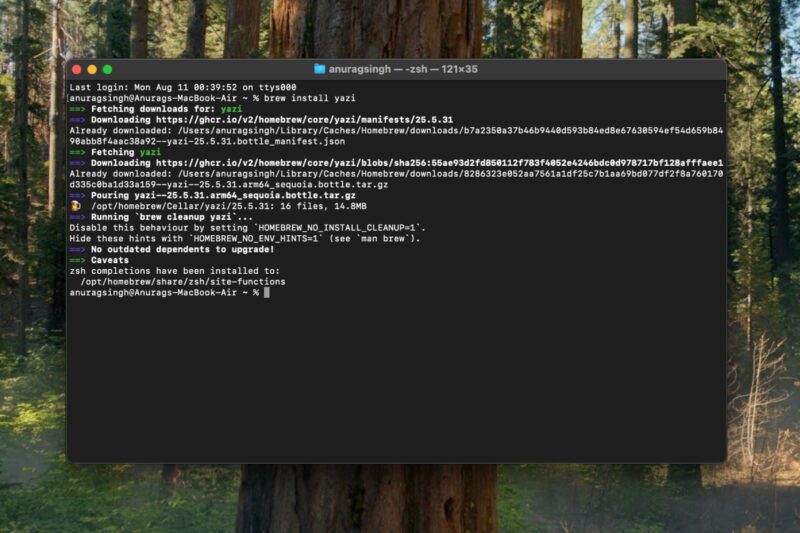
Features That Set Yazi Apart
Apart from speed and full asynchronous support, Yazi offers features you won’t find in other top terminal-based file managers. For starters, its task scheduling system comes with real-time progress updates, support for cancelling tasks, and automatic priority assignment to keep your important tasks running without hiccups.
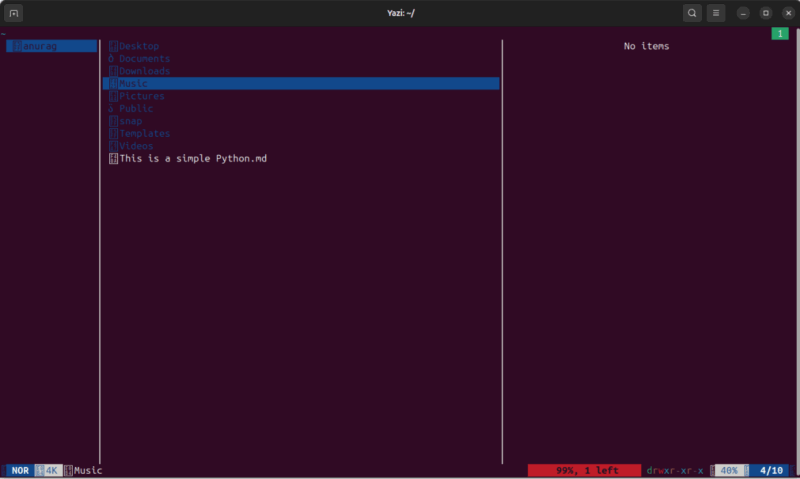
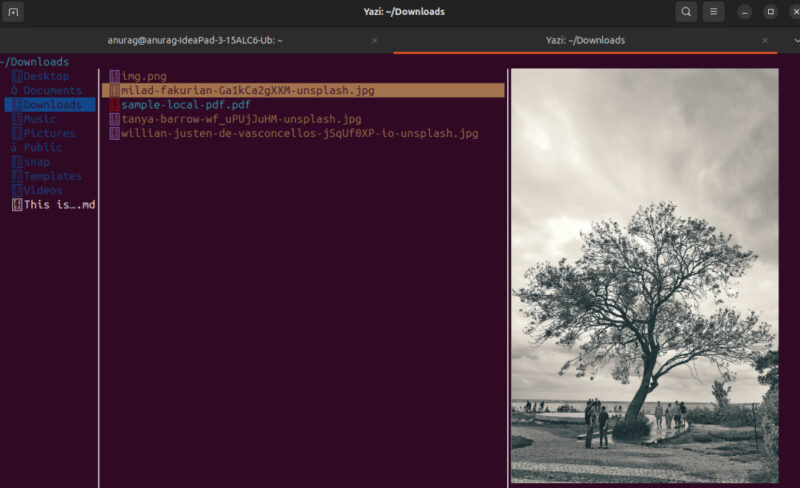
Yazi can also show you quick previews of images and code right inside the file manager, so you don’t have to open them in another app. It loads these previews almost instantly, making it easy to browse through photos or code files without waiting.
It also has a powerful add-on system. Instead of being stuck with the default look and features, you can change the interface, create your own preview tools, speed up how files load, and even tweak how it pulls in and shows information while keeping things fast.
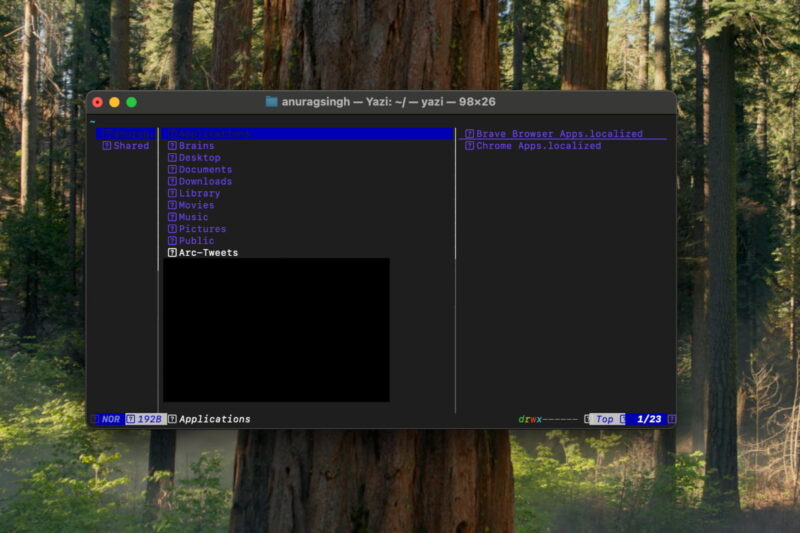
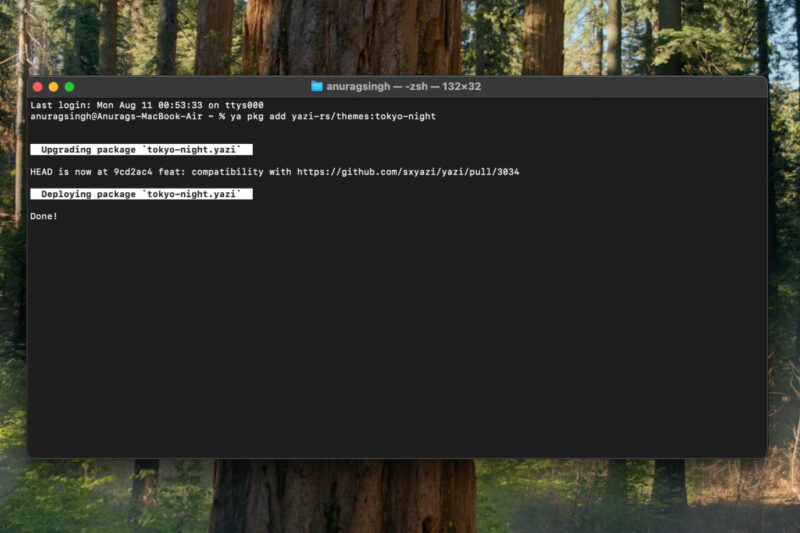
Yazi goes further with its ability to share information between different parts of the app without needing extra software running in the background. This means features like keeping your settings or file states in sync just work smoothly. It also has a built-in tool for managing add-ons, so you can easily install, update, or lock in your favorite plugins and themes.
Yazi works well with popular developer tools like ripgrep, fd, fzf, and zoxide, and offers handy interface elements for things like search, navigation, and quick actions. It makes managing files easier with features like multiple tabs, selecting files from different folders at once, and previewing videos, PDFs, or archives without opening them separately.
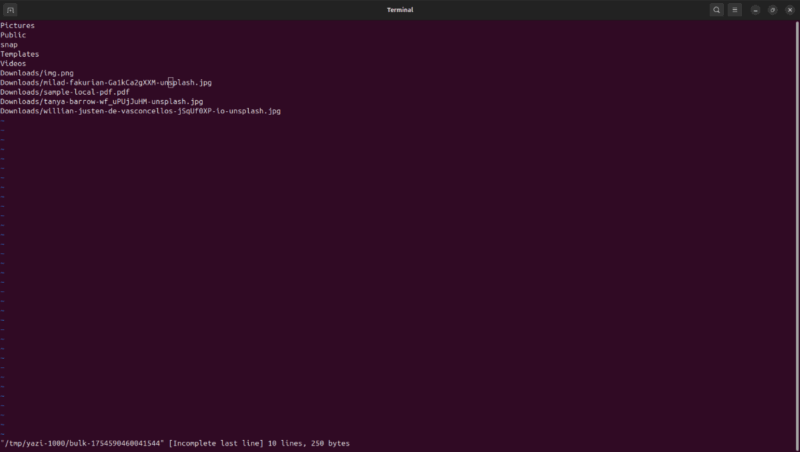
For advanced users, it packs in extras like bulk renaming, extracting files from archives, selecting multiple files visually, working with Git, and managing mounted drives. You can also make it your own with themes, mouse support, custom layouts, a built-in trash bin, a virtual filesystem, and support for advanced terminal features.
My Experience with Yazi after Months of Use
I’ve been a longtime user of Midnight Commander. It’s not bad by any chance, but after spending a few months with Yazi, it’s clear that it brings more to the table, especially for modern terminal workflows. What stood out immediately was how little set up the tool required. Features like image previews, video frame browsing, and PDF rendering worked out of the box in my system, without the need for shell scripts or custom config hacks.
In contrast to tools like Ranger and LF, which often need extensive tweaking or show performance hiccups, Yazi feels snappy and complete from the start. What I appreciate a lot is the image quality. Images look sharp in Yazi and even previews are sharper, while even Midnight Commander offers a subpar image quality.
Little touches like a shared clipboard between panes and full screen preview mode grew on me a lot. The CLI tool also makes plugin management and UI tweaks easy to handle.
But what’s most impressive is how quickly the project is evolving. New features are released at a steady pace, often solving problems before I even think to look for a workaround. Over time, I’ve stopped using Midnight Commander, Ranger, LF, and nnn entirely because Yazi simply fits my workflow better.
Yazi is a great tool, but if you’re a Linux user, chances are you use the command line for more than just file management. And if you’re anything like me, you probably like to shake things up in the terminal every now and then. You can easily make the terminal more enjoyable with these Linux terminal tools.








