

Now that you’ve learned how to install WordPress themes and plugins, let’s go over the most important part: adding content. Sure, you can install themes and plugins regularly, but you’ll need to add content regularly in order to grow your blog.
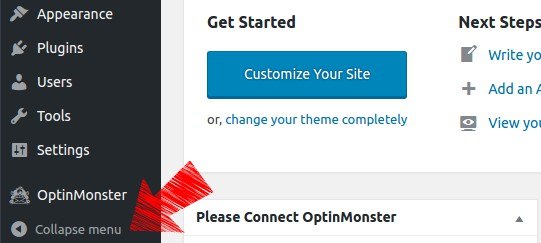
Refresher: by default, the menu on the WordPress dashboard is collapsed, but you can expand it by clicking on the little arrow at the bottom. Even though scrolling over each icon will display all of its contained submenus, it may help to keep the menu expanded while you’re learning your way around.
Adding Content to WordPress
Let’s get to the real reason why you’ve created a WordPress blog in the first place: to create content. Creating blog posts on WordPress are fairly simple; it’s the actual content and post structure that are a bit more involved and time-consuming.
Everyone has their own way of setting up their posts, and over time you’ll develop your own way (if you don’t already have one). There are plenty of guides to help you with this.
To get you started, First Site Guide and Problogger both have useful guides to help you create great blog content. Kissmetrics also has 22 Tips For Creating Great Content When You Don’t Have a Clue.
Creating Your First Blog Post on WordPress
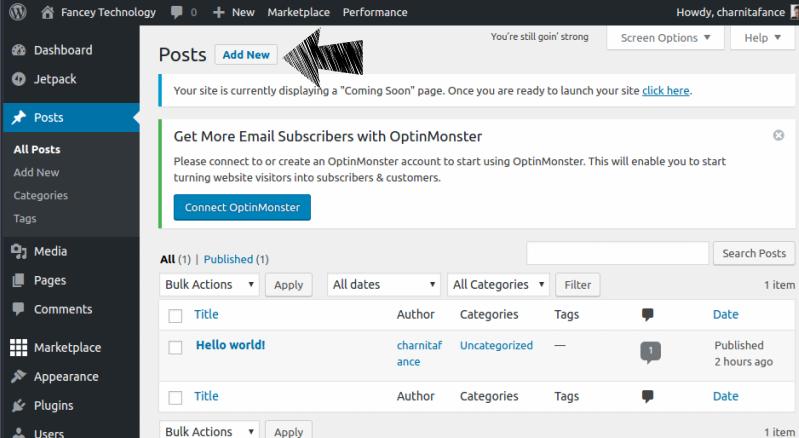
To create a new post, click on “Posts” and then click on “Add New” at the top of the page. Also, you can hover over “Posts” and click “Add New” to create a new blog post.
Note: you’ll see a test post titled “Hello world!” under “All” posts. You’re free to play around with it and should either delete or unpublish it so that it doesn’t show up on your live site.
Once you click “Add New” you’ll see the post editor. This is where all the magic happens. The “Visual” editor is enabled by default, but you can switch to “Text” at any time to add in HTML.
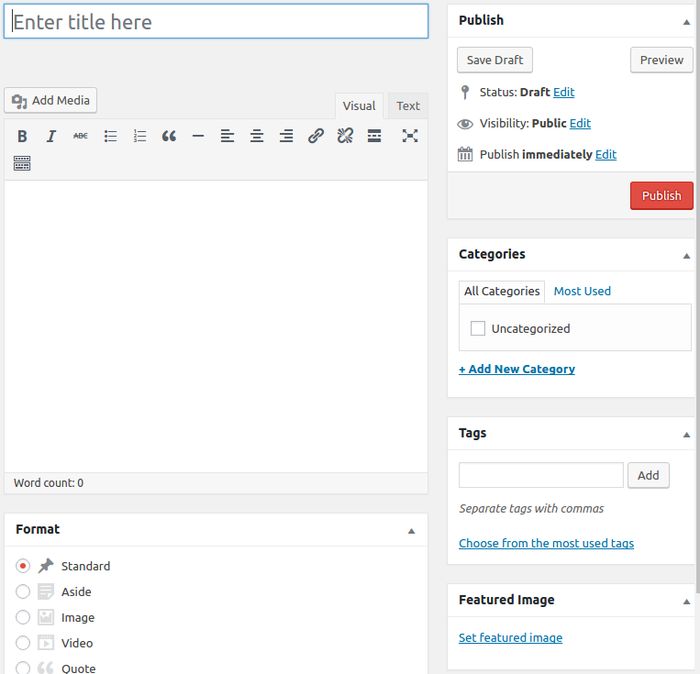
There are also sections for Categories, Tags, and Featured Image. Most themes use the Featured Image as the main image that shows up on the homepage of your blog to represent each post and often times at the top of your content once you go to the actual blog post.
Formatting Your Content and Adding Media
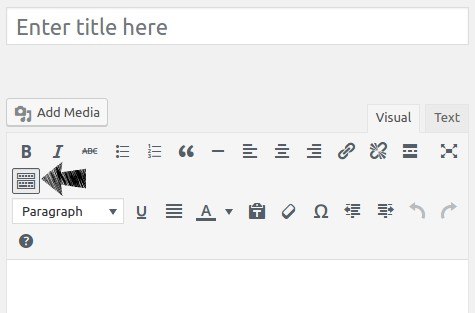
There are some basic formatting options on the post editor’s toolbar (like bold, italic, • bulleted lists, alignment). Clicking on “Toolbar Toggle” will bring up a few more options (like underline, text color, special character, indent).
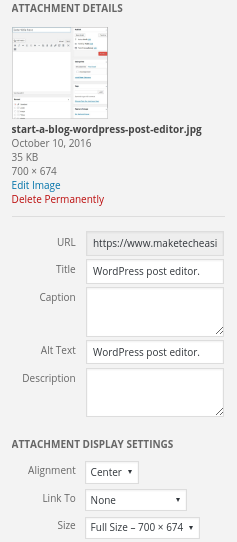
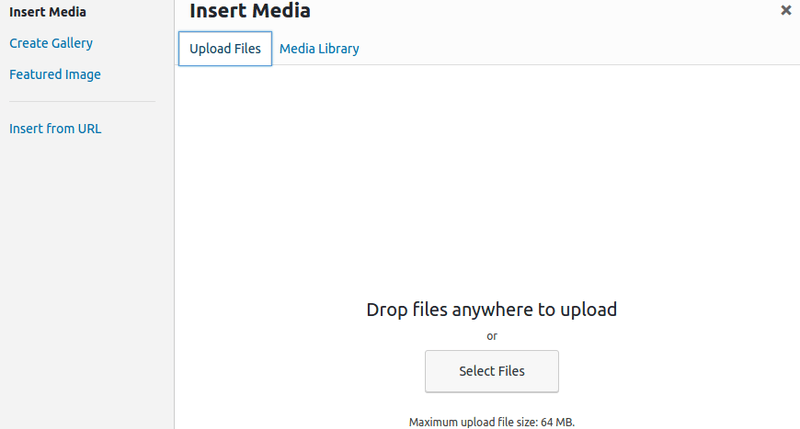
You can and should also add media (images and videos) to your posts. This is done by clicking on “Add Media” and then selecting the files from your computer. You can also add details about the files by filling in “Title” and “Alt Text” (among other things), which can be beneficial for SEO purposes.
Images and videos can be inserted anywhere in your text. You can either upload all your media at once and then add each one to the desired areas within your text, or you can upload and add each one individually as you’re writing (my personal preference).
Things Can Get Messy
Take a good look at the posting / writing area because this is probably the last time you’ll see it this clean! As you add new plugins, new sections will be added here automatically that allow you to add more features and customize your posts further.
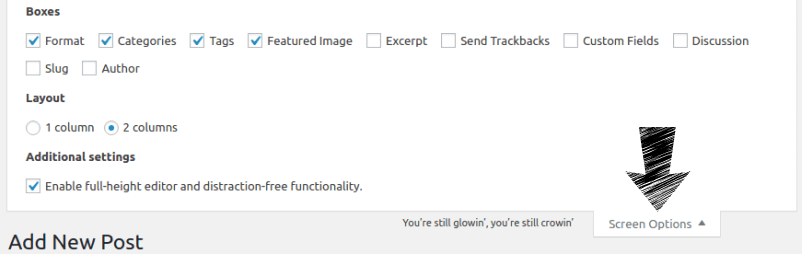
You can also click on “Screen Options” at the top of the page to bring down a menu that lets you enable and disable sections as desired. This is a great way to hide sections that you never use. You can also switch to a one column setup instead of the default two columns.
Publishing Your Blog Posts
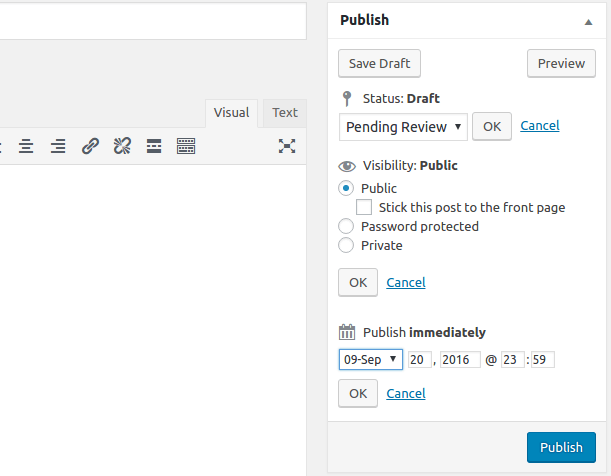
Also, pay attention to the “Publish” section. Here you can switch your posts from “Draft” to “Pending Review” (great if you have other contributors) as well as publish publicly, privately, or with password protection. Lastly, you can publish posts right away or schedule them for later.
I mentioned having contributors above. You can add new users manually or have them sign up and then give them a role of “Contributor,” “Author,” or “Editor” so that they can add content.
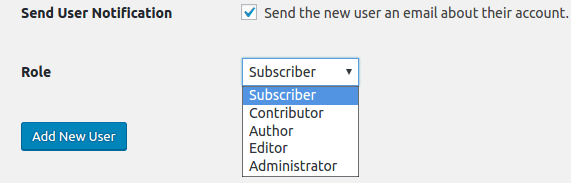
Contributors can’t publish posts and won’t see that option in the post editor. They’ll only be able to set them as “Pending Review” so that you can look over and publish their posts when ready. You can learn more about WordPress user roles and permissions here.
Wrapping it All Up
Now that we’ve gone over how to customize your WordPress blog with themes, plugins, and content, you should be well on your way to creating the blog of your dreams!
Content is the meat and potatoes of your blog, so it’s important to add content consistently – whether once a week, three times a week, or seven days a week. No one wants to follow a blog that is rarely updated or updated inconsistently. An editorial calendar also works wonders.
Feel free to leave a comment below with any questions you may have about adding content to your blog. If you don’t mind sharing, let us know what you decided to write for your very first blog post.