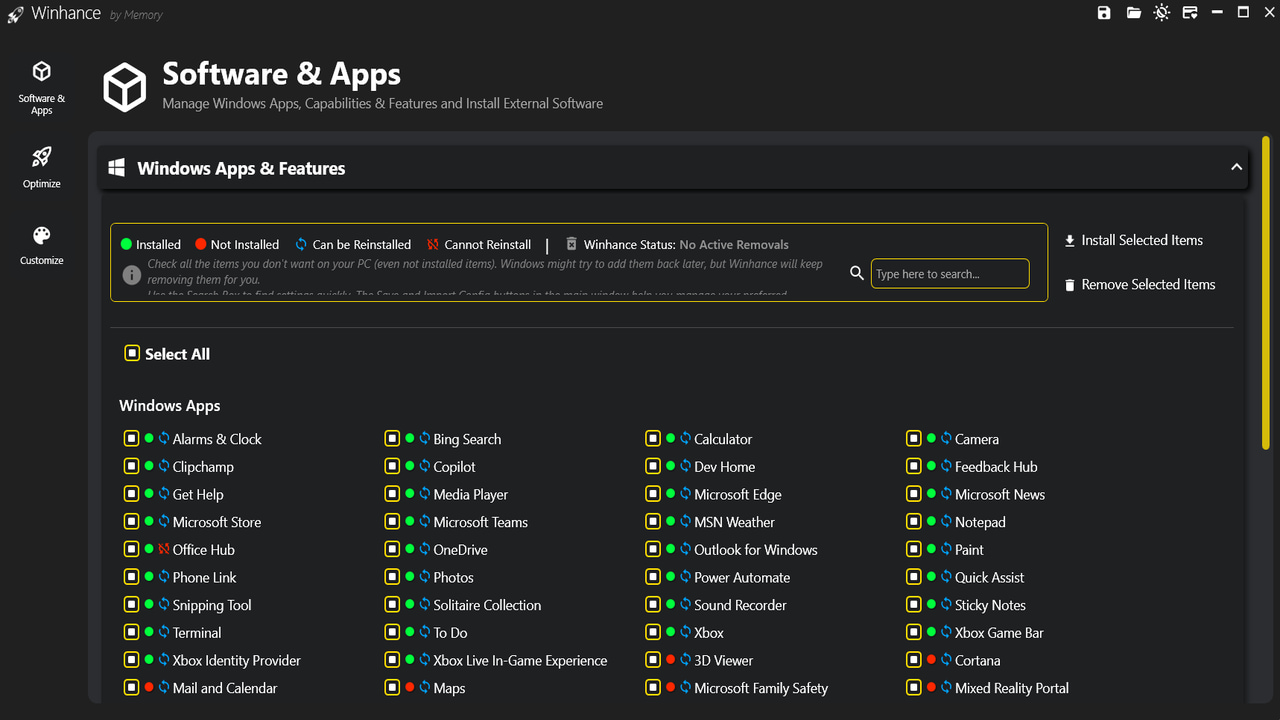
Downloading a bunch of PC optimization apps is the first thing I do on a new PC or after reinstalling Windows. But once I tried Winhance, I ditched every other optimizer app. It does almost everything I need to optimize and speed up Windows 11. Here’s how this all‑in‑one utility can supercharge your PC experience as well.
What to Expect From Winhance?
Winhance is an open-source and free Windows utility that lets you debloat Windows and configure its options to improve PC performance. Unlike debloat scripts, it works manually and puts complete control in the user’s hands.
It was initially released as a PowerShell script, but it has received some major upgrades over the past few months. From version 4 onwards, it has become a dedicated Windows app with its own installer/uninstaller.
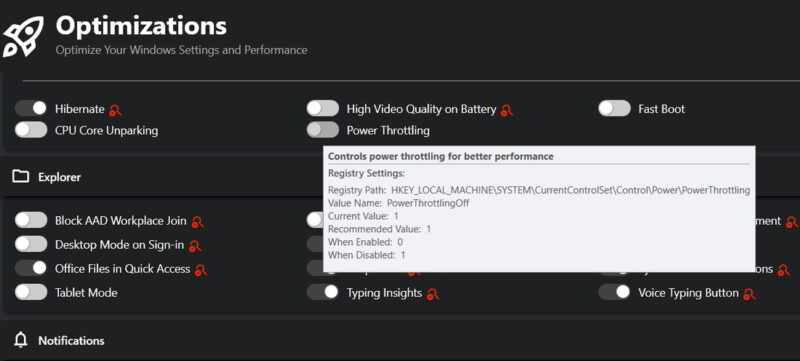
Most of the settings in the app work as a toggle, which you can enable/disable to tweak your PC settings. When you hover over an option, Winhance will tell you what the option does and its recommendation whether to keep it enabled or disabled.
Best of all, all your configurations can be exported, so you can set it up on new PCs in just a few clicks. Even if you are manually setting it up, the Search bar at the top lets you quickly access the tweaks you need.
Adding and Removing Apps
Manual debloating is one of the main highlights of the tool. It lists all the Windows apps and optional features to add or remove. There are indicators (with explanation at top) showing which apps are currently installed, not installed, can be reinstalled in an update, and cannot be reinstalled. Knowing the status, you can select apps to uninstall.
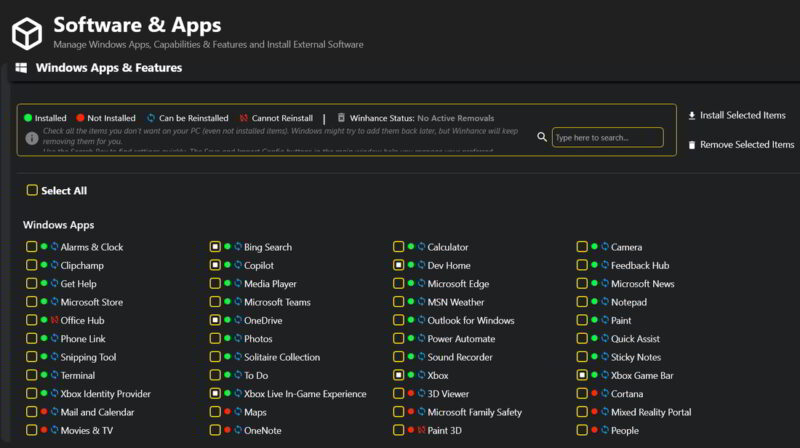
Interestingly, Winhance creates a task schedule to make sure these apps stay uninstalled. Even if the app is (re)installed in the next Windows update, it will get uninstalled at the next startup.
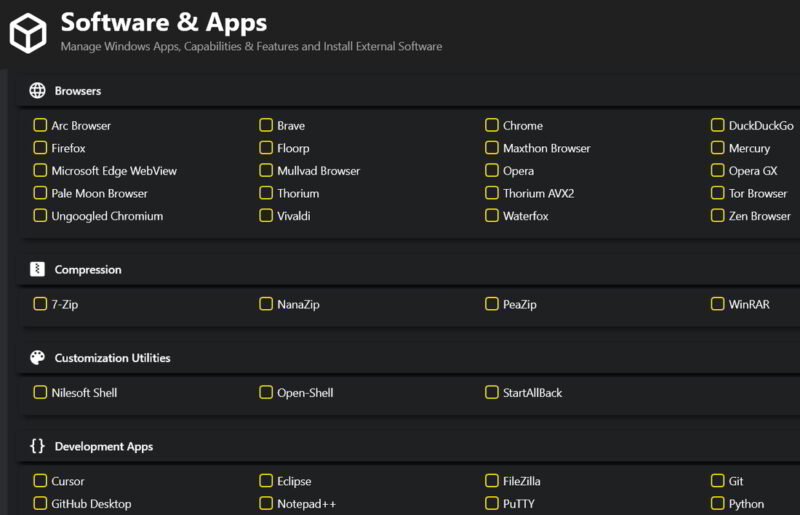
At the bottom, you can also choose third-party apps to batch install. It covers most of the popular apps, including 7-Zip, StartAllBack, Notepad++, FileZilla, Greenshot, WinDirStat, Steam, Discord, and over 20 browsers. For me, it covers most of the apps I use, including some less popular ones like SDI Origin, which I didn’t expect. The installation process was also very smooth, with a simple progress bar with a notification at the end telling which apps were installed.
Optimizing Windows 11 With Winhance
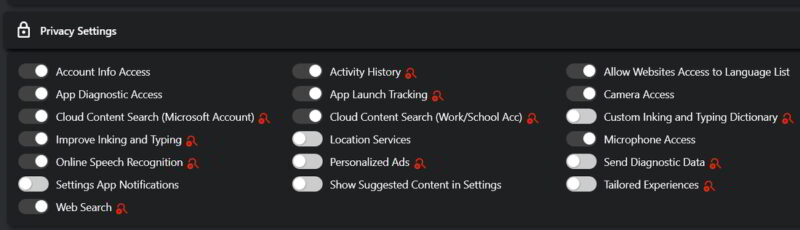
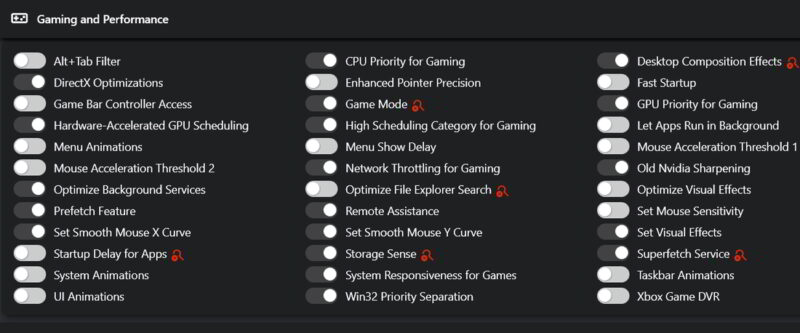
If you move to the Optimize tab, there are a bunch of sections containing different tweaks. Here, the Privacy Settings and Gaming and Performance are the important sections containing most of the tweaks.
Privacy Settings has all the features that either directly share information with Microsoft or are vulnerable to revealing information. Of course, many of these are important for Windows functions, so you don’t want all of them disabled. However, there are a bunch that can be disabled without any issues, like ads, diagnostic data, behavior trackers, etc.
The Gaming and Performance section has both tweaks to boost performance and enhance visuals. You’ll have to adjust settings based on your performance goals, but following the recommendation of Winhance is a good start. I prefer performance over visuals. In the screenshot below, you can see I have disabled most of the functions affecting performance, with the rest enabled.
Apart from these, there are many more tweaks related to different Windows functions like Windows updates, power settings, file explorer, notifications, start menu, etc. While many of these tweaks are rather minor or already found in Windows settings, there are some powerful ones as well, like disabling throttling, managing CPU core parking, and Ultimate Performance mode.
Overall, Winhance is a great all-in-one Windows optimization app offering features that actually make a difference. Since it’s still new with updates releasing bi-weekly, I expect many more features to come soon. If you are looking for better performance, you can also try these manual tweaks to optimize performance.








