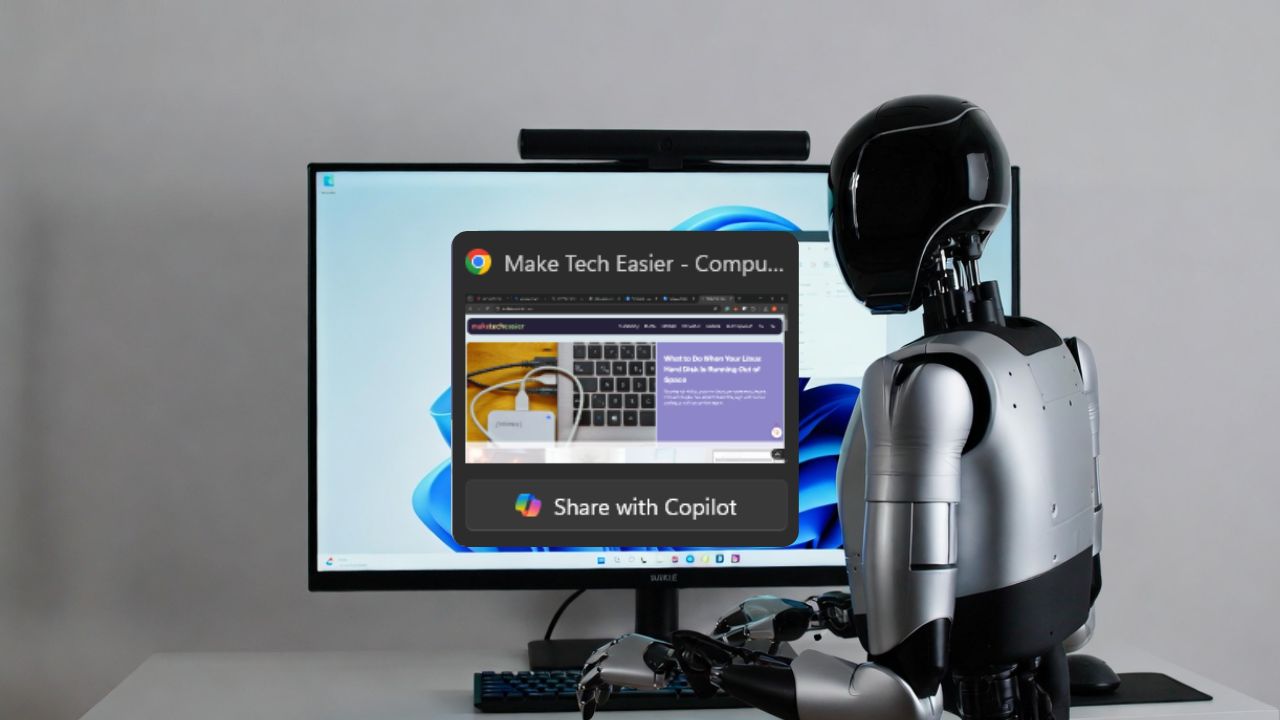
Microsoft is pushing Copilot deeper into Windows 11, and the latest change is hard to miss. A new “Share with Copilot” option prompts you to let AI peek at your open apps directly from the taskbar to offer help. It sounds useful, but it also raises real privacy questions, especially since it shows up enabled by default.
Understanding Share with Copilot Feature
Share with Copilot is a new taskbar feature in Windows 11. When you hover over an open app on the taskbar, you may see an option to share that window with Copilot so the AI can understand what you’re working on.
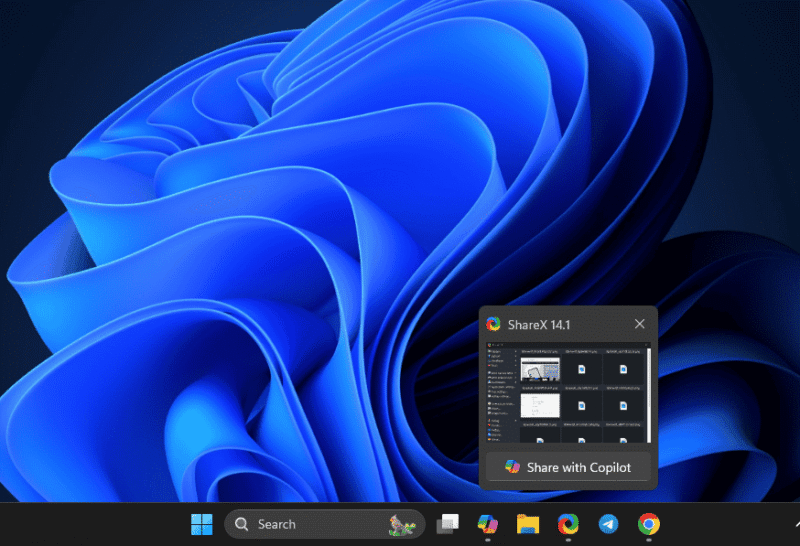
The idea is simple. Instead of copying text and explaining a problem, you let Copilot see the app directly. It can then suggest edits, explain content, or help you take the next step.
Microsoft positions this as a faster and more natural way to use AI within Windows, particularly for applications such as Outlook, Word, or Edge. Although it’s meant to skip protected content like Netflix or even a VPN, the option showed up for all apps on my laptop.
If you’re still unclear on what Copilot is meant to do across Windows, Microsoft’s broader vision becomes clearer when you look at how Copilot already works system-wide.
Why Microsoft Built It This Way
The goal behind Share with Copilot is simple: make your day easier. Microsoft wants Copilot to feel like a built-in assistant, not a separate tool. Giving it access to app windows removes the back-and-forth and makes AI help feel instant.
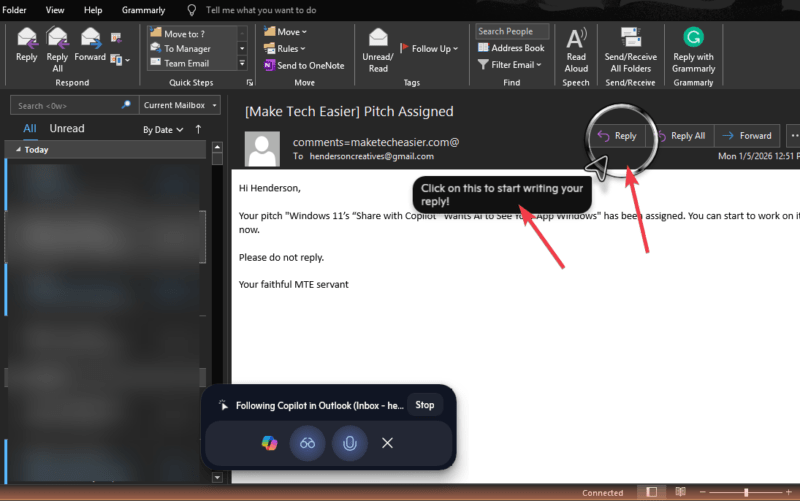
This design also supports Copilot Vision, which relies on visual context instead of typed prompts. It scans visible shared windows, highlights parts, suggests actions, or even writes responses.
Another reason is consistency. Features like voice activation and taskbar integration aim to make Copilot always available.
While everything is read-only, so AI doesn’t control your apps directly, this approach mirrors earlier additions such as “Hey Copilot” voice command. And that already sparked debates about always-on AI in Windows.
From Microsoft’s perspective, this is about seamless productivity. However, as a user, it’s about how much access is too much.
The Privacy Risks You Need to Know
Here’s where Share with Copilot becomes uncomfortable for me. When you share an app window, Copilot can see everything visible in that app. That could include emails, sensitive documents, chats, or work dashboards.
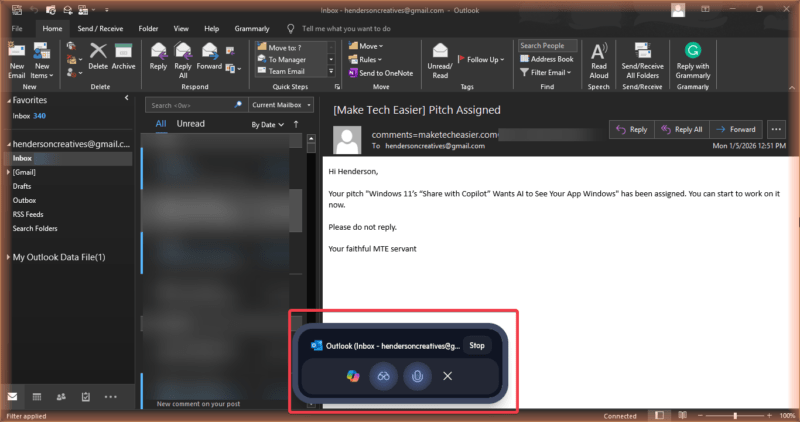
Since Copilot is strictly cloud-based, if sensitive info slips through, you have no idea how or what it could be used for.
The bigger concern is that this feature is enabled by default when it rolls out, pushing you into the AI world without asking.
If you’re like me and already uneasy about AI tracking habits or Windows bloat, this feels like another quiet step towards less control.
Microsoft’s AI Push: From Recall to Copilot Vision and the Backlash
This feature doesn’t exist in isolation. It follows the same path as Recall, the AI feature that captured screenshots of your activity and triggered strong backlash over privacy concerns. That controversy made many users more cautious about new AI tools in Windows.
Add Copilot Vision, voice activation, and constant taskbar presence, and a pattern emerges. Microsoft is building an AI-first operating system. Online reactions show growing frustrations, with some X users actively looking for ways to limit or remove Copilot from menus and right-click options.
Also, Microsoft’s restricted APIs favor its tools, limiting alternatives. Hence, they can maintain their monopoly without worrying about competition. This is a crucial fact to know before deciding if Windows fits your privacy needs.
How to Turn Share with Copilot Off
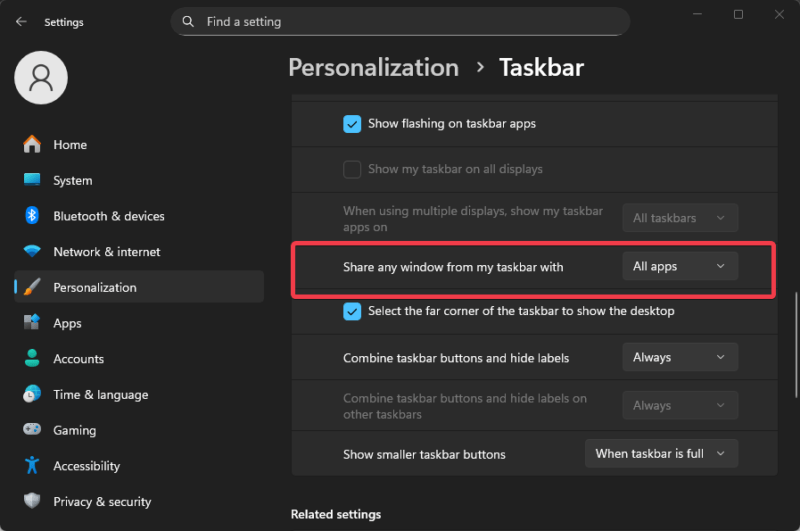
If you’re not comfortable with Share with Copilot, thankfully, you can disable it. Head to Settings -> Personalization -> Taskbar.
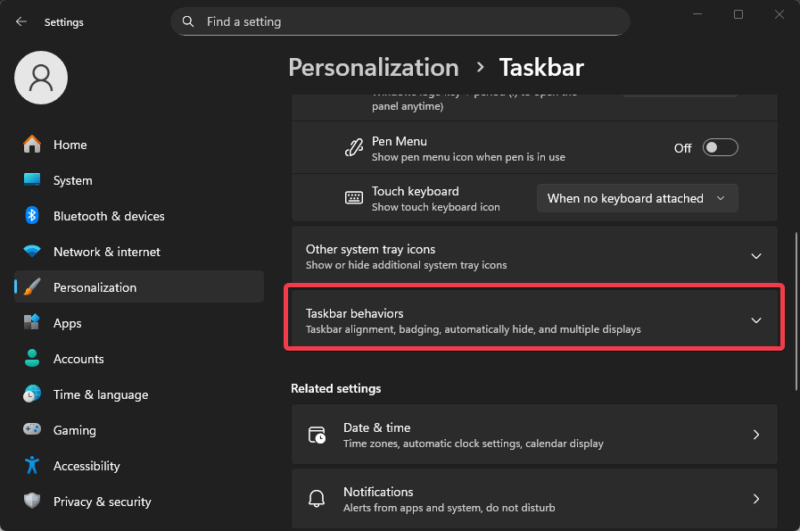
Expand Taskbar behaviors and set Share any window from my taskbar with to None. Alternatively, you can limit it to just communication apps.
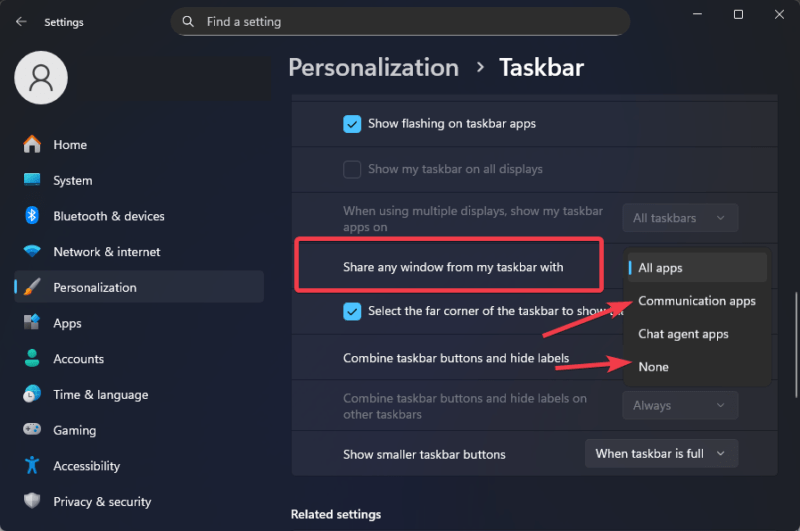
This disables it fast, keeping your Windows 11 taskbar clean without breaking other features. For more tweaks, explore our best tips for the Windows 11 taskbar.
Extra: You can also disable annoying Windows 11 features immediately.
The idea behind Share with Copilot promises smarter Windows 11 use. However, Microsoft’s heavy AI integration has left a lot to be desired.
While it may save time, it’s also asking you to trust AI with your on-screen activity. If privacy matters to you, this is one feature you should review sooner rather than later.








