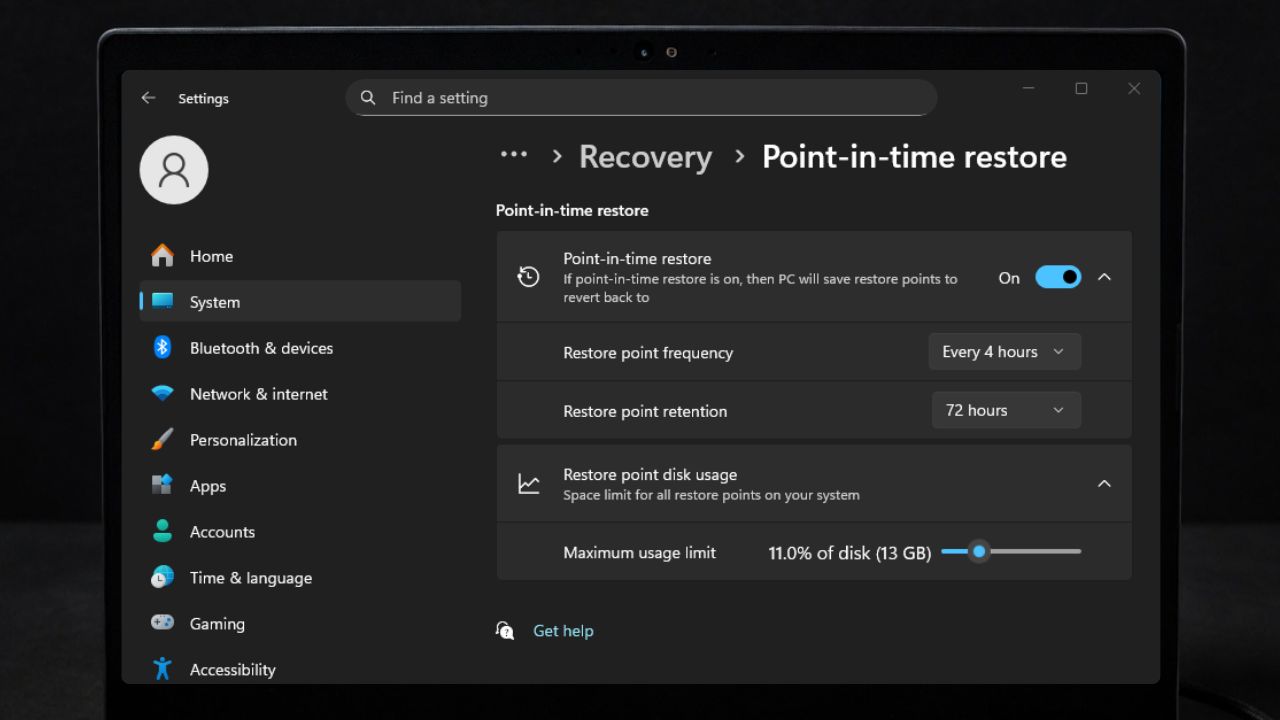
When Windows breaks, it rarely gives you a warning. One update, one driver, or one setting change can derail your entire setup. Windows 11 Point-in-Time Restore is designed for moments like that. It’s a smart Windows recovery feature that gives you a fast way back when things suddenly go wrong.
Windows’ Built-In Safety Net
Windows 11 Point-in-Time Restore works like a rewind button for your PC. At regular intervals, Windows saves snapshots of your system state, including system files, apps, settings, and user data. If something breaks, you can roll back your PC to a recent point when everything was working normally.

What makes this feature valuable is how little effort it requires. Once enabled, it runs automatically. You do not need to remember to create restore points or manage them manually.
Unlike the traditional System Restore, which focuses mostly on system files and skips a lot of your data, this one uses Volume Shadow Copy tech for a fuller picture. Think of it as a lightweight Windows 11 full system rollback.
From personal experience, this kind of safety net matters more than most people realize. I have lost hours troubleshooting Windows after bad updates, only to realize later that a quick rollback would have solved everything.
Windows 11 Point-in-Time Restore exists to prevent exactly that kind of frustration. No more sweating over experiments with new software or tweaks. It gives you confidence to try things, knowing you can undo recent messes offline in under an hour.
Problems It Fixes Instantly
The biggest advantage of Windows 11 Point-in-Time Restore is speed. Instead of reinstalling Windows or hunting for fixes, you can undo recent changes in minutes.
Imagine you install a buggy driver, and suddenly your apps crash or performance dips. It lets you rewind to a working state from the last 72 hours, fixing issues like failed updates or unstable configs immediately. It’s a top Windows 11 recovery option that saves you from those lengthy troubleshooting or full reinstall.
If you’ve ever relied on classic System Restore, you already know its limits. It does not always handle apps or settings well. The difference is important, and it’s why Point-in-Time Restore feels more reliable in everyday use since it captures your system state exactly.
Besides, if you’ve ever lost hours deleting system restore points in Windows to free space, you’ll appreciate having an automated option that does all the heavy-lifting for you, with no dip in your system performance. It’s especially handy if you have an update-prone system; you get to avoid downtime as much as possible.
In short, the practical benefit is simple. You spend less time fixing Windows and more time actually using your PC.
Where Point-in-Time Restore Falls Short
Despite its strengths, Windows 11 Point-in-Time Restore is not a complete backup solution. Restore points are stored locally and only kept for a short time, usually capped at 72 hours. Once that window passes, older snapshots are automatically deleted.
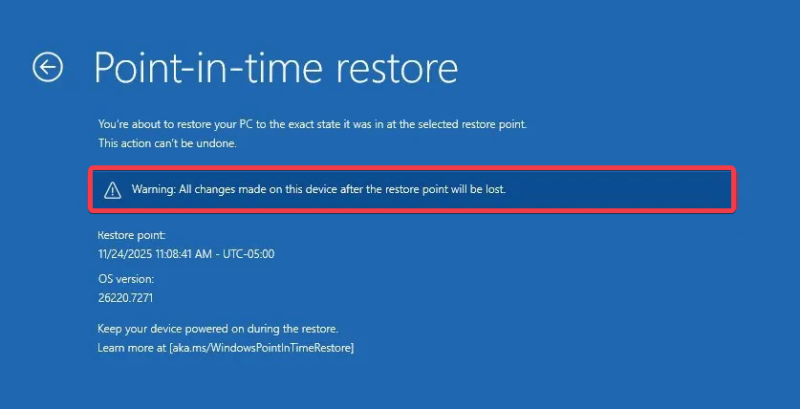
It also cannot recover files deleted long ago or protect you from drive failure. If your storage fails entirely, restore points go with it. Additionally, it does not support cloud-stored items, and browsing snapshots manually is not possible.
Another major limitation is its storage dependency. It demands between 2-45% of drive space. So, low-storage setups might see reliability dips if you allot too much space or encryption issues with tools like BitLocker.
Don’t rely on it as your only safeguard. Pair it with proper backups to cover all bases. In my experience, it worked smoothly for fresh glitches but fell flat when I needed to dig into weeks-old changes. If you’re wondering what System Restore can and cannot do to your system, this feature builds on it, but still has limits for those who need deeper control.
Enabling and Using Point-in-Time Restore
To get Windows 11 Point-in-Time Restore running, start with ViveTool if you’re not on an Insider build. It’s the way to unlock this feature on stable Windows 11.
Download ViveTool, extract it, then run Command Prompt as admin.
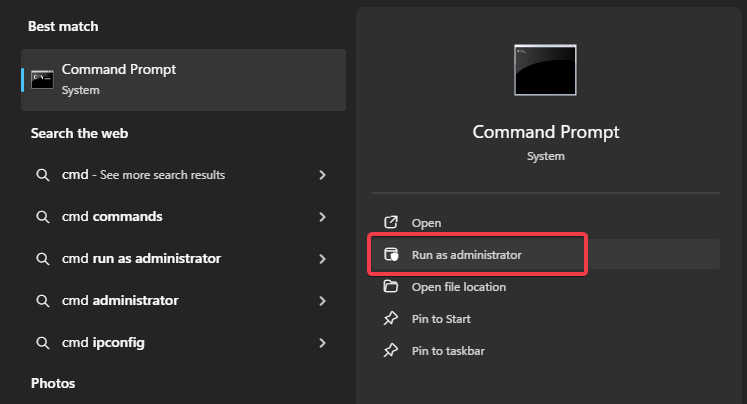
Type the following command and change the path to the location of the ViveTool folder on your PC:
cd c:\folder\path\ViveTool-v0.x.xInput the following command to force-enable the Point-in-Time Restore feature and press Enter:
vivetool /enable /id:55324166,59673297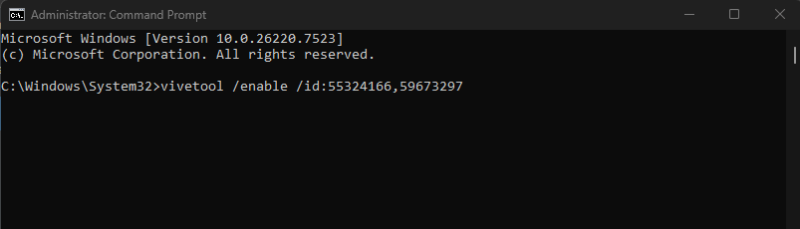
Restart your PC.
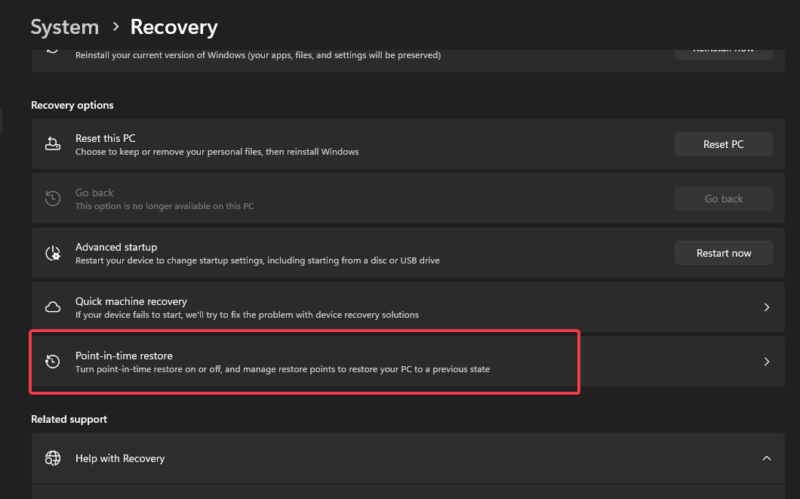
Head to Settings -> System -> Recovery -> Point-in-Time Restore and toggle on Point-in-Time Restore.
Adjust the Restore point frequency. The default setting is Every 24 hours, but you can configure the feature to create snapshots every 4, 6, 12, or 16 hours.
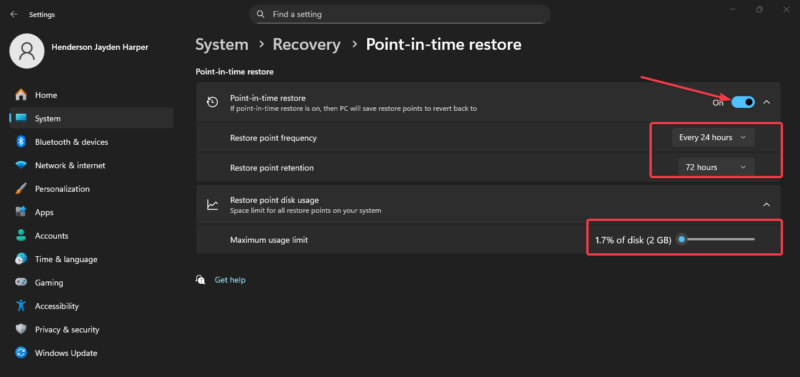
Likewise, you can tweak the Restore point retention. The default setting is 72 hours, but you can choose from 6, 12, or 24 hours. You can also adjust the slider beside the maximum usage limit to allot a space limit for all restore points on your system.
Try to aim for balance to avoid eating too much disk space. For quick machine recovery in Windows, this setup beats older methods by including more data.
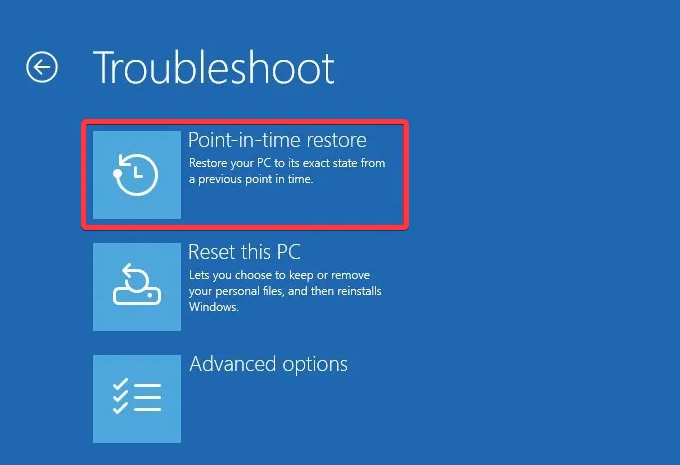
After activation, Windows automatically creates restore points in the background. When something goes wrong, you can use any of these options to boot into the Windows Recovery Environment.
Go to Troubleshoot -> Point-in-Time Restore.
Pick a snapshot from the available options, depending on how often it saves.
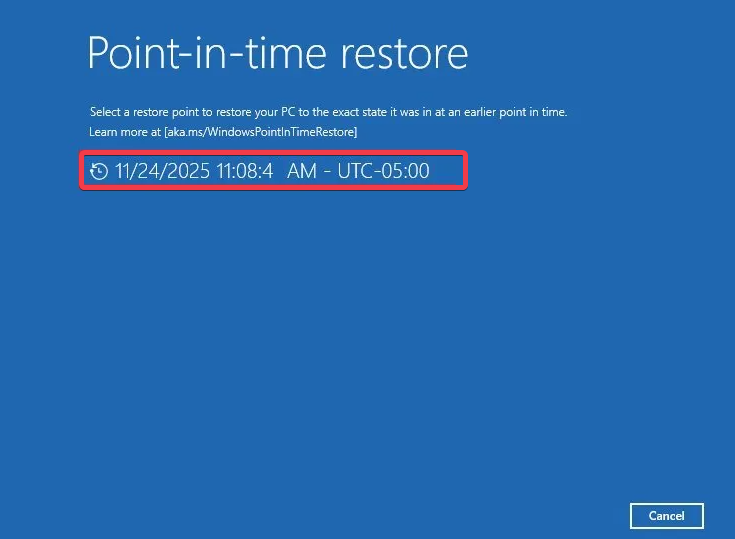
Click Continue and click Restore to confirm. Wait for Windows to restore your system without wiping personal files. The process takes about 30-60 minutes, restoring your full setup.
For added protection, I recommend backing up your BitLocker key first. And if you create daily system restore points regularly, this complements them for faster rollbacks.
Who Should Actually Use It
Windows 11 Point-in-Time Restore suits casual users who tweak apps or face frequent updates. If you regularly install updates, test new apps, or adjust system settings, this feature can save hours of troubleshooting. You get the protection without hassles.
It’s especially useful for laptops, family PCs, and work systems where stability matters more than experimentation.
However, power users who need pro-level archiving or long-term backups should skip it as the main backup tool.
From my experience so far, this feature is most valuable when you forget it exists. It works best when you never think about it until something breaks, and then it quietly saves your day.
As a built-in recovery tool, Windows 11 Point-in-Time Restore earns its place as one of the most practical features Microsoft has added in years.








