Microsoft Defender is Windows’ frontline defense, spotting new threats and removing infections. However, there is another, less flashy but surprisingly useful tool called the Malicious Software Removal Tool (MSRT). It targets common, widespread malware with a focus on thorough remediation. Here is what MSRT does and when to use it.
What is the Malicious Software Removal Tool
Alongside Microsoft Defender, Windows has an additional virus removal tool called the Malicious Software Removal Tool. It’s updated once a month via Windows updates and it scans your PC in Quiet Mode when it’s updated. Its main goal is to look for the most common malware infections, like common families of trojans, rootkits, worms, etc.
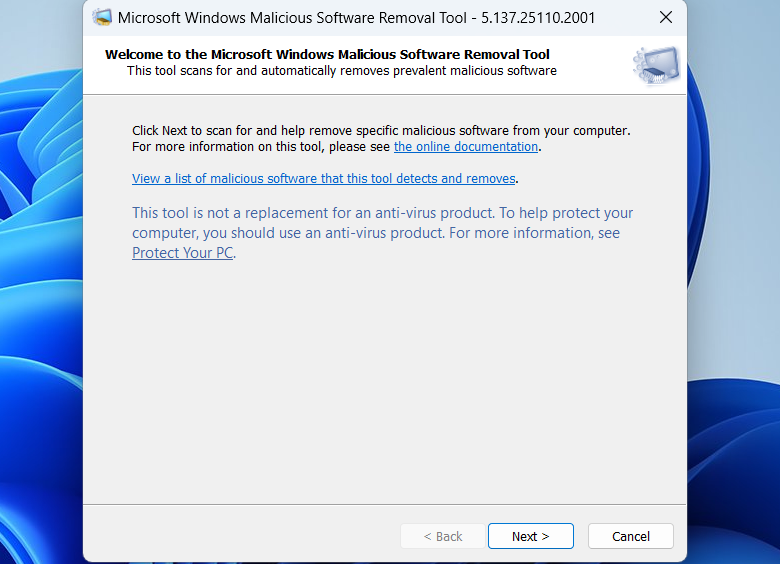
Every month, it’s updated to add and remove malware families it can detect, and to focus on the current prevalent malware. Once it finds an infection on the system, it removes it and try to undo the malicious changes it has made.
Overall, it isn’t a complete threat detection solution like Microsoft Defender; it’s a backup solution to catch the most common and high-risk threats during a particular time period. It works even when another third-party antivirus is present to disable Microsoft Defender, ensuring a Microsoft-backed solution even with a third-party antivirus.
When to Use the Malicious Software Removal Tool in Windows
The big question is, what’s the point of using MSRT when Microsoft Defender and other antivirus software can already detect and block all known threats? Below are some common uses of the Malicious Software Removal Tool in Windows.
- Use MSRT alongside a third-party antivirus: if you use a third-party antivirus program, you can use MSRT alongside it for more robust protection. Since third-party antivirus software has its own virus definition separate from Microsoft’s, MSRT can possibly catch what they miss.
- MSRT can undo changes made by malware: a regular antivirus generally only deletes the malware detected. MSRT is specifically made to remove and undo damage done by adware, infostealers, trojans, etc. For malware it tracks, it can remove bad extensions, reset the browser homepage, remove backdoors, and reset many other changes. It’s good to run it when cleaning after a PC infection.
- Works even when security tools are compromised: many malware attacks are built to disable antivirus software and prevent users from using them. Since MSRT is a separate security tool, it usually isn’t affected by attacks. You can still run it to possibly catch and remove the culprit.
How to Use the Malicious Software Removal Tool in Windows
By default, MSRT runs once a month, and only reports if it actually finds a known malware infection. However, you can also scan your PC with MSRT on demand if you need a secondary opinion.
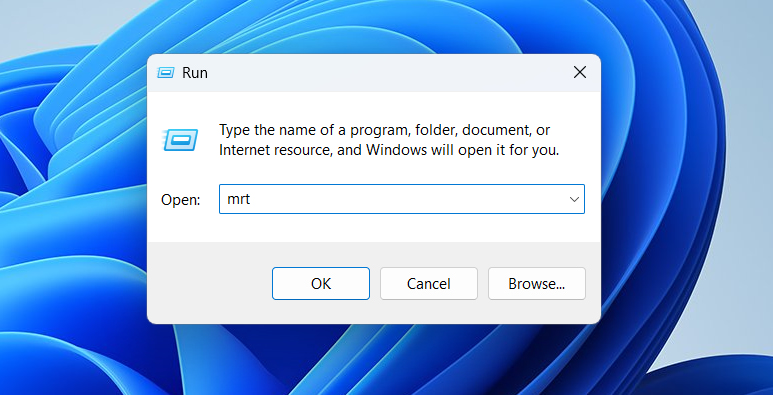
Press the Windows + R keys and type mrt in the Run dialog. You’ll have to confirm the UAC prompt to open it.
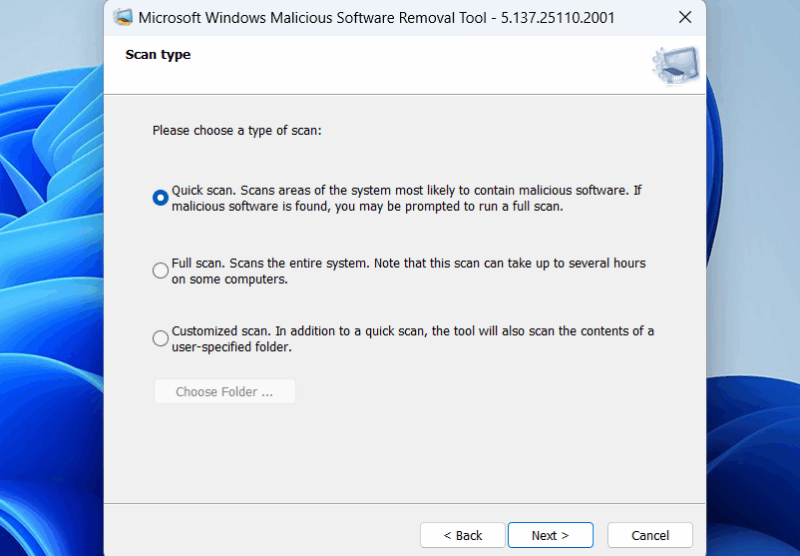
Once open, click Next, and you’ll find options to choose scan type similar to Microsoft Defender, including Quick scan, Full scan, and Customized scan. The scan takes a similar time as a regular Microsoft Defender scan, so a full scan can take hours. Choose your preferred scan type and click Next.
It will scan the PC, and if it finds any infection, it will automatically take action to delete it and undo the damage done. In the end, you can click the View detailed results of scan button to learn what it detected and all the threats it can detect.
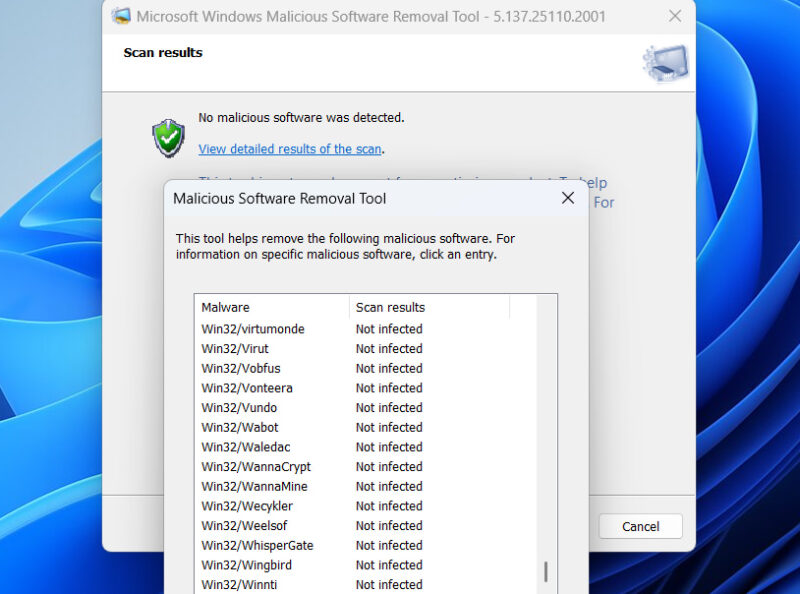
The report is also a great way to learn more about prevalent malware, as you can click their names to learn more about them in your browser. It contains all popular malware like Emotet, Neptune, WannaCry, etc.
Keep in mind that MSRT isn’t a replacement for Microsoft Defender or any antivirus software; it’s only a supplementary security tool. It also lacks advanced Microsoft Defender features needed for the best protection. For even more protection, use these other Windows security features as well.








