
Windows 11 includes many security features to protect your data. While most are active by default, a handful remain disabled (and out of plain sight), requiring manual activation due to either initial setup steps or their potential impact on everyday use. For enhanced protection, you can consider enabling the following Windows 11 security features.
1. Dynamic Lock
A great feature to automatically lock your PC if you move away from it, or it’s moved away from you (in the event of theft). It’s disabled by default as it needs an initial setup with a Bluetooth device. Basically, it connects your PC with a Bluetooth device (usually your phone), and whenever you move the device away from the PC, your PC will automatically lock.
While you can use smart wearables and Bluetooth headphones, a phone is often recommended for this purpose. Just turn on Bluetooth on your phone and then pair it with Windows using the Add device function.
Once paired, open Windows Settings and go to Accounts -> Sign-in options -> Dynamic lock and enable Allow Windows to automatically lock your device when you’re away.
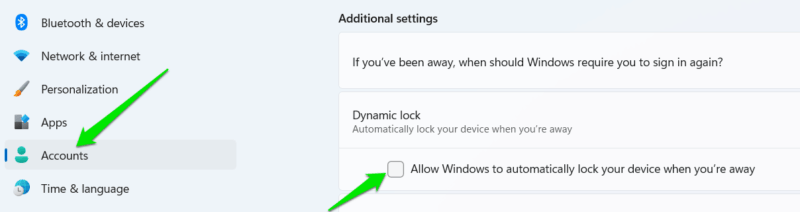
Now, whenever your connected Bluetooth device moves out of range, Windows will automatically lock after a 30-second delay.
2. Windows Sandbox
Windows Sandbox is an optional Windows feature that to run an instance of your current OS in an isolated desktop environment. It’s great for testing suspicious apps or accessing malicious pages without directly affecting your main OS. It always starts in a clean state and resets everything you have done in it when you turn it off.
It’s limited to Pro and Enterprise editions, and it’s disabled by default because it requires the Hyper-V services that can consume resources in the background. If you like the idea of using this feature, here’s how to enable it.
Search “windows features” in Windows Search and open Turn Windows features on or off.
Here, enable Windows Sandbox at the bottom and click on OK. Windows will install components and then ask you to reboot. The reboot process can take some time as it installs and customizes features.
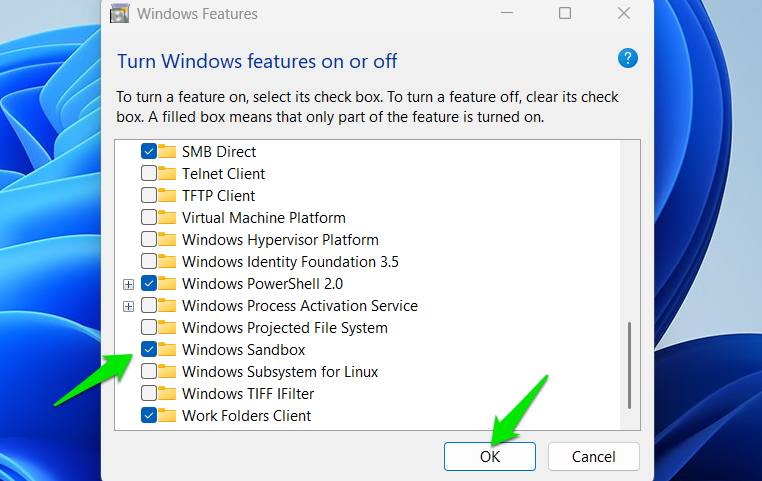
After the restart, just search and open the Windows Sandbox app, and it will launch a pristine Windows version in a smaller window. You don’t have to configure anything; just be careful when closing this window, as it will reset everything.
3. User Account Control (UAC) Strict Mode
By default, UAC only prompts for admin confirmation when you do a task that requires elevated access, like installing a program or accessing the Windows Registry. However, it has an even stricter mode that will ask for confirmation for even changing basic Windows settings, like opening System Restore settings.
While it can be annoying to deal with even more prompts, it can enhance overall security by preventing even smaller unintended/malicious changes.
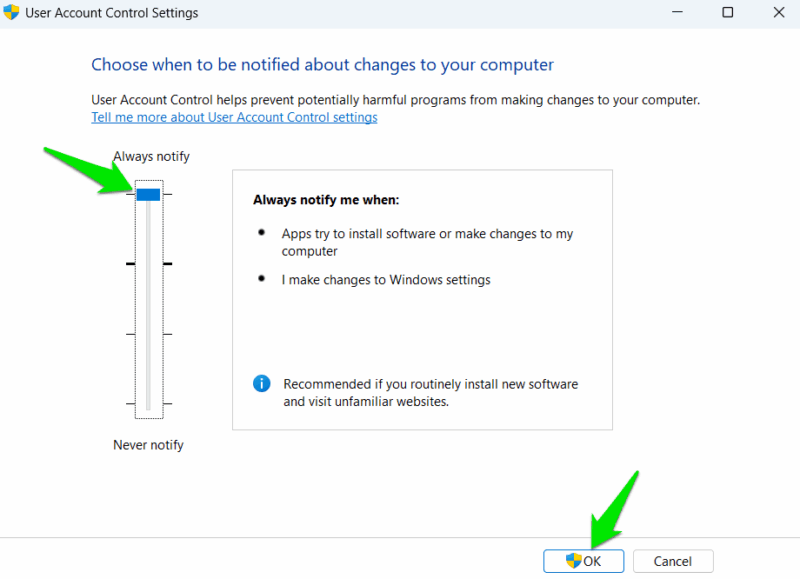
Search “uac” in Windows Search and open Change User Account Control Settings. Here, set the bar to Always Notify and click on OK. Now, UAC security prompt will appear for every system change you (or any malicious app) make on your PC.
4. Controlled Folder Access
A powerful ransomware protection feature, but it’s disabled by default as it can remove access of apps and scripts to user data that can break workflows. Controlled Folder Access protects selected folders from modification by untrusted apps. It only allows apps and scripts that it trusts (Microsoft’s own list) or ones you whitelist yourself.
To enable ransomware protection in Windows, search “windows security” in Windows Search and open the Windows Security app.
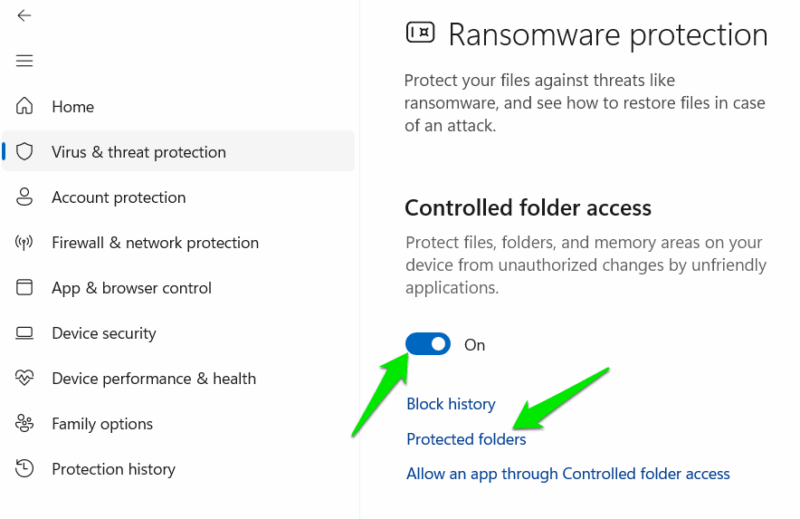
Go to Virus & threat protection, click on Manage settings under Virus & threat protection settings, and then click on Manage Controlled folder access.
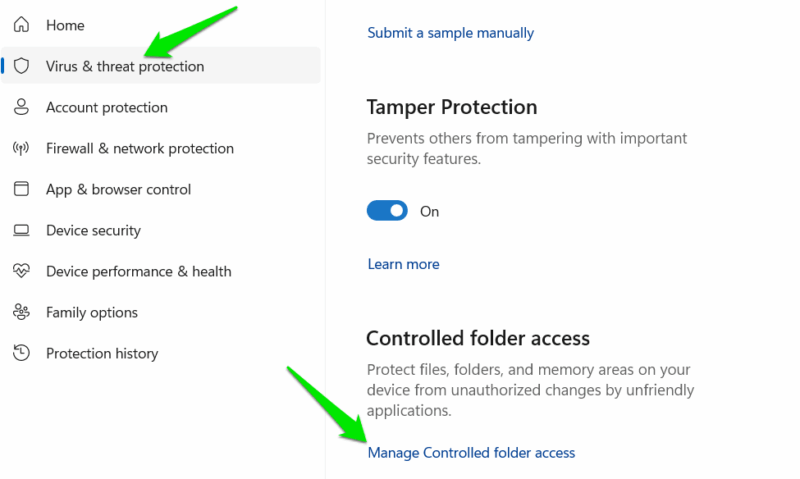
Enable the toggle under Controlled folder access to turn the feature on. By default, it automatically protects user folders like Documents, Pictures, Videos, etc. If you want to protect more folders, click on Protected folders to add.
5. Password Reuse and Unsafe Storage Warnings
For your Microsoft account or local account password, Windows can warn you if you reuse the password or store it in an unsafe place, like storing the password in notes app. They are part of the phishing protection features, but are disabled as they can disrupt workflow with prompts and also allow Windows to track input context when the password is used.
You can enable them to ensure you don’t accidentally reuse your account password elsewhere or save it insecurely. Open Windows Security app again and go to App & browser control -> Reputation-based protection settings and enable both Warn me about password reuse and Warn me about unsafe password storage.
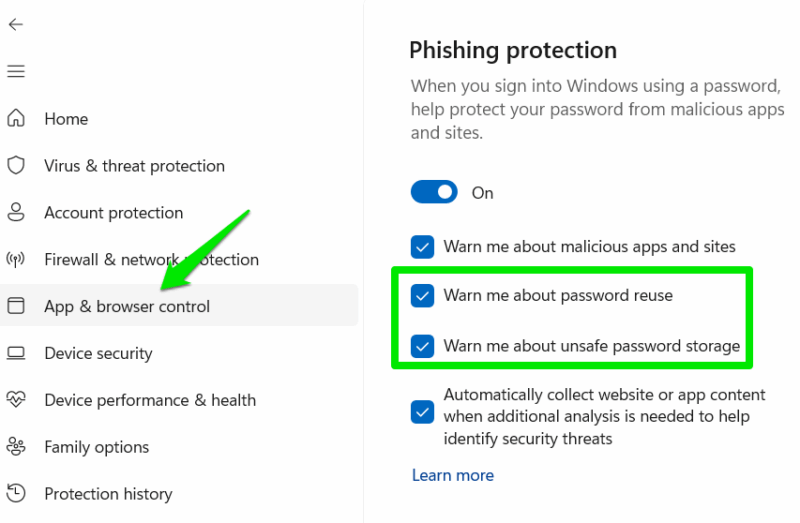
Now, whenever you type your account password anywhere other than the official Microsoft sign-in page, Windows will warn you.
Bonus: Smart App Control
Smart App Control is a powerful security feature that only allows trusted apps to execute on the system, perfect for users who want utmost protection. However, it can only be activated with a clean install of Windows 11. If you want the best protection, you might want to enable it.
Some of these methods can come between your normal PC usage, so you might have to do some extra clicks and possibly manually whitelist some trusted apps. Along with these, make sure the regular Windows security features are enabled and fully utilize Microsoft Defender’s advanced features.








