Windows 11 God Mode has stayed on my desktop since Windows 8 for a simple reason. It works. It is a single folder that surfaces every Windows Control Panel setting in one searchable place. Windows 11 was supposed to make it unnecessary. Four years later, I still open it every week.
I’ve Never Removed It
Most people find God Mode once, think it is a neat trick, and move on. I never stopped using it because the folder works the same way it always has.
Open the folder, and you get a searchable view of every Control Panel applet and administrative tool Windows exposes. Device Manager, BitLocker, power plans, File History, sound properties, all in one place. No nested menus, no guessing which app has what.
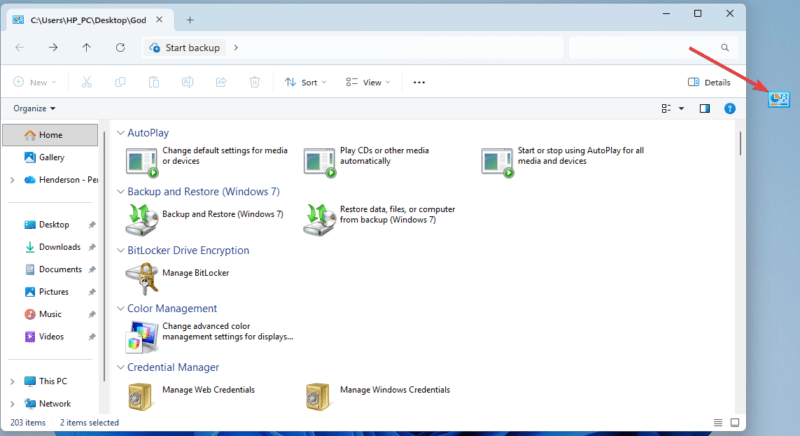
When Windows 11 launched, I assumed I would eventually stop needing it. The new Settings app looked clean and modern, and Microsoft seemed serious about replacing Control Panel for good. That never happened. If anything, I rely on it more now. Among the many hidden Windows features that people overlook, God Mode is one of the oldest and still one of the most useful.
Windows 11 Still Hasn’t Finished What It Started
Microsoft has been moving settings from Control Panel into the modern Settings app for years. The goal was straightforward: retire the old system, put everything under one roof, and give Windows a consistent interface. As of March 2026, the transition is still incomplete.
In Windows 11, you often begin in Settings and end somewhere else. You click through a few options, then land in a Control Panel window to finish the task.
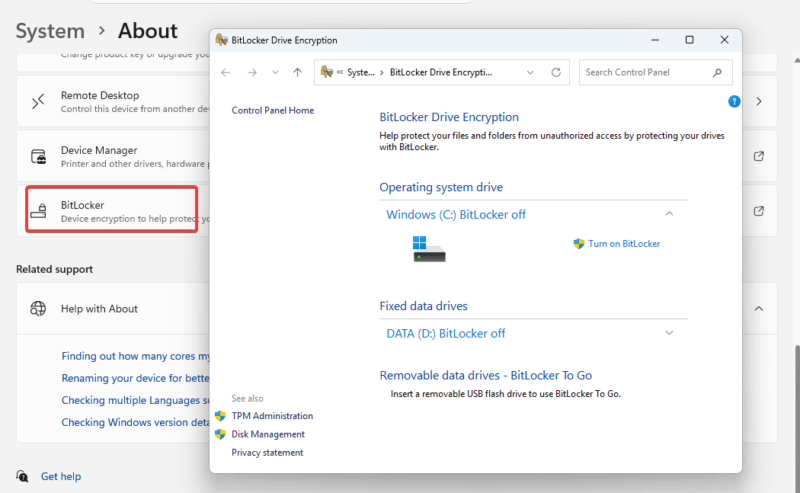
This still happens with advanced power settings. You can open Power in Settings, but detailed controls take you to the older interface. The same pattern appears when editing environment variables. You move through several pages before reaching a legacy dialog that has not changed since Windows XP.
File Explorer options, such as toggling file extensions, are not in Settings. You can open Control Panel directly to find them, but that is exactly the workaround the new Settings app was built to eliminate.
Even BitLocker management and recovery tools, such as System Restore, also rely on older panels. Also, advanced system settings like multi-boot, UAC settings, Device Manager, system restart, user profiles, and performance options all suffer the same fate.
The Settings app points you in the right direction, then hands you off to the system it was meant to replace. This is not a failure. It is a slow transition. The more complex settings are harder to move, so they stay where they are. The result is a system that looks unified but still runs on two layers. Windows 11 God Mode does not change that. It removes the need to navigate through it.
The Real Advantage Is Not Having to Think
What actually costs you time is not the clicks, but the hesitation before them, where you wonder whether the feature still lives inside Settings or Control Panel, or if it has moved again in the last update. God Mode removes that step. You open the folder, type what you need, and go straight to it.
In practice, Environment variables come up every time I configure a new tool or update a development environment. The path through Settings is System → About → Advanced System Settings → Environment Variables.
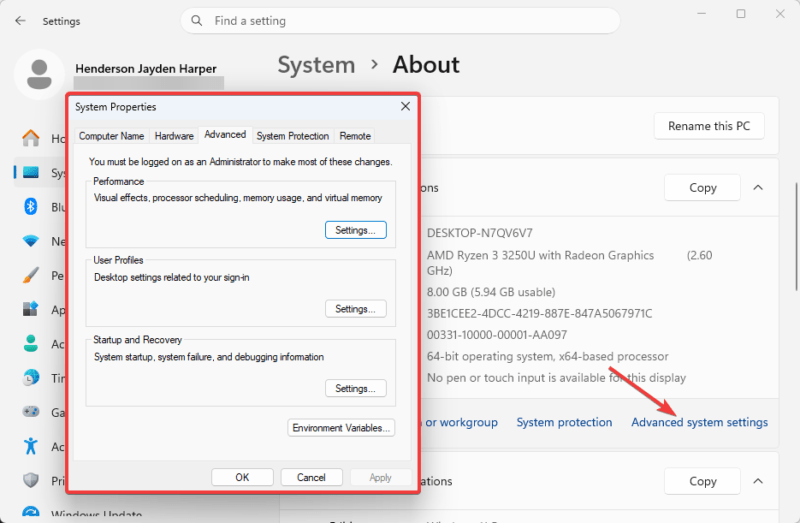
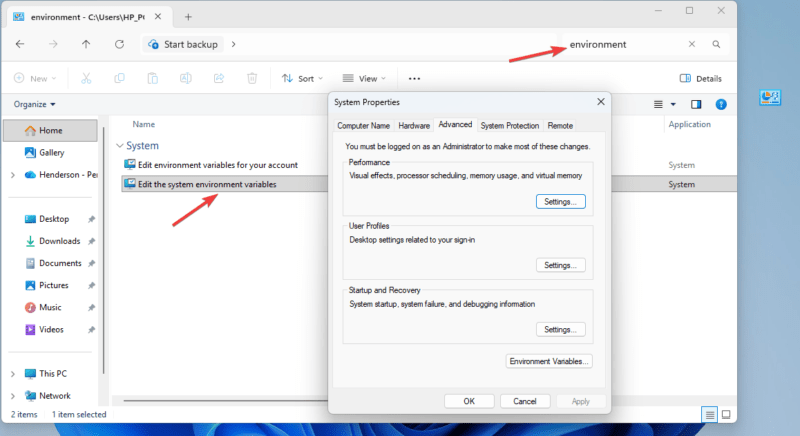
Four clicks to reach a dialog that has not changed since Windows XP. In God Mode, I type environment, and I am there in one.
Same with Advanced Power settings. I simply type power, check out all available power options at-a-glance, click, and I am already there.
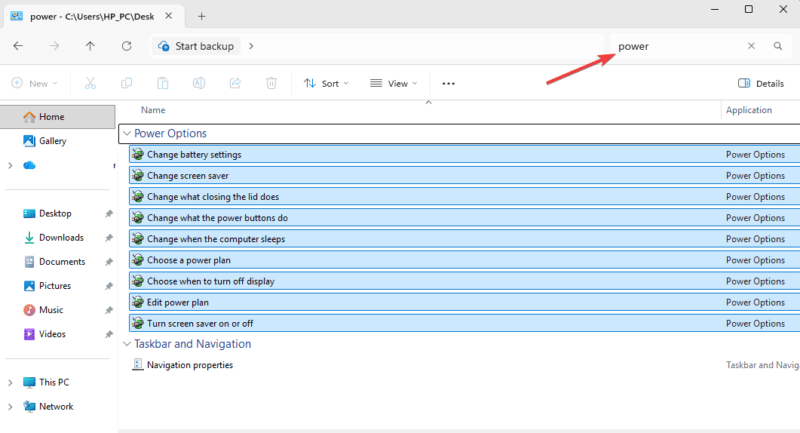
It works well alongside PowerToys Command Palette. One handles apps and quick actions, the other handles system settings. Between the two, I rarely touch the taskbar search at all.
Over time, this changes how you use Windows. The value is not raw speed, though it is usually faster. It is that you stop thinking about where anything lives. The two-system problem becomes invisible because you have stepped above it.
Setting It Up Takes Less Than A Minute
Right-click your desktop and select New, then Folder. Rename it to exactly this:
GodMode.{ED7BA470-8E54-465E-825C-99712043E01C}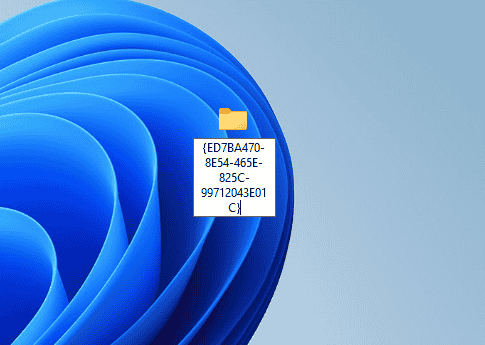
Press Enter. The icon changes to a Control Panel icon. Open it, and you will see the full list of settings.
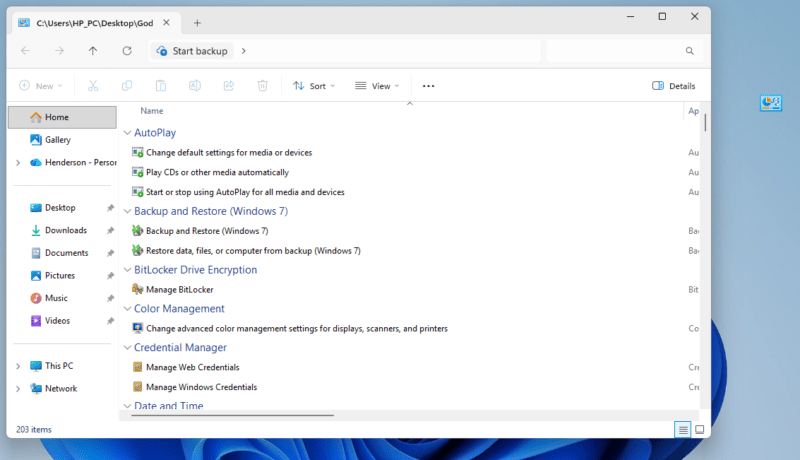
It works on Windows 11 Home and Pro with no admin rights required. The full God mode setup guide covers the steps clearly.
While Windows 11 Settings has improved a lot, it is still not finished. Too many advanced settings still sit outside the main Settings app. Until that changes, Windows 11 God Mode will remain a priority on my PC as the simplest way to access everything without thinking about where it lives.