
The preview pane in Windows File Explorer can be abused to expose NTLM password hashes, which attackers can reuse or try to crack offline. Microsoft has even disabled previews for downloaded files in the most recent Windows update. Follow the guide below to stay safe from NTLM hash leakage through File Explorer previews.
How File Explorer Previews are Vulnerable
NT LAN Manager (NTLM) is an authentication protocol by Microsoft for Windows accounts and services. Due to security weaknesses, it has been largely replaced by Kerberos, but it’s still available for backward compatibility and can be abused in the right conditions.
File Explorer previews can be exploited to execute NTLM requests that can reveal your local account or domain join password (in hashes) to exploit. During preview, files with instructions to execute NTLM requests can be automatically processed by Windows to send the hashed password to a malicious server. The malicious actors can then either try to brute force the password offline or try to execute a pass-the-hash attack.
According to Microsoft, these types of attacks are in action right now, which is why in the latest update, Windows has stopped showing previews of files tagged with Mark of the Web (MoTW) (internet files).
How to Stay Safe From NTLM Hash Leakage Through File Explorer Previews
It’s important to take precautions when previewing files downloaded from the internet, as Microsoft Defender can’t detect NTLM requests just by scanning files. Below are some steps you can take to stay safe from such attacks:
- Update to the Latest Windows Version: in the October 14 security update, Windows disabled file previews for files marked with MoTW. In Windows 11, go to Settings → Windows Update and ensure the latest updates are installed.
- Do an Online File Behavioral Analysis: an antivirus scan won’t be effective in detecting malicious NTLM requests. If you are in doubt, you should scan the file with a behavioral analysis tool that runs the file in a sandbox and tracks behavior. Both Joe Sandbox and MetaDefender can open a file in a sandbox to track behavior.
- Protect NTLM Credentials: you can take proactive measures to minimize the success of an NTLM leakage. Follow the methods in this guide to protect Windows NTLM credentials from threats.
- Track File Behavior in a Virtual Machine: you can create a virtual machine to test the file behavior in it to ensure it doesn’t send any network requests in preview. You can either use Hyper-V in Windows or a third-party virtual machine app to create a virtual machine, and then track internet usage when previewing the file.
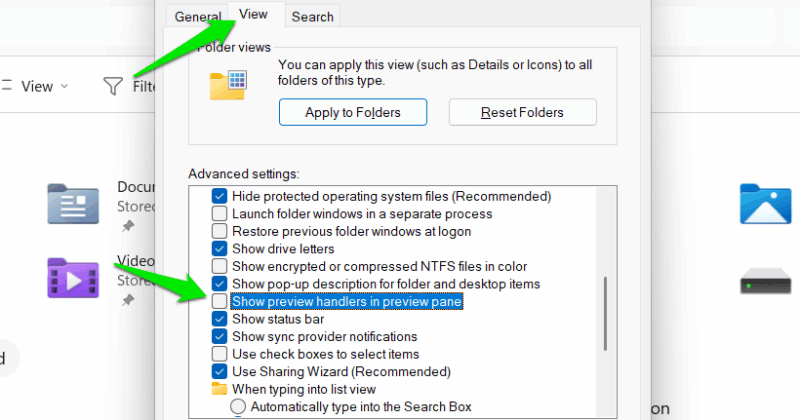
- Disable File Explorer Preview System-Wide: to eliminate the possibility of NTML hash leakage via file preview, you can just disable preview handlers completely. In the File Explorer, select Options from the See More menu at the top. Here, move to the View tab and uncheck Show preview handlers in preview pane entry.
Enable Previews for Trusted Files
If you have confirmed the downloaded file is safe and want to preview it after the latest Windows update, you’ll have to unblock it first before previewing. Here’s how:
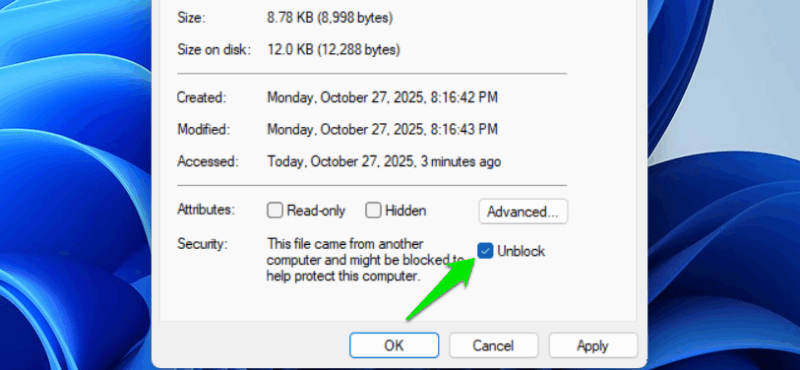
Right-click on the file and select Properties. Under the General tab, check the Unblock checkbox in the Security section and confirm the changes. You’ll be able to preview the file afterward.
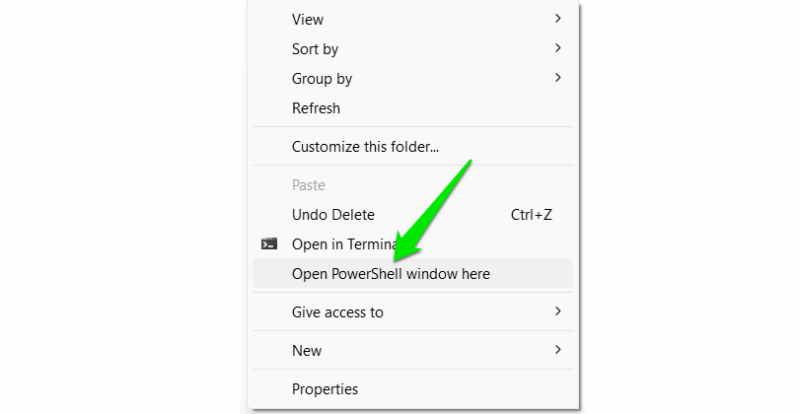
However, this method is only feasible when unblocking individual files. If you have a lot of files to unblock, then you’ll have to use a PowerShell command instead. Make sure all the files you want to block are in the same folder. In that folder, hold the Shift key, right-click in empty space, and select Open PowerShell window here.
In PowerShell, run the following command:
Get-ChildItem -File | Unblock-File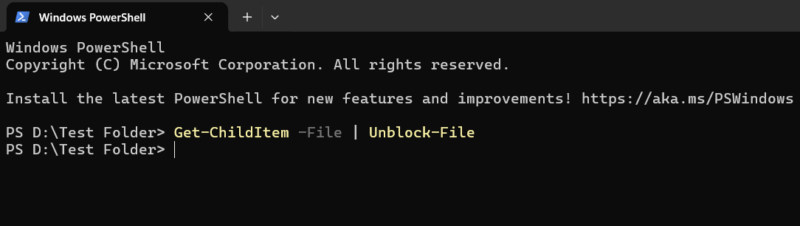
This will unblock all the files in the folder, and you’ll be able to preview them.
Not being able to preview files by default can be really frustrating, but it’s necessary for security until NTLM is fully replaced in future Windows versions. You should also make sure you use unique and strong passwords to minimize the impact of an NTLM hash leakage.








