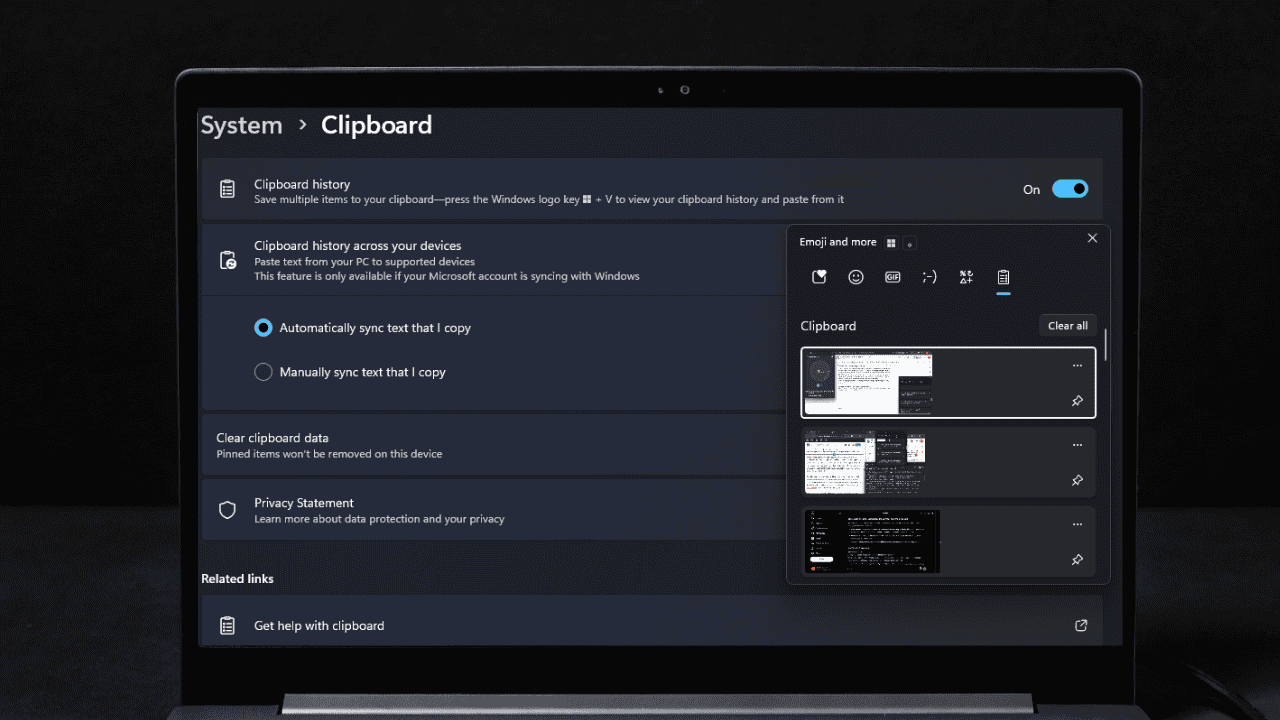
As a writer, I live in documents, browser tabs, and research notes all day long. For years, copy-paste was one of the most productive, and frustrating parts of my workflow. I constantly switch tabs, lose things I copied, and repeat the same steps over and over. However, once I started using Windows Clipboard history, my entire workflow changed. It’s one setting I wish I had activated much earlier.
My Daily Copy-Paste Struggle Before
Before I discovered Windows Clipboard history, every writing session followed the same frustrating loop. Like many writers, I jump between sources, drafts, apps, and screenshots. I often had twenty browser tabs open and multiple notes scattered everywhere.
I would copy a quote from one tab, then a URL from another, and the quote would disappear the moment I copied the link. A few minutes later, I had to hunt through tabs to find it again and copy it a second time.
This led to wasted time digging through documents, retyping things, or hunting for that one sentence I accidentally overwrote. The same thing happened with product codes, email addresses, statistics, or anything else I needed repeatedly.
Some days, these tiny interruptions happened dozens of times an hour. I never timed them, but they added up to real lost minutes every day. Occasionally, copy-paste would stop working entirely, showing just how fragile the basic clipboard can be. Hence, coming across the Clipboard history finally solved the root problem.
Everything Changed with Clipboard History
Honestly, the discovery was completely accidental. I stumbled upon it while researching how to sync clipboard content between my phone and PC. The instructions mentioned that Clipboard history needed to be enabled first in Settings -> System -> Clipboard.
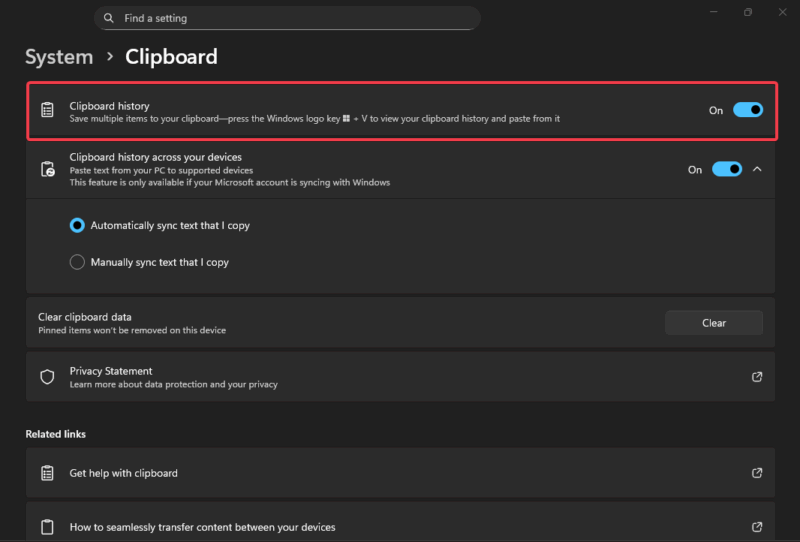
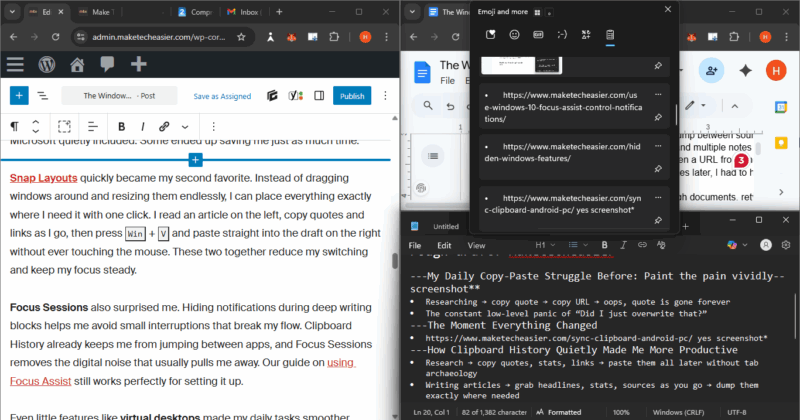
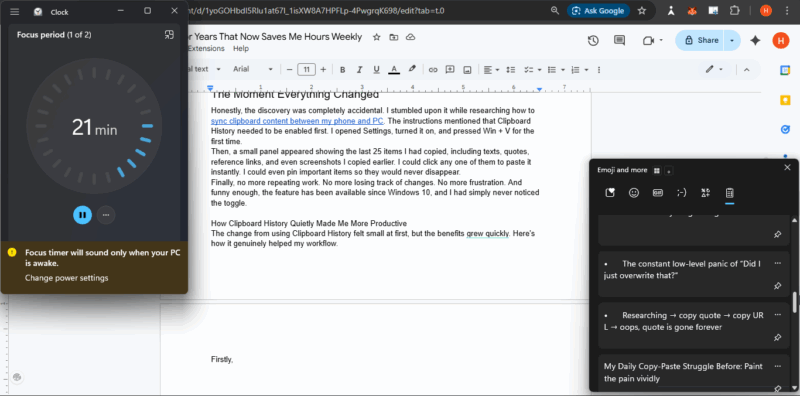
I opened Settings, turned it on, and pressed Win + V for the first time. Then, a small panel appeared showing the last 25 items I had copied, including texts, quotes, reference links, and even screenshots I copied earlier. I could click any one of them to paste it instantly. I could even pin important items so they would never disappear.
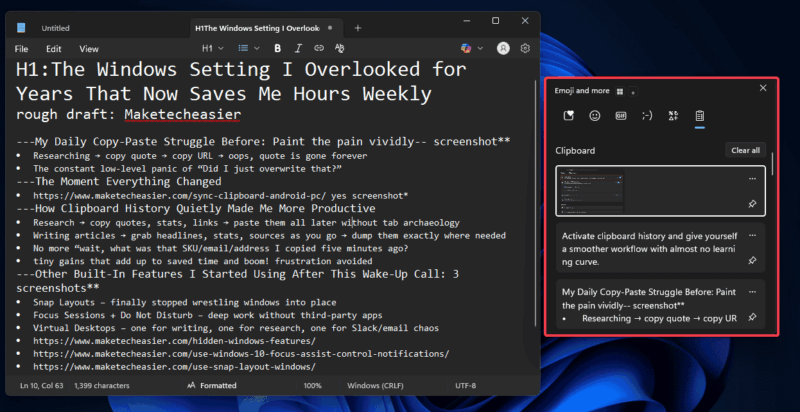
Finally, no more repeating work. No more losing track of changes. No more frustration. And funny enough, the feature has been available since Windows 10, and I had simply never noticed the toggle.
How Clipboard History Quietly Made Me More Productive
The change from using Clipboard history felt small at first, but the benefits grew quickly. Here’s how it genuinely helped my workflow.
Firstly, my research is cleaner and faster. I now copy everything from quotes, statistics, links, and screenshots in one run.
When I start writing, everything I stored earlier is waiting for me in the clipboard panel. All I need to do is press Win + V to choose exactly what I need. It feels like having a mini library of quotes at my fingertips. This saves me minutes every hour, which eventually adds up to hours a week.
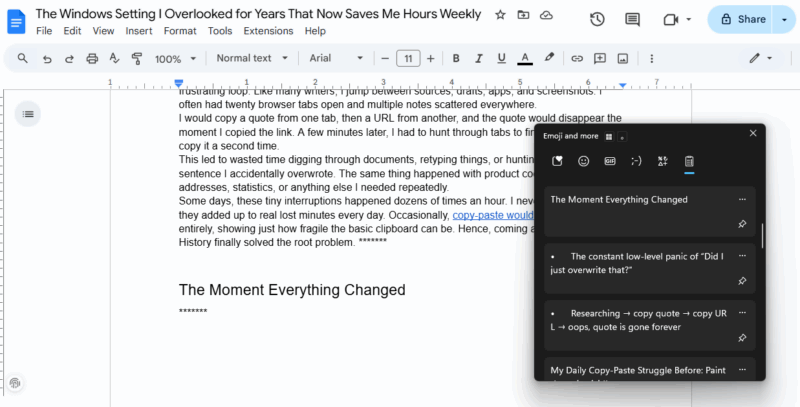
Also, there’s no more switching back to old tabs or windows to re-copy the same line. I can stay focused on my writing without bouncing around needlessly.
Beyond that, emails with repeated tracking numbers or addresses are processed in a single pass instead of multiple passes. Data entry, customer support replies, and even note-taking all move faster.
Across a normal week, I save at least six to eight hours, time I can spend improving my work instead of fighting the clipboard battle.
Other Built-In Features I Started Using After This Wake-Up Call
Once Clipboard history opened my eyes, I began exploring other tools Microsoft quietly included. Some ended up saving me just as much time.
Snap Layouts quickly became my second favorite. Instead of dragging windows around and resizing them endlessly, I can place everything exactly where I need it with one click. I read an article on the left, copy quotes and links as I go, then press Win + V and paste straight into the draft on the right without ever touching the mouse. These two together reduce my switching and keep my focus steady.
Focus Sessions also surprised me. Hiding notifications during deep writing blocks helps me avoid small interruptions that break my flow. Clipboard history already keeps me from jumping between apps, and Focus Sessions removes the digital noise that usually pulls me away. Our guide on using Focus Assist still works perfectly for setting it up.
Even little features like virtual desktops made my daily tasks smoother. Virtual desktop lets me separate writing, research, and communication into clean spaces.
I can copy ten screenshots on the research desktop, flip to the clean writing desktop, open Win + V, and paste them in order without the chaos of the research tabs distracting me.
These tools are small on their own, but powerful when used together. Many more useful options are covered in our roundup of hidden Windows features.
Just Turn It On Already
If you’re still copying and pasting the old way, you are losing precious minutes every day. Activate Clipboard history and improve your workflow with almost no learning curve. You can pin frequent items, and if you link your PC to your phone and use the same Microsoft account on the devices, everything syncs automatically.
Windows Clipboard history is not a flashy feature, but it influenced how I work more productively. For any writer, researcher, student, or anyone who copies and pastes regularly, it’s one of the simplest and most effective updates you can make. I wish I had turned it on years ago, but I’m glad I finally did.








