Windows has many powerful accessibility settings that can help people with disabilities use their PC with less effort. Some of those features can also make routine tasks faster and the interface easier to navigate for everyone. You can enable these Windows accessibility settings right now to make your PC more intuitive.
Increase Mouse Cursor Visibility
Do you often have trouble keeping track of your mouse cursor? Me neither! Until I turned on inverted mouse color and noticed a clear difference in how much my brain has to work to keep track of the cursor. The default static white cursor is actually harder for us to keep track of, but our brain is really good at finding it. However, it still has to work harder to track it consistently.
With inverted colors, the cursor will change colors in real-time according to the background; dark color on a light background and vice versa. This helps track the cursor over different backgrounds more easily, leading to noticeably less mental fatigue over long sessions.
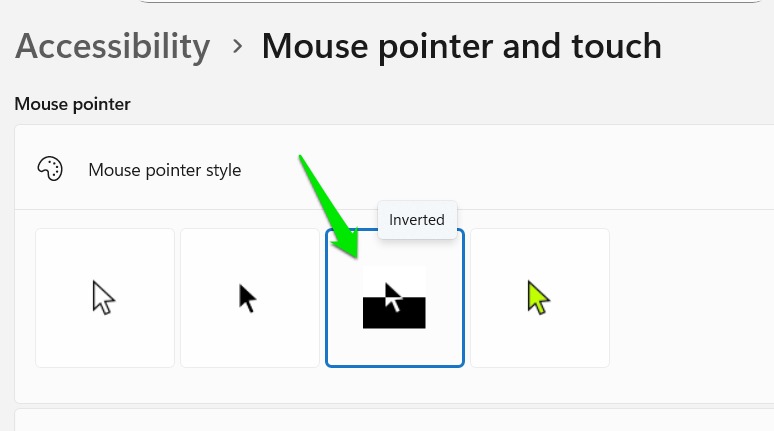
To turn it on, go to Windows Settings → Accessibility → Mouse pointer and touch and select the Inverted option under Mouse pointer style.
The change may seem bad in the start as your brain tries to get used to it, but you should notice easier cursor tracking after a day or two of use.
Quickly Clear Dialog Boxes
You can enable an accessibility setting to automatically snap the mouse cursor to the default choice on a Windows dialog box, like “OK” or “Save” buttons. In day-to-day use, this can make interactions with dialogs smoother as you don’t have to pinpoint the cursor every time.
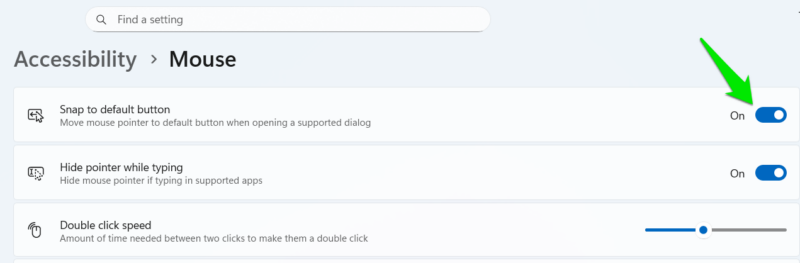
In the Accessibility setting, go to Mouse settings and enable the Snap to default button option. Now, your mouse cursor will automatically move to a default option on a dialog, and you’ll just have to click. This will only work on Windows default dialogs and some legacy Win32 apps. It won’t work in browser dialogs and most modern apps.
Use Mono Audio for Single Ear Use
I usually only use a single earbud to be aware of my surroundings by keeping one ear free. Turning audio to mono from stereo ensures I get to listen to all sounds, as it combines sounds from both sides into a single channel. If you also use a single earbud or share earbuds with someone, then enabling mono audio is a must.
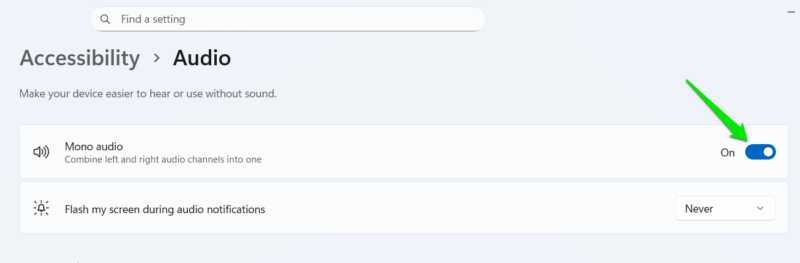
Go to Audio settings in Accessibility and enable the Mono audio toggle. Make sure you disable it when using both sides of the headphones, as stereo playback is necessary for an immersive experience.
Get Text Cursor Indicator
If you write often like me, you’ll surely like this accessibility setting. You can enable a dedicated indicator for the text cursor (the blinking vertical line) to always know where the focus of your input is. I find it very useful when I switch windows, as it quickly tells me my current input focus without needing to confirm. Furthermore, it can tell me the position of the text cursor even when it’s off-screen.
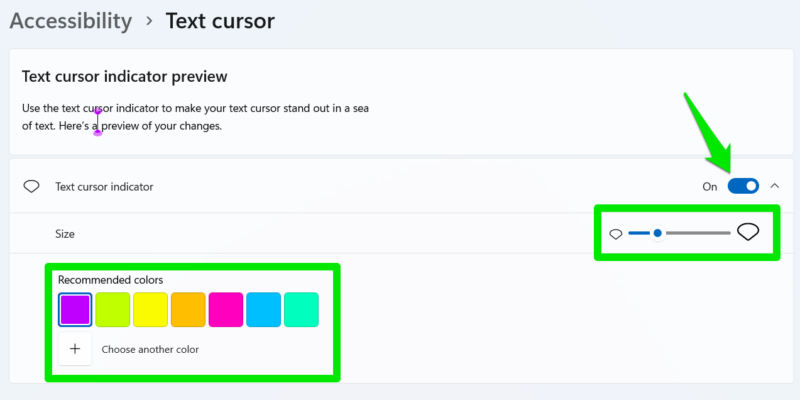
Open Accessibility → Text cursor and enable the Text cursor indicator toggle. You can select the indicator size and color below it. I personally find the default indicator too big, so I decrease it to value 2. I also use the purple indicator as I find it most distinct, but you can experiment with what best fits your setup.
Switch Between Windows Without Clicking
If you often work with two windows side by side, then this tweak will save you dozens of clicks daily. Normally, you have to click on a window to change focus to it, but you can enable an accessibility feature to change focus on hover instead. This will let you work inside two windows by simply managing the position of the cursor.
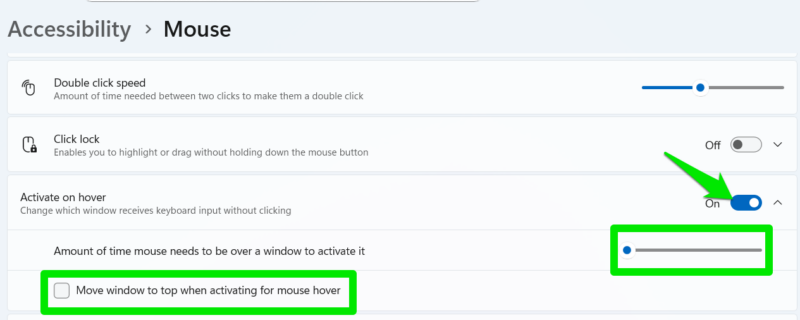
Go to Mouse settings in Accessibility and enable the Active on hover option. I’ll recommend you to set the activation time to 1 (fastest) and disable the Move window to top option below it. This will let you seamlessly switch between windows without the bigger one taking over the other. I find this feature very helpful when I need to use the Calculator or Notepad while working.
Get Pixel-Perfect Mouse Cursor Precision
Unless you use an extremely low mouse DPI, it is very difficult to control the mouse with your hand to move it pixel by pixel. While a common implication is digital designing, the need to move the mouse cursor pixel-by-pixel is very useful in day-to-day use as well, like moving a slider with perfect accuracy.
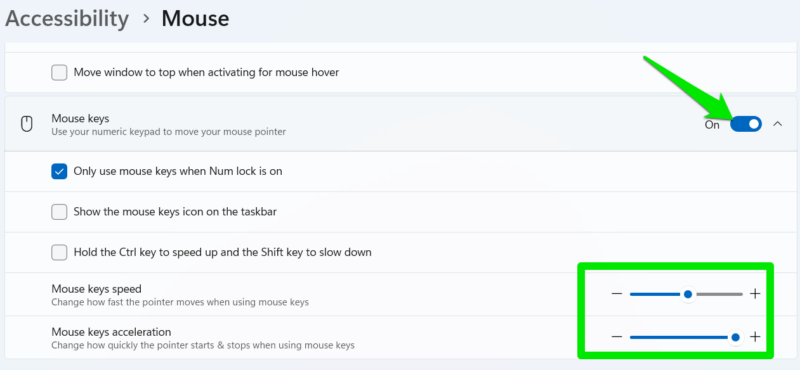
You can easily achieve this with accessibility settings by controlling the mouse cursor with keyboard keys. With the keyboard, each key press will move the cursor by a single pixel, achieving pixel-by-pixel movement. In the same Mouse settings, enable the Mouse key toggle. You can customize how fast the cursor moves here as well.
After applying these tweaks, you’ll find that things which used to require special attention now just happen. You’ll get more done with minimal distractions. If you want to further explore, check out our guide explaining each Accessibility setting in Windows.








