When you switch from Windows to Linux, one of the first things you may notice is that some apps you used every day on Windows are not available in the same way on Linux. For example, apps like Microsoft Word, Adobe Photoshop, and a few others do not have official versions for Linux. WhatsApp is another popular app that doesn’t have an official Linux desktop version.
But the beauty of Linux is that there’s always a solution. Even though WhatsApp doesn’t provide a Linux app, there are several simple ways to use it on almost any Linux distribution. Let’s explore them in this guide.
Use WhatsApp Without Installation on Any Linux Machine
WhatsApp provides an official web client that lets you access your messages directly in your browser. I’ve used this method throughout my Linux journey, and even before switching, because I love using tools without installing them. This is the simplest and most universal way to use WhatsApp across any major Linux distro.
To get started, open your preferred browser (e.g., Chrome, Firefox) and go to Web Whatsapp. You’ll see a QR code on the screen.
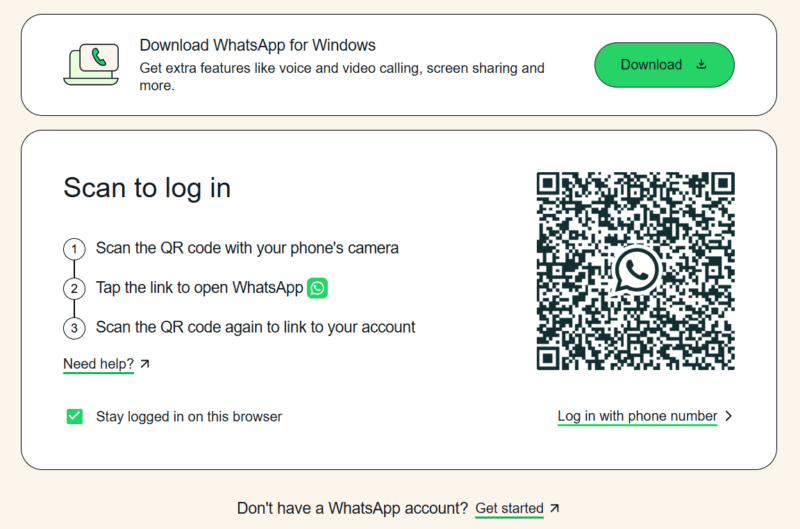
On your phone, open WhatsApp, tap the three-dot menu (or Settings on iOS), and select Linked Devices (or WhatsApp Web). Next, scan the QR code on your computer screen. If you prefer, you can also log in with your phone number instead of scanning.
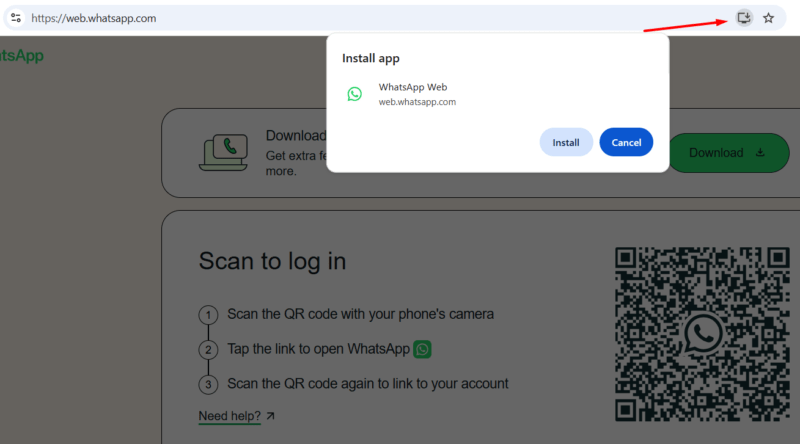
However, the downside of using WhatsApp Web is that it lives in a browser tab and competes with everything else you have opened. But you can go one step further and get an even more integrated experience with a Progressive Web App. For example, modern browsers like Google Chrome and Brave allow you to install WhatsApp Web as a Progressive Web App (PWA).
To do that, click the Install icon in the address bar and install it. This creates a standalone application window, making it feel more like a native desktop client.
Note: WhatsApp Web functions as a wrapper around your phone’s WhatsApp application. This means your phone needs to remain connected to the internet for messages to sync.
Dedicated Desktop Clients to Get a True Native Feel
If you are not happy with WhatsApp Web and want WhatsApp to feel like any other installed app with tray icons, better notifications, themes, and no browser tab clutter, then you need to try a third-party WhatsApp client. These are all unofficial wrappers around WhatsApp Web and can install in seconds via a package manager like Snap or Flatpak, which are universal across most distros.
For example, one of the earliest third-party desktop clients to provide a more integrated WhatsApp experience on Linux is Whatsie. It essentially acts as a wrapper for WhatsApp Web but enhances it with additional features like themes and better operating system integration.
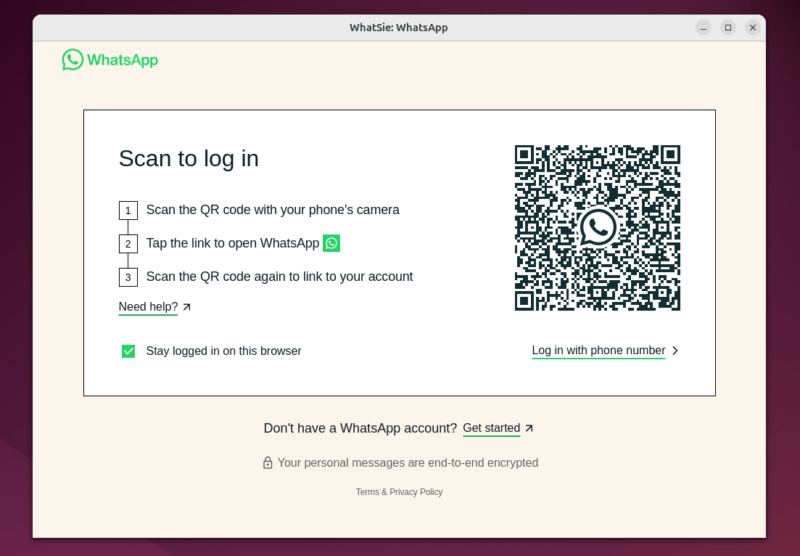
The simplest way to get it for your system is by using Snap:
sudo snap install whatsieAfter installation, launch the app from the application menu. When you start Whatsie for the first time, a QR code will appear on the screen, just as it does with WhatsApp Web. Like WhatsApp Web, Whatsie still connects to your phone to sync messages, so your mobile device must remain connected to the internet.
Running WhatsApp with WhatsDesk
There is also another lightweight desktop client, WhatsDesk, that provides a convenient way to run WhatsApp on Linux. It is also available on the Snap Store, so you can get it across most major distributions.
sudo snap install whatsdeskIn addition, I found out that some other developers also maintain a Snap package of WhatsApp themselves and actively maintain them. For example, WhatsApp Desktop, maintained by Batosti, also wraps WhatsApp Web into a standalone desktop application.
Anyway, all of these clients work identically for setup and deliver the same WhatsApp features. So, use any one of them by checking the recent maintenance history of that client package.
Why Not Give All in One Messaging Apps a Try
If WhatsApp is just one of several chat services you use, say, alongside Telegram, Slack, and Gmail, then I recommend trying an all in one messenger. These apps let you add multiple services under one roof, keeping everything organized in a single window.

For example, one of the most comprehensive options is Beeper. It lets you consolidate WhatsApp, iMessage, Telegram, and other platforms into a single unified inbox. It is available for Linux and is a great choice for power users juggling many services.
Other well-established options that support a vast number of services are Rambox and Franz. They let you use WhatsApp, Discord, Messenger, Telegram, Slack, Outlook, and many more. They are also available for Linux via Snap, and you can add your WhatsApp account in seconds. You can use these tools if you want to avoid opening multiple standalone windows or browser tabs throughout the day.
Whether you use WhatsApp Web in a browser or any of the desktop clients above, they all function the same way under the hood. WhatsApp may never release an official Linux client. But these alternatives are genuinely good options for anyone who wants to use WhatsApp on Linux.