It can be difficult to communicate with others without a common language. Communicating on social media doesn’t make this easier too. The good thing is, WhatsApp rolled out a new in-app translation feature for iPhone users, with the social media platform now supporting 19 languages and variations.
Translate a Message on WhatsApp
WhatsApp offers a wider selection, 19 languages, than Apple’s default features. While WhatsApp’s in-app translation feature works for one-on-one chats, groups, and channel updates, it doesn’t work for GIFs, stickers, locations, shared contacts, or documents.
To translate a message, ensure that you have the latest WhatsApp for iOS. First, check the App Store for updates by going to App Store -> Profile Icon -> WhatsApp.
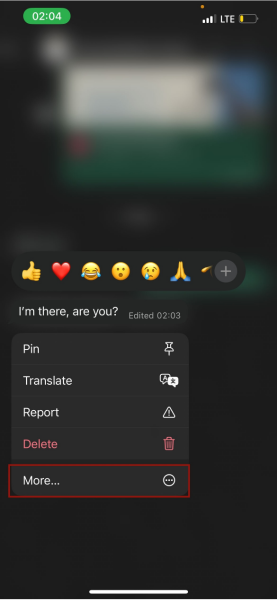
To translate, press and hold the targeted message. It should isolate the text and give you some options.
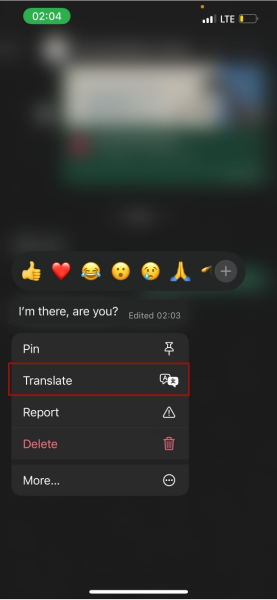
Tap More. Select the Translate option, and choose your preferred language.
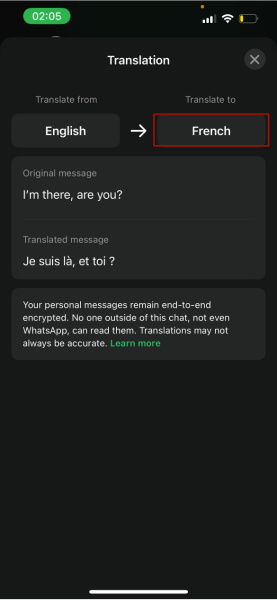
The supported languages include Arabic, Chinese (Mandarin, Simplified), Chinese (Mandarin, Traditional), Dutch, English (UK), English (US), French, German, Hindi, Indonesian, Italian, Japanese, Korean, Polish, Portuguese (Brazil), Russian, Spanish, Thai, Turkish, Ukrainian, and Vietnamese.
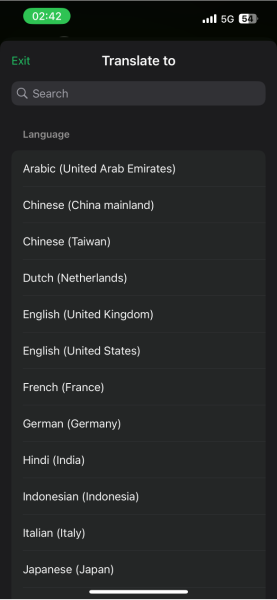
The in-app translation feature automatically detects the source language of the message you selected. Even if text has been edited, hold down the new text and translate it.
Tip: learn how to master any language with your iPhone (no apps needed).
Manage Your Language Packs
When you choose your source and target languages for the first time, WhatsApp prompts you to download language packs directly to your device.
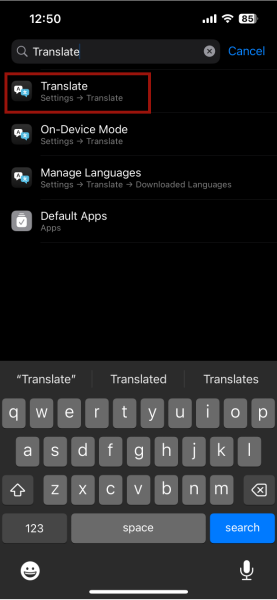
To manage these packs, navigate to Settings on your iPhone, click the search bar, and type Translate.
Select Downloaded Languages to view and manage the stored packs. You can also download other languages.
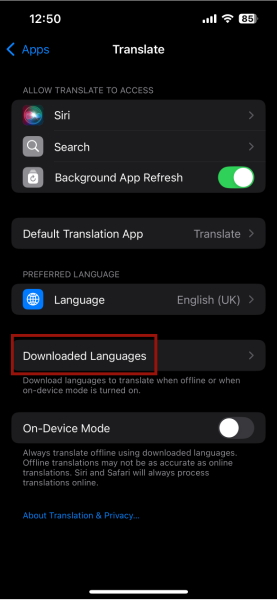
Keep in mind that the download speed depends on your Internet connection. If your connection is slow, the download speed of the packs will be as well. Using a Wi-Fi connection seems to cut down the download time.
Related: find out how to save anyone’s profile photo in WhatsApp
Make the Most of On-Device Mode
Once installed, language packs let you translate without Wi-Fi or a cellular connection. Your iPhone handles this translation process on its own. Navigate to your Settings -> Translate -> Downloaded Languages on your iPhone, then download any of your preferred languages in advance.
To ensure that all of your downloaded packs work offline, toggle on On-Device Mode.
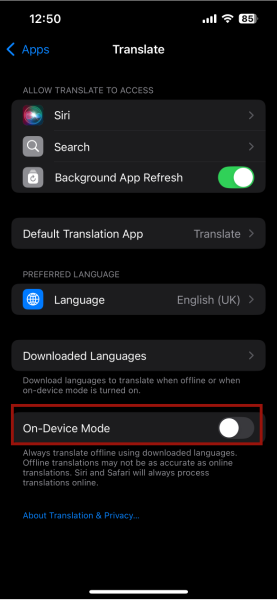
Note: on-device translations are less accurate than those online. Using the offline translation may be better suited to understanding the general meaning of a message compared to what its online variant may do.
The in-app translation feature is the only way to translate messages within WhatsApp, as Meta didn’t integrate Apple’s built-in system features. Since Meta does not support Apple Intelligence, you can use Meta AI to summarize long conversations or proofread messages.








