
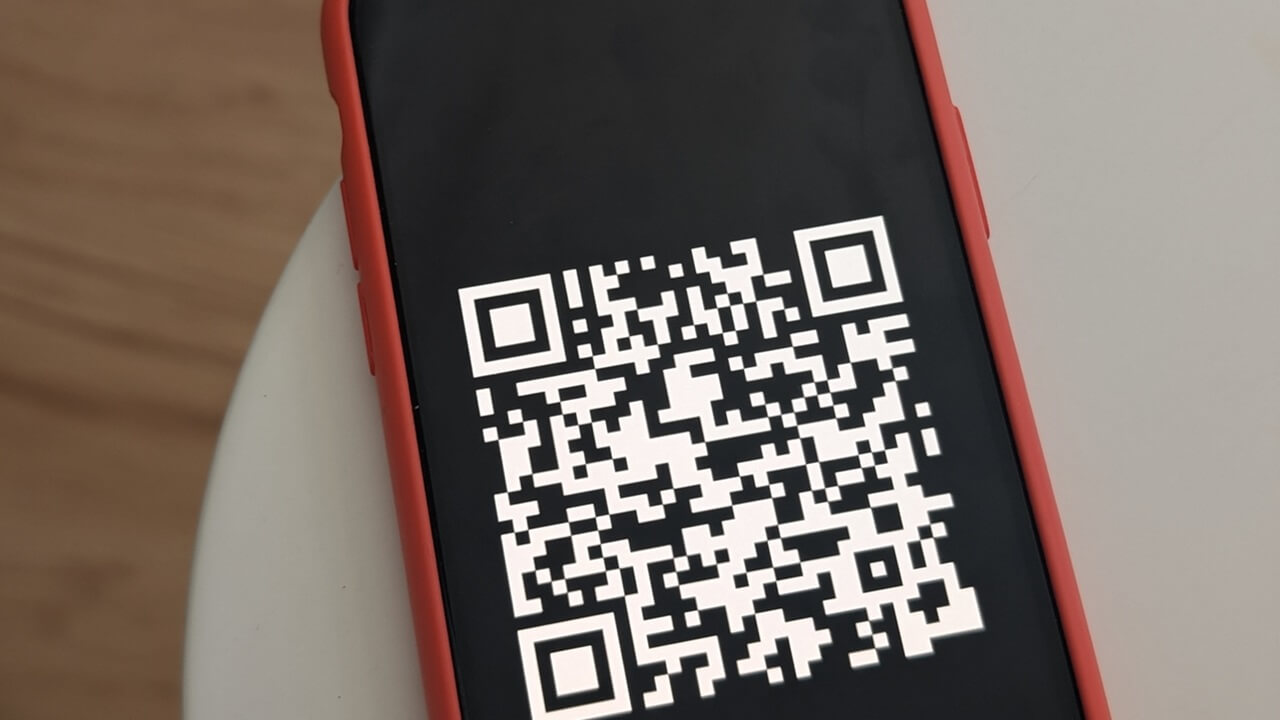

Reverse QR codes are a novel take on the conventional QR codes that most of us frequently use. If you haven’t come across this term before, this article provides insights into what reverse QR codes are and why they might be worth considering.
[mte_toc]Good to know: did you know it’s possible to scan a QR code on a Windows PC? Here’s how.
What Are Reverse QR Codes?
A reverse QR code (also known as a negative QR code) is basically a QR code image where the color scheme has been inverted. While an original QR code features a black pattern on a white background, a reverse QR code flips this script by boasting a white pattern on a dark background instead.
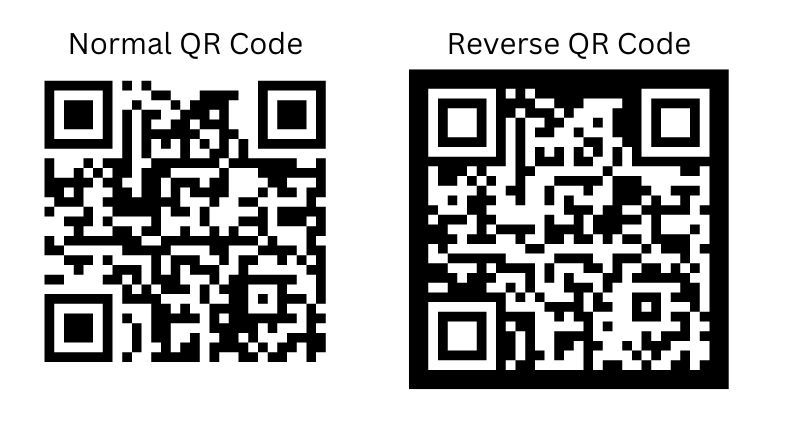
Functionally, a reverse QR code is just the same as a regular QR code. You can use a smartphone or a separate QR reading device to scan it to gain more information. The main differentiator is the unique appearance of the reverse QR code – it’s not what most of us would expect a QR code to look like.
How do Reverse QR Codes Work?
Reverse QR codes work exactly the same as regular QR codes, despite their difference in visual appearance.
Standard QR codes are two-dimensional barcodes that hold data in a grid of black and white squares. By arranging these squares in a specific pattern, the code can store a surprising amount of data, like a website address or a phone number. When the code is scanned using a smartphone or a QR code reader, the device will decode the information and then display it to the user. For an in-depth dive into the inner workings of a QR code, check our post which details the anatomy of a QR code.
In the case of negative QR codes, the squares’ color scheme will be reversed, yet the same data encoding principles apply. In addition, in theory, there is no difference in how a person should scan this type of QR code – a mobile device with a QR code scanning app should suffice. However, that isn’t always the case, as sometimes handsets might throw up errors when scanning reverse QR codes. When that happens, you can try various ways to scan a QR code on your phone.
Why Should I Use Reverse QR Codes?
At this point, you might be wondering why would you want to switch from regular QR codes to reverse QR codes. Well, these negative QR codes do bring some advantages as we’ll explain in detail below.
Enhanced Security
While being a limitation of reverse QR codes, the fact that not everyone can scan with a phone and an app can scan negative QR codes means that they add an extra layer of security. Given that you might need a QR scanning device to read the reverse code, this ensures that only authorized individuals with the right equipment can scan the codes for you.
More secure by design, reverse QR codes offer a strong foundation for authentication and verification within payment systems and other security-sensitive applications.
Improved User Experience
Reverse QR codes can easily stand out visually and capture attention more effectively than conventional QR codes, which makes them an excellent tool for marketing and branding strategies.
Additionally, in certain design contexts, reverse QR codes might be the better option. To prevent issues popping up while scanning this type of code, make sure the image isn’t blurred or too small to scan. You should also avoid blending the QR code with the background. This might make it challenging for QR code scanners (especially smartphone apps) to get an accurate reading.
FYI: the easiest way to scan a QR code with your phone is to use Google Lens. Here’s how to get started.
How to Create a Reverse QR Code
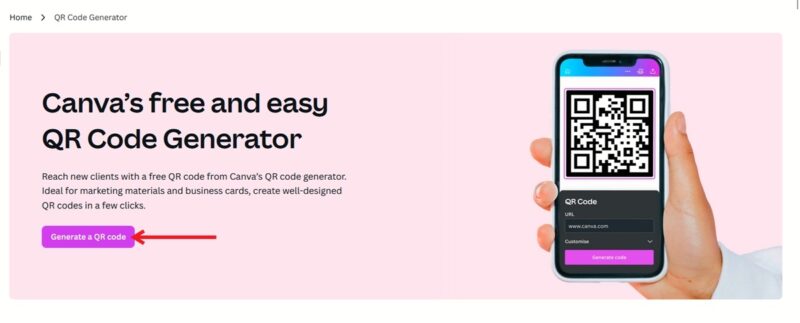
If you’d like to try making a reverse QR code, you can turn to an online tool such as Canva to do this.
- Access Canva’s QR code generator in your browser or via the Canva app (Android, iOS.)
- Click the Generate a QR code button.
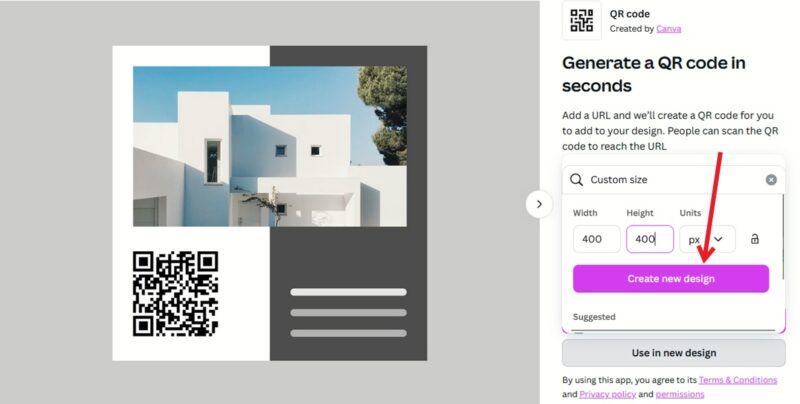
- Select Use in new design -> Custom size. Or if you have a pre-existing design, you can use that too.
- Input the size you want your QR code to have and then hit the Create new design button.
- Add your link on the left side of the display and add it to the canvas. If you want to other something else to your QR code such as a phone number, cryptocurrency, and even a PDF, we suggest you try GenQRCode instead.
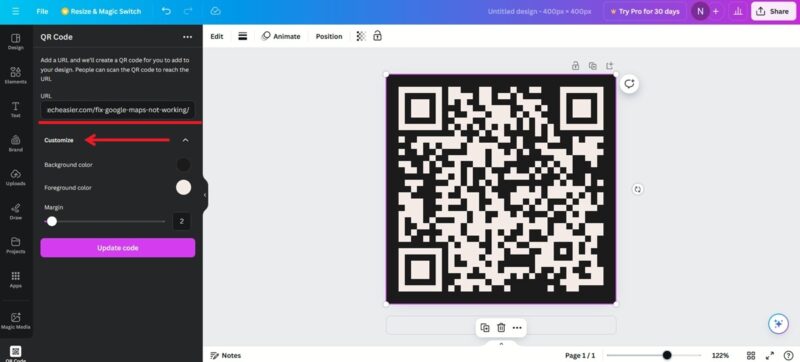
- Click the Customize option and switch the background and foreground colors between them. Press the Update code button to view the changes. Voila, you now have a reverse QR code. You can try scanning it to see if it works!
Tip: take a look at these additional QR code generator apps that will let you create new QR codes for free.
Now that you know how to create a reverse QR code, you might want to expand your knowledge of QR codes even further. For instance, check how you can log into Outlook using a QR code. If you’re a lover of music, get up to speed on how to create and scan a Spotify code to share songs.
All images & screenshots by Alexandra Arici