


People love sharing their favorite music with their friends and family. Spotify is quite aware of this and allows users to easily share songs with others via codes. This post looks at how you can start using this feature yourself.
How to Create a Spotify Song Code on Your Mobile
If you do most of your listening using the Android or iOS app, follow the below instructions to create a Spotify song code and share it with your friends.
- Open the Spotify app on your device.
- Navigate to a song, album, artist or even playlist.
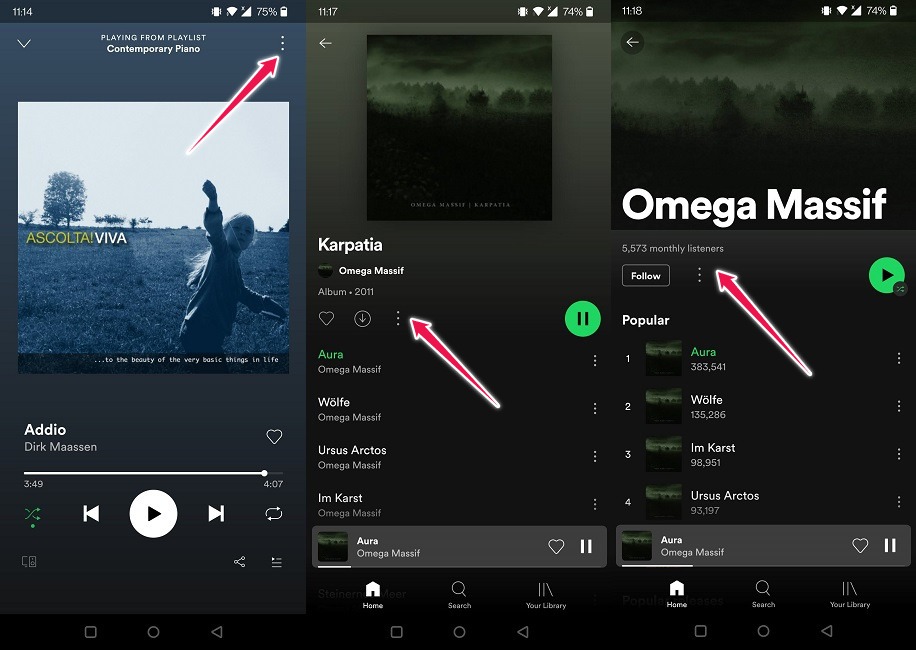
- If it’s a song you want to share, tap on the three dots in the upper-right corner. On the other hand, if you’re viewing an album or playlist, you need to tap on the three dots next to the download button. For artist pages, once again locate the three dots, which are then located next to the “Follow” button.
- You’ll notice there is a small barcode underneath the song/album cover at the top. This can be quickly scanned by a person you want to show a song to. They will need to use the Spotify app to do listen.
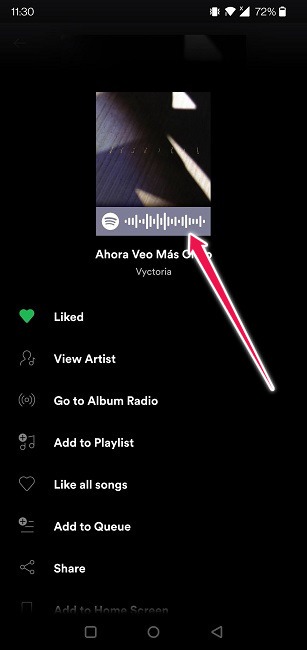
- Make sure you take a screenshot to be able to share the code with whomever you want, even if that person is not in the same room/house as you.
How to Create a Spotify Song Code on Desktop
On desktop, the process is similar – although not entirely the same – with a few extra steps involved. Here’s how to create a code in Spotify’s desktop client.
- Open Spotify and find the item for which you wish to create a sharing code.
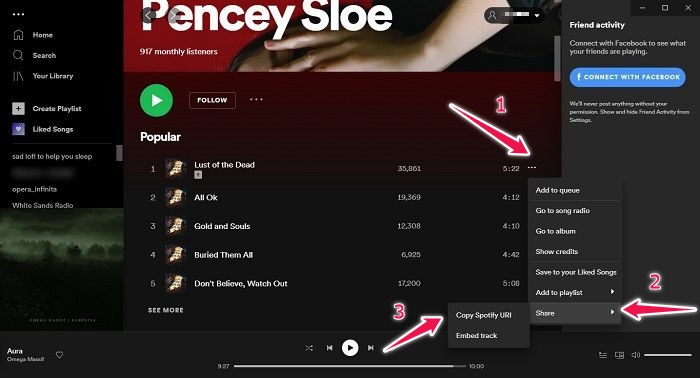
- If you plan to share a song, tap on the three dots next to it and select “Share.” Press the Alt button in Windows or the Option key on Mac and click on the “Copy Spotify URL” option when it appears.
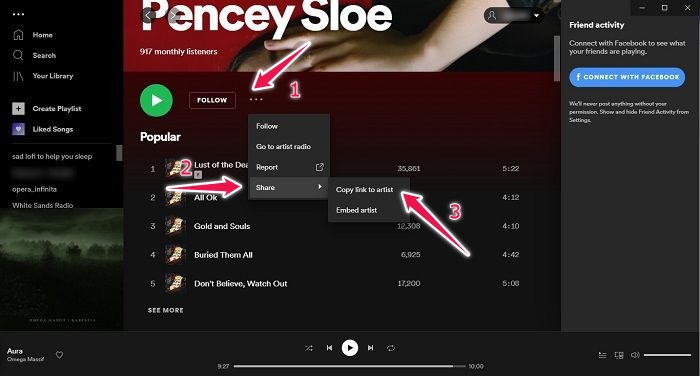
- Alternatively, if you’re trying to share an artist, tap on the three dots next to the “Follow” button to reveal the sharing option, then follow the steps outlined above.
- When it comes to albums and playlists, tap on the three dots next to the download button.
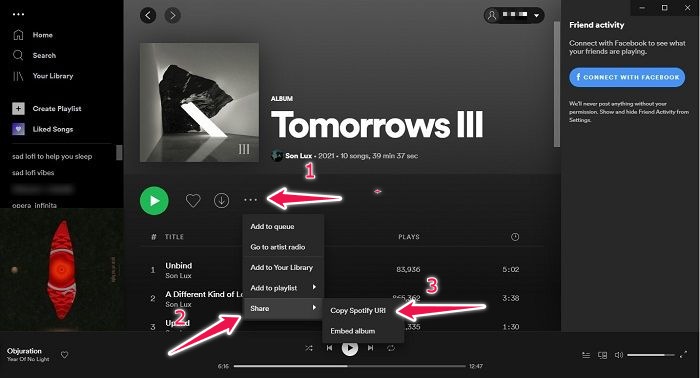
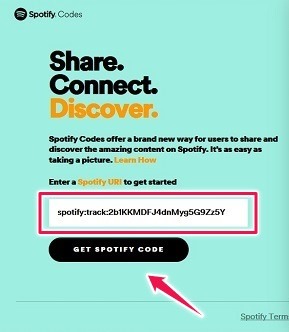
- Once the URL has been copied, go to the Spotify’s Codes page in your browser.
- Paste the URL in the box and click on the “Get Spotify Code” button.
- A panel will appear on the right of the display allowing you to customize your code. You can play with the background and bar color, size of the code, and more.
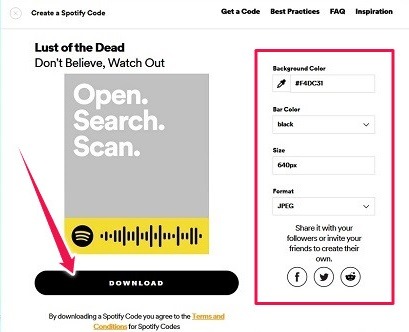
- Press the “Download” button when you’re ready.
Now you can easily share it with your friends and family any way you want to.
How to Scan a Spotify Code
To scan a Spotify code that you’ve received from someone, you’ll need your mobile device. You can’t do scan it from your computer.
- Open the Spotify app on you iOS or Android phone/tablet.
- Tap on the Search button at the bottom.
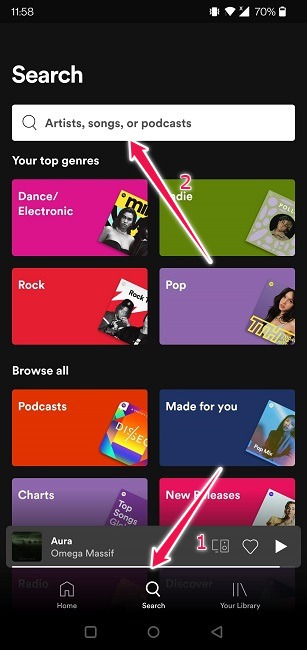
- Tap on the search bar at the top.
- Don’t input anything; just tap on the camera icon when it shows up.
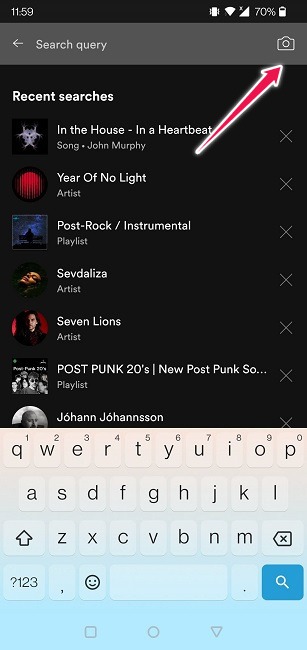
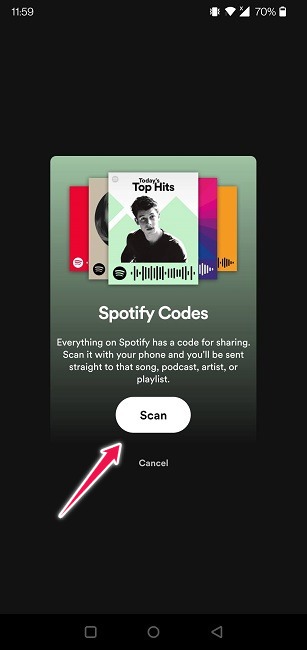
- Press the “Scan” button on the Spotify Codes page that appears.
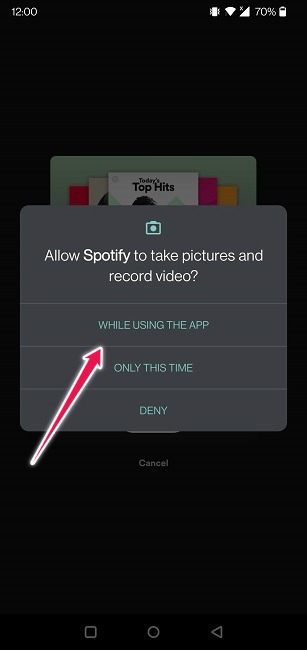
- Grant permission to allow Spotify to take pictures and record video.
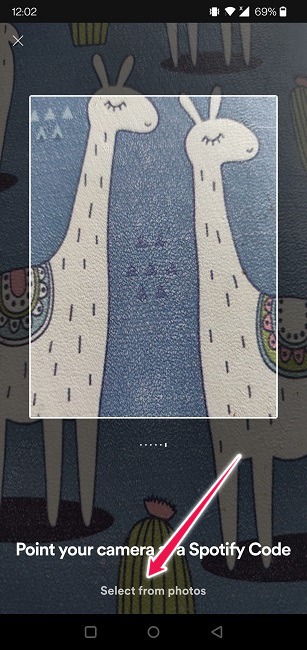
- Choose to either “Point your camera at a Spotify code” or “Select from photos” to scan the code.
You should be taken directly to that specific song/artist/album/playlist in the Spotify app.
If you don’t want to share your favorite tracks in the form of a code, that’s completely up to you. You can, of course, send songs the old fashioned way using the good old share function.
How to Share a Song without a Code on Spotify for Mobile
In order to share a song or anything else – such as an album, artist, or playlist – you’ll have to access the context menu (three dots) as we indicated above.
- Navigate to a song in the Spotify app.
- Tap on the three-dot menu in the top right.
- Instead of looking at the bar code displayed underneath the cover art, check out the options available in the menu below.
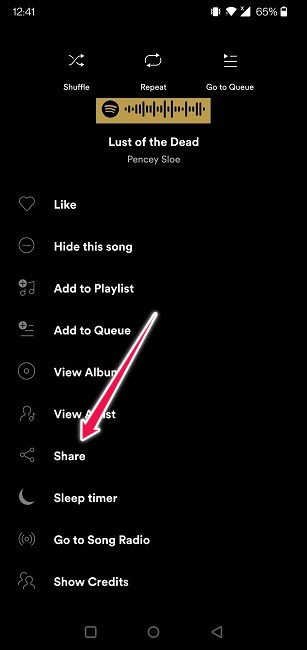
- Scroll until you find the “Share” option and tap on it.
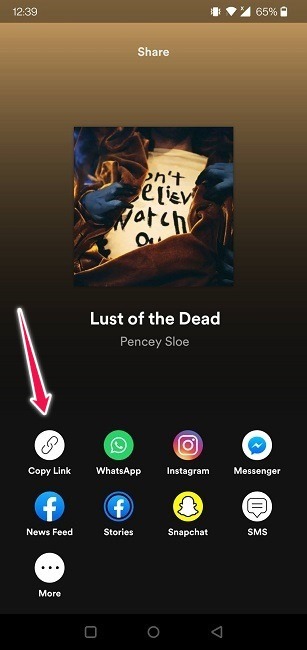
- Now select from the available options. The first option will copy the link, then share it manually. Alternatively, you can share it directly on social media through Facebook, WhatsApp, Instagram, or Snapchat. Tap the More button for even more options. You can also share via SMS.
A person that receives your link just has to tap on the link, and the song (or album, artist, playlist) will open in their Spotify app. You don’t even need to have the app installed for the sharing to work. The link can be accessed in a browser without an account.
How to Share a Song without a Code on Spotify for Desktop
On PC, the options to share are a bit more limited. You can’t share directly to social media, but you can get the link.
- Find the song you wish to share in the Spotify app.
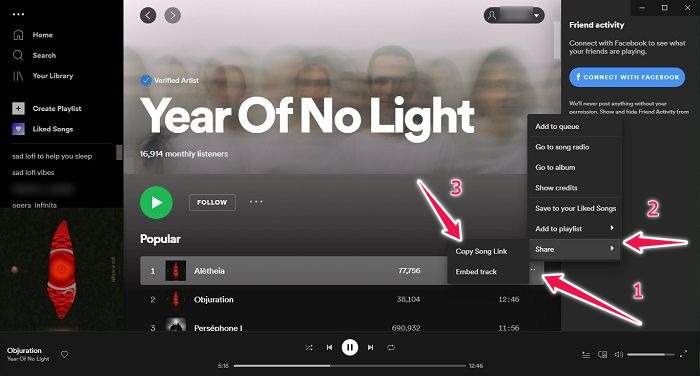
- Tap on the three dots next to the song.
- Select “Share.”
- Click on “Copy Song Link” to get the link to share any way you want.
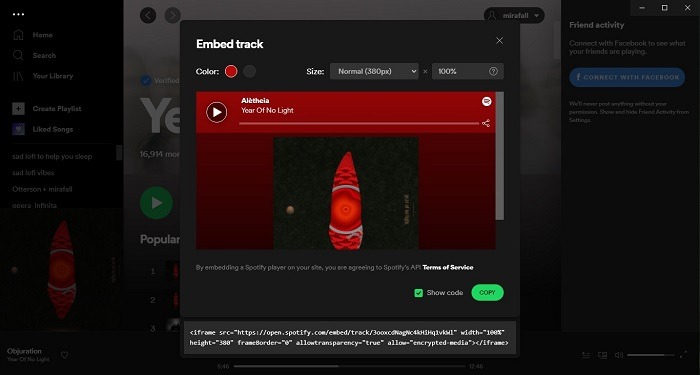
- The other option is to “Embed track.” Choose this if you wish to include the song in a web page you’re currently working on.
Frequently Asked Questions
1. Who can create Spotify codes?
Both free and premium users can make Spotify codes. This feature is not limited to those who have a paid subscription to the app. At the same time, both types of users can scan these codes.
2. The Spotify app won’t let me scan my own photos. What can I do?
Spotify’s scanner can scan images from your own gallery. However, this feature doesn’t appear to always be working. If it happens to you, exit the Spotify app, then open it again and try to scan once more. Make sure you grant the permission correctly after you tap on the camera icon next to the search bar. If it continues to be non-functional, ask your friend to share the song via a link.
3. Can I share a Spotify song using a QR code?
You most certainly can. You’ll need to use a third-party software like QR Tiger, though. The process is simple enough:
- Just copy/paste the link to a Spotify song into the platform.
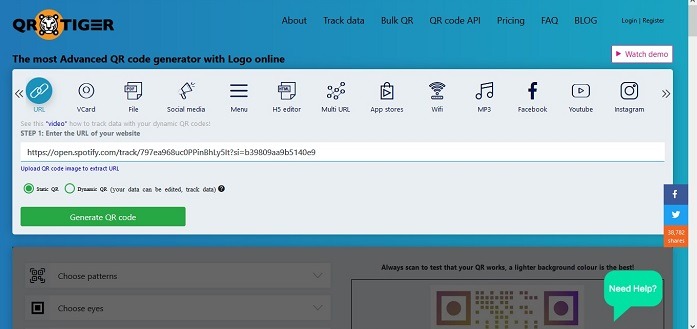
- Press the “Generate QR code,” then customize the your QR code. You can even add the Spotify logo, but you’ll need to save it to your computer first.
- Press on the “Download” button.
- Now you can share the code with anyone you want. The bonus here is that your friend doesn’t have to scan in the Spotify app to access the song. They can use whichever app they have at their disposal, such as Google Lens.
Looking to learn even more Spotify tricks? Get up to speed on how to change your username on the app or, if you’d like to continue your shared musical experience, learn how to create a Blend playlist with your friends.