As useful as browsers are, they’re also incredibly distracting. Imagine a browser that only opens one site at a time with no tabs, cluttered interfaces, or bloated features. Weblo does all that and more, transforming the way you typically use a browser, while keeping you more focused online.
Limit the Sites You Visit
Weblo is a free Android app (sorry iOS users) that’s part browser and part bookmark manager. But, it’s not a typical bookmark manager that just lets you list sites and then open them in your default browser. Though I still love using Raindrop just for bookmarks.
Instead, the app limits you to just one page at a time with no option to open numerous tabs. Add the sites you want to visit. Then, tap sites when needed to visit them directly in Weblo. No other browser needed. In fact, it could easily replace your normal browser.
For me, this makes Weblo an incredible focus app. Instead of having endless tabs, folders filled with bookmarks, and an address bar tempting me to visit other sites, I’m limited to just the sites listed in my profile.
It’s a simple, minimalist browser that limits distractions. No bloat and no annoying AI features. It’s browsing the way it should be.
Using Profiles to Separate Experiences
The real magic of Weblo is profiles. Each profile is completely independent. It has its own list of sites, categories, history, logins, and overall settings.
When you first download the app, there’s a default profile. You’re free to delete it or customize it to your needs. It’s a good way to see how the app works, though.
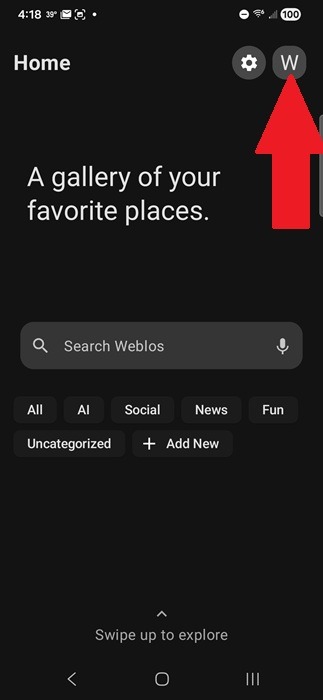
If you want to create a new profile or switch between profiles, tap the profile icon at the top right. The default is W, but the icon changes based on the name of the profile currently in use.
Tap the Profile icon (person with a plus sign) at the bottom right and enter a name. Long tap to change the name at any point. Tap the profile to make it your active profile.
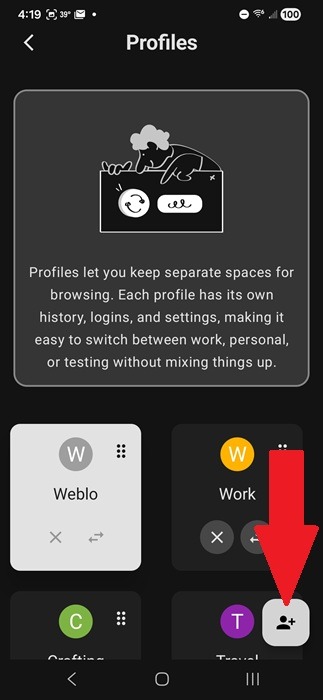
I love that there’s no complicated setup to start a new profile. Add a name and you’re ready to get started.
Tap the Back arrow at the top left to go back to the home screen using your newly selected profile.
Customize Individual Profiles
Some settings apply to the entire app, such as the appearance. But, other settings apply to individual profiles. Go to Settings at the top right and tap Default Configuration. The settings are unique to every profile. You can stick with the overall defaults or make changes.
I loved going through and customizing these settings, but it’s not necessary to start using a profile. I do suggest at least reviewing the Privacy and Display sections at the very least.
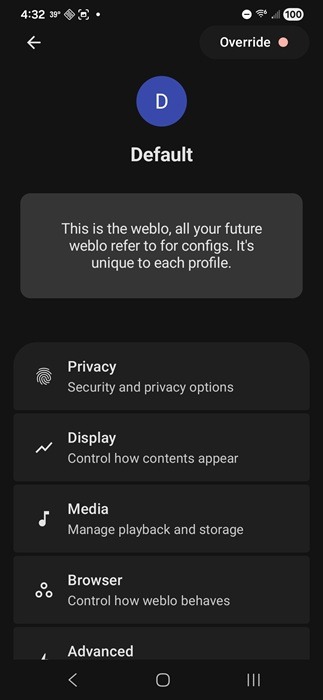
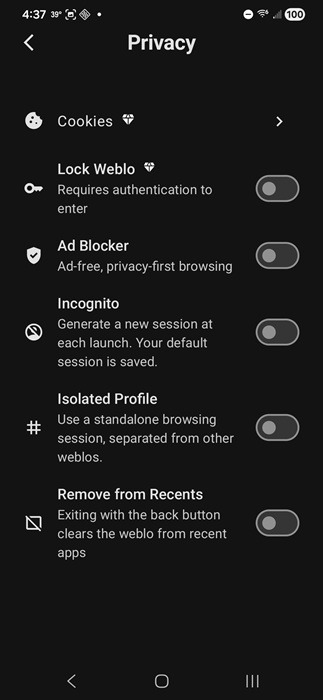
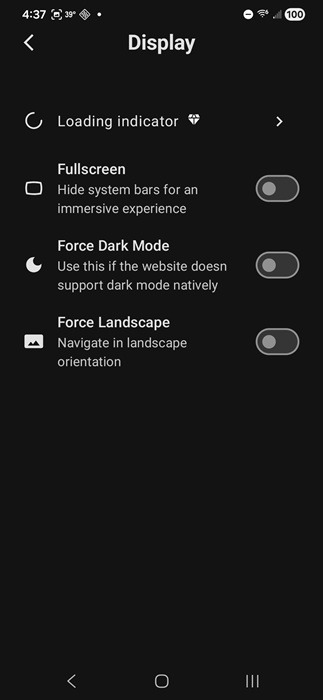
These sections let you turn on an ad blocker, lock content with a passkey, and open sites in incognito mode by default. With Display, you can open every site in fullscreen to create a more immersive experience and even force dark mode on sites that don’t support it.
Adding Categories and Sites
You might immediately notice the lack of an address bar and tabs. The Weblo browser doesn’t have any of these. Instead, you have to add individual sites within categories. I recommend taking full advantage of profiles and separating your sites based on the profile.
For instance, for work, my sites are limited to just the sites I typically visit for research, finding topics, and checking out the latest news related to tech.
For these examples, I’ll use the default Weblo profile. Add a new category by tapping + Add New. Enter a name.
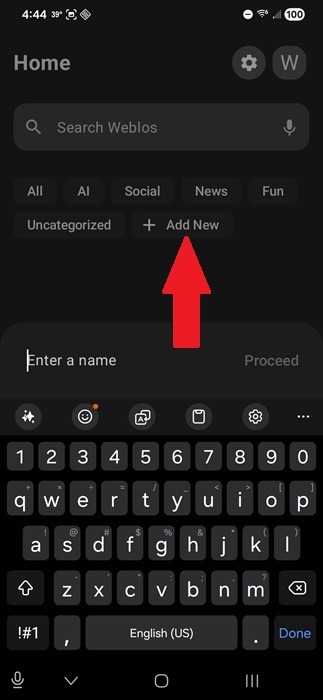
Once you have a category, it’s time to start adding sites. Tap a category to open the list of sites. Then, tap + at the bottom right to add a new one.
If you have numerous sites to add, use a traditional browser to group the sites and export the list. Then, choose the Import option in Weblo to import the sites into your category. If you don’t have a list to import, tap Bulk Add and enter each site on a new line. For individual sites, use Quick Add and enter the URL.
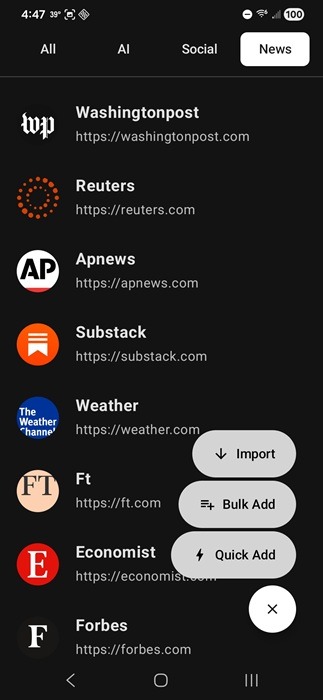
This is the most difficult part of setting of the app. It takes a while to add all your sites. But, trust me when I say it’s well worth the effort once you start using the browser. ChatGPT can help create a bookmarks list for you.
Turning Weblo into Your Main Browser
At first, I used the Weblo browser mainly to organize bookmarks. Then, I realized just how powerful this browser could be. Just because there isn’t an address bar, it doesn’t mean I can’t still search and browse like normal if I want to.
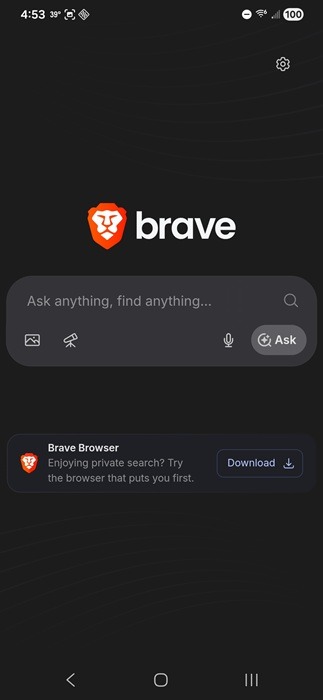
Just add your favorite search engine(s) as individual sites. For example, I added Brave Search as one of my sites. It works as usual, just without tabs, cluttered toolbars, and menus.
Getting More Out of Weblo
The more you use the app, the more handy features you’ll discover. To help you get started:
- Use data saver – Go to Settings → Default Configuration → Media → Data Saver. This prevents media heavy items from loading.
- Offline access – Use Page Keeper to store pages to read later. Go to Settings → Default Configuration → Media → Page Keeper.
- Ad blocker – Not only can you turn on an ad-blocker, but go to Settings → Ad Blocker to customize the ad blocker. It even works on YouTube
- Background play – It only works with audio. Go to Settings → Default Configuration → Media → Background Playback.
- Voice search – If you have numerous sites (or weblos), tap the microphone on the home screen to search for a specific site.
- Backup/restore – There isn’t a login to use Weblo. Instead, go to Settings → Backup and restore to keep a backup of your account.
- Change appearance – Go to Settings → Appearance to customize colors for the entire app.
The only real downside to use the Weblo browser is some features are locked behind a paywall. But, it’s only $2.50 to unlock a lifetime license, making it cheaper than a cup of coffee. Since it’s only available for Android, you might also want to try these specialty browsers for a new experience on desktop.