The Device Manager is a one-stop tool for managing all your Windows hardware. It’s useful to know how to open it using different methods for different situations. If your mouse or trackpad fails, you need the keyboard. If keys are stuck or broken, mouse-based methods come to the rescue. Whatever your workflow, we’ve listed several ways to open Device Manager in Windows.
1. Use the Quick Access Menu
The easiest way to open Device Manager in Windows is through the Quick Access Menu. If you want to avoid clicking through multiple menus or typing too many letters, here’s one simple keyboard shortcut to remember.
On your PC, hold down the Win + X keys and select Device Manager from the list that pops up.
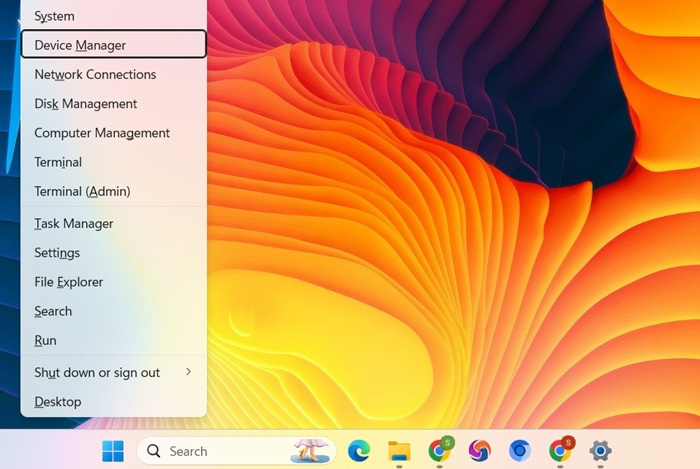
Mouse-only users can open the same Quick Access menu by right-clicking the Start button.
Also read: are you on Windows 10? Check this ultimate compatibility guide for Windows 11. Although Microsoft is still providing updates to Windows 10 users.
2. Type “Devmgmt.msc” in the Run Command
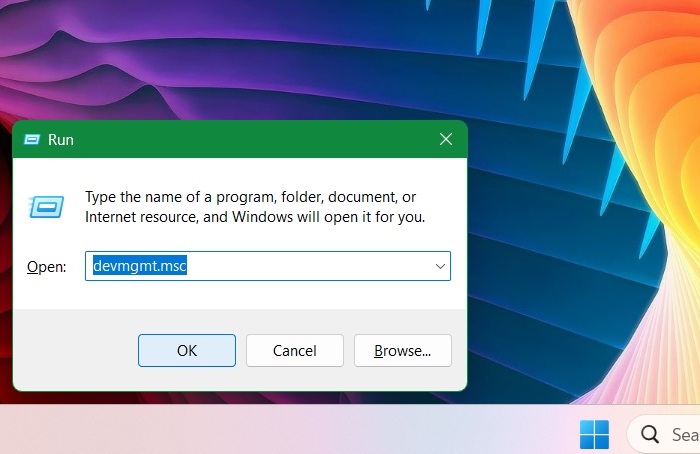
Press Win + R keys to launch the Run command. Type in devmgmt.msc and hit Enter to open Device Manager.
Related: many keyboard users prefer the Run command to open commonly used Windows applications.
3. Via the Settings App
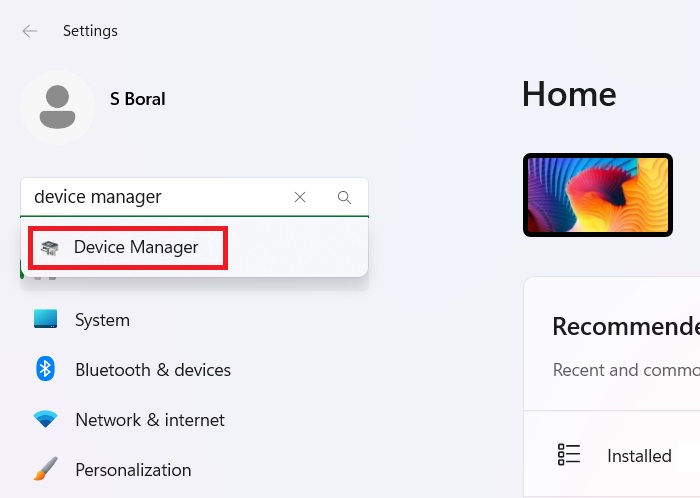
On your PC, press the Win + I key to open Settings.
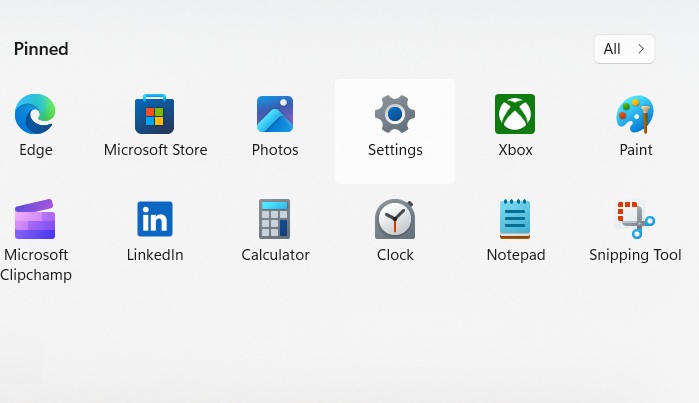
Type “Device Manager” in the Search bar on the left and click Open or press Enter.
Related: is your Windows 11 search bar not working? We have the fixes.
4. Open it from the Windows Search Bar
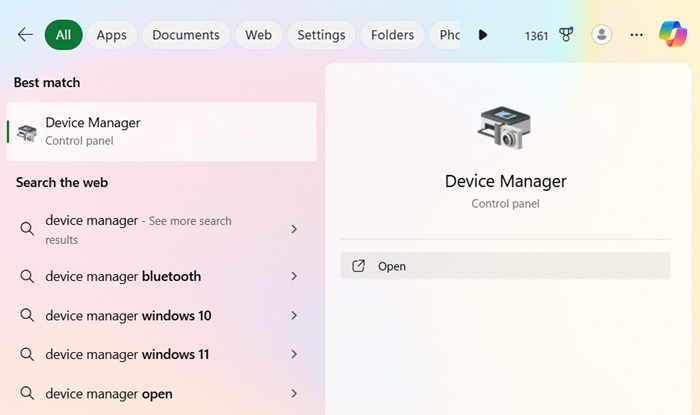
Alternatively, you can click on the Search button at the bottom of your computer, type in “Device Manager” and click Open.
As the Device Manager is a Control Panel option, you can also open it from All Control Panel items home screen by clicking the prominent Device Manager menu.
Also read: want to free up computer RAM on Windows? We’ve got your back.
5. With Task Manager
This method is necessary if you are trying to troubleshoot hardware problems, update drivers, or fix errors in admin method.
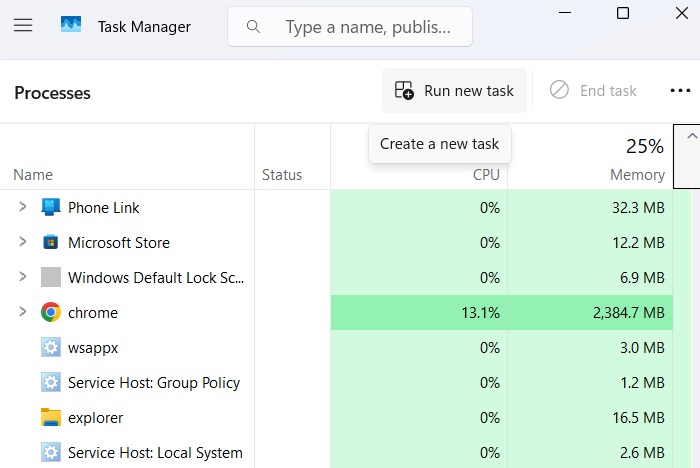
To open the Task Manager, press Ctrl + Shift + Esc. Click Run new task.
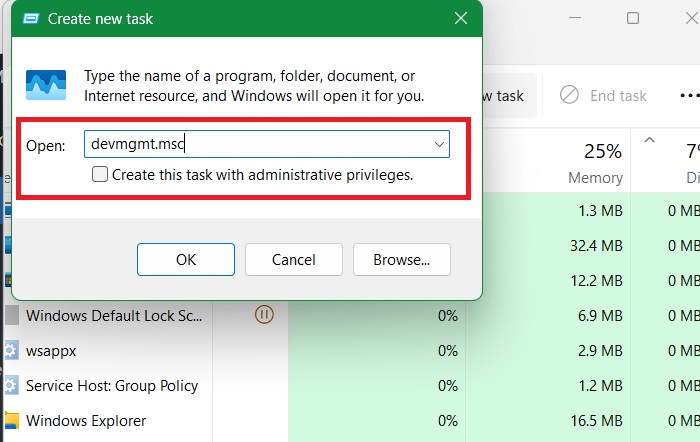
In the dialog box that pops up, enter devmgmt.msc and press OK. You can also select Create this task with administrative privileges.
Related: you can use Task Manager columns to troubleshoot Windows PC.
6. Using Task Scheduler
This method lets you automate opening Device Manager for system maintenance. It’s a big help for routine hardware checks, like spotting outdated drivers or errors. It also runs Device Manager with admin rights automatically. While it benefits all Windows users, system administrators managing multiple PCs gain the most.
From the Run command, open Task Scheduler by typing taskschd.msc, and click OK or Ctrl + Shift + Enter for administrative permissions.
Go to the Task Scheduler Library, and right-click to create a New Folder. Give it a name such as “MyTasks”. Click New Task on the right. A Create Task window opens where you can select multiple machines, if available. On its General tab, ensure that Run with highest privileges is enabled.
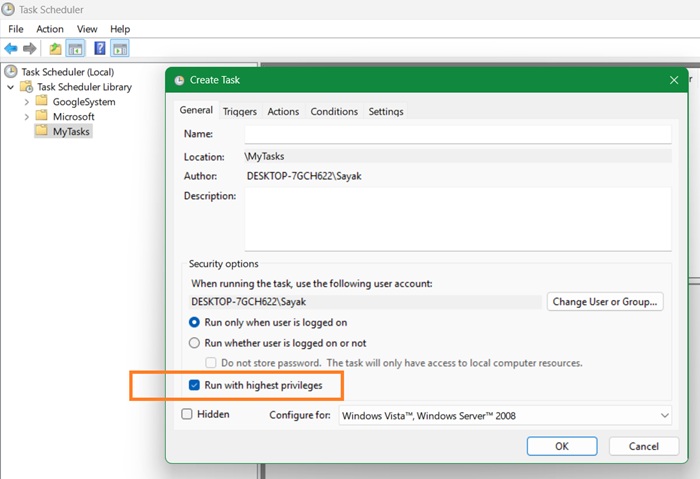
Click New in the Trigger tab. This opens the New Trigger window. Here, you can schedule the task as per your requirements.
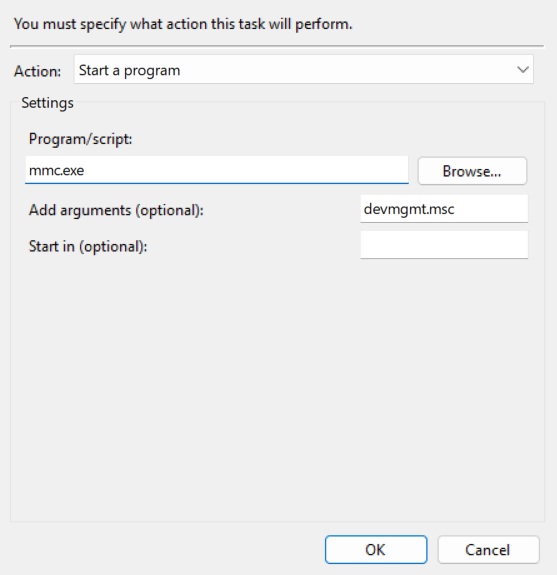
In the Action tab, click New. This opens the New Action window. Here, choose the action as Start a program. Under Program/script, enter the program as mmc.exe, (Microsoft Management Console) and next to Add arguments, enter devmgmt.msc. Click OK to finalize this task.
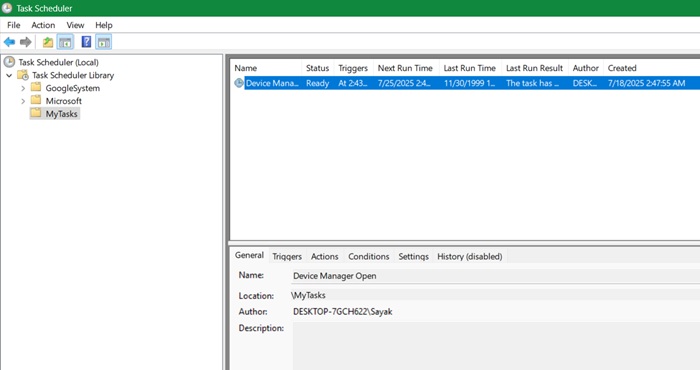
Once the task of opening Device Manager automatically is visible on the Task Scheduler homepage, you can double-click to edit it anytime.
Related: all you wanted to know about creating a desktop shortcut for you.
7. Create a Shortcut
You can easily create a desktop shortcut to open Device Manager from a convenient location, like your Desktop. This is a quick method to launch Device Manager with a single mouse click on the icon.
Right-click on the Desktop or any folder inside and select New -> Shortcut. Type in devmgmt.msc as the new location and click Next.
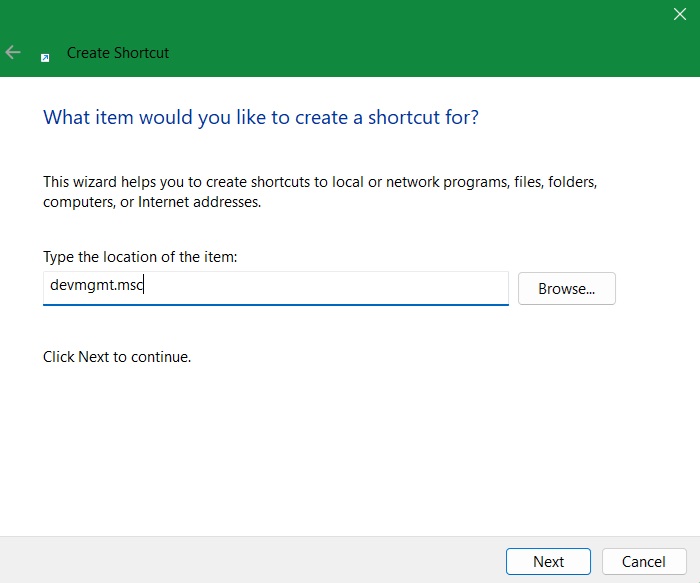
Name the shortcut as per your requirements and then click Finish.
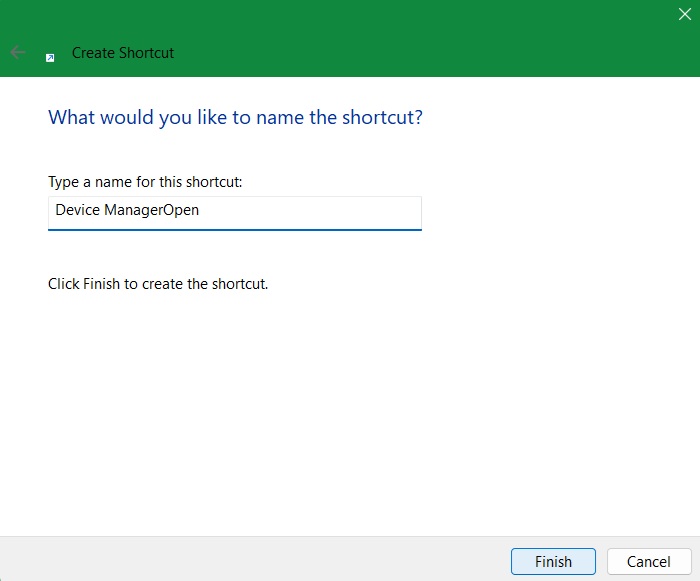
The shortcut should now appear on your desktop. Now, simply double click it anytime to go straight to Device Manager.
Now that you are equipped with multiple ways to access the Device manager, perhaps you’d like to go a step further and learn how to customize your Windows 11 Start Menu so that you can access your frequently used apps more conveniently. You may also want to check how to find the drivers for unknown devices in Windows.








