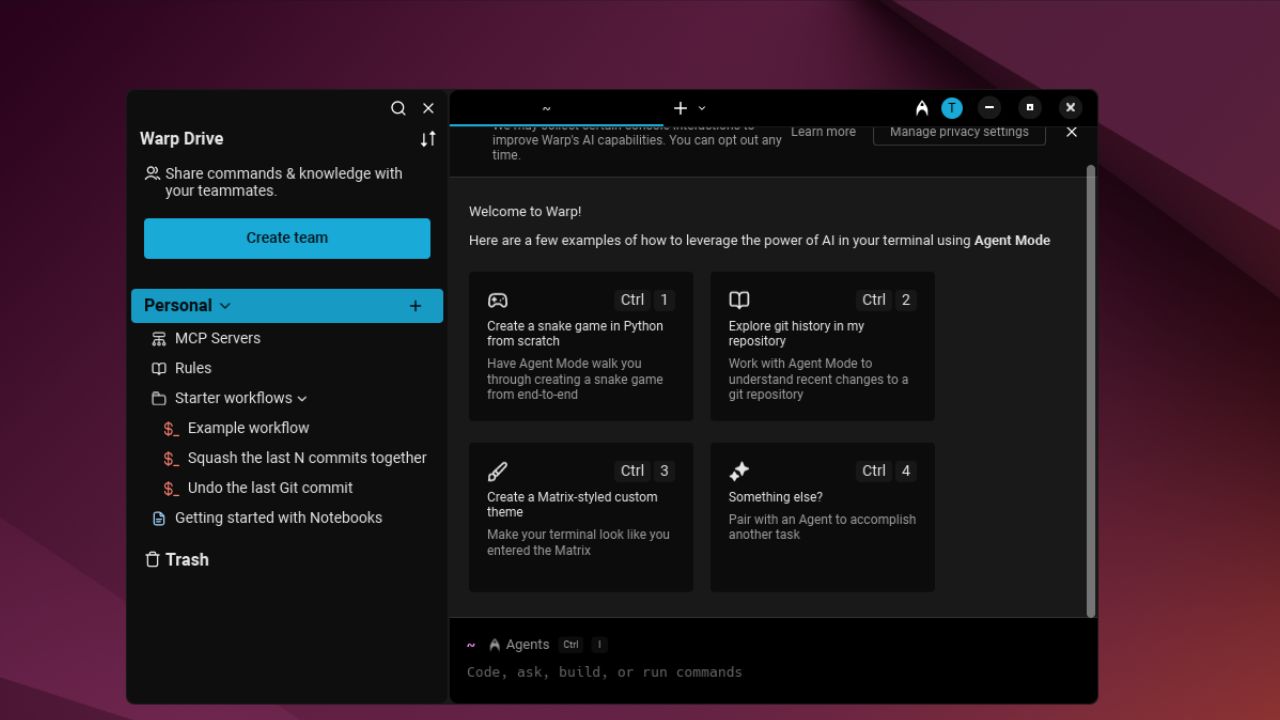
The beauty of Linux is that it offers many choices – whether you’re selecting a distribution, desktop environment, or even the terminal. Although I’ve worked with many terminals on Linux, the Warp Terminal has completely changed the way I work.
What Is the Warp Terminal?
Warp is a modern, Rust-based terminal emulator that reinvents the traditional CLI experience. Basically, it’s your familiar terminal that is enhanced with a sleek interface, block-based history, and built-in AI intelligence. It’s designed to make your workflow smoother and faster.
Unlike traditional terminals that haven’t evolved much since the 1970s, Warp brings a fresh perspective to command-line interaction. With Warp, your terminal can actually understand what you’re trying to do instead of blindly executing commands.
Key Features
- Every command and its output are wrapped into editable, navigable blocks.
- Offers IDE-style editing, Vim keybindings, and autocorrection for common typos or missing flags.
- Includes a Warp AI assistant that suggests commands and even fixes errors in context.
- Lets you save workflows, notebooks and environment settings, and share them with your team, all from inside the terminal.
- Supports block and live session sharing, making it ideal for pair programming and collaborative troubleshooting.
- Provides a Command Palette (inspired by modern IDEs) for searching commands, history, environment variables, and more. Just press Ctrl + Shift + P and start typing.
Installation and Setup of Warp
Warp was initially available only for macOS, but officially launched on Linux in February 2024 and on Windows in February 2025. The installation process varies depending on your operating system, but it’s generally as simple as downloading the installer from Warp’s website.
For example, if you are Mac users, then you can grab Warp directly from their website, or a shortcut way is to use this command:
brew install --cask warpWindows users can download a straightforward .exe installer, or alternatively use this command:
winget install Warp.WarpIf you’re on Linux like me, download the package that matches your distribution (e.g., .deb for Ubuntu or .rpm for Fedora), and install it using your system’s package manager.
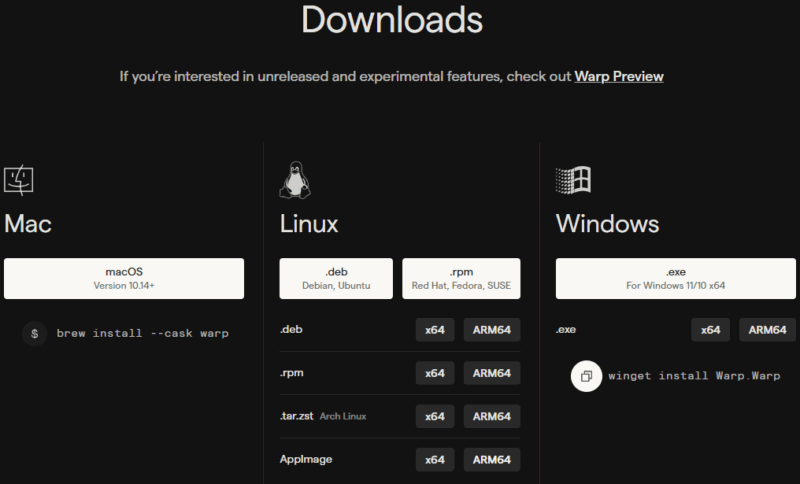
For example, if you downloaded the .deb file, open your terminal, navigate to the download location, and run:
sudo apt install ./warp-terminal_*.deb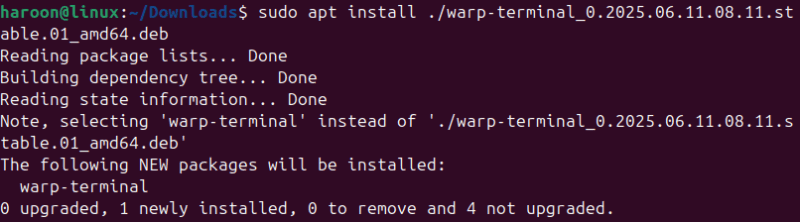
There’s even a portable AppImage version if you prefer not to go through a full installation. Once installed, launch it from your applications menu or by executing the warp-terminal command. Warp will guide you through a simple setup.
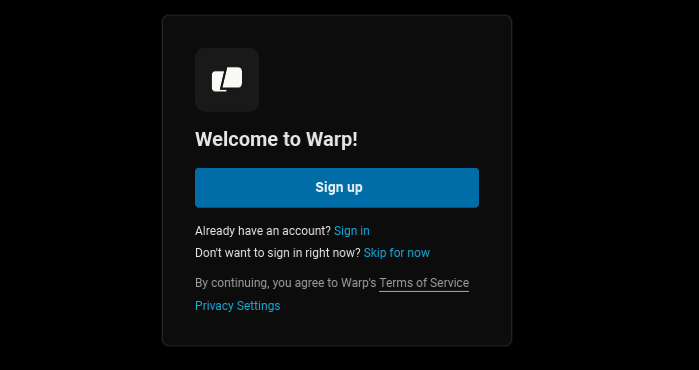
You need to log in (to unlock sync features, though it’s optional) and choose your preferred shell. It also works great with Bash, Zsh, Fish, and even PowerShell.
Warp Terminal Offers Advanced Features
The real magic begins when you start typing. Want command suggestions? Warp autocompletes across 400+ CLI tools and adapts to your habits. Made a typo? It immediately prompts a correction, just like a browser’s spellcheck. Thanks to the block-based layout, everything stays organized, so you’re not overwhelmed by walls of text.
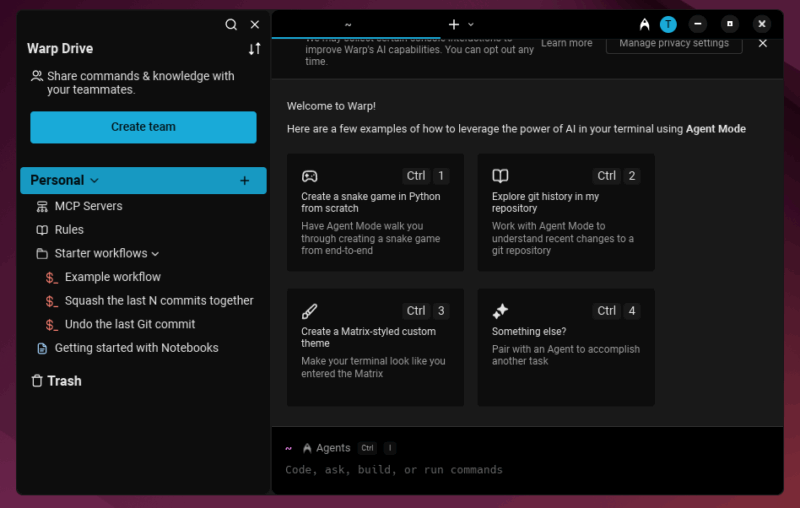
Its advanced feature set also includes bookmarks, multiple cursors, syntax highlighting. With Warp Drive, you can save and reuse commands, create interactive runbooks, and sync environment variables across devices and teams.
Warp also supports persistent sessions. Close the terminal and pick up exactly where you left off when you next open it, similar to Tmux session. One of my favorite features is the sticky command header. When your output scrolls for pages, the command you ran stays pinned at the top, so you’re never lost.
Performance monitoring and debugging tools are built right in. You can track execution times, identify errors quickly, and understand your command behavior in real time.
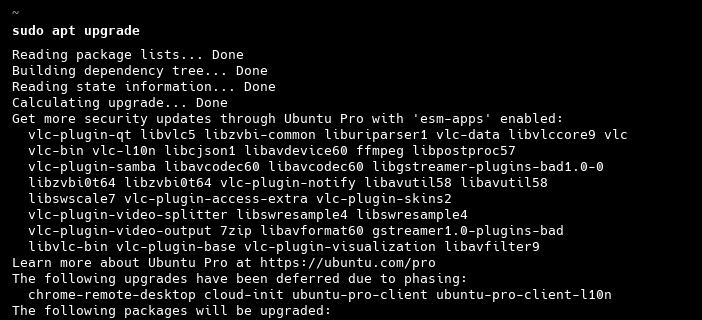
And if you use Git, the visual Git prompt is a game-changer. It shows your current branch and whether you have uncommitted changes right there in the prompt, without having to run git status every five seconds. These thoughtful details significantly improve daily productivity.
Warp Is Highly Customizable
Warp offers extensive customization, letting you tailor your terminal to your preferences. You can change themes, adjust fonts, rebind keys, and customize how different types of output are displayed. You can even define how Warp behaves, set up custom workflows, and create shortcuts for complex tasks.
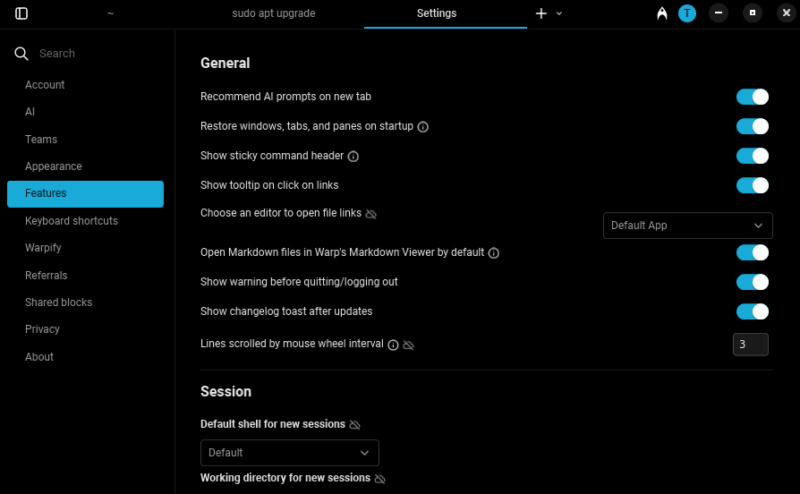
What’s really smart about Warp is that the defaults are already great. You don’t need to spend hours configuring everything just to get a usable terminal. But if you want to dig deeper and make it truly yours, the options are there.
It Operates on Warp Blocks
This might be my favorite feature of all. Warp uses blocks, which combine your input and the received output together as a single unit. These blocks act as smart containers that keep related commands and their results organized.
Why does this matter? Well, have you ever tried to copy just the output of a command from a traditional terminal? It’s a nightmare of selecting text and hoping you don’t accidentally grab extra stuff. With Warp blocks, you can copy commands, outputs, or entire blocks with a single click.
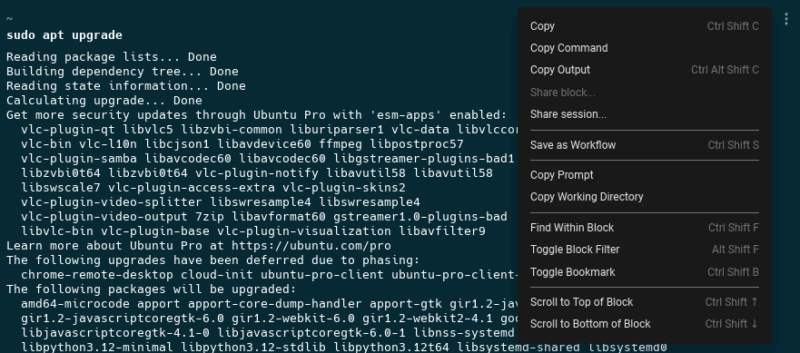
Also, the sharing capabilities are incredible too. You can share blocks with teammates, either the full command and output or just specific parts. It’s made collaborating on terminal-based tasks so much easier.
Also, if a command throws an error, the block actually turns red, giving you an immediate visual cue that something went wrong. It’s such a simple concept, but it makes a chaotic stream of text into a beautifully organized, readable document of your work.
Get Help From the AI Assistant Right in the Terminal
Warp AI shines in context. See an error? Right-click and choose Attach as agent mode context in the agent mode menu. It will explain what went wrong, or even suggest the missing package. For example, if you are going to install any package like PostgreSQL and don’t know about the commands? Just type install postgres and Warp will generate the correct commands and tell you what they do.
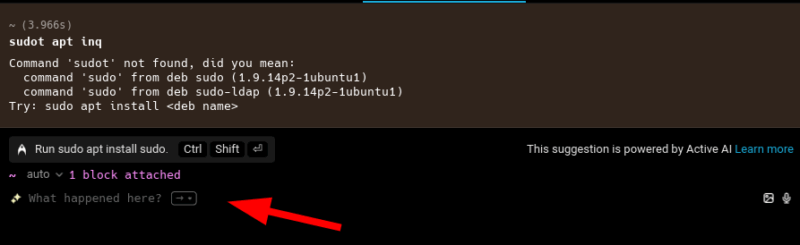
Further, Warp AI agent can recommend fixes, generate code snippets, and debug errors, all without leaving the terminal. You can even interact with Warp AI using voice or images for hands-free assistance. Just use natural language to accomplish task – it’s that intuitive.
Quick Navigation and Search in the Terminal
Traditional terminal history becomes practically useless after you’ve run more than a few dozen commands. Warp’s powerful search functionality completely solves this problem. You can search through your command history, locate specific outputs, and even search within blocks. Just press Ctrl + R to open the Command Search panel and type what you’re looking for.
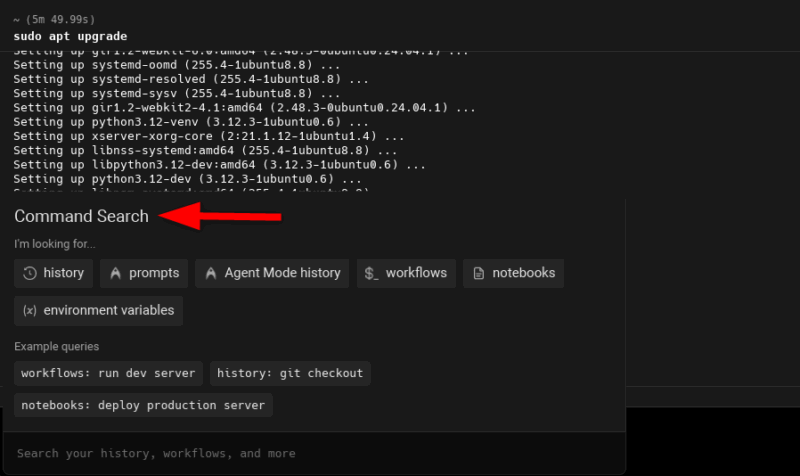
But it’s not just about finding old commands. Warp lets you search across your entire terminal experience, including saved workflows and shared content.
Navigation is equally impressive. You can jump between blocks, bookmark important commands, and organize your work in a way that actually makes sense. With the Command Palette, you can access any Warp feature without memorizing shortcuts. Just hit the shortcut, type your query, and Warp takes you there.
Save and Share With Warp Drive
Warp Drive brings the spirit of Jupyter Notebooks into the terminal, offering a secure space to save and share interactive notebooks, workflows, and prompts. This feature makes Warp feel more like a collaborative platform than just a terminal.

You can build up a collection of useful workflows and access them from anywhere. The sharing capabilities are fantastic for team collaboration, and everything is accessible via the Command Palette or shareable with just one click.
Final Thoughts
Warp is a sleek, AI-powered terminal emulator with innovative features that truly transform the command-line experience. If you love working in the terminal like I do, you absolutely need to try Warp and see how it enhances your workflow.
Of course, there are other popular terminals worth exploring, but Warp stands out with its modern design, powerful tools, and team-friendly functionality. Once you switch, you might not want to go back.








