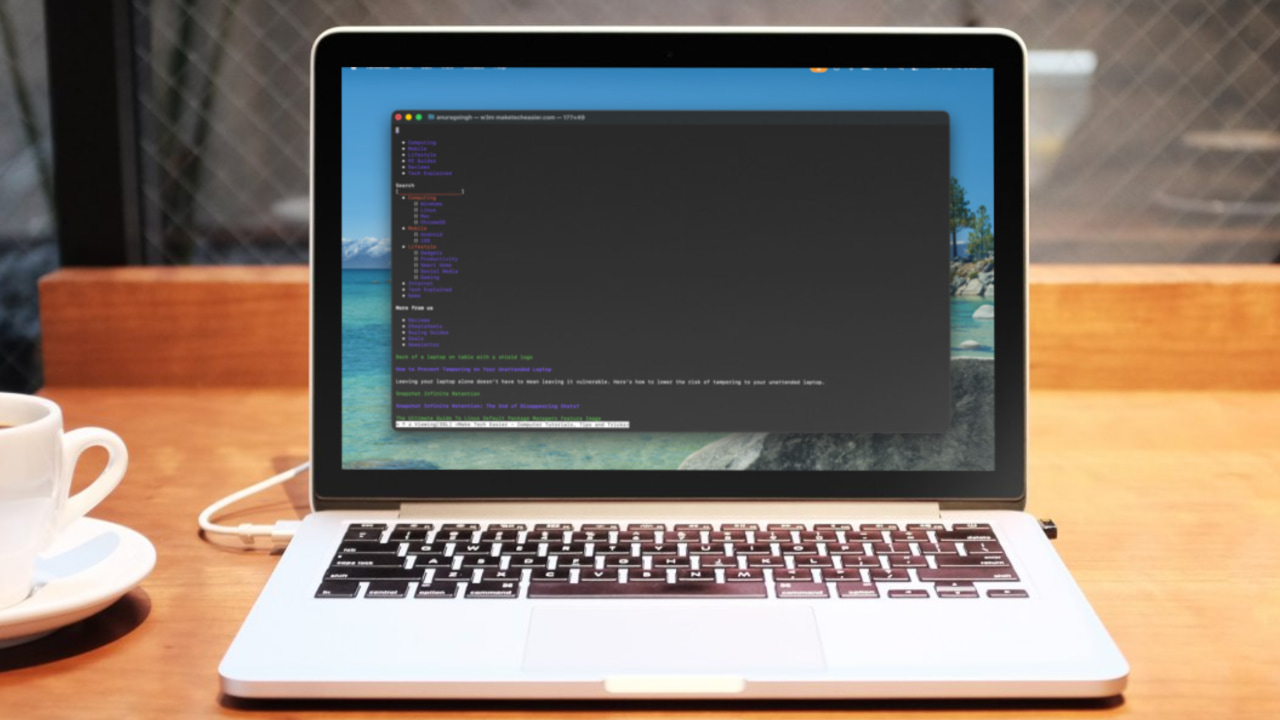
I have recently been trying to replace my regular apps with terminal-based alternatives. Not because I have no life, but because it’s fun and sometimes these CLI tools offer more than their GUI counterparts. I recently tried a terminal-based calendar, which turned out to be quite decent. Riding on the heels of that success, I decided to try a terminal-based browser. It’s called w3m, and I have been using it for the last two weeks after ditching Chrome. The experience has been decent, but would I stick to it? Not really.
Good to know: Browser Extensions Can Use Your PC For Web Scraping: How to Protect Yourself
What Is w3m?
w3m is a free and open-source text-based web browser that you use in a terminal window. The name “w3m” stands for “WWW wo miru” (Japanese for “to see the web”), which hints at its purpose. It was originally developed in 1995, and while the original project is now inactive, a fork maintained by developer Tatsuya Kinoshita kept w3m alive for many years. As of 2024, a new community-maintained fork has taken over its development.
Unlike earlier text-only browsers such as Lynx, w3m can handle more of the modern web’s HTML elements. It supports things like tables, frames, and even inline images within the terminal. In other words, it tries to render pages with a structure closer to their graphical layout, instead of just dumping plain text. It also supports forms and cookies, so you can log into websites that don’t rely on heavy scripting. However, w3m does not support JavaScript at all, which limits what content it can properly display.
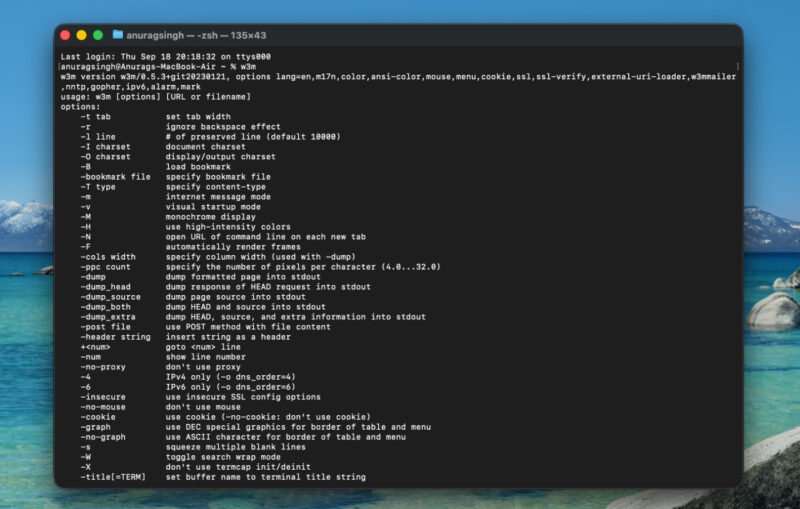
Despite its limitations, w3m is quite feature-rich for a terminal app. It has tabbed browsing, basic mouse support in capable terminals, and even the ability to display images if configured properly. Essentially, w3m gives you a web browsing experience stripped down to text and hyperlinks, with a bit of formatting and color. It’s available on Linux and other Unix-like systems by default, and can even run on Windows (via Cygwin) or macOS (via Homebrew).
Setting Up w3m
Getting w3m up and running was straightforward. On most Linux systems, you just need to open the terminal and install it via the package manager:
sudo apt install w3m w3m-imgThis command fetched the main w3m package along with w3m-img, an add-on that enables image preview support. For Fedora or other RPM-based distros, the installation is similarly simple (sudo dnf install w3m). On a Mac, you can use Homebrew (brew install w3m), and on Windows, you would need Cygwin to compile and run it.
Once installed, using w3m is as easy as typing w3m in the terminal. For example, running w3m maketecheasier.com will load our homepage inside the terminal window. There is no graphical interface opening up, the webpage’s text simply renders in your terminal.
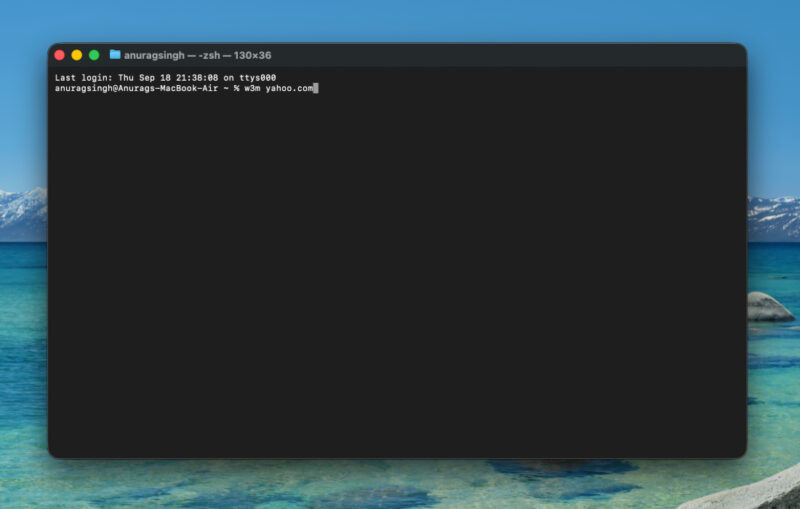
Before diving in, familiarize yourself with a few of w3m’s basic controls and shortcuts. You can navigate with the arrow keys, using Up and Down to scroll, Left to go back, and Right or Enter to follow a link.
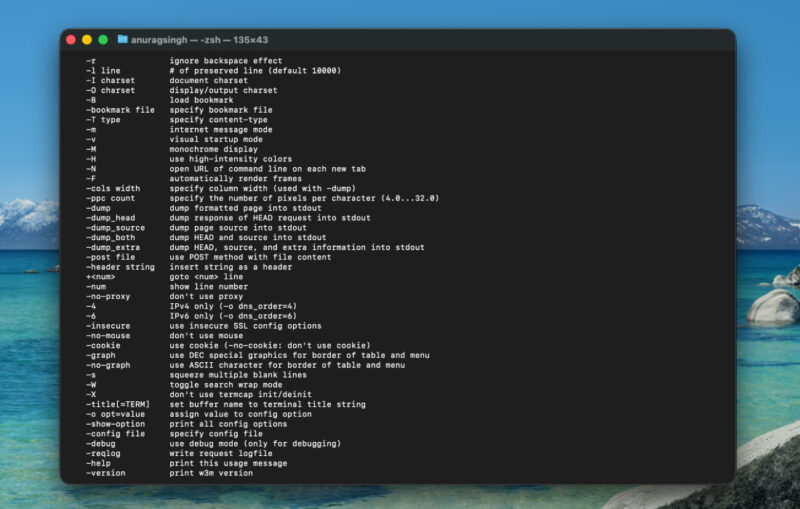
My Experience of Using w3m as a Daily Browser
Using w3m as my daily browser was a mix of pleasant surprises and inevitable frustrations. Its biggest strength is speed. Pages load almost instantly since only text is fetched without heavy JavaScript, images, or video. On slow connections or mobile data, this felt like a blessing. It also kept my laptop cool and quiet, even with multiple tabs open. Reading long articles or documentation was smooth and reminded me of the early web.
w3m does a decent job with HTML. Headings, lists, and paragraphs were presented cleanly, and tables stacked in a logical order. By default, images do not display. You only see alt text or placeholders.
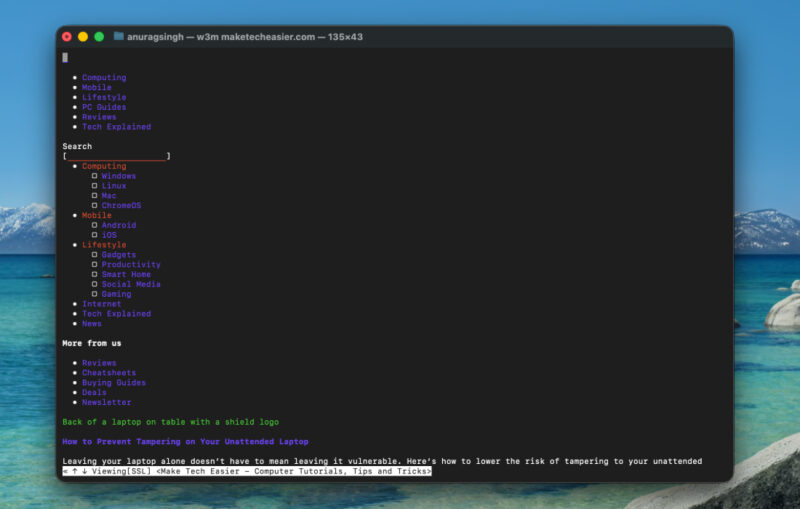
The keyboard-only workflow grew on me quickly. Entering URLs with shortcuts and moving through links felt efficient once I memorized the keys. Tabs are supported too, though they are minimal, just numbered text entries you cycle through. There is no session saving, so everything disappears when you close w3m.
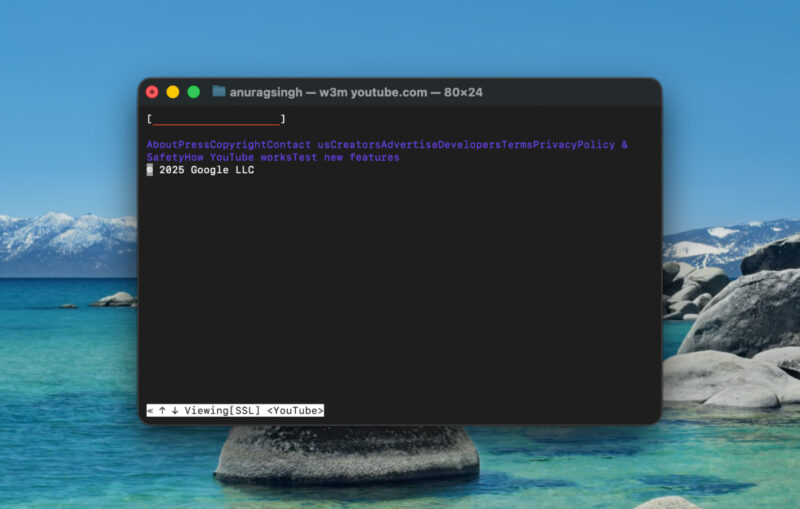
Logging into basic sites or search engines was fine, but anything requiring JavaScript was unusable. Gmail’s standard view did not load, though the basic HTML version worked in a limited way. Modern, script-heavy sites were either broken or stripped to their bare minimum.
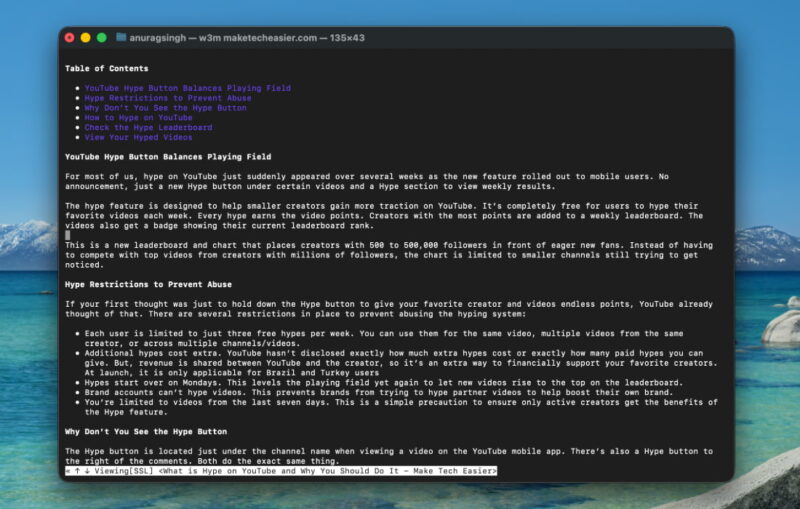
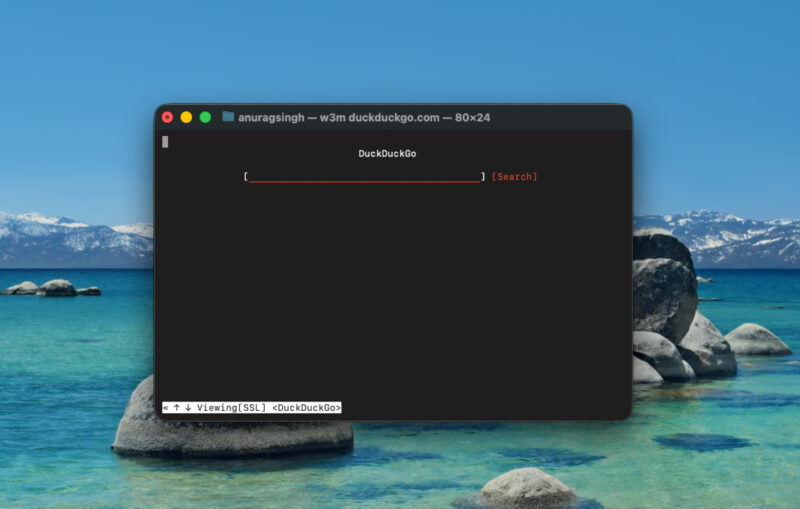
Navigation was one of the biggest challenges. There is no omnibox or autocomplete. To go somewhere new, I had to open the prompt each time and type the full address. For searching, I kept a tab on DuckDuckGo and typed queries there. It worked, but it was clunky compared to Chrome’s instant search. Browsing in w3m required more deliberate steps, which slowed me down.
On the privacy front, I actually felt more comfortable. With no JavaScript, most ads, trackers, and pop-ups simply never appeared. Cookie banners and other nuisances were gone. It was refreshing to browse a web stripped of all that clutter.
Why I Wouldn’t Recommend It Over a GUI Browser
After two weeks with w3m, I came to appreciate its strengths, but also why it cannot replace a modern browser. It works as an experiment or in very specific cases, but not for daily use.
The lack of JavaScript is the biggest limitation. Without it, sites like Gmail, Google Docs, or social media simply do not function. Most of the modern web depends on scripts, and w3m reduces it to broken or stripped-down pages. Media is another weakness. There is no native video or audio support, images require extra steps, and complex layouts collapse into confusing text.
Usability is also harder. Everything relies on keyboard shortcuts, with no visible address bar, bookmarks, or history. Searching is clunky since there is no combined search-and-address bar or suggestions. Features we expect in browsers, such as password managers, syncing, extensions, or developer tools, are completely absent.
That said, w3m is impressive in its own niche. It shines when you need to fetch information over SSH, work on a system without a desktop, or browse distraction-free. For focused reading, it is surprisingly effective. If you want a browser that actually gets the job done, check out these eight specialty web browsers you’ve probably never explored. You might also want to avoid AI browsers for now.








