If you love snapping vintage-style photos, VSCO just made it easier than ever to do so. Their new app, Capture, lets you shoot photos with an analog vibe instantly, with no post-processing required. Simply select a preset, adjust it as needed, and snap the image. Let’s walk through how to use it.
Good to know: get up to speed with these tips to get better shots on your iPhone.
VSCO’s Capture App Availability
Initially, the Capture app is only available in Ireland, Australia, and New Zealand. However, earlier this month, VSCO expanded the app’s availability worldwide.
At the moment, the app is available exclusively for iPhone users via the App Store. Android users will need to wait a bit longer, but a release is likely on the horizon.
You will need to sign up with an account to start using Capture. If you already have VSCO on your device, we suggest you log into Capture using the same account.
Shooting Analog Images with Capture App
At this point, you might be wondering, weren’t you able to snap analog images with the VSCO app? That’s true; however, there’s an important difference to take into consideration.
While VSCO allows you to apply a selection of filters after capturing a photo, the range of free options remains fairly modest. As for the Capture app, it contains an impressive library of retro filters that you can apply before shooting. You can also adjust parameters with a real-time preview, before actually snapping the photo. Even better, all these presets are available free of charge.
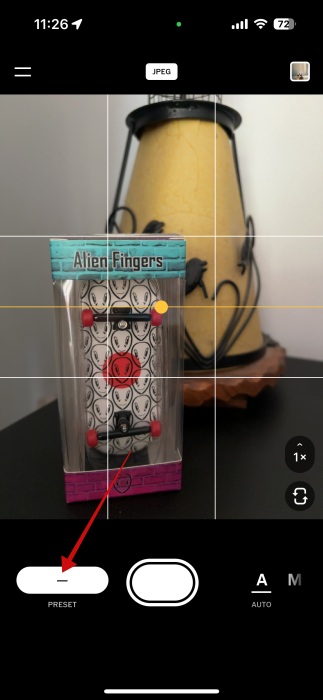
To take a standard photo with Capture, open the app and tap on the Preset button at the bottom.
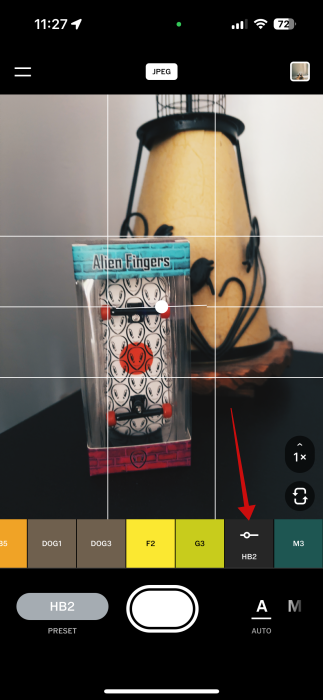
The preset options will now become visible. Swipe your finger left and right to browse through them. Tap to activate a filter and see above how it looks applied to your composition.
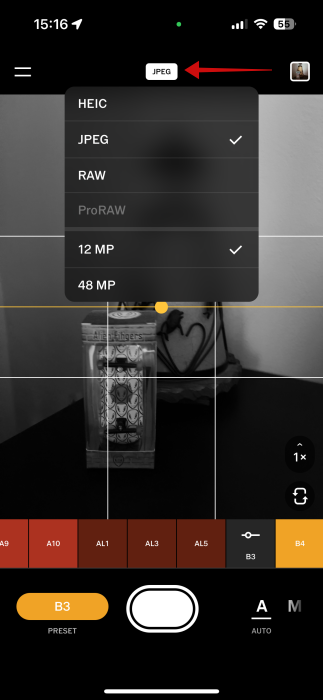
Before pressing the shutter button to snap your image, tap at the top to change the format in which you want to shoot in. This can be HEIC, JPEG, or RAW – if you’re shooting with the 12MP sensor (I’m using my iPhone 15 for this article, so this option might vary depending on iPhone model). When shooting with the 48MP sensor, you only have options to save in HEIC or JPEG.
Tip: get up to speed with these tips on how to best use Live Photos on iPhone.
Adjusting Your Presets
The cool thing about the Capture app is that it doesn’t just give you access to a collection of beautiful presets; it also lets you adjust them according to your needs.
By default, the app shoots in Auto mode. But you can change this by revealing and tapping the M button in the lower right corner.
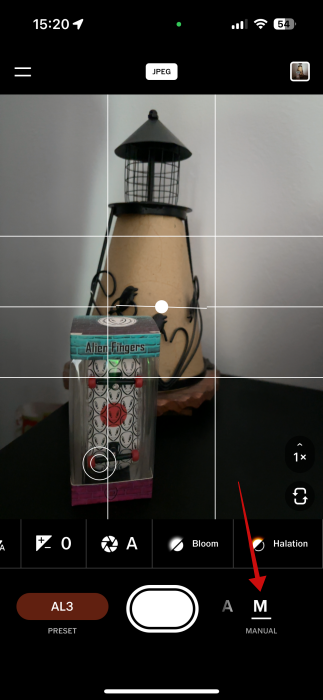
From this menu, you can then adjust the following:
- Turn flash on/off
- Aperture – lets users adjust the depth of field
- Exposure Compensation – allows you to increase/decrease the exposure, making the image brighter or darker
- Bloom – it simulates the effect of mist or diffusion filters by gently softening the brightest spots
- Halation – adds a subtle glow or halos around points of light
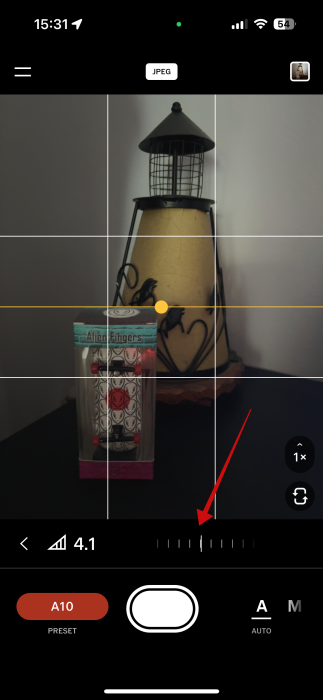
You can also adjust a filter’s intensity by pressing on it twice and then adjusting the parameter according to your preferences.
FYI: check the best smartphone phone scanner apps to digitize old photos.
Advanced Editing
Once you’ve snapped your shot using Capture, you can continue to edit it in the VSCO app (if you have that installed as well).
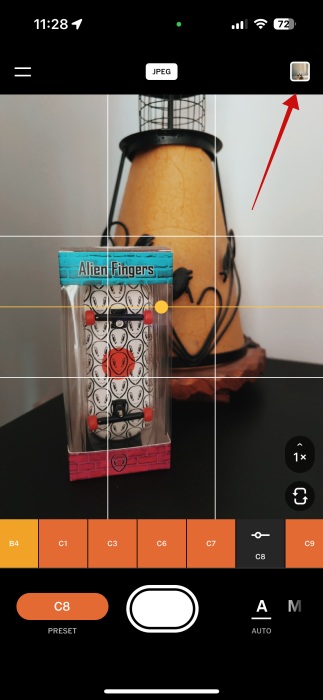
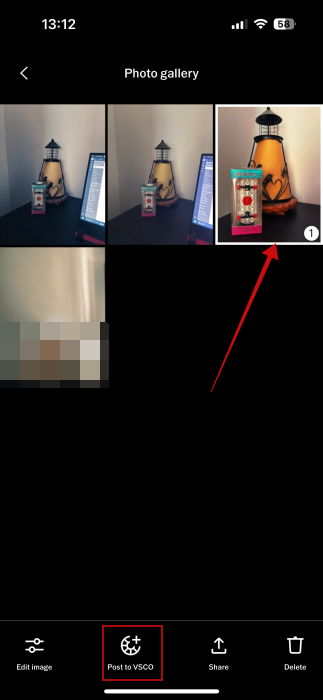
In Capture, tap on the tiny thumbnail in the upper right corner to access you image gallery.
Tap on the photo that you want to customize and press Edit image.
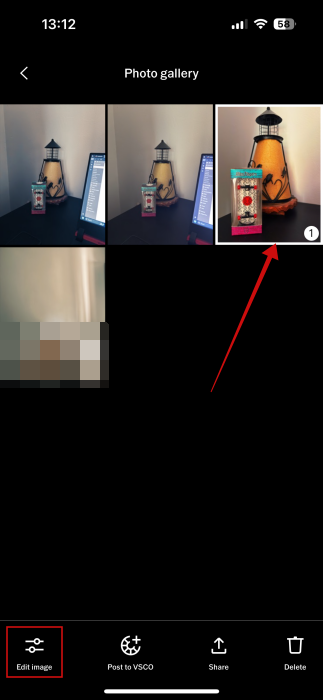
We do have to note that images that have been shot using certain presets with Capture aren’t eligible for editing in VSCO without a paid subscription.
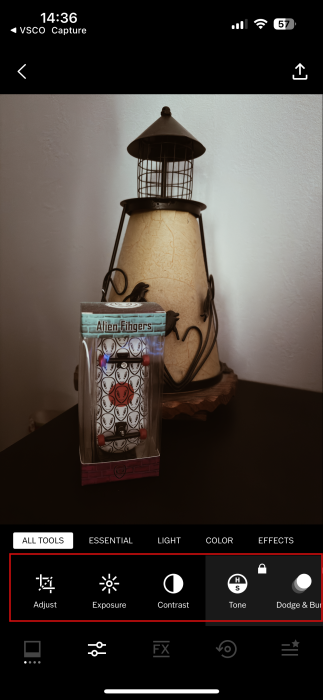
Edited images will appear in VSCO’s Studio space. Back to the Capture app, there’s also the option to directly Post to VSCO.
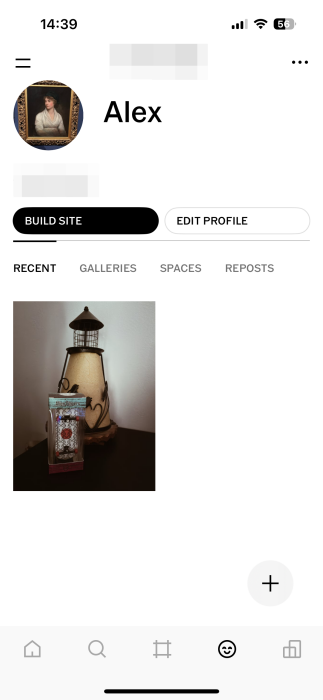
The image will be posted on your profile on VSCO. The post will appear in other people’s VSCO feeds and they will be able to interact with it by leaving comments, resharing and more.
The Capture app is great, but if you want diversity you can go ahead and try alternative apps that make your photos look like film. If you wish to move beyond VSCO, check other worthy photo-editing apps for iOS here.








