It’s a classic iPhone headache: you receive an important video or download a clip, only to be met with that dreaded “Unsupported File Format” alert. While you will think that your iPhone can do everything, it still hasn’t added support for playing WMV files. But don’t go reaching for a desktop video converter just yet. These methods allow you to bypass the restriction and play WMV files directly on your iPhone in under 60 seconds.
Use a Third-Party Video Playing App
While iOS doesn’t support WMV format natively, there is nothing stopping you from installing a media player app that supports WMV format.
The most practical option is VLC. This is a popular app for playing video, which comes with its own codecs bundle and hardware acceleration. VLC also offers many other perks, such as the ability to download subtitles.
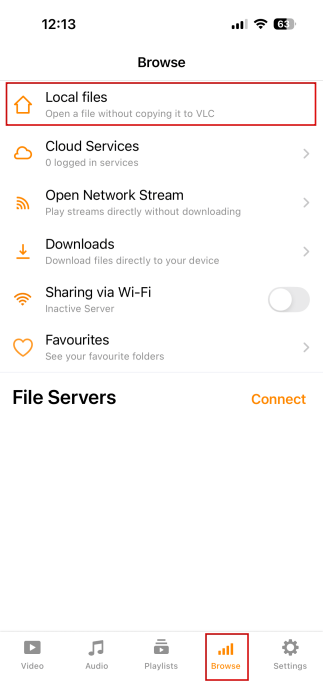
Once you’ve installed VLC, open the app. Tap Browse in the menu at the bottom and then select Local Files. This loads up a preview of the Files app. Select your WMV video from there. The video should now start playing.

Convert WMV Files to iOS Supported File Formats
Right now, if you attempt to open a WMV file, your device will only show you a white screen featuring the name of the file. The video won’t play, and nothing else will happen.
An easy solution to this is to convert the WMV file to a format that iOS recognizes, such as MP4. You can easily do this using a web tool, such as FreeConvert.
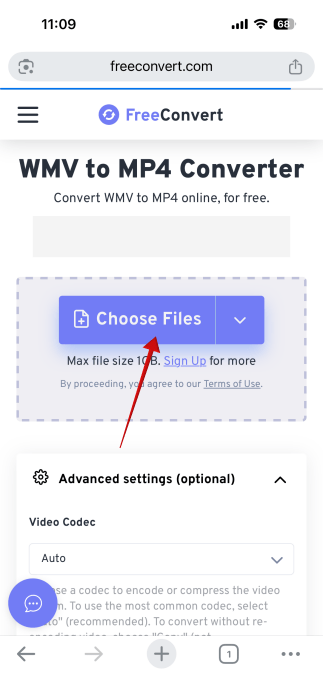
Use your favorite browser to access the tool and upload your WMV file (up to 1GB). You can also upload from Google Drive. If you can’t find your WMV files, try looking in your iPhone’s Download folder.
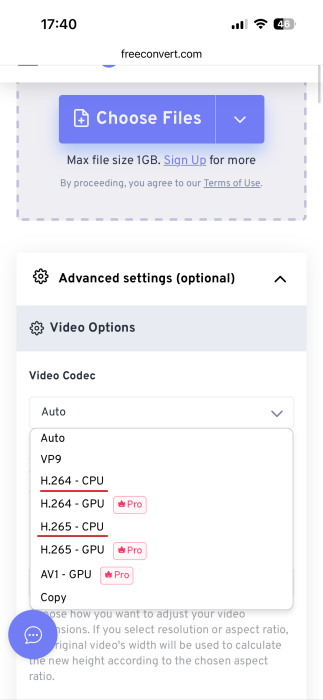
Check the Video Codec option, which is set to Auto. To ensure full compatibility, opt for the H.264 – CPU (or H.265 – CPU, if you have a newer iPhone) option.
Next, press the Convert button.
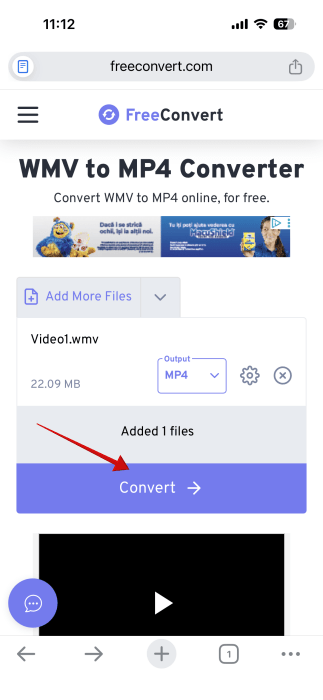
Once the conversion is done, your new video file will be downloaded to the Files app. Find it in the file manager app and tap it. The video should now play without an issue.
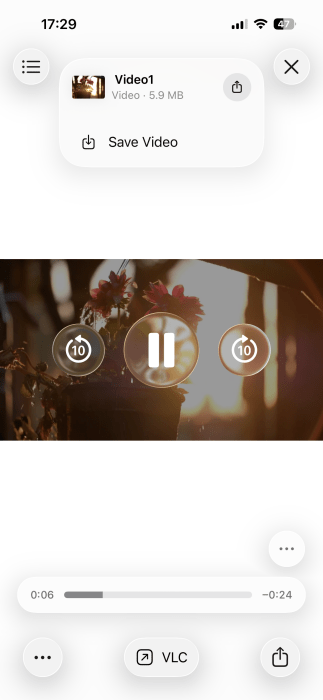
As you can see, playing a WMV file on iOS either requires you convert the file in advance or install a third-party app that can handle this file type. Either way, you’ll be watching your videos in no time.
For more tips on how to manage your files in iOS with the Files app, check here. Also, if you’ve updated to iOS 26, you might want to check the new Preview app, as well.