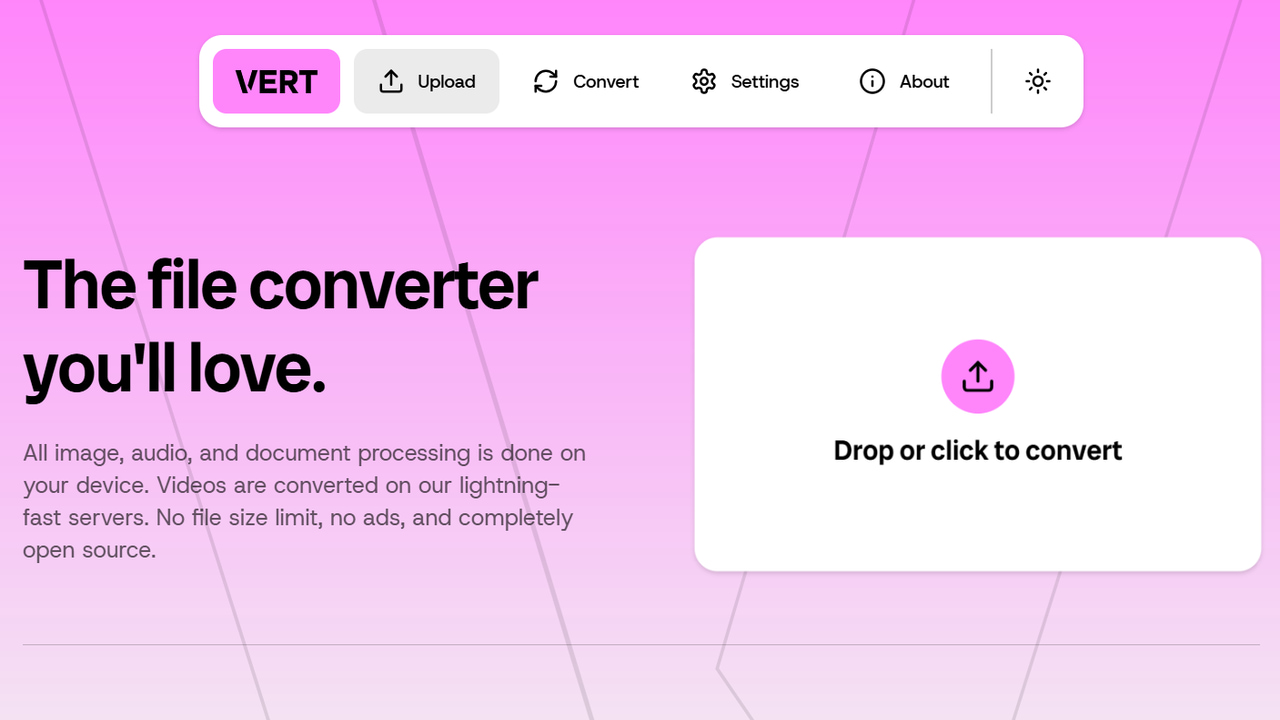
Choosing between an online file converter and a desktop file converter app isn’t an easy choice. Both have their pros and cons, and you are almost always missing out on something no matter the choice. VERT solves this dilemma by being a fully online-based converter while still working locally like a desktop app. Let’s learn how VERT can be your next favorite file conversion tool.
VERT is a free and open-source online file converter designed to run primarily on your device rather than the cloud. Using WebAssembly, it can convert images, audio, and documents entirely within your browser. You don’t have to worry about data ever leaving your device, and the conversion is also very fast because no uploading/downloading is involved.
The tool downloads the WebAssembly modules into your browser (requiring an internet connection only once). The file selection and conversion process is completely offline, you can even disable the internet once you reach the conversion page.
It also converts videos, but that requires either uploading your videos to VERT servers or hosting your own server (more on that later).
Using VERT to Convert Files
The ease of use is probably the second-best thing about VERT after local conversion. You just add your files, select the new file format, and it’s ready to download. However, before you convert files, it’s a good idea to check VERT settings, since it lets you manage name formatting and opt out of analytics for more privacy.
Afterward, move to the Convert section and click on the Drop or click to convert button to add your files. There is no limit on file size, and you can pick multiple files of different types at the same time, like images and documents.
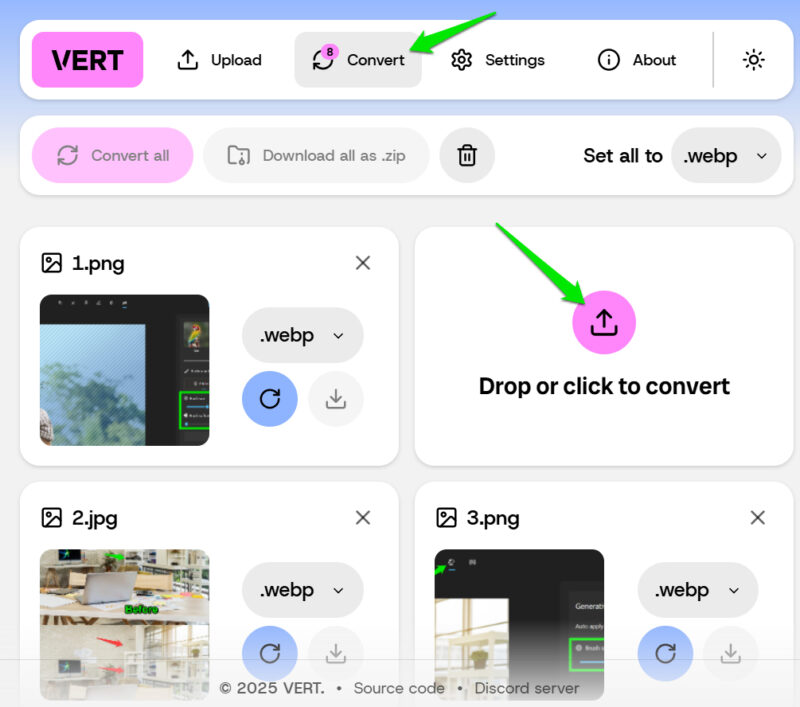
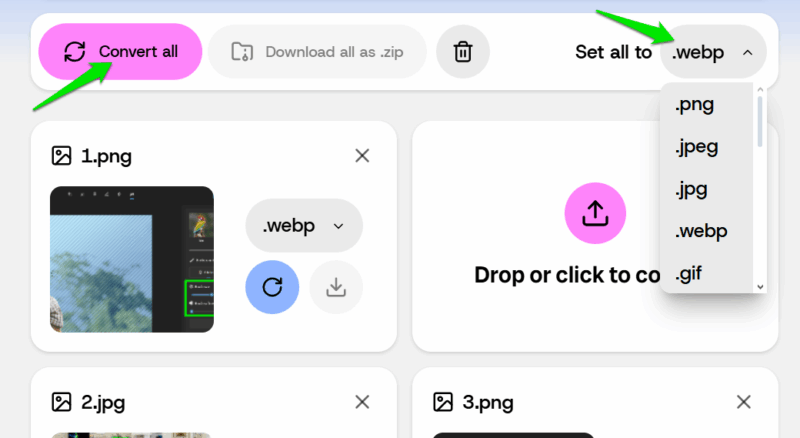
You can select the format for each file individually, but there is a Set all button at the top right corner if the uploaded files are of the same type. After selecting the desired format, click Convert all.
Once converted, you can click on the download button on each file or click on the Download all as .zip button at the top to download all at once.
Convert Videos Using VERT
Video conversion doesn’t happen locally since they are too heavy. VERT lets you convert videos either on its own server or you can self-host your own local server to keep data locally.
If you don’t mind using the VERT server, simply upload any video inside the Convert section, and it will upload and convert it. Of course, it will be slower as video will need to be uploaded and downloaded.
If you prefer local conversion, it’s easy to set that up as well. Here’s how:
Download vertd server and FFmpeg. Unzip FFmpeg, move to the bin folder inside it, and copy the three executable files there.
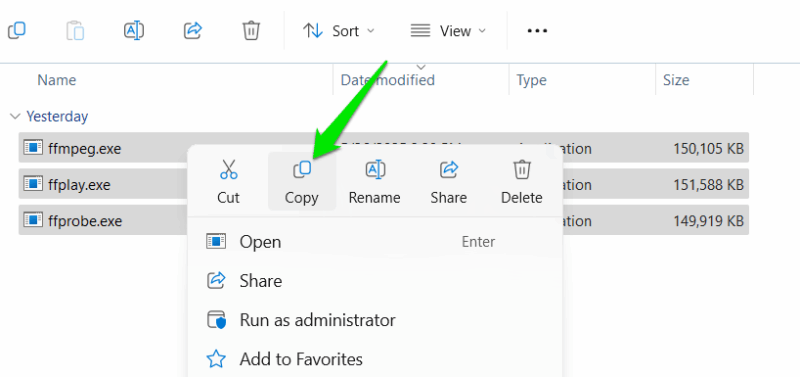
Paste (Ctrl+V) these files in the folder where you downloaded vertd server and then launch vertd.
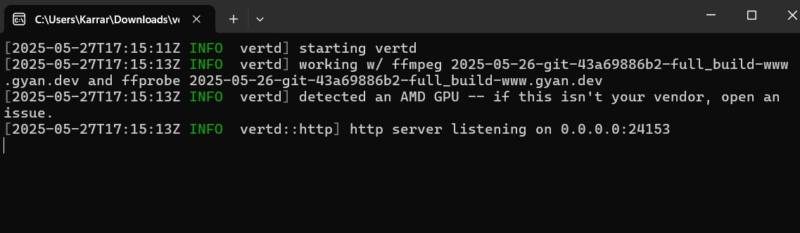
You will see the command prompt open and confirming that the server has started. Make sure this window stays open.
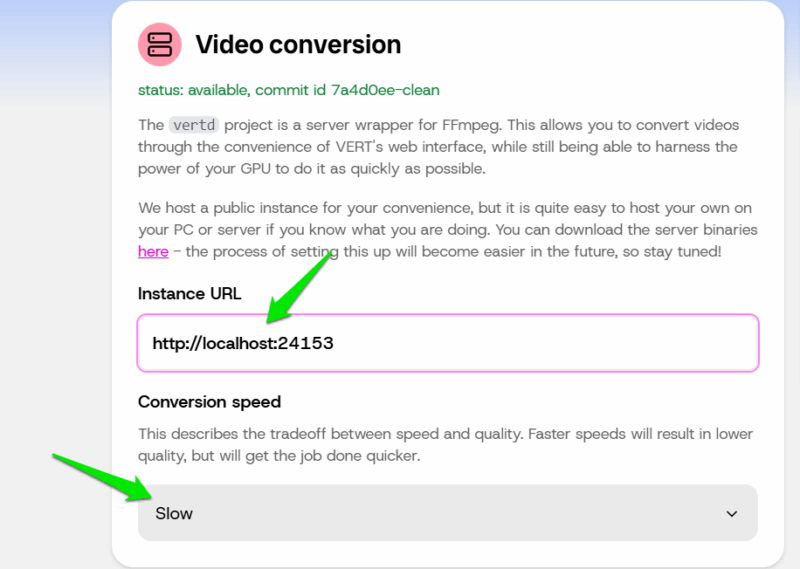
Now open the VERT website and move to Settings. In the Video conversion section, enter http://localhost:24153 under Instance URL. You can also adjust conversion speed and quality here.
You can now move to the Convert section and convert videos on your local server. The upload/download process will be almost instant since it’s on the same device.
Why You Should Use VERT
The main selling point of VERT is that it’s an online tool without the drawbacks of other online file converters. Most online file converters process files on their own servers, which involves uploading data, converting it, and then downloading. This is slower, uses too much bandwidth, and leads to privacy/security issues as your data is on the tool’s servers. Not to mention, malicious services can use the upload/download process to inject malware.
On VERT, files are instantly added and downloaded since there is no uploading or downloading process. WebAssembly code is pre-compiled, so it converts almost as fast as native desktop apps (it can even run Linux in the browser!). The conversion also runs in the browser’s sandbox environment with no data uploaded/downloaded, ensuring utmost security and privacy.
Overall, if you want a file converter that is accessible from any device with a browser while still offering the speed and privacy of a desktop app, VERT is perfect for you.
While VERT is great for privacy-conscious users, we found it great for regular use as well, due to faster processing and no size limitations. Although its file format support is a bit limited compared to other file converter tools. If your focus is image conversion, you might like these image converters.








