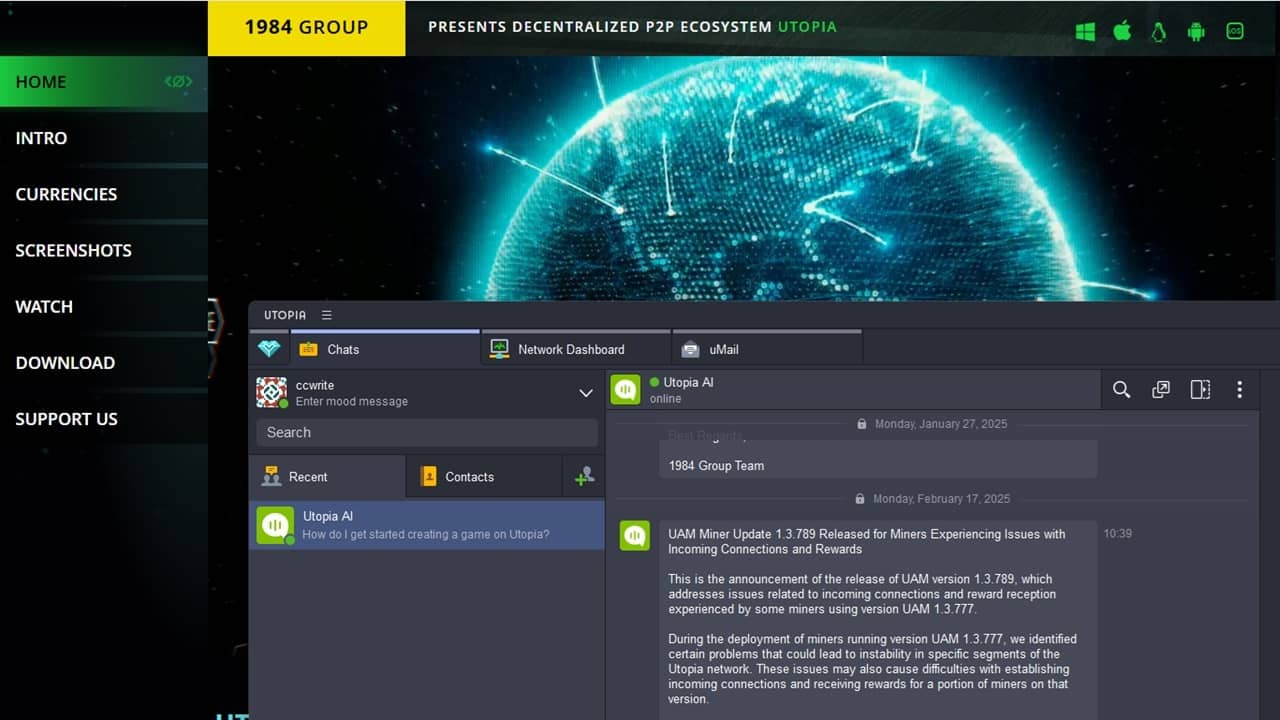
Privacy-focused browsers aren’t anything new, but what about an entire privacy ecosystem? The 1984 Group created the Utopic P2P Ecosystem as a decentralized alternative to the data hungry browsers and apps we are all far too used to.
What is Utopia P2P Ecosystem?
Utopia P2P is a fully decentralized ecosystem designed to help users eliminate surveillance by government, corporations, social media, etc. It allows users to bypass censorship and firewalls and speak freely, while remaining anonymous.
Since it’s a P2P ecosystem (peer-to-peer), no one entity controls the network. There are no central servers, which mean each user connected to the network also routes network traffic. Think of it as a Tor alternative, but it’s far more than just a browser.
Communicate with other users, shop securely with your own uWallet, play games with other users, and even use AI anonymously.
The 1984 Group, named after the classic novel 1984, even created its own decentralized version of DNS (domain name system) called uNS (Utopia name system). Users are free to make their sites available within Utopia’s ecosystem to better protect the privacy of themselves and other users.
Everything is contained within Utopia. You can only message other Utopia users. Browsing is only for sites in the Utopia ecosystem. It’s private, but limiting.
Installing Utopia P2P
To start, download Utopia P2P Ecosystem for your device. It’s available for Windows, macOS, Linux, Android, and iOS. I do recommend taking a look at the Installation help section before installing. For reference, I’m using Windows as an example.
The main reason is so you’re fully aware that your account, wallet, files, network traffic, etc. are all encrypted using 256-bit AES and curve25519 high-speed encryption. No one has access to your information. If you lose your password or encrypted container, no one can recover it.
Run the installation and follow the prompts. Then, create an account. If you already have a Utopia account, use that to login. If you need to transfer or copy an account, click Import account.
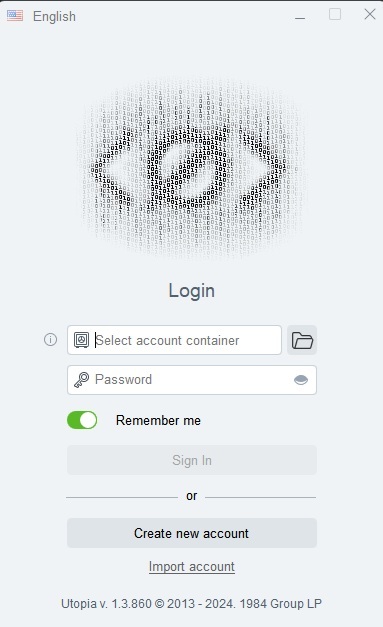
Enter a nickname. You don’t have to use your real name. It is recommended to use your real name if you want to share that information with your contacts. Otherwise, stick with just the nickname.
The next step is important. Choose a location for your encrypted container. This is a folder on your device that stores everything related to your account. It contains your private key that’s necessary for logging in. Make a note of the location and back it up regularly.
Also, create a strong password. Remember, don’t forget it or you will lose access to everything in your Utopia account. Click Finish when you’re done.
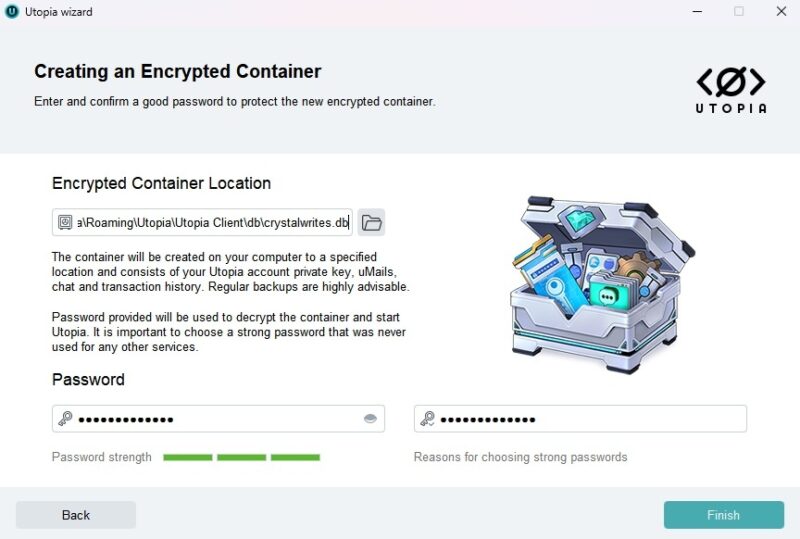
When you finish, Utopia shows you your public key, which is your network address and uWallet address if you want to receive any payments from other users.
If you’re new to Utopia, go through the welcome screen that shows a little about how to use the ecosystem.
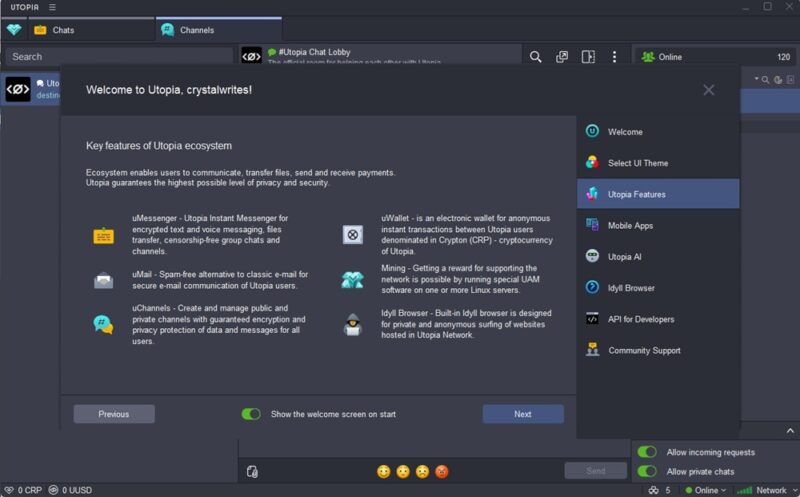
Exploring Utopia’s Main Screen
When you launch the Utopia P2P Ecosystem, the default is the chat window. From here, chat with your contacts or join Channels to chat with various users throughout the network.
Access other tools by clicking the menu button beside UTOPIA in the top left.
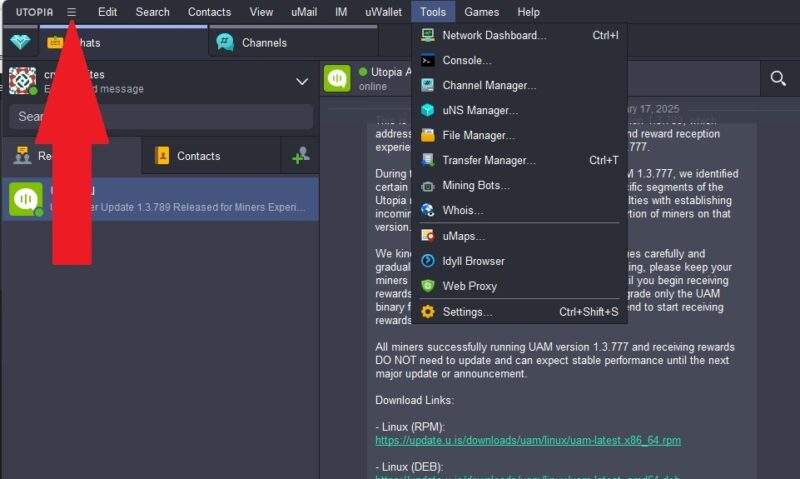
From here you can:
- View your profile
- Backup your private key
- Edit your password
- Search your chats
- Add contacts
- Change the layout
- Manage uMail (Utopia’s email client)
- Open new chats
- Manage your uWallet
- Access other tools, such as Idyll, uNS manager, mining bots, and more
- Play games
- Access help
Keep Communications Private
At its core, Utopia is all about private communications. Whether you’re using uMail, direct chats, or channels, everything is encrypted. Your location is never revealed, unless you do it yourself. Surprisingly, there’s a nice selection of emojis, along with original stickers.
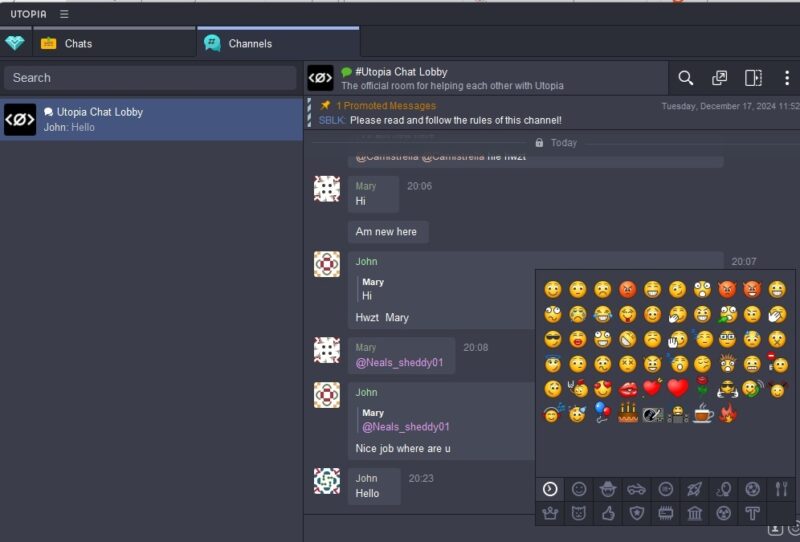
Chats work just like instant messenger or texting. Chats even support voice messaging. Select a contact and send a message. Contacts must share their public key with you in order for you to add them as a contact.
With Channels, every user in the channel can see what you write. The default is the Utopia Chat Lobby, but use the Search box to look for other public channels. You’re also free to create your own and invite others. Go to Tools -> uMap to view public channels.
Browse Anonymously With Idyll
Idyll works much like Tor for anonymous browsing. Go to the Utopia menu and select Tools -> Idyll Browser to get started. You must use Utopia URLs.
Go to Tools -> Web Proxy to view non-Utopia sites anonymously. Some sites still don’t work properly, though.
Shop With Utopia USD and Crypton E-Currency
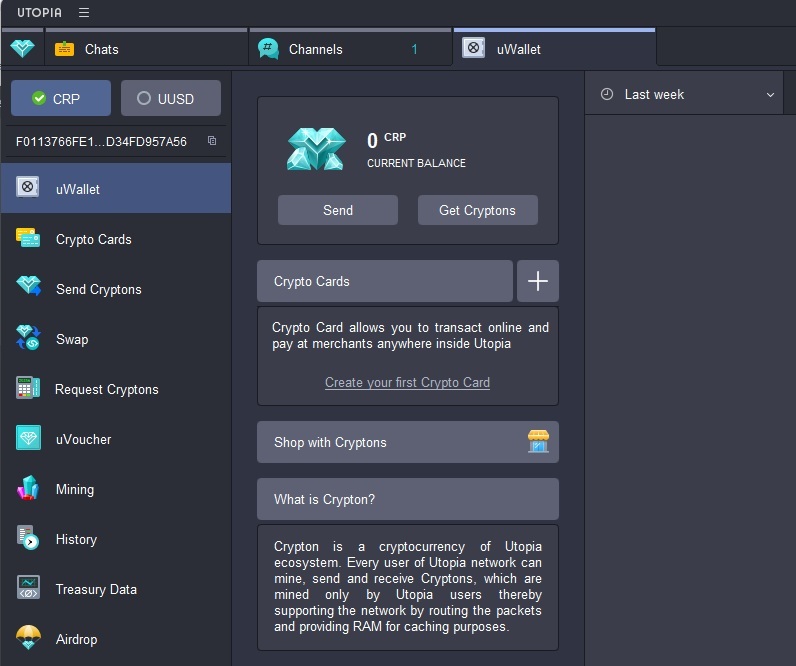
Utopia has two different cryptocurrencies to use – Utopia USD and Crypton. Click the uWallet icon (blue gemstone heart) to access and manage your wallet.
Utopia USD is designed to match with the US dollar, though it’s backed by cryptocurrency. Crypton is mined by other users within Utopia. You must use one of these two currencies for any transaction on the Utopia P2P Ecosystem.
Participate in Crypton Mining
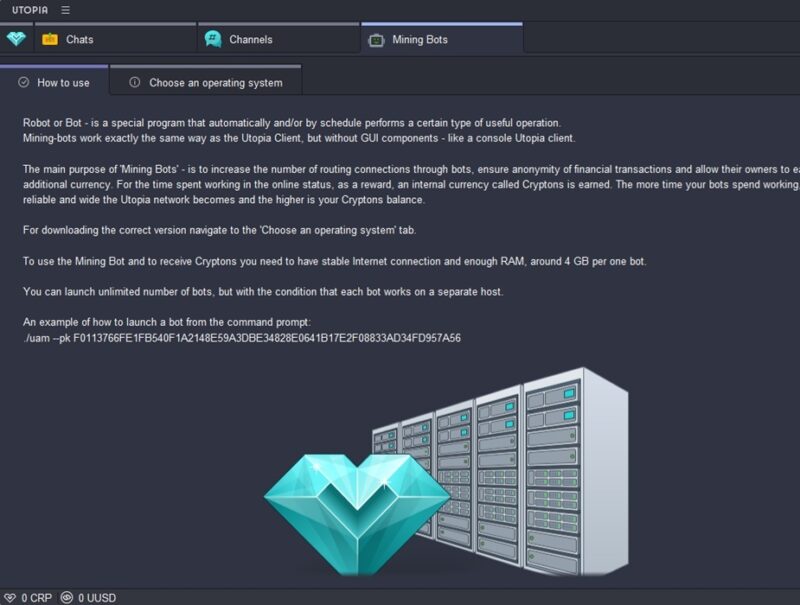
While it’s not a requirement, Utopia offers users a chance to earn Cryptons through Crypton mining. Go to Tools -> Mining bots to set up your own mining bots. Everything is done through a command prompt versus the graphical interface.
You can’t run a mining bot on the same system as your Utopia client.
Play and Create Games
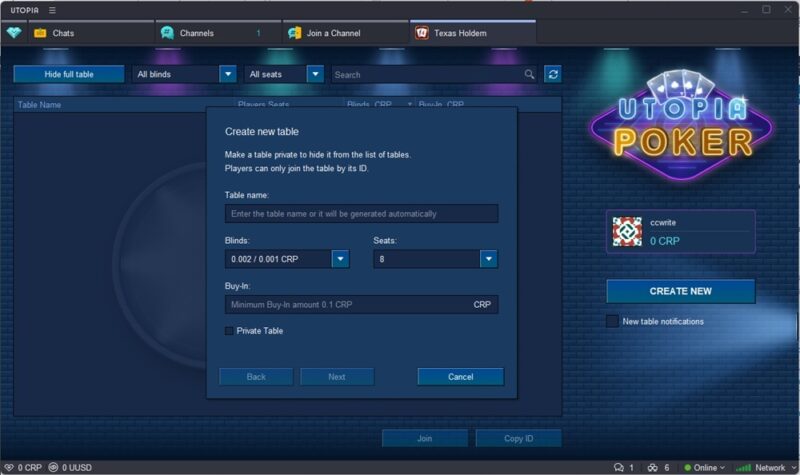
Games haven’t been a huge priority for Utopia, but you can play Chess or Poker. Open the menu and select Games. You can create games too using Utopia’s API. Go to Tools -> Settings -> API.
When you open a game, select a contact(s) to play with. With Poker, you play for Cryptons, so be very careful.
Use AI Without Limits or Tracking
The Utopia P2P Ecosystem uses ChatGPT 3.5 to power its built-in AI. But, unlike ChatGPT, nothing is stored or tracked. So, chat freely and privately with Utopia AI, your first contact. It gives you updates on the platform and is available 24/7 to chat with. Admittedly, the AI isn’t great, but at least it’s private
If you want to remain private without being restricted to Utopia’s network, try these VPN alternatives. You can also use free online privacy tools to stay safer.








