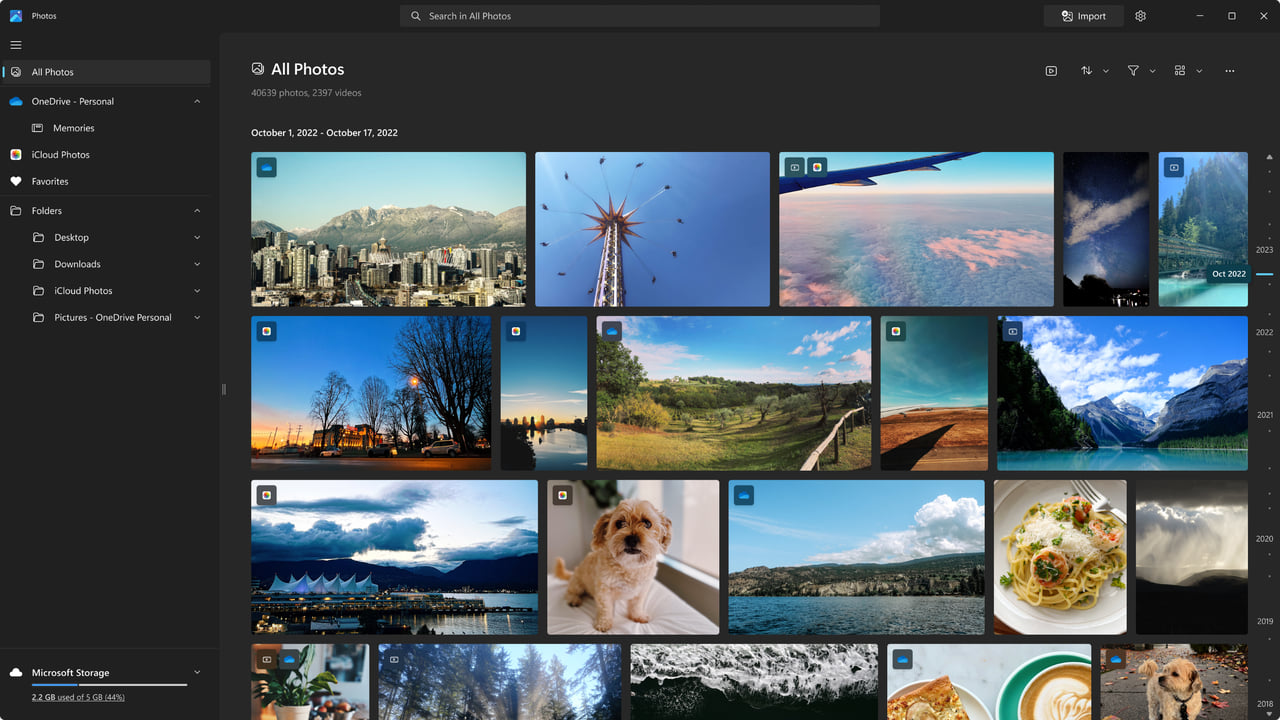
The Windows Photos app is much more than just a photo viewer. Behind its simple look are tools that help you fix, brighten, and style your pictures. Even casual snappers can find pro‑level tricks hiding here. Below, we are listing 4 advanced features in Photos that can take your images to the next level.
1. Use Generative Erase to Remove Unwanted Elements
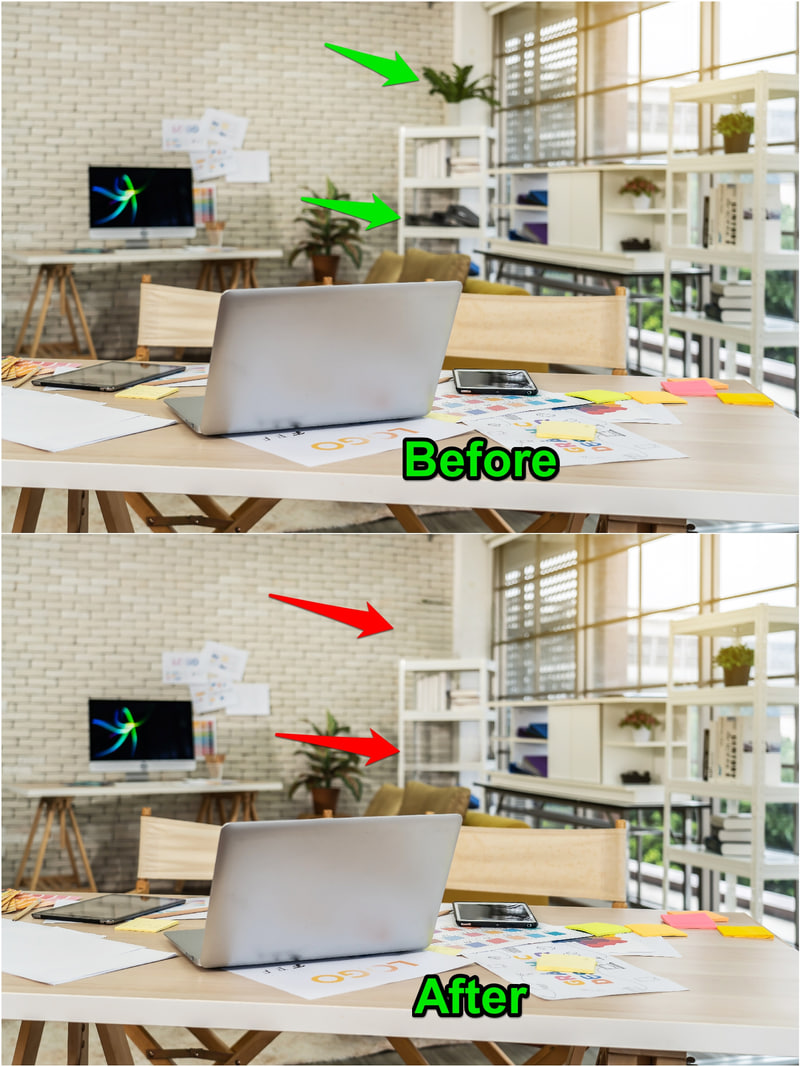
Generative Erase is an AI erasing function that removes objects from a photo while making sure the surrounding background blends in. Unlike a normal eraser that simply replaces the area with a static color, this eraser tries to blend the background of the removed area so it feels like nothing was erased.
This function is great for removing unwanted objects or even people from photos without destroying the photos, like photobombers, wires, trash cans, or blemishes on skin.
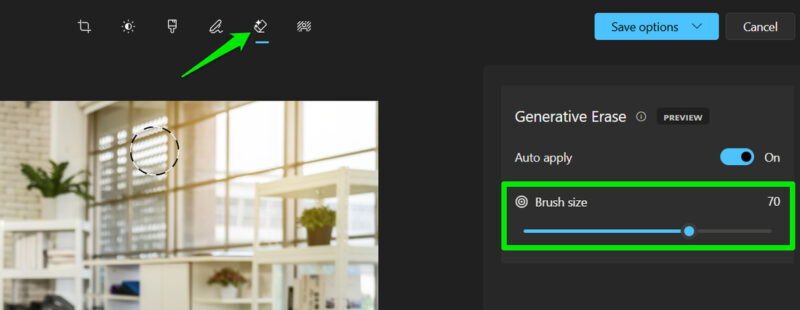
To use this tool, click on Edit in the top-left corner of Photos and move to the Erase tool. In the right panel, you can adjust the size of the brush depending on your needs. You don’t have to worry about the size too much – just make sure the object is fully selected. The tool automatically recognizes the object and removes it.
We tested it on many objects and surfaces, and it worked great to remove both big and small objects as long as the background wasn’t too complicated. In some cases, slight distortion was visible, but it was mainly noticeable because we knew what was there before removal.
2. Extract Text From Photos Using OCR
No need to go for any OCR tools when Photos has this function built in. Using Optical Character Recognition (OCR), Photos can extract text from images and make it editable. This is great when you receive a screenshot or a handwritten note, and you want to copy the text.
When an image with text is open, click on the Scan text right below the image. Photos will then highlight all the areas with text inside and make them selectable. You can just select the text and copy it to use anywhere.
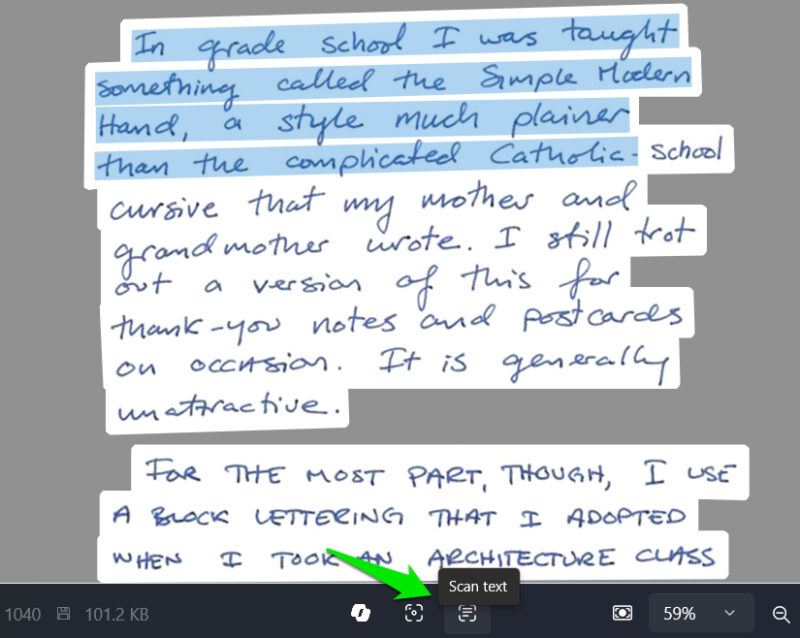
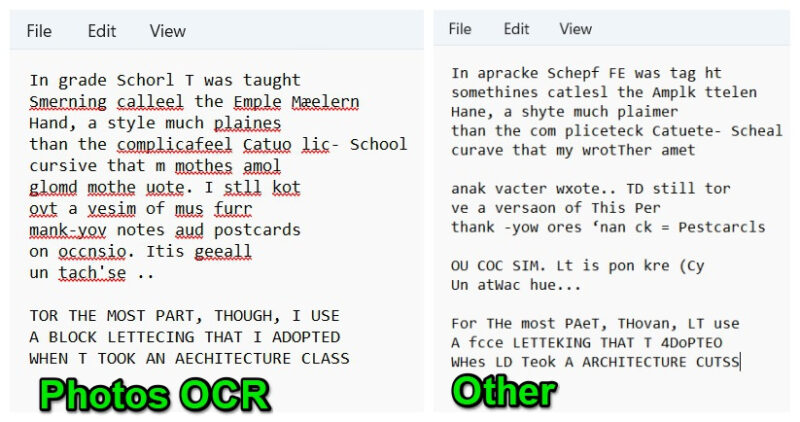
In our tests, it worked as good as any other free OCR tool for digital text, providing perfect results. However, the real test is to make handwritten text editable. We tested using extremely complicated handwritten text that tools were supposed to fail, but it still managed to get some of the words right, where other tools failed completely.
3. Edit Photo Background Using AI
Whether you want to add a touch of blur or completely remove the image background, Photos can do it all. It automatically detects the background and applies your edits with a single click.
Just click on the Edit button and move to the Background tool at the top. Photos will scan for a few seconds and then mark and separate the background. You can see if it correctly detected the background or not. If not, use the Background brush tool to manually mark areas as background.
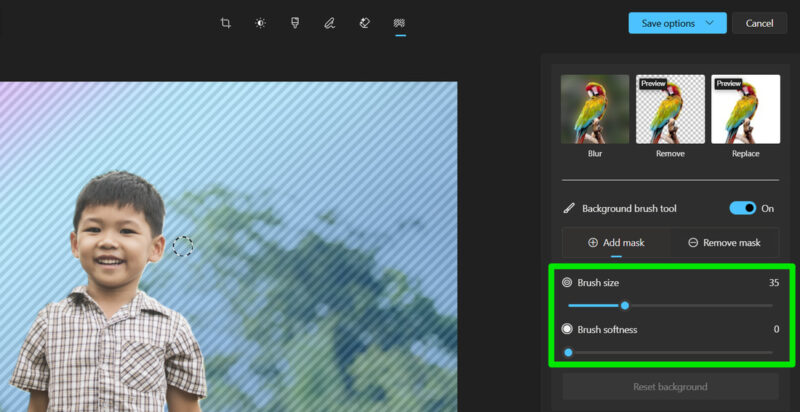
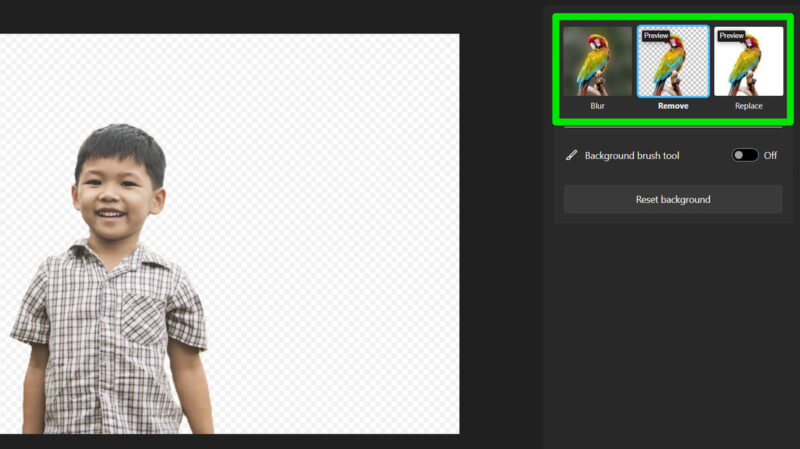
Once the background is selected, you can click on Blur, Remove, or Replace to edit the background. For blur, it will let you adjust intensity, and you can also use the color spectrum to choose any color for the background. We tested people, objects, and icons, it perfectly detected the background in all photos.
4. Resize Images
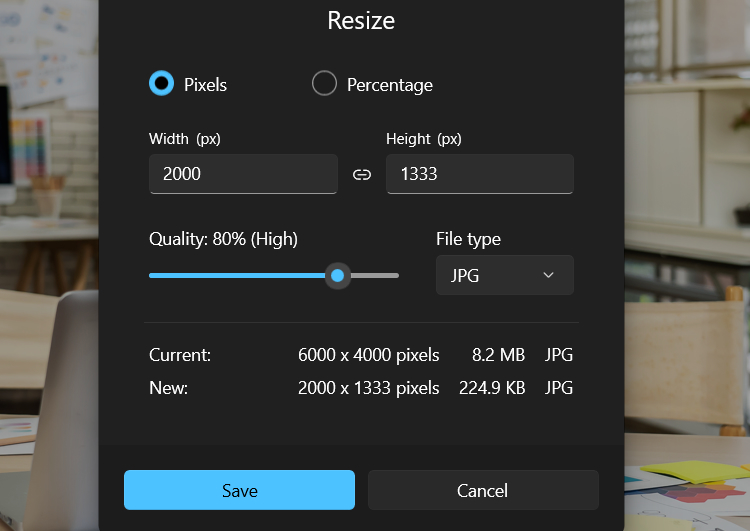
Resizing images is one of the most common tasks, and Photos has a highly customizable resizer built in. It’s a bit hidden and doesn’t support batch processing, but it’s great when image quality and file size matter.
Click on the three dots menu at the top and select Resize image.
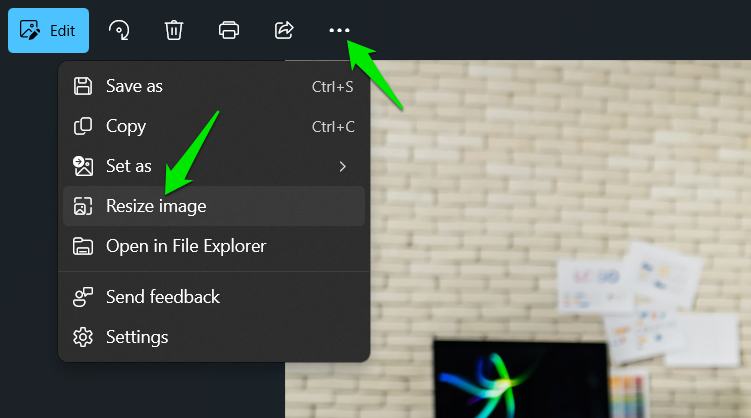
A window will appear where you can adjust the image size, quality, and file type. You can resize by specifying the size in pixels or as a percentage. Photos even previews the file size in real time as you tweak settings, so you can strike the ideal balance between quality and size.
Bonus: Open the Image in Bing or Copilot
Right below the image, there are also buttons to open the image in Bing Search or Copilot. In Bing, you can see similar images in the browser, and in Copilot, you can ask questions about the image.
While Microsoft may be a bit aggressive with AI features in Windows, the feature additions in the Photos app are welcoming. Interestingly, if you have a Copilot+ PC, you can access even more features in Photos, like upscaling images using AI.








