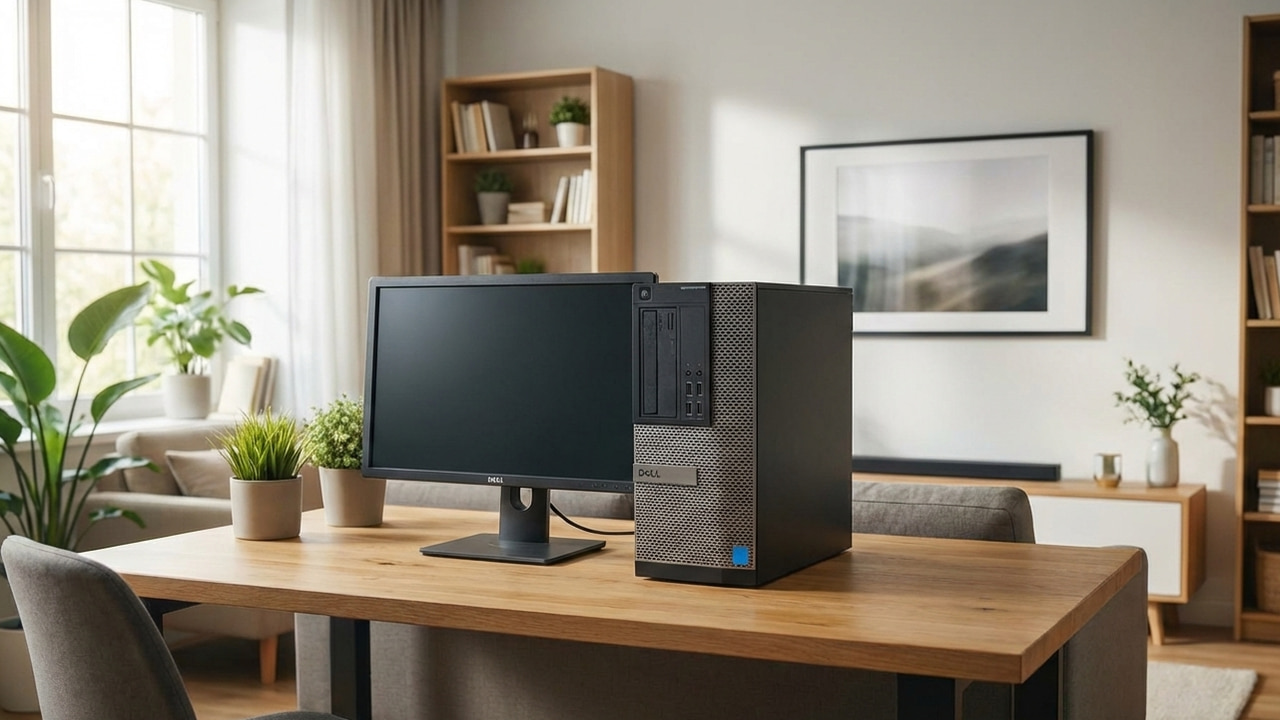
After you have gotten a new PC, there is always an issue of what you should do with the old one. Don’t let your old PC collect dust. While you could sell or give it away, why not put it to work for you instead? Even machines that cannot keep up with modern demands can still serve many purposes. This guide shares the best options to give your old PC a new purpose.
1. Turn the PC into a High Security Device for Sensitive Tasks
Higher security always comes with convenience as a trade-off. This is why many of our security decisions center on convenience. Following the highest security protocols on your day-to-day PC can be difficult. However, if you have an old PC, you can turn up security on it to the max and only use it for sensitive tasks like online banking, managing cryptocurrency, accessing a sensitive enterprise system, etc.
Having a dedicated secure PC greatly decreases your attack surface and lowers the risk of cross-contamination of apps and extensions. While there are many ways to increase PC security, below I am listing the essential steps to take:
- Perform a clean install of Windows 11. If your old PC doesn’t support Windows 11, then switch to a secure Linux distro instead of using Windows 10, which isn’t supported anymore (without extending support).
- Fully encrypt the hard drive to ensure it stays safe from physical access. Here’s how to enable full-encryption in Windows and Linux.
- Set up a secure login method, preferably using a physical security key.
- Ensure basic security settings of Windows are enabled, and also enable advanced Microsoft Defender features and security features disabled by default. For Linux, follow our guide to thoroughly secure a Linux PC.
- Properly set up the Firewall and use a VPN for even more security.
- Make sure the operating system stays up-to-date.
Apart from enhancing PC security, also make sure you don’t download any unnecessary apps on the PC that may make it vulnerable. Keep interactions limited to sensitive tasks only.
2. Use the Old PC for Kids’ Learning and Entertainment
Old devices work great for kids – whether you are handing down a PC or phone – as they usually don’t need to run very demanding tasks. Additionally, you’ll be willing to let an old PC get bashed on by kids instead of an expensive new machine. With a few tweaks, you can turn your old PC into a kids-safe hub for learning and entertainment.
The standard advice of installing a new OS and ensuring it’s up-to-date with common security options enabled applies here, too. However, I highly recommend enabling Microsoft Family Safety features to ensure kids’ safety on the PC.
First, you’ll have to create a standard account for the kids, which is better for security and helps manage child access based on age. To do so, go to Windows Settings → Accounts → Family and click on the Add someone button. Follow the steps to create and add a new child account.
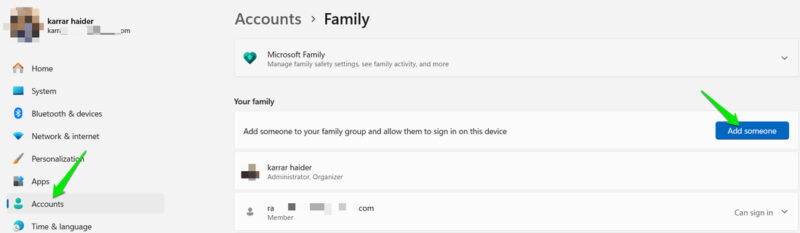
The new account will automatically filter web search results, apps, and games based on the child’s age. You will also get a weekly report of the child’s activity. For customization, follow our guide to set up Microsoft Family Safety features.
You can also add kid-friendly apps to make their experience even better, like Scratch or a kid-friendly browser.
3. Use it as a Test PC for Experimenting
Having a PC that you can install anything on and reset at any time dramatically enhances your ability to limit test and learn more. As a writer who constantly tests obscure apps and system-corrupting hacks, my test PC has become an indispensable part of my workflow.
You can use your old PC as a test PC, letting you run risky tests before applying them to your main PC. Below are some common uses of a test PC.
- Test different Linux distros before choosing the right one for your main PC. It’s great for testing dual-boot setups as well.
- Run risky Registry hacks and system-changing tweaks to see their impact without risks.
- Run and track unknown apps’ activity to ensure they are safe for use.
- Test and learn hardware customization tools, like overclocking or undervolting tools.
Just make sure you don’t log in with important accounts on the test PC and try to keep it isolated from the home network using the guest network feature of the router.
4. Convert the Old PC into a Fast “Chromebook”
If your old PC is too slow to be used for anything practical, you can install ChromeOS Flex on it to breathe new life into it. ChromeOS Flex is a light operating system specifically made for old PC to make them fast for basic use. It’s similar to the OS on Chromebooks that works mostly in the cloud to have minimal impact on the hardware.
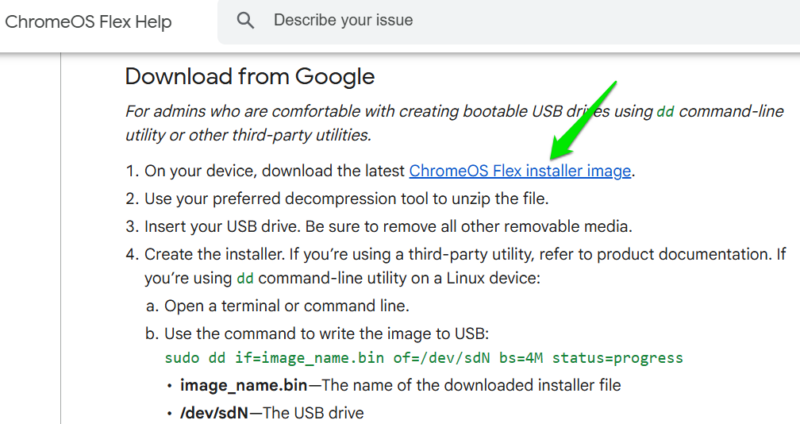
You can browse the web, run web apps, and run some Linux apps with reliable speed even on old hardware. It also doesn’t slow down over time, as everything happens in the browser or the cloud. Similar to creating a Windows bootable USB, you’ll have to create a bootable USB with ChromeOS Flex and use it to install the operating system.
Download theChromeOS Flex installer image and then use Rufus to create a bootable USB drive.
5. Reuse Old Desktop PC Parts
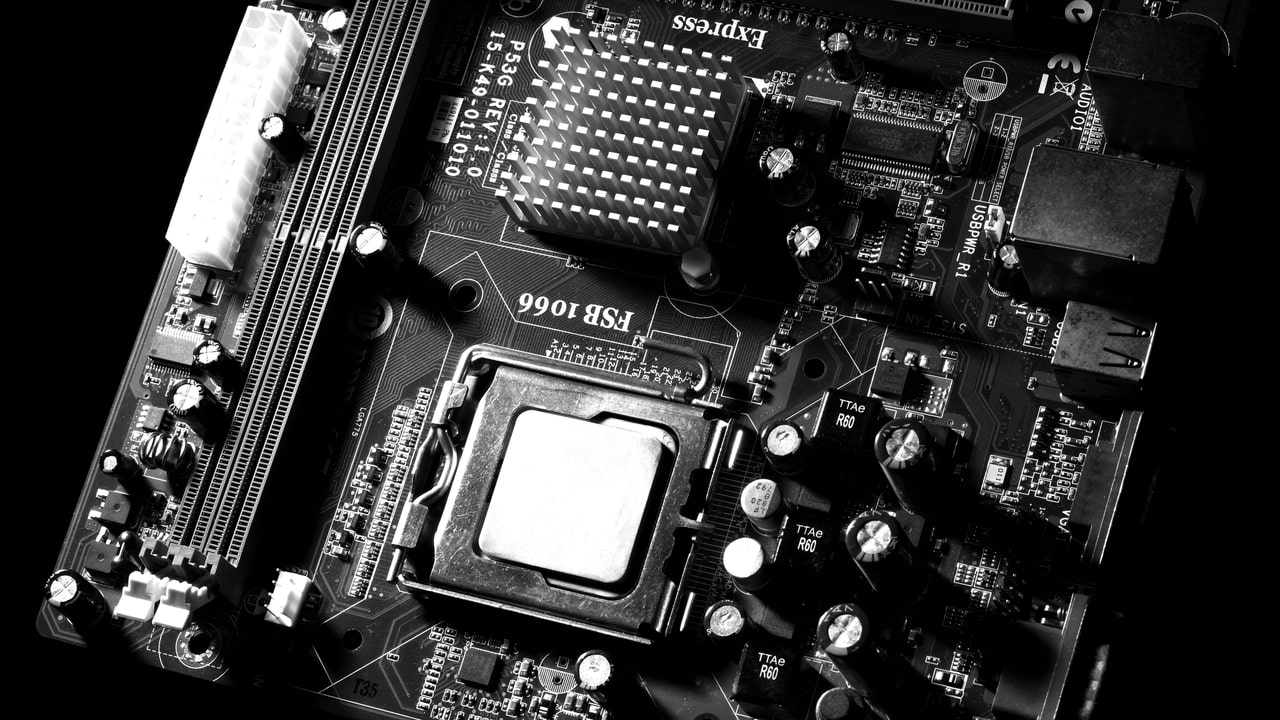
Many of the old PC’s parts can be reused in your newer PC builds or work as replacement parts if something breaks in your main PC. While RAM, CPU, or GPU may not work, there are some parts that stay consistent across builds. Below are some common PC parts worth reusing:
- Storage Drives: most PCs have spaces for multiple storage drives. You can use your old PC’s storage drive in the new PC for more space. Even if it’s slow, it can still work as extra space for media and to archive data.
- Cables: many PC cables stay the same across most builds, so you can use them as replacements if needed. This includes power cables, SATA cables, motherboard cable, and CPU cable. Just make sure the connectors match, or check the manual for cable requirements.
- PSU: if your old PC has a good PSU, it can be used for the new PC if it matches the demand. Newer components are usually power-efficient, and often don’t increase overall power demand. So even an older PSU can work with new components.
- Monitor: the old PC’s monitor can be used as a secondary monitor for the new PC. Here’s a guide to set up a secondary monitor on Windows.
6. Turn Old PC into a NAS Hub
Instead of getting an expensive Synology NAS, you can turn an old PC into a Network-Attached Storage (NAS) hub to store and access data over the network. NAS has many uses, like a central backup solution for family devices, a media server, CCTV storage, and much more. Here’s how to share the old PC’s storage drive over the network on Windows:
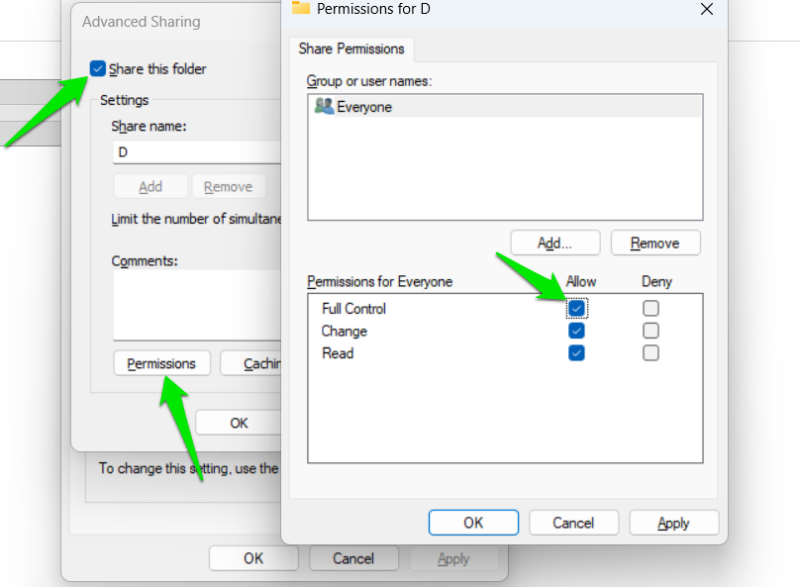
Right-click on a drive in your PC and select Properties. Move to the Sharing tab here and click on Advanced Sharing.
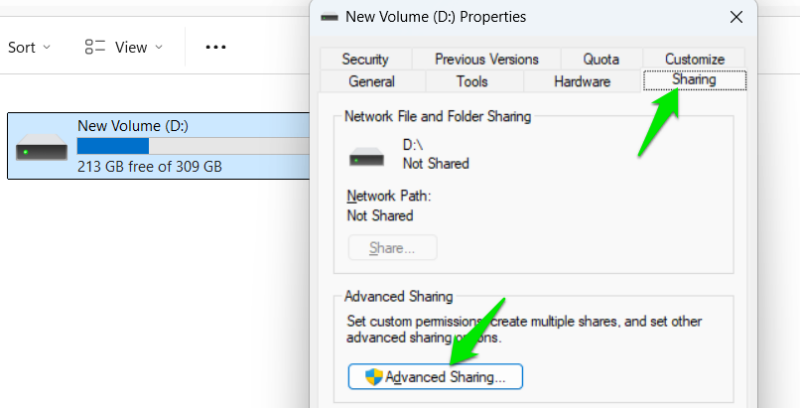
Here, check the Share this folder checkbox, click on the Permissions button, and select Full Control. Apply the changes, and the drive will be shared over the network. Repeat the same steps for other drives if available.
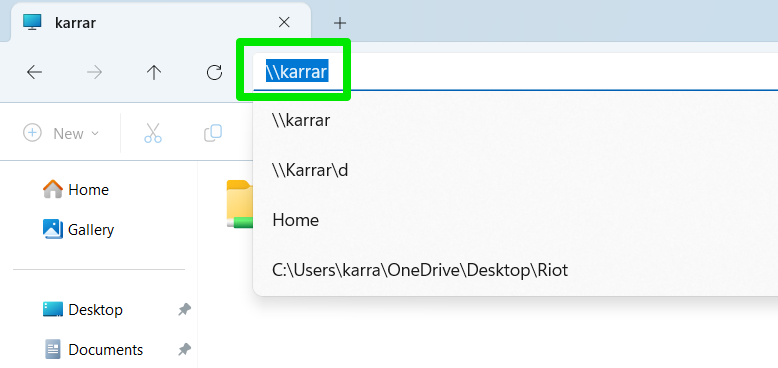
To access the shared drive, open File Explorer and type double backslashes (\\) with your PC’s name. For example, my PC name is Karrar, so I’ll type \\karrar to access the network shared drive. You’ll have to use your user account details to access the drive. If you are on Linux, you can check out these NAS solutions for Linux instead.
Keep in mind that your old PC will need to stay on for the network drive to be accessible. So make sure you optimize it to consume less power and ensure it doesn’t go to sleep.
If you are moving to a new PC only because your old PC is too slow, then try these tips to speed it up first before upgrading. Also, if you have an old tablet lying around, then try these methods to repurpose an old tablet and put it to good use.