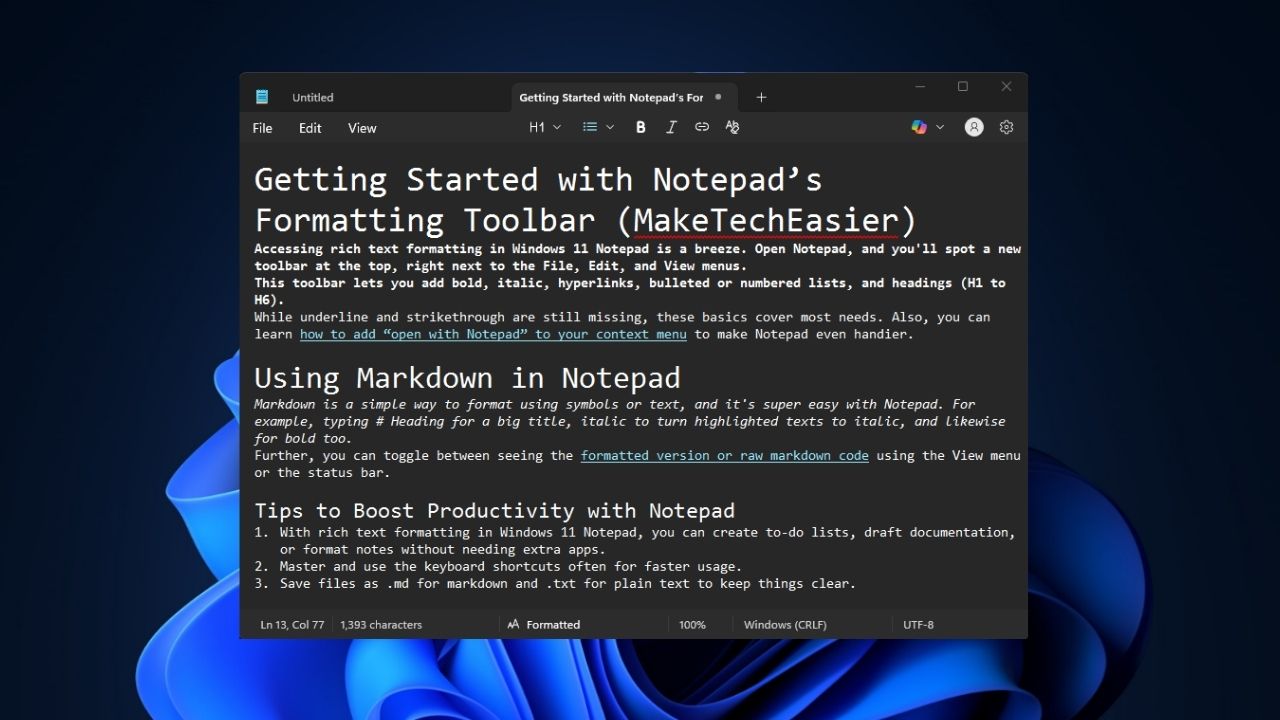
Windows 11 Notepad just got a major upgrade, and it’s no longer just a plain text editor. Although a light replacement for WordPad, it now supports markdown and cool formatting options. Here, we will walk you through using markdown and the new rich text formatting options in Windows 11 Notepad to make your notes pop.
Since Notepad is a replacement for WordPad, the inclusion of markdown support and rich text formatting makes it an ideal, versatile tool to take or draft notes without any extra heavy software.
Getting Started with Notepad’s Formatting Toolbar
Accessing rich text formatting in Windows 11 Notepad is a breeze. Open Notepad, and you’ll spot a new toolbar at the top, right next to the File, Edit, and View menus.
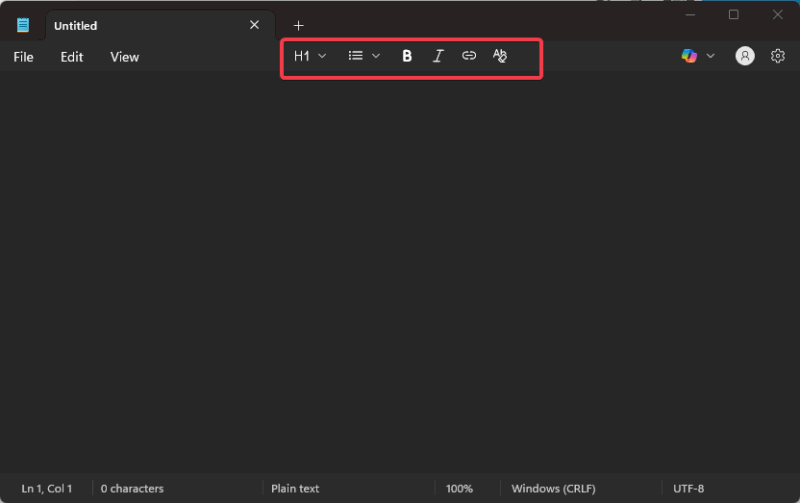
This toolbar lets you add bold, italic, hyperlinks, bulleted or numbered lists, and headings (H1 to H6).
While underline and strikethrough are still missing, these basics cover most needs. Also, you can learn how to add “open with Notepad” to your context menu to make Notepad even handier.
Using Markdown in Notepad
Markdown is a simple way to format using symbols or text, and it’s super easy with Notepad. For example, typing hashes (#) for a heading, using asterisks (*) for emphasis, wrapping code in backticks, and more.
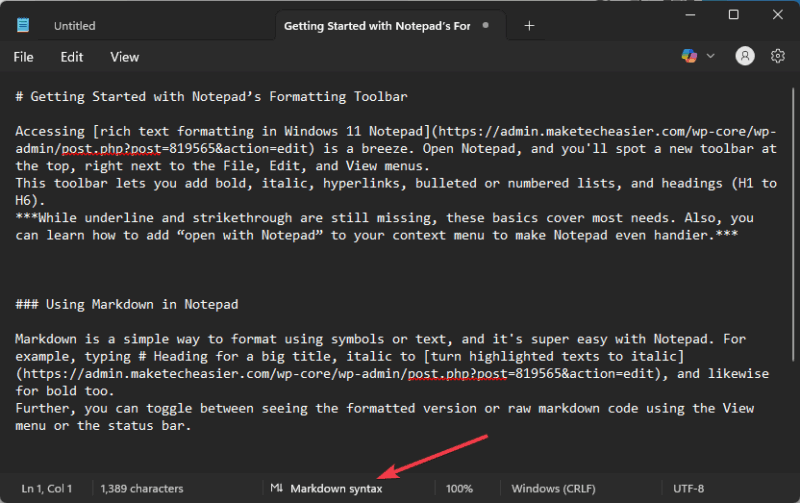
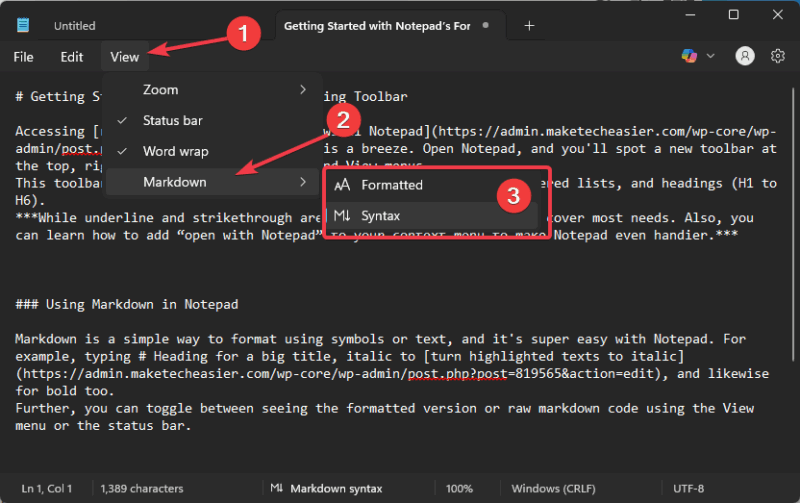
Further, you need to select syntax under Markdown in the View menu option or just click it directly in the status bar below to use these symbols.
If you’re a markdown fan, it’s possible to save your file as .md to keep it markdown-friendly. We also have a detailed guide on the best markdown editors for Windows if you want to compare Notepad to other tools.
Applying Rich Text Formatting
To use rich text formatting in Windows 11 Notepad, highlight the text you want to format or place your cursor where you’re typing.
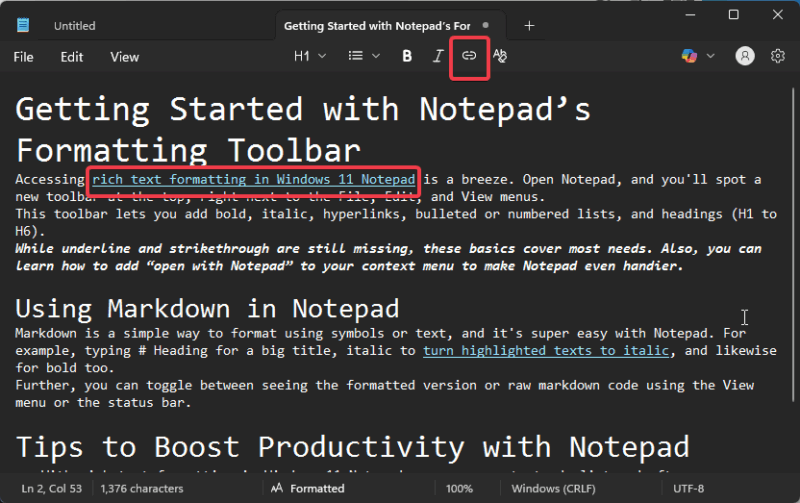
Select any of the formatting options in the toolbar (bold, italics, or hyperlinks).
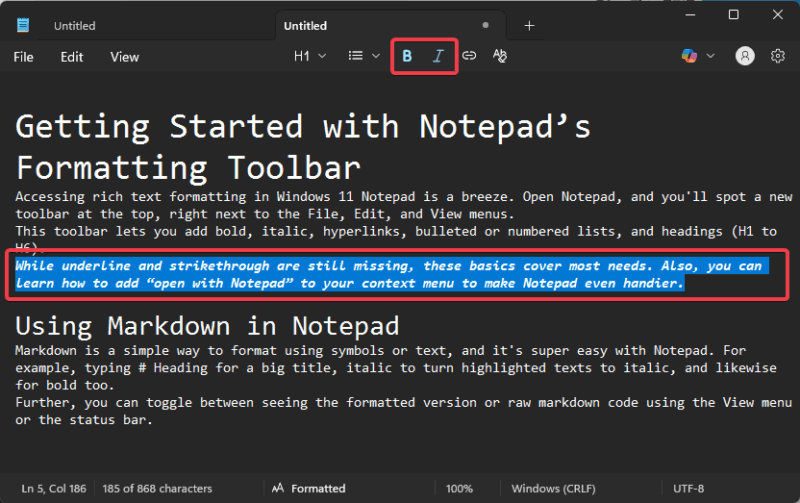
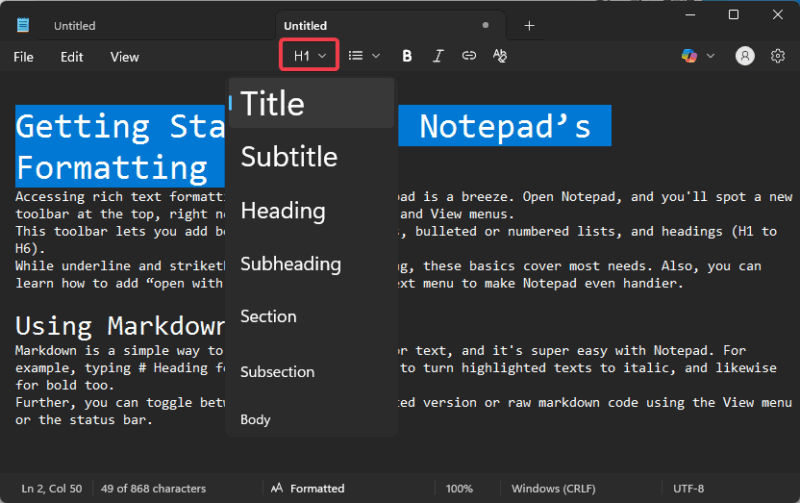
In addition, click on the headings dropdown menu and select an option from Title to Subsection (H1-H6).
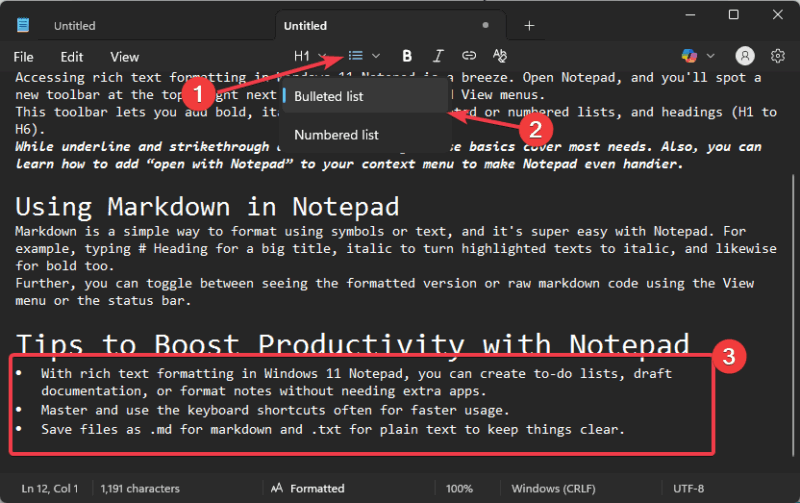
Click on the list option and select either bulleted or numbered lists depending on what you need to write.
Also, some of the formatting options have keyboard shortcuts, like Ctrl + B for bold and Ctrl + I for italics, or Ctrl + K for interlinks, making things faster.
Extra: If you want more flexibility, you can learn how to use tabs in Notepad to juggle multiple notes.
Customizing Your Notepad Settings
If you prefer the old school plain text mode and are not a fan of markdown and rich text formatting in Windows 11 Notepad, head to Settings or the Edit menu to disable formatting. Then, confirm by clicking Turn off.
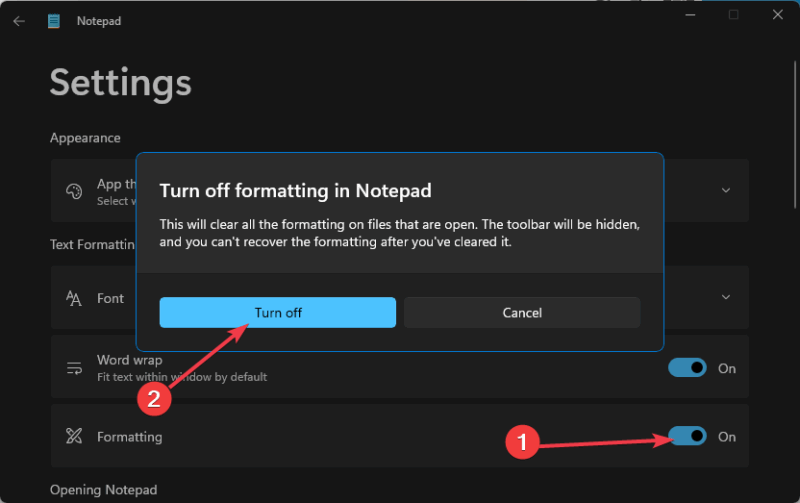
Also, you can use the classic notepad.exe to launch the old-school Notepad. Besides, Notepad still supports .txt files, so your existing notes won’t get messed up.
Boosting Productivity with Notepad
- With rich text formatting in Windows 11 Notepad, you can create to-do lists, draft documentation, or format notes without needing extra apps.
- Master and use the keyboard shortcuts often for faster usage.
- Save files as .md for markdown and .txt for plain text to keep things clear.
The new markdown and rich text formatting features in Windows 11 Notepad make it a perfect tool for everyone to draft notes. Simply update to the latest version via the Microsoft Store and give it a spin! If you’ve got any questions or suggestions, leave them in the comments.








