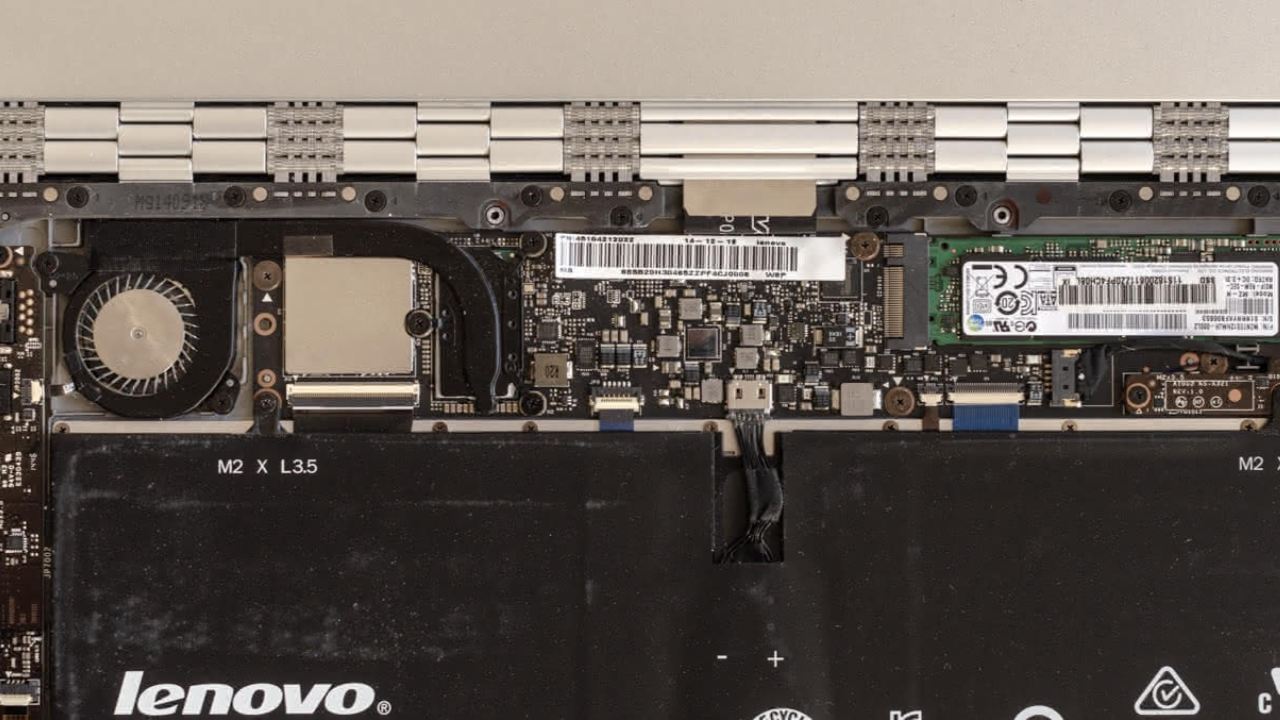
If your Lenovo laptop starts acting up – freezing up, slowing down, or showing random errors – you don’t necessarily need to rush to a technician right off the bat. Lenovo offers a built-in tool that can help you check your device’s health in minutes. You can scan your laptop’s hardware, interpret the results, then make an informed decision on your next steps.
What Is Lenovo Vantage and Why You Should Use It
Lenovo Vantage is a system management app that allows you, as a Lenovo owner, to see everything about your device from a single place. Whether it be system updates, device settings, or the general health of hardware parts, Lenovo Vantage allows you to access all that information.
One of Vantage’s most important features is the Hardware Scan tool. With this, you can run diagnostic tests on components like the CPU, RAM, battery, storage, and speakers. Being able to run these scans yourself from your laptop saves time and money by helping you identify hardware problems early, before they turn into costly repairs.
Note: You can’t use Lenovo Vantage on non-Lenovo laptops, as the app is specifically designed to work with Lenovo firmware and hardware. If you do install it on another brand, you’ll only be able to view basic information like your laptop’s model number and serial number. You could also check for driver updates, but most features, including hardware scans, won’t work.
Access Lenovo Vantage on Your Lenovo Laptop
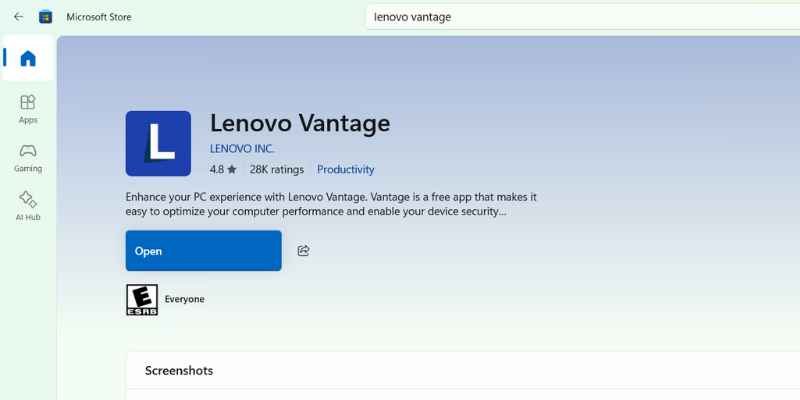
Most Lenovo laptops are preloaded with Lenovo Vantage. To check whether you have the app installed, click the Start menu, and type Lenovo Vantage. If it is not installed, you can install it from the Microsoft Store.
When you open Lenovo Vantage, you’ll see a dashboard with details mimicking an ID card. This includes your laptop’s serial number, product number, warranty status, and shortcuts to support services should you need help.
Useful tip: you don’t need to be connected to the Internet or a Wi-Fi network; however, being online allows you access to the full functionality of the app, like accessing support links if a part fails.
Run a Hardware Scan in Lenovo Vantage
On the left side of the app is a menu containing tabs like Home, Device Settings, System Update, and more.
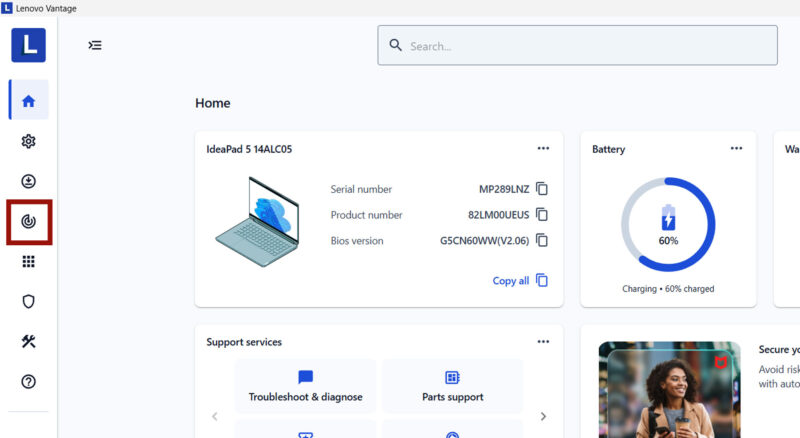
To check how your laptop’s hardware is doing, click on Hardware Scan.
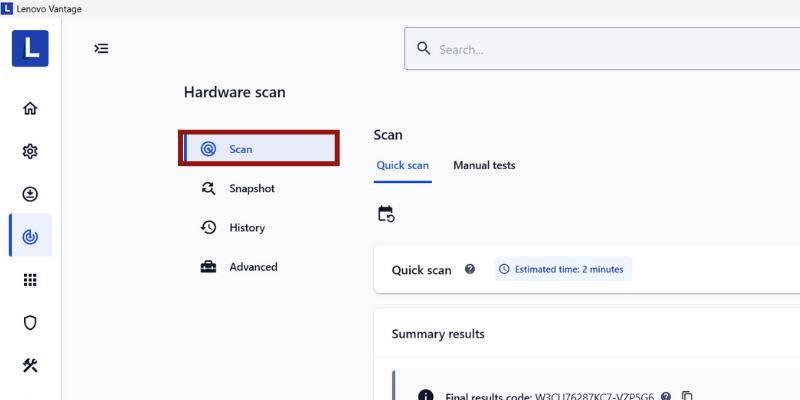
You can find three different scan options here:
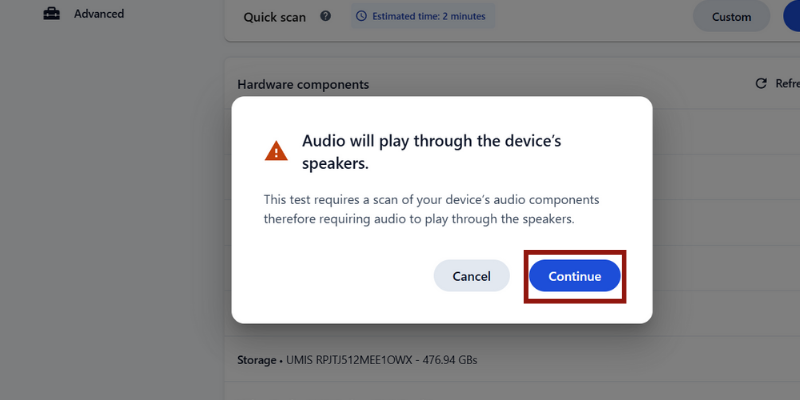
Quick scan is an all-in-one scan that gives you an idea of your system’s overall health. Simply click on the Quick Scan button to start this. A pop-up will notify you that an audio test will begin, and a sound will play from your speakers right after. If you click Continue, you’ll hear a drawn-out beep sound sometime during your scan, informing you that your audio hardware is being tested. If you don’t hear anything, it’s likely your laptop has a problem, as the scan will alert you.
Furthermore, you can schedule this Quick scan to run by clicking the Calendar icon and selecting the options to choose the frequency and time of your scan. The schedule option is for automatic hardware checks; you can’t schedule a one-off scan for later.
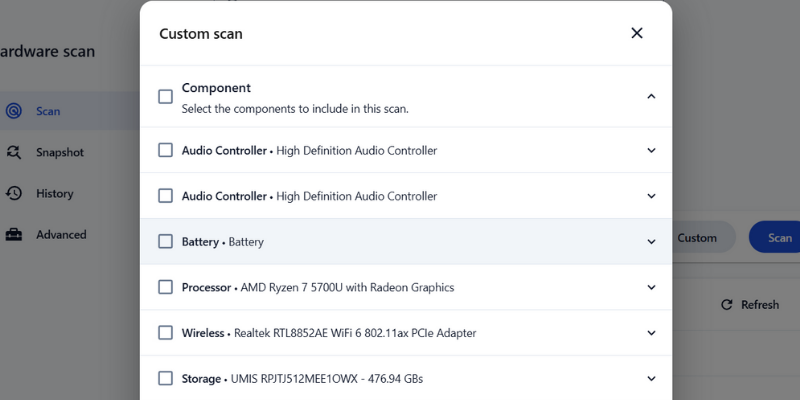
On the other hand, a Custom scan helps confirm when you have suspicions about a part’s functionality. Click the Custom button, and a pop-up will appear with a list of components (e.g., Audio, Battery, Wireless). Check the box next to the component(s) you want to test and click Run Scan.
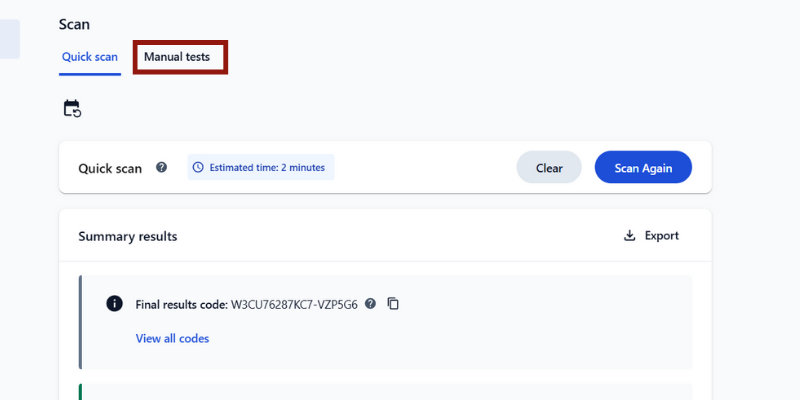
Finally, running a Manual test is pretty straightforward; simply select the tab beside Quick scan. Note, though, that you will need administrator rights for this. Manual tests are also hardware tests, but deal with things like Bluetooth, Wired Ethernet, and Sensors.
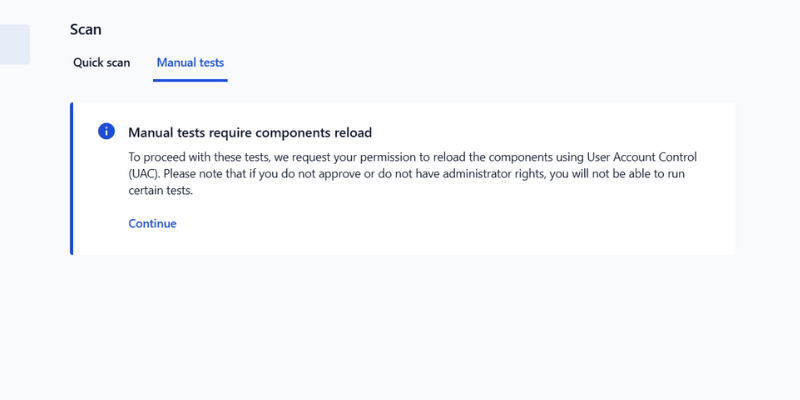
A note below will inform you that visual, tactile, or auditory feedback is necessary. For Manual tests, your active participation will be necessary. Unlike Quick scan tests, you won’t be able to activate a scan and step away.
At the end of each scan, you’ll have a summary of the results. Any parts that failed the scan will be shown, and you can click on View Details to see more information on the component that failed.
Once the scan finishes, Lenovo Vantage allows you to export your summary results, clear the previous Quick scan results, or run a new scan. Exported results are saved in .html format, so that you can open them in any web browser.
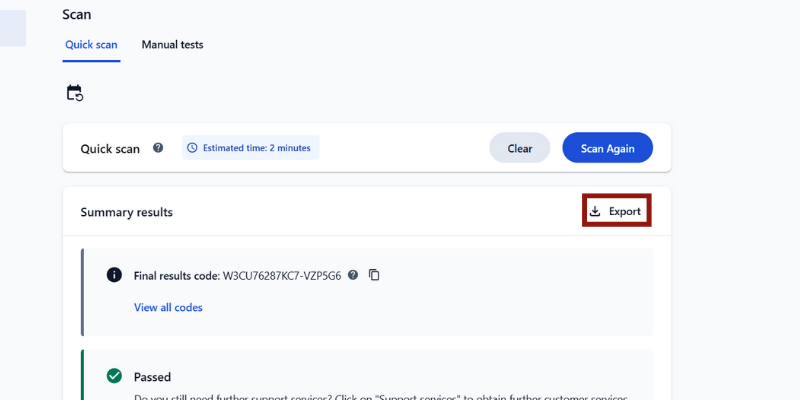
You can export the scan results as a report file to share with your support technician.
Note: When scanning your laptop’s wired Ethernet functionality, if your laptop isn’t plugged into a wired Ethernet network, the scan will fail.
Understanding the Hardware Scan Results (And What to Do)
After a scan, you will typically get one of three results: Passed, Failed, or Warning.
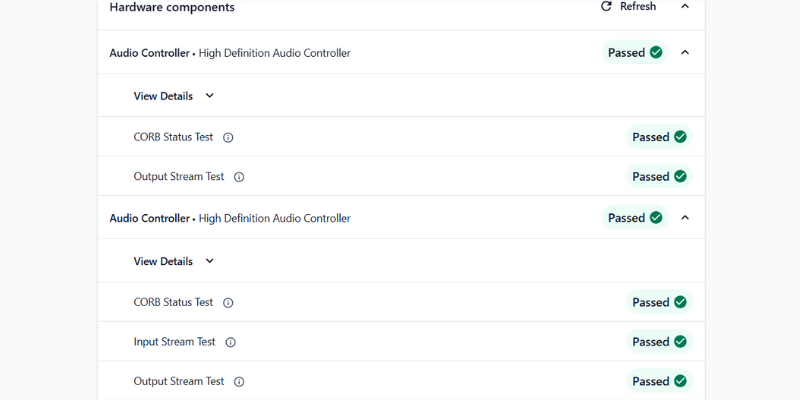
- Passed means that the laptop component is working properly and is in alignment with Lenovo’s performance standards. However, if you’re experiencing issues with a hardware component, it may be time to visit a technician.
- Warning indicates that while the component is operational, the scan has detected minor issues, inconsistencies, or performance issues. Try cleaning your laptop’s vents, updating drivers, or restarting. If the warning persists, it’s best to have someone take a look at it.
- Failed indicates a hardware issue or malfunction. This could point to bad sectors on your drive or faulty memory modules. Back up your data immediately and consider contacting Support. Conveniently, Lenovo Vantage provides links to contact support or to shop for a replacement part, such as a battery, after it detects a failed component during a scan.
What to Do If Lenovo Vantage Won’t Run a Scan
At times, Lenovo Vantage may not run a scan, but don’t panic. In this situation, a quick fix would be to open Microsoft Store -> Library -> Click Update to ensure you have the latest version of Vantage running.
If updating it does not work, uninstalling and reinstalling Vantage would be the way to go. Simply restart your laptop and reinstall from the Microsoft Store.
Also, a pending system update could mess up the access to your hardware.
Running regular hardware scans with Lenovo Vantage is one of the easiest ways to stay ahead of potential hardware issues. Instead of spending money on diagnostics or making random guesses, you can identify failing parts yourself. However, you’ll need to know how to properly identify hardware and software issues.








