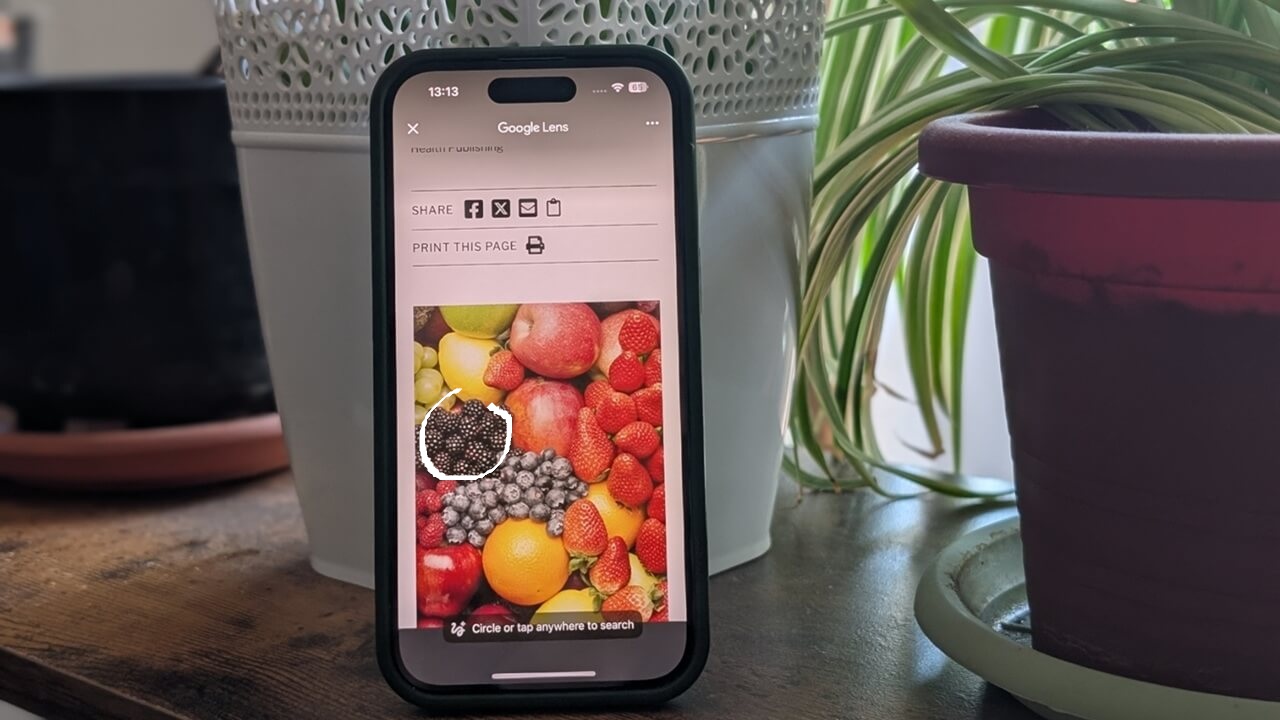
With Google’s immensely helpful Circle to Search feature, Android users can quickly find information by circling elements on their screen. If you’re an iPhone user and curious about this functionality, don’t worry, now you can also try it out for yourself on your iOS device.
Good to know: here are some of the best uses of Google’s Circle to Search on Android. Try them out now.
1. Use the Google or Chrome Apps for the Closest Circle to Search Experience
On Android, Circle to Search is an integral feature of your phone’s operating system. As such, you need to activate it from your device settings.
On iPhone, that isn’t the case. You won’t have to fiddle through your settings; however, you will need to install either the Google or Chrome apps on your phone. Access the App Store and download both apps (or just one.) For this tutorial, we’re using the Chrome app for iOS.
Open the Chrome app and navigate to a webpage that contains images. Alternatively, you can search for a keyword in image search.
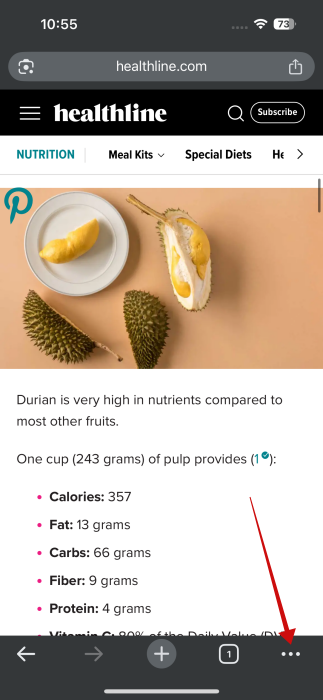
Tap on the three dots in the lower right corner.
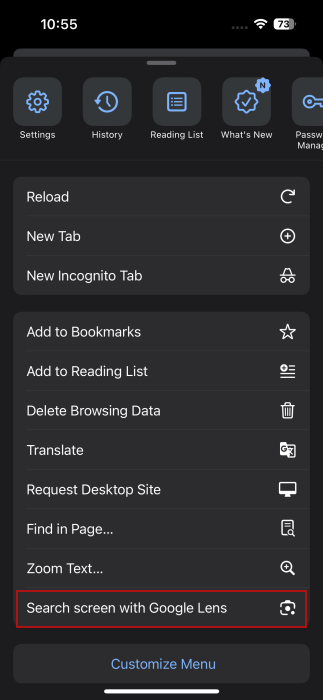
In the pop-up that appears, select Search screen with Google Lens.
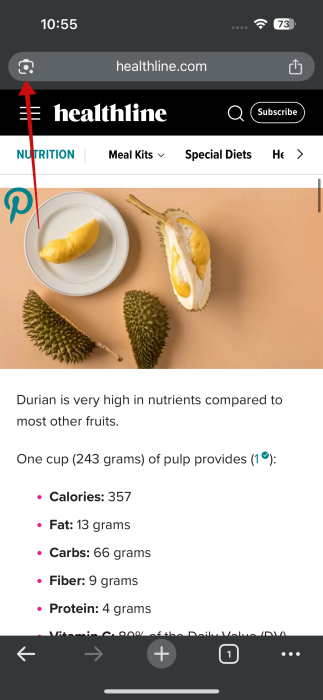
Note: alternatively, you can press on the Lens icon in the address bar at the top or bottom, depending on your settings.
A toast notification will appear at the bottom, letting you know that you can use your finger to select elements on the screen.
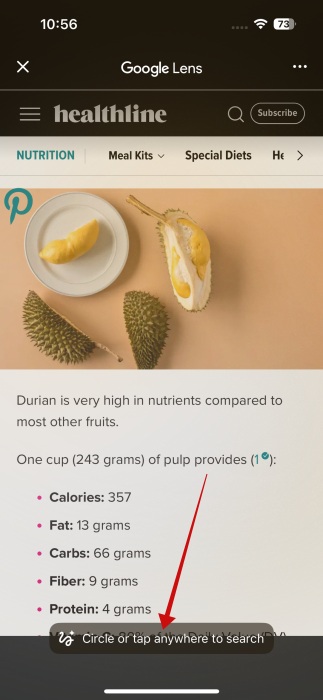
Information about the element will appear below, with Gemini’s AI Overview showing first.
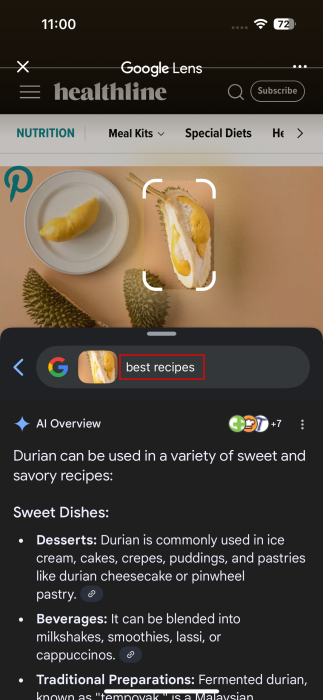
Just like on Android, you can dig deeper with follow-up queries. For example, after using Circle to Search on an image of Durian fruit, we followed up by exploring the best recipes that use it.
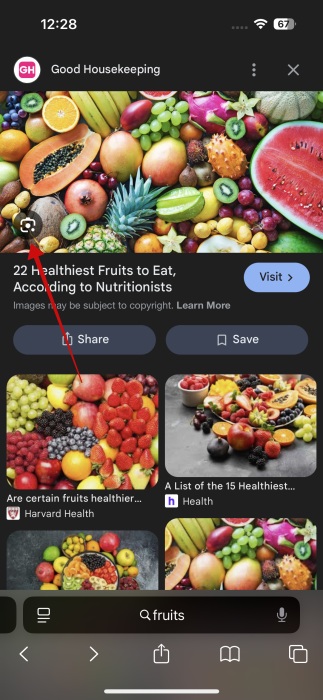
When searching for images in a mobile browser, you can also use the Lens icon to search for a particular object in the image. With the Google/Chrome app onboard, the Lens icon also appears in image search in Safari.
Tip: here’s how to use Google Lens to scan QR codes on Android or iPhone.
2. Try the Shortcuts App for Automation
If you don’t want to have to open the Chrome or Google apps all the time to search for items on your screen, no problem. You might like this variant better. Note that you will still have to have the Chrome/Google app installed on your phone for this to work.
Open the Shortcuts app on your iPhone. It should be pre-installed, but if it’s not, you can always get it from the App Store.
Press the + button in the upper-right corner to create a new one.
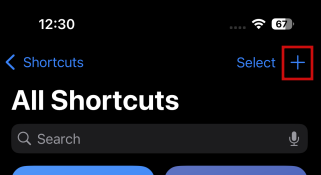
Press on the Search Actions bar.
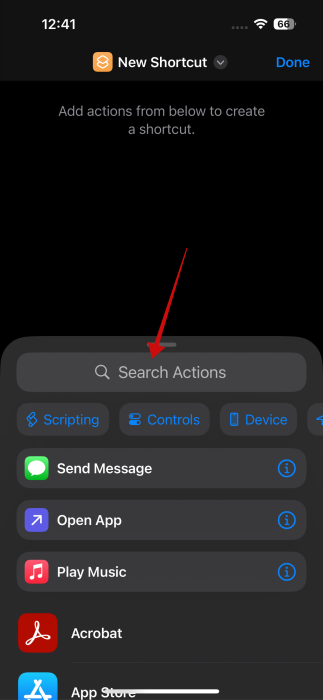
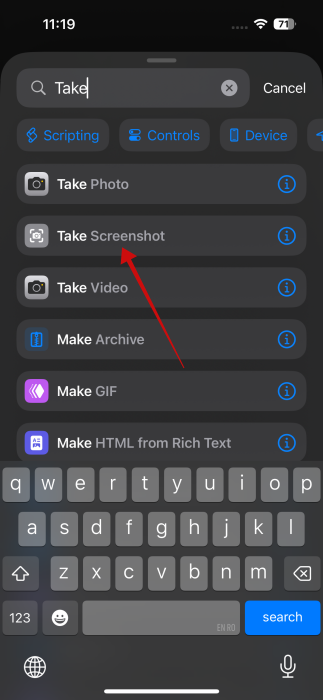
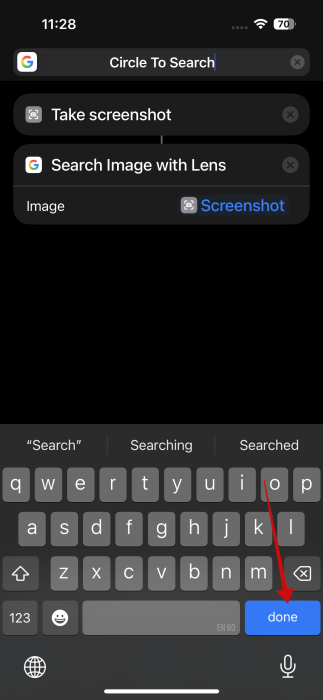
Search for Take Screenshot. Tap to add it.
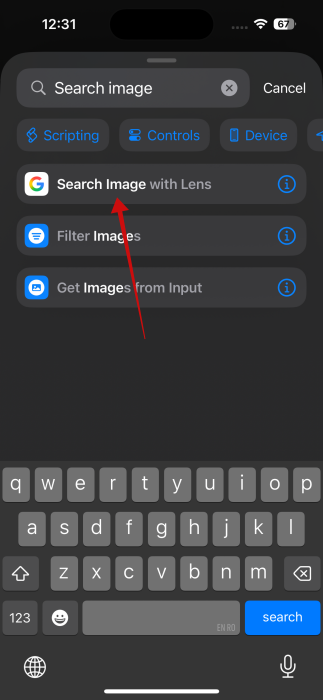
Tap on Search Actions again. Look for Search image with Lens and add it.
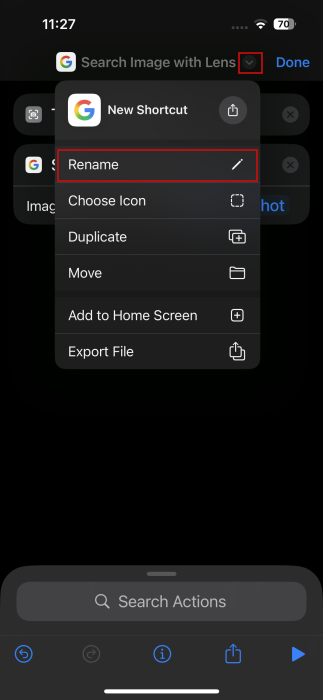
Once you’ve added the two, tap on the tiny arrow icon at the top to Rename your shortcut.
Tap Done to save.
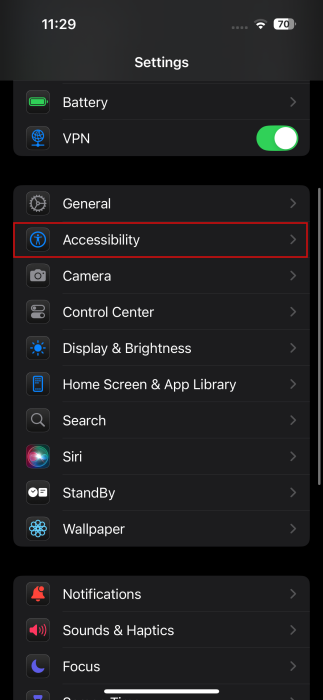
Next up, open the Settings app on your iPhone and navigate to Accessibility.
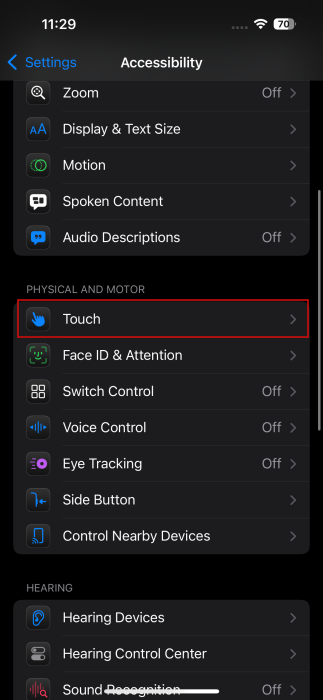
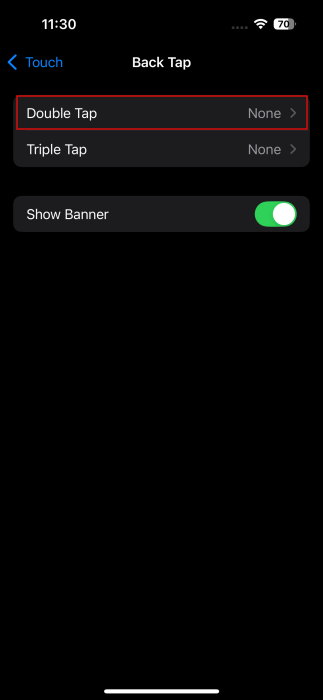
Go to Touch.
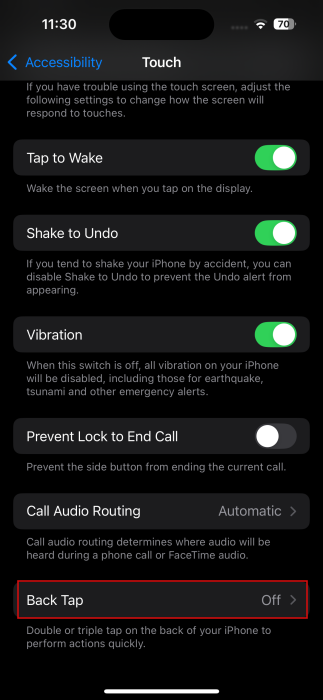
At the bottom, find the Back Tap option.
Select Double Tap.
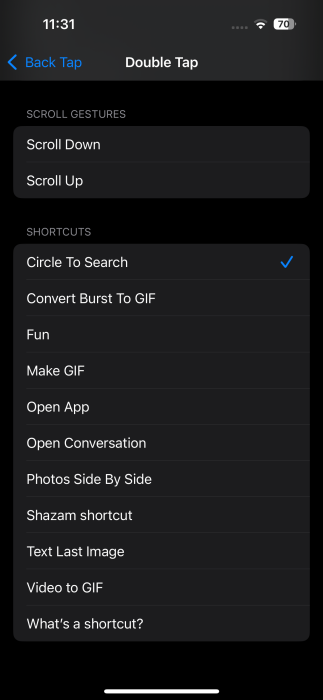
Scroll to the Shortcut section at the bottom and select the shortcut you’ve just created.
Now you’re all good to go. Navigate to a webpage or app that contains an image. Go ahead and double-tap the back of your phone.

Your phone will automatically create a screenshot and open it using Search Image with Lens. You can then use the finger to frame the part of the image you want to search for.
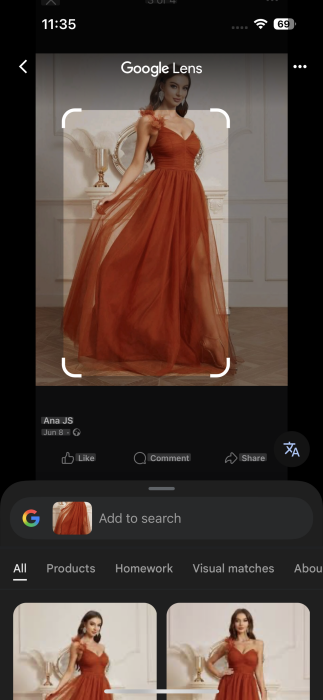
This solution might not be as elegant as the option to use your finger to circle the item you need information about, but it has its merits. It’s the go-to choice if you’re viewing images outside of Google or Chrome.
If you wish to take a regular screenshot, you can just use the regular Power + Volume Up combination.
Circle to Search is powered by Google Lens. However, Apple has its alternative called Visual Look Up, which you might also want to experiment with if you’re trying to do a reverse image search on your iPhone or iPad.








