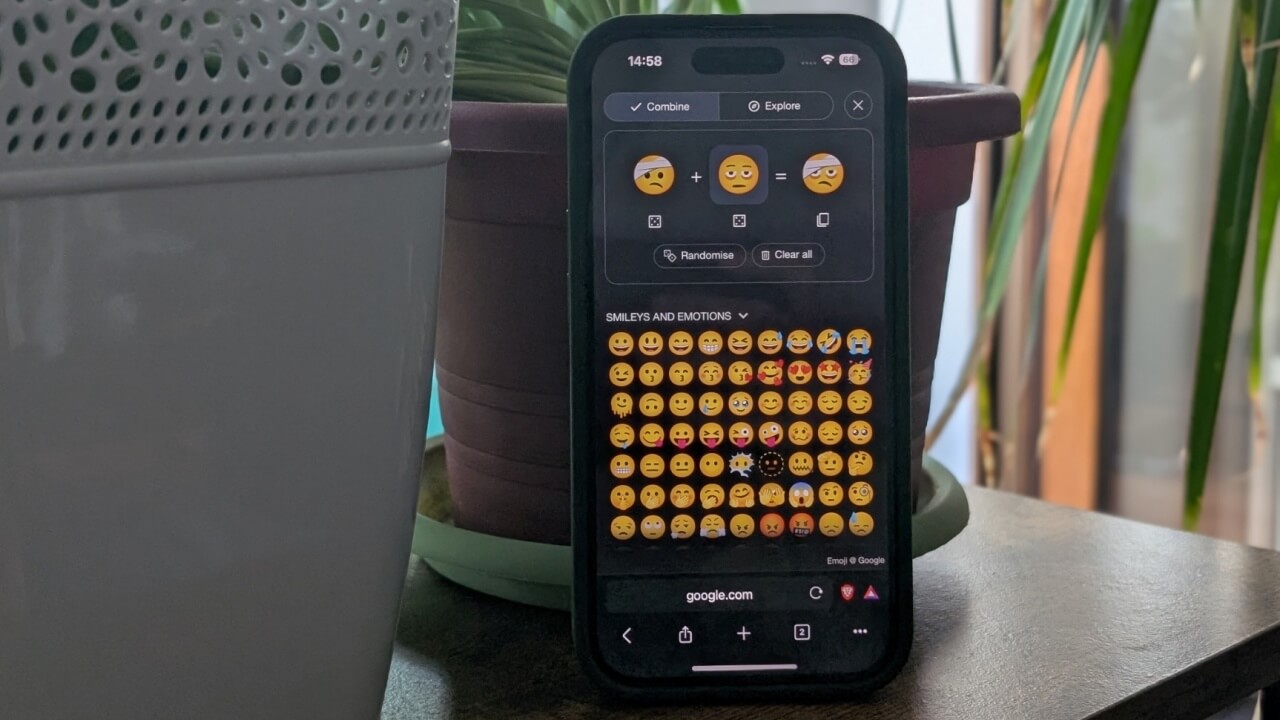
Emoji Kitchen is a fun Gboard feature that lets you craft custom emoji directly from your keyboard. Although it’s currently limited to Android, iPhone users can still take advantage of it using alternative methods. This post shows you how to join the fun.
Good to know: check how to type emoji if you have a Chromebook
Apple Is Prepping Own Emoji Kitchen
With iOS 26, Apple plans to introduce a feature similar to Emoji Kitchen, giving users the ability to combine two emojis into a single custom creation.
Currently, iPhone and iPad users can have fun creating custom emojis through the Apple Intelligence-powered Genmoji. But there’s one big limitation: you can’t blend two existing emojis together. That’s about to change with the new update, which is expected to arrive sometime this fall.
We should also note that iPhone users can access variations of various emojis by swiping their finger to the left/right on the emoji categories bar once they bring up the emoji section on their keyboard.
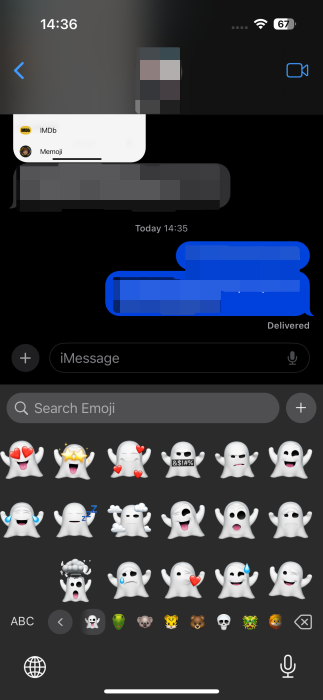
If you have an older iPhone or if you simply want to try your hand at creating emojis now, and would rather not wait for the arrival of iOS 26, try these methods.
1. Access Emoji Kitchen on the Web
On Android, you can access the Emoji Kitchen straight from Gboard, but that’s not an option on iPhone, even if the keyboard app is available for iOS.
Tip: learn all about making funny emoji combos on your Android device.
Fortunately, you can access the Emoji Kitchen on the web via your mobile browser. Open Safari or any other browser you like to use. Search for “emoji kitchen” in Google search.
The Emoji Kitchen will load up in search for you. Press the Get cooking button to start creating emoji.
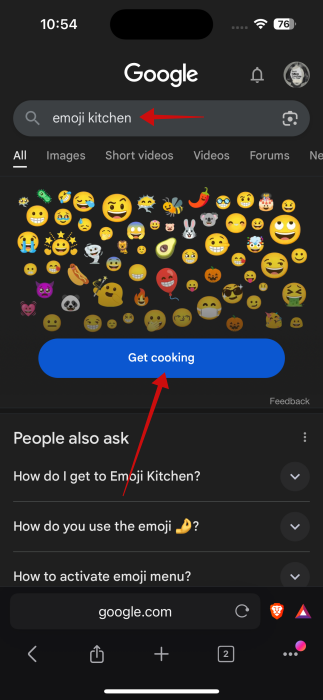
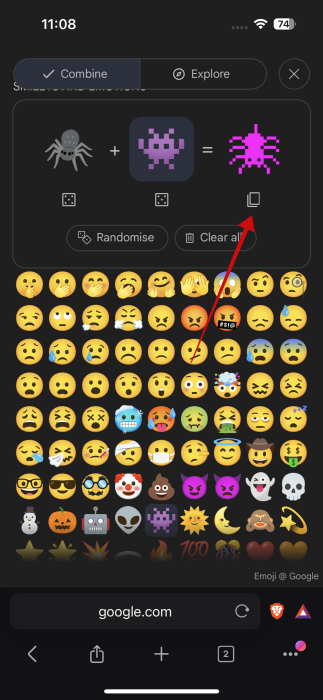
The web version of Emoji Kitchen works just like the Android one. You can combine two emojis to create a custom one. Press on the first slot to select an emoji from the list below. Then press on the second slot to add the second. Your creation will appear instantly.
Note: if you don’t feel inspired, press on the square button underneath each emoji to randomly generate one.
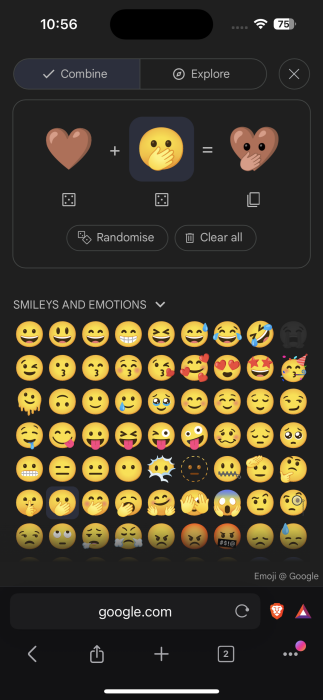
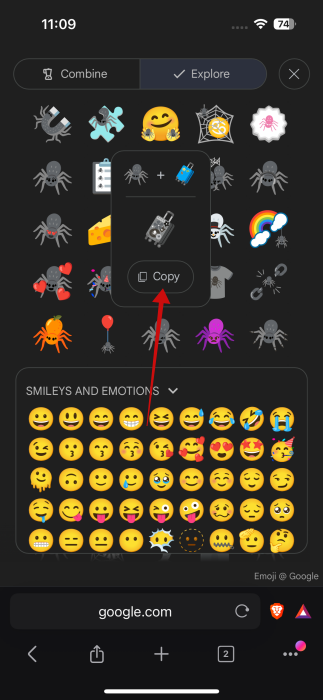
Once you have created a combination that you find intriguing, you can check out additional suggestions for emoji in the Explore tab which are inspired by the same combination. If you see something you like, tap it and tap the Copy button that appears underneath.
Alternatively, in the Combine tab, press the icon underneath the custom emoji you’ve created to start using it in other apps.
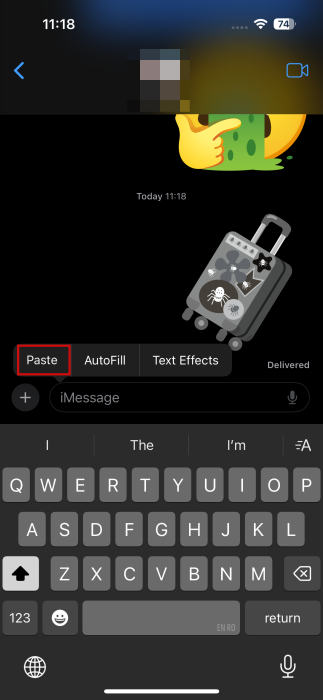
Once you’ve copied the emoji, you can now open an app and paste it in a conversation. For instance, we’ve opened the Messages app and pasted a few custom emojis in a chat. Note that these custom creations will be sent as stickers instead of regular emoji, so they’ll appear a bit bigger.
When you paste the emoji into WhatsApp, the app gives a few additional options. You can opt to Edit the emoji.
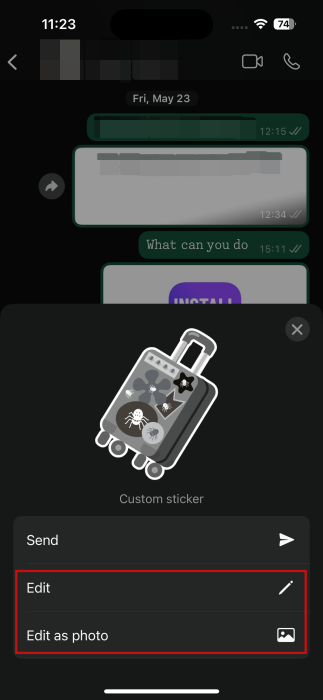
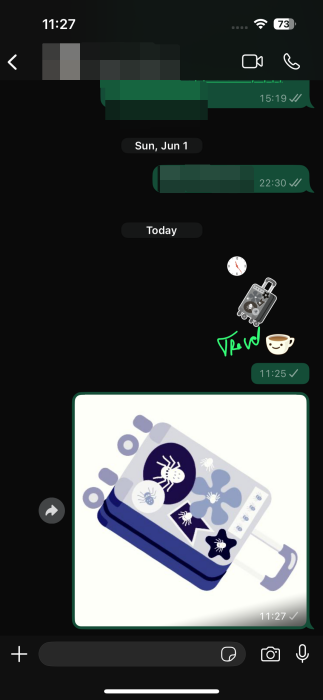
It’s possible to add additional stickers, text, and even doodles to your custom emoji. When you do send the emoji, it will look like a mixed sticker.
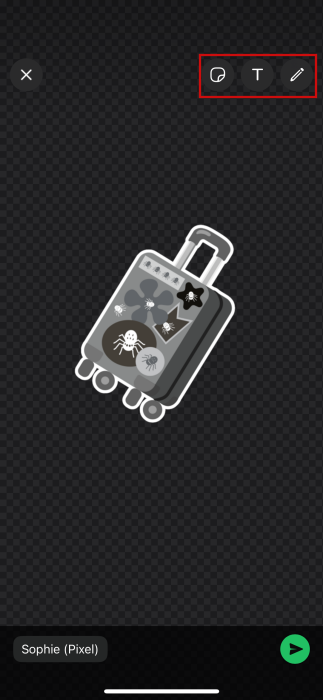
Alternatively, you can opt to Edit as photo. This lets you add filters, stickers, text or rotate the emoji. However, it will send it as a photo. See the difference between the two editing modes below.
Tip: check all the differences among Gboard vs Samsung Keyboard vs SwiftKey via our in-depth comparison post.
2. Install a Third-Party App
If you think it would be easier to use a third-party app to create your custom emoji, instead of just firing up your browser every time and searching for Emoji Kitchen, there’s an alternative you can try.
You can install the Emoji Kitchen app by Emoji Word from the App Store. It gives you access to a library of emojis that’s quite similar to Google’s Emoji Kitchen.
It works similarly, too. Press on the first emoji slot and pick an emoji from the list below, then do the same for the second slot. Once the custom emoji is generated, press the Copy button to send it on its way.
If you lack ideas, you can use the Randomize button to create random custom emoji. Or press the square buttons under each emoji to generate a random one.
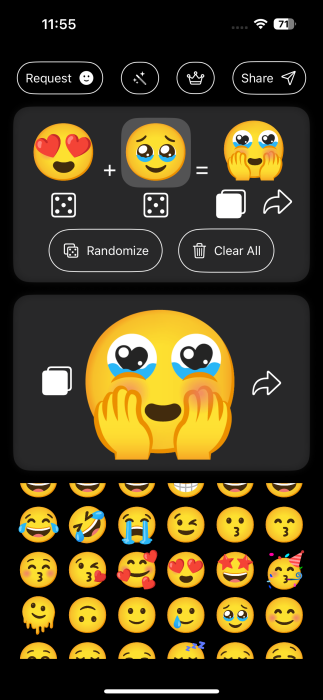
Once again, you can send this custom emoji via most messaging and chat apps such as Messages, WhatsApp, Facebook, and more.
If you feel that you need more emoji in your life, check how to create and add custom emoji to your Discord server. Alternatively, read all about unlocking emoji use in Outlook on Windows.








