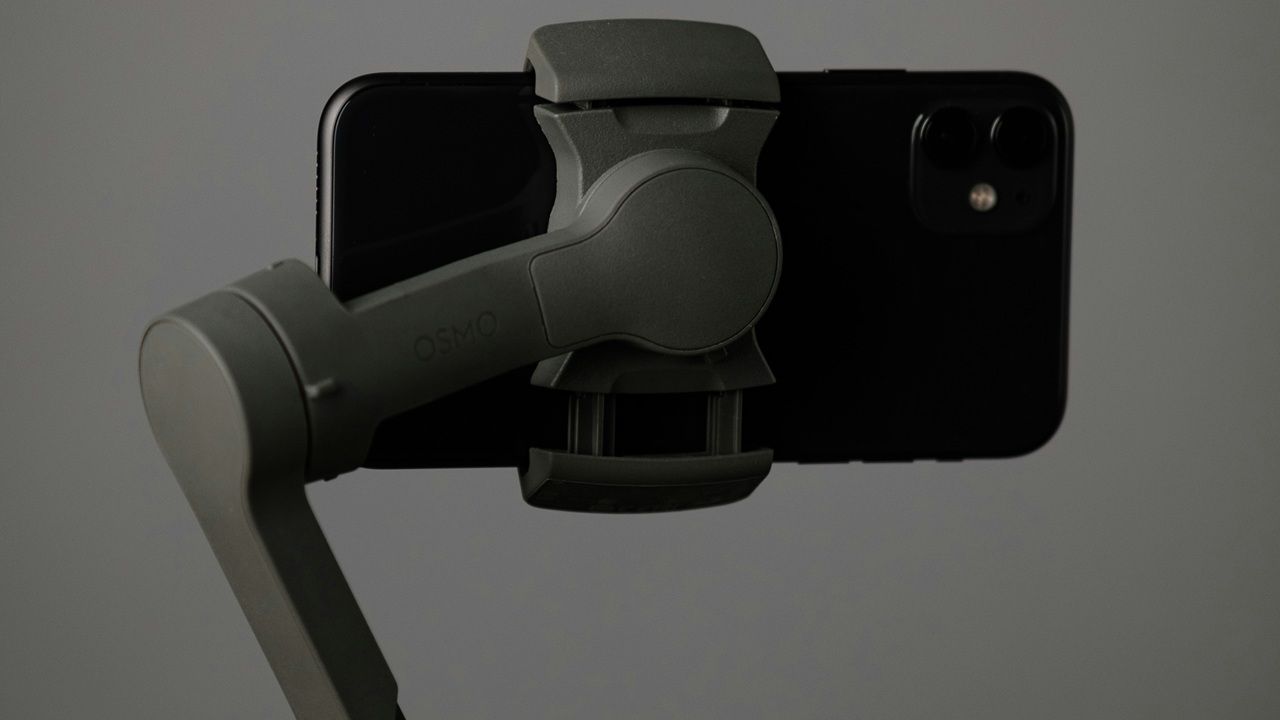
Do you know your Android phone can also double as a PC webcam, delivering crisp, high-resolution visuals that outshine most laptop cameras? You can easily switch between front and rear lenses or adjust the angle for perfect framing during video calls. Moreover, it’s a wallet-friendly hack as you don’t have to splurge on a separate webcam. This guide shows different ways to transform your Android into a webcam for your Windows PC or laptop.
Using the Mobile Devices Feature in Windows 11
If you’re a Windows 11 user, the Mobile Devices feature is a primary way to turn your Android phone into a PC webcam. Skip third-party apps for a fully integrated Windows experience. With recent updates, the method ensures a faster, lag-free connection via QR code and advanced usage of the phone’s camera features.
Go to Settings -> Bluetooth & devices -> Mobile devices, and click Manage devices.
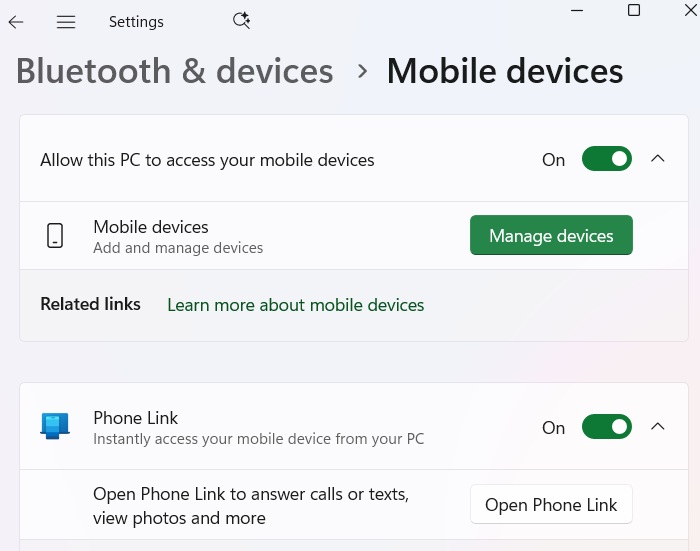
There is a related Phone Link app on your Windows 11 which you need to keep toggled on. But there’s no need to set it up in advance.
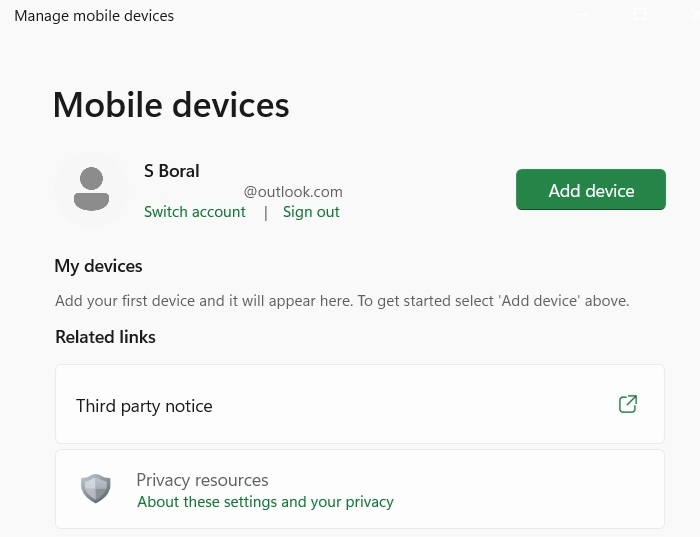
A new pop-up window called Manage mobile devices opens. Click Add device to add a phone to your Windows 11 PC.
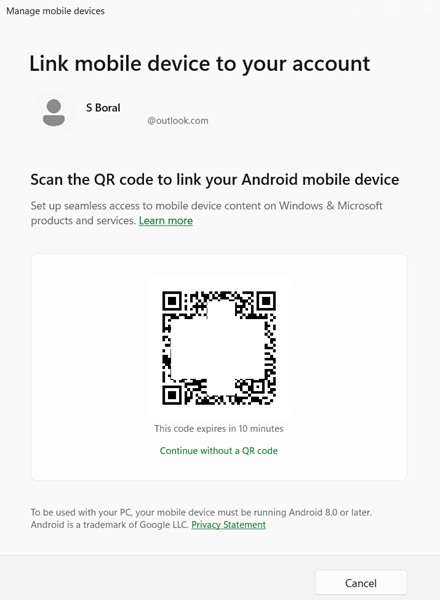
A QR code is generated. You have to scan it using your Android phone device. Do it within 10 minutes or the code expires.
Currently, Windows 11 supports phone linking only for Android devices, 8.0 and higher, but iPhones may be added soon.
On your Android phone whose webcam you want to link, the above QR code will take you to the Link to Windows app on Google Play.
After you install the app on Android, you can again sign in using the above QR code generated using Manage Mobile devices app on Windows. Click Sign in using the QR code on your PC.
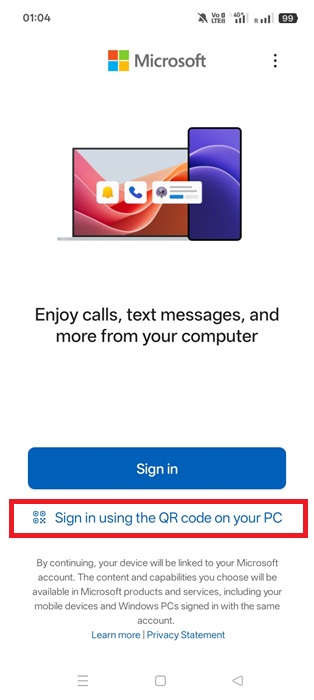
Further, on Android device, you will get a prompt to link your mobile device to your Microsoft account. Click Continue. You will also get a warning that the app will always run in the background which you must allow. However, disable Wi-Fi when the webcam is not in use as the consequences of Android battery drain are serious.
In the next step, you will get a six-digit verification code on both the mobile device and the PC screen. Enter once and you will see a You’re all set status on the phone.
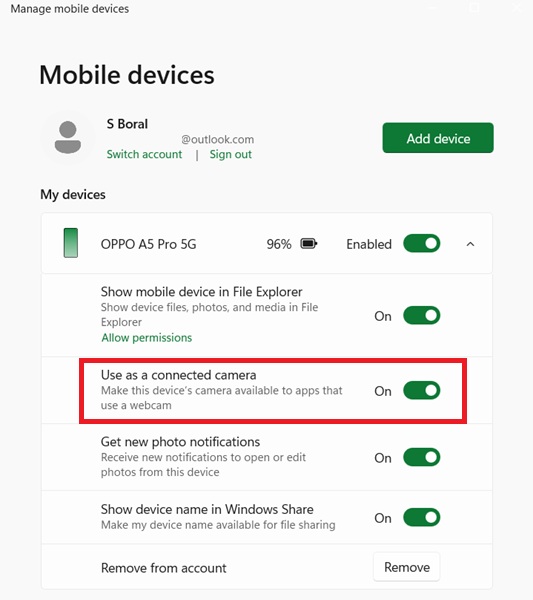
On the PC, you can see your mobile device listed under My devices. Once active, make sure the Use as a connected camera option is enabled.
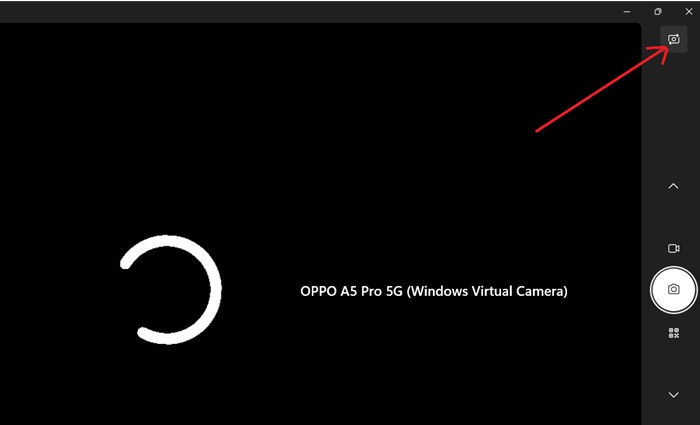
To test the Android webcam on Windows, launch the Camera app on Windows 11. Look for a tiny Change camera icon on the top right corner.
After you click it, you will receive a notification on your phone: Tap to start camera stream. Clicking it allows the smartphone camera to take over the function of your Windows laptop’s webcam. It is visible as a virtual camera on the laptop.
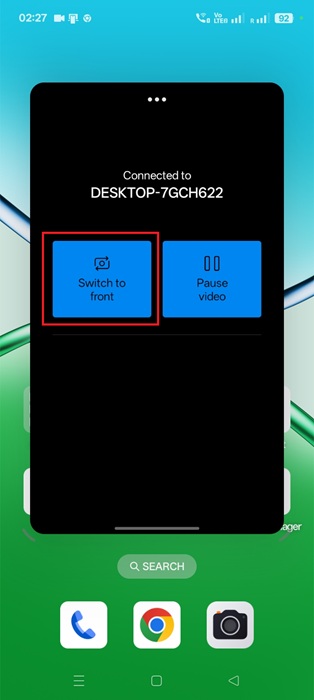
To switch cameras, go back to your smartphone and click Switch to front which enables video calls on the Windows laptop. If you want to show people the location you’re in, click Switch to back.
You can also Pause/Resume videos during a call as required from here. It truly feels like your phone camera is always at hand.
Using the above steps to use an Android phone as a webcam on a Windows laptop ensures a lag-free connection. You can use your phone’s camera, front or back, with all its effects, such as HDR, full set of pixel resolution, and any advanced features, right from your Windows PC.
Good to know: if you have an Android tablet, you can turn it into a second monitor for your computer.
Using Your Android Phone’s Native Options
Some phones offer native options so that you can use them as webcams with your Windows or macOS. Some examples include Pixel and Motorola (Windows only) devices. In this example, I am using a Google Pixel phone.
Start by connecting your phone to your PC using a USB-C data cable. Tap the Charging this device via USB. Tap for more options. notification on your Android phone. On the next screen, select the Webcam option in the Use USB for section.
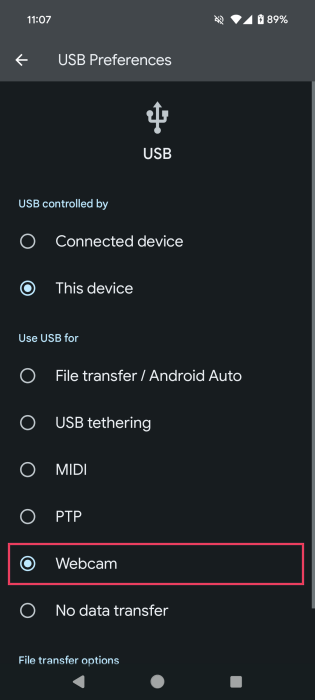
The Android phone’s webcam service is now active. Tap on the notification on your phone to access the camera feed.
You can adjust a few settings for your video stream, such as quality, zoom, and camera orientation.

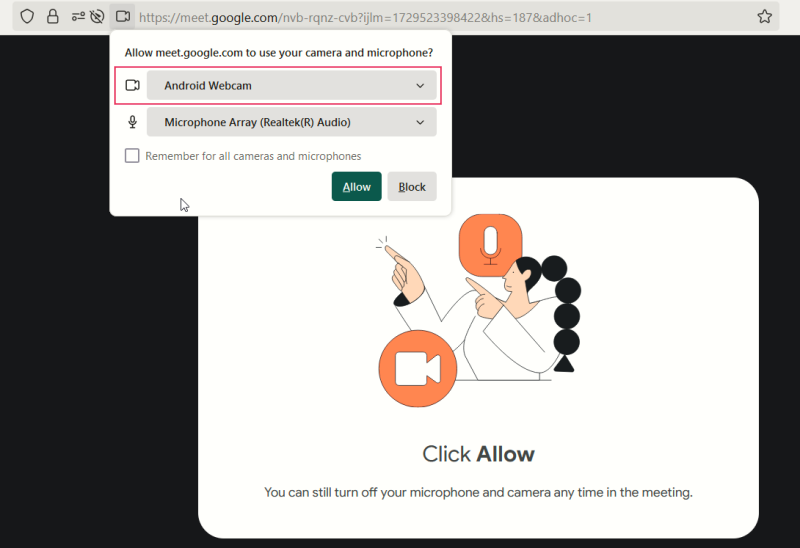
Back on your PC, select the option to use the Android Webcam as a webcam in your video conferencing or chat app. When you see the video stream from your Android, grant permission to start the video feed.
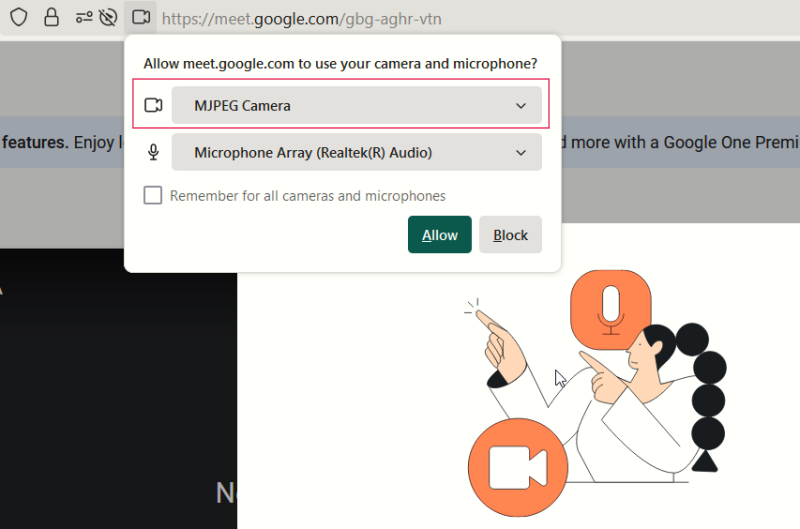
Now when you open your video conferencing app, you’ll notice the option to use IP Webcam. (It will show up as MJPEG camera.)
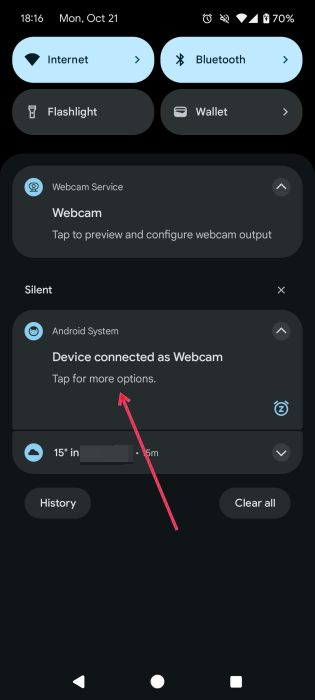
When it’s time to disconnect the webcam, tap on the Device connected as Webcam/Tap for more options notification.
Tip: don’t see the Charging this device via USB message? Check out these solutions to bring it back.
Using a Third-Party App
There are various third-party apps to turn your Android phone into a webcam for your Windows PC or Mac. Here are two of the best examples suited for Windows.
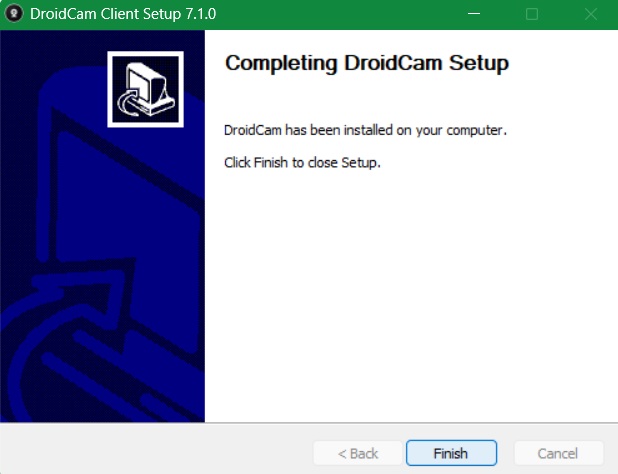
DroidCam is one of the easiest tools that starts working very quickly. It’s free to use for all webcam purposes. Download and install it on your Android phone. Later, you need to install its client app on Windows, available at this link.
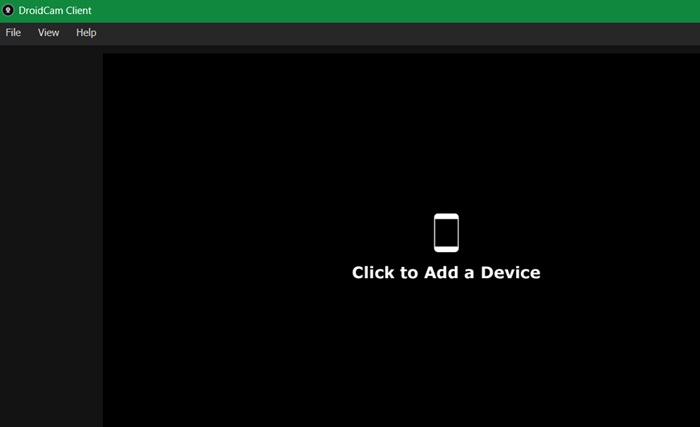
Open DroidCam client on Windows and within the Android app at the same time. No user registration is required. Next, click a menu called Click to Add a Device within the client. Make sure both devices are on the same Wi-Fi network.
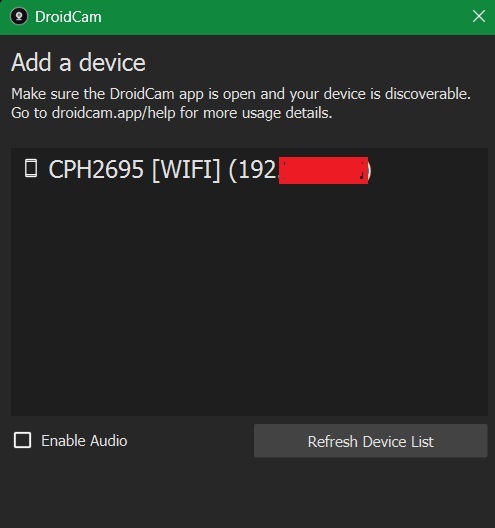
Finally, a pop-up window opens on the PC. Keep clicking Refresh device list and the phone’s IP address will be shown. Click Add selected devices and you will see a connection screen below.
Additionally, you may select Enable audio to use smartphone as a microphone.
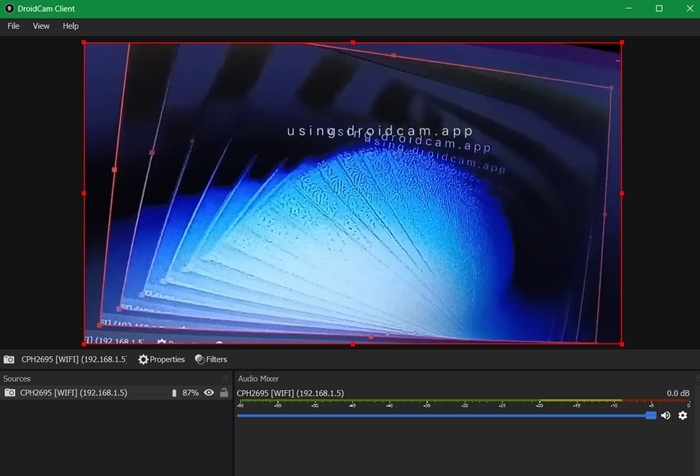
Eventually, the app should display your smartphone camera on your Windows screen. You can do a lot of things from Properties, like change video resolution.
However, switching between front and rear cameras on Android is best done from the phone app.
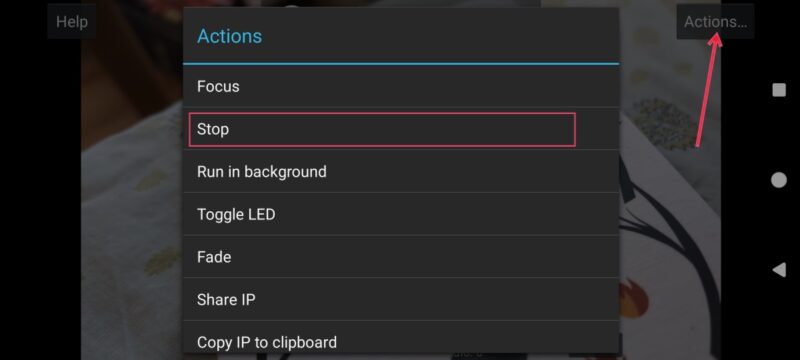
Apart from DroidCam, IP Webcam is a pretty useful webcam tool for Android. It has many useful features including adding plugins, zooming in, alter video quality, focus, and much more. You may need to install additional drivers on a browser.
FYI: learn how to use a GoPro 8 (and up) as a webcam on Windows and Mac.
We have explored the various ways to connect a smartphone camera as a webcam in Windows. Moreover, if your webcam is not working in Windows, we have some good tips to work it properly. Additionally, you can also use your phone as a hotspot.
An old Android smartphone can have many uses. Clearly, if turning it into a webcam isn’t something that would benefit you, learn how to use your Android as a remote for Android TV instead. Your Android phone can also be your mouse when you don’t have one at hand.








