Windows offers users in European Economic Area (EEA) countries great control over default features to comply with the Digital Markets Act (DMA). This includes the uninstallation of default Windows apps, and no automatic sign-in to Microsoft apps. The good thing is, with some tinkering, you can also enjoy the same control over Windows features no matter where you are in the world. Let’s see how you can unlock DMA features in Windows globally.
What are the DMA Features in Windows
The primary objective of DMA is to ensure digital markets remain fair and contestable. Since Microsoft has a bunch of features in Windows that prioritize its own products over the competition, it has to change them to comply with DMA. The following are some prominent changes that EEA users have exclusive access to.
- Uninstall Default Windows Apps: they can uninstall core Windows apps like Microsoft Edge, Photos App, Windows Store, etc., using the regular Uninstall function.
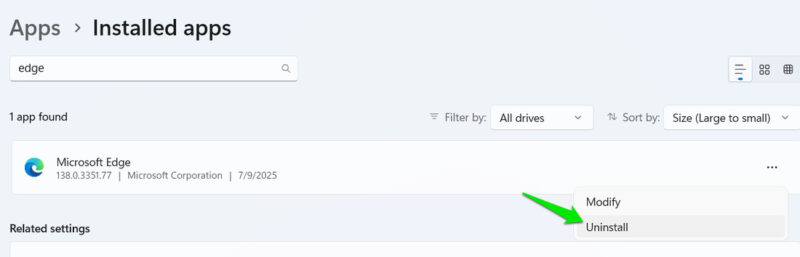
- Default‑browser Management: the “Set default” option sets the selected browser to all types of supported links and file types. Windows also won’t show pop-ups/banners to switch back to Edge.
- Third-Party Providers for Windows Search: you can add third-party search providers in Windows Search for results.
- No Automatic Sign-in to Microsoft Apps: unless you sign in yourself, Windows won’t sign in to all of its apps like Bing, Edge, Start feed, etc., when you log in with your Microsoft account.
- Clearly Marks Apps: Windows will clearly mark system and third-party apps in Windows Search to distinguish.
If you want these and many more EEA-limited Windows features as well, below are two ways to enable them.
Manually Enable DMA Features in Windows
For most control, you should manually enable these features by editing the “IntegratedServicesRegionPolicySet” JSON file in Windows. This file controls the implementation of features based on regions. You can add your PC region to it to enable region-bound features. Here’s how:
First, you need to take ownership of the JSON file to edit. While you can manually take ownership yourself, we’ll do it using a PowerShell command for ease. Search “powershell” in Windows Search, right-click on Windows PowerShell, and select Run as administrator. Here, run the following command:
takeown /f "C:\Windows\System32\IntegratedServicesRegionPolicySet.json"
icacls "C:\Windows\System32\IntegratedServicesRegionPolicySet.json" /grant "Username:(F)"
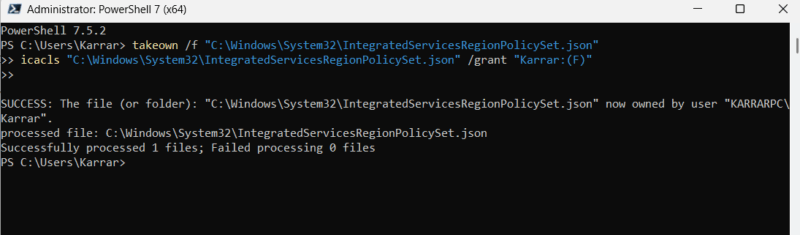
Change the “Username” part with your actual username in Windows, like it’s “Karrar:(F)” for me. If Windows is installed on a different drive than C, then change the C in the command to the drive letter where Windows is installed.
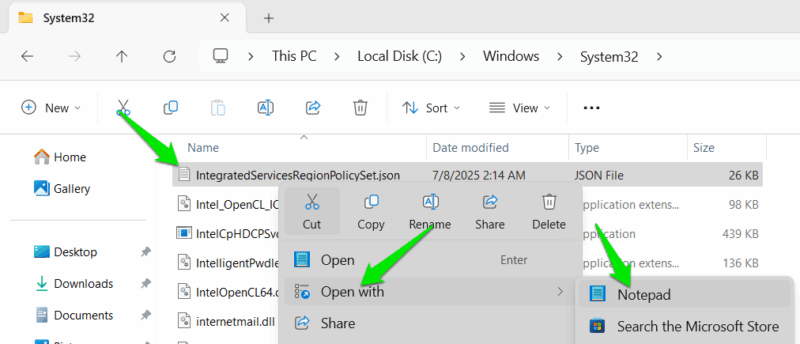
Now move to “C:\Windows\System32”, look for the “IntegratedServicesRegionPolicySet.json” file, right-click on it, and select Open with -> Notepad.
Here you’ll find features listed with their name, default state, and regions. In the region-enabled/disabled section of each feature, you need to add the 2-letter code of your PC’s region in quotes and separated by a comma. For example, if your PC region is USA, then add “US” at the start or end of the regions, separated by a comma. Similarly, for India or Singapore, it would be “IN” or “SG”.
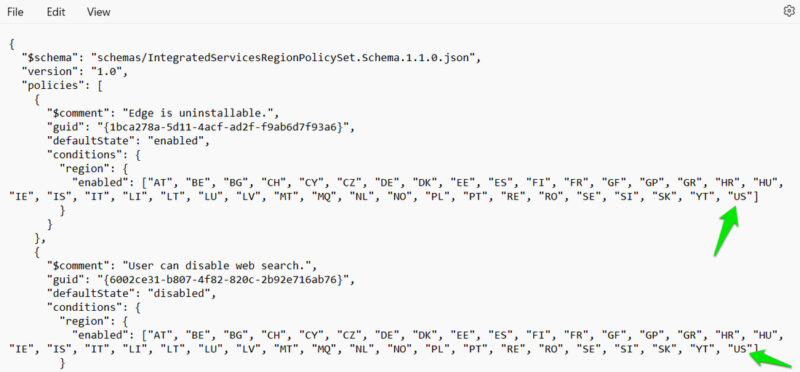
The features with lots of EU countries are the ones that are exclusive to EEA users. There are a few features that are enabled/disabled for a few other countries, like China or Russia. Be careful not to add your region to those features (unless you want them as well).
When you are done, click File -> Save and restart the PC for changes to take effect.
Use the Wintoys App to Automatically Enable DMA Features
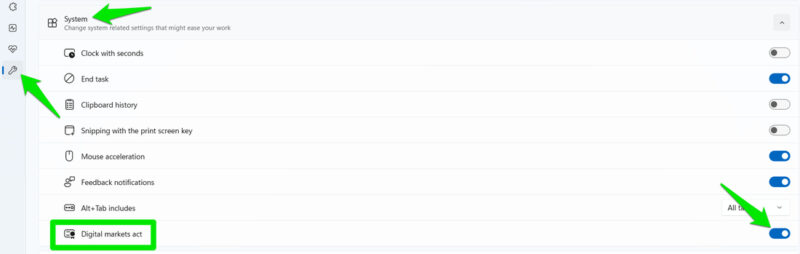
If you want to automate the process, you can also use the popular Wintoys app that supports enabling Digital Markets Act features with a single toggle. It also does the same thing as adding your PC region to all DMA features in the IntegratedServicesRegionPolicySet file. However, unlike the manual method, you don’t have control over which features to enable/disable since it applies to all.
Launch the Wintoys app, click on the Tweaks tab in the left panel, and expand the System section. Here, enable the Digital markets act toggle. You’ll have to restart the PC for changes to take effect.
There is a possibility these changes may get reset if a new Windows update resets the IntegratedServicesRegionPolicySet file, or if you reset Windows. You should make a copy of this file and back it up locally or in the cloud to easily replace it later.








