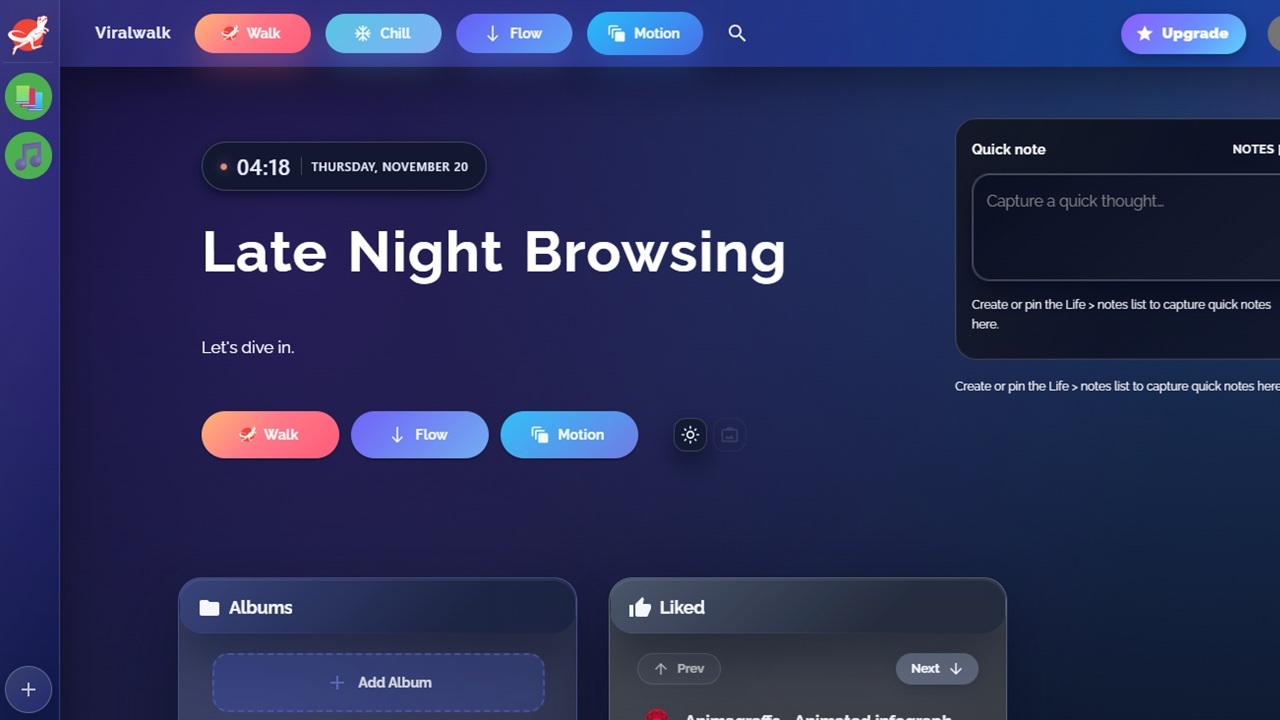
Imagine strolling through the Internet like you were casually walking. Explore random sites, find new favorites, and let your curiosity run wild. All you need to do is take a Viralwalk and explore the Internet in a new fun way.
What is Viralwalk
Did you know there are over 1.5 billion websites, though only around 200 million are considered active? No matter how much you search Google or other search engines, you’d never find all the amazing hidden gems out there.
Viralwalk has one purpose – helping you explore the Internet. You travel randomly to one site after another. For most travel modes, everything is completely random. You might visit a site about endangered owls, then jump to an AI coding platform.
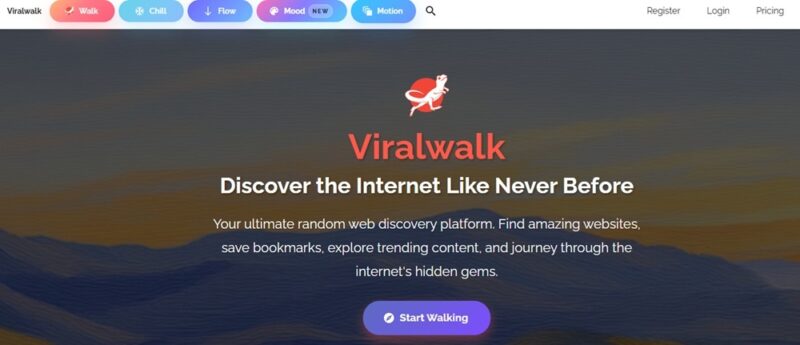
There are curated collections to explore, along with ways to personalize what you see. New sites are added all the time, including viral and trending content.
Please note, this won’t bring up sites on the dark web.
Travel With Five Different Walks
What I love is you have five types of “walks” to take. You can use four of them in the free version, which I’ve found to more than enough.
The walks include:
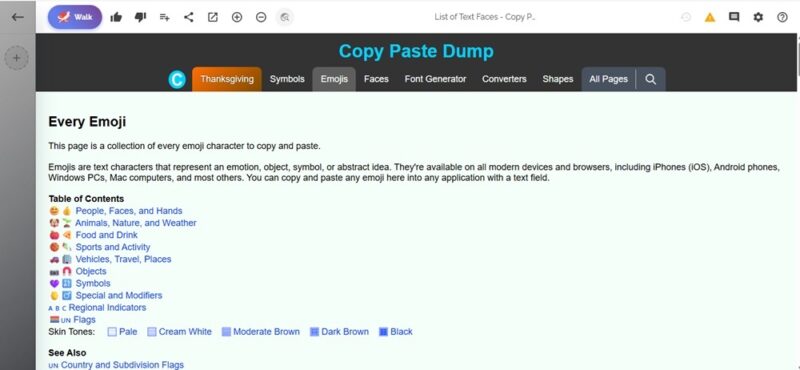
- Walk – This is the default mode. Every time you press Walk, you get a new site. It opens within Viralwalk for you to explore. You can interact with the site as long as you want before jumping to another one. Liking and disliking sites helps to personalize your results.
- Chill – Just shows random backgrounds versus sites. It’s used to help you relax after a day of exploring. Press the thumbs up/down buttons to better personalize what you see next.
- Flow – Don’t want sites to fully open? Just scroll to walk in Flow mode. In this mode, you have to click Open Site to go to the site. This opens it in Viralwalk or your current browser (varies based on the site).
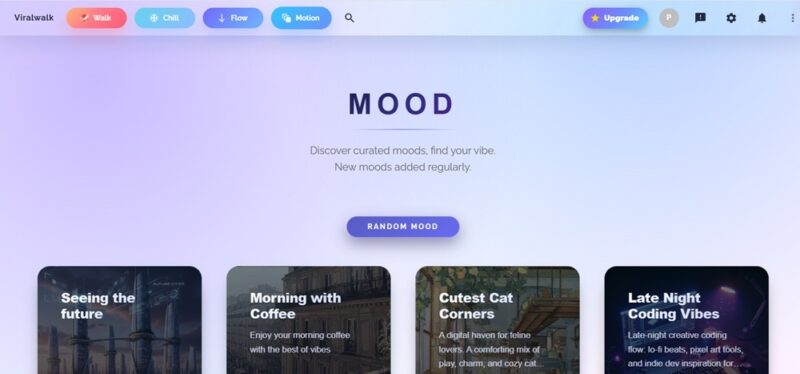
- Mood – For some reason, Mood is hidden in the three dot menu at the top right after you log in. Otherwise, it’s on the homepage when you’re logged out. These are curated groups of sites based on a mood you select. Click Random to view random Moods.
- Motion (premium-only) – Sites appear as cards. You’ll see four or more cards at a time. You’ll even get random YouTube or Spotify music playlists (you don’t need a Spotify account) to add as background noise while you walk. I tried this mode during a free trial and it’s actually fun. But, I still like seeing just one site at a time. It felt less overwhelming.
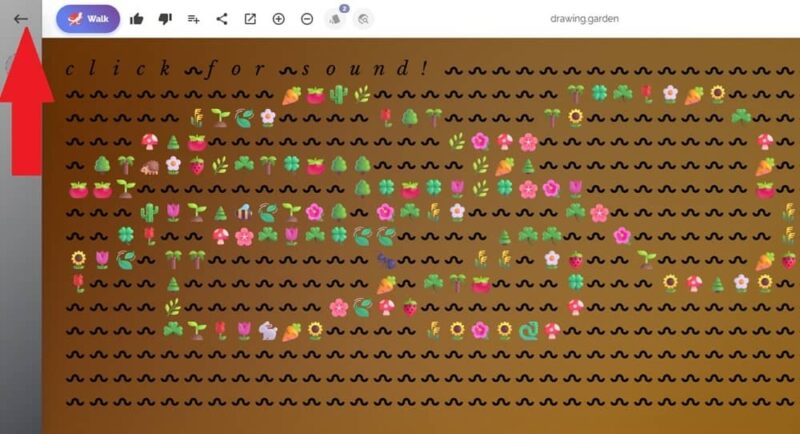
Whenever you’re finished walking in any mode, either press the back arrow at the top left (on the Viralwalk site, not your browser’s back button) or press the Viralwalk button to return to the homepage in Mood mode.
Personalize Results to See More of What You Like
Viralwalk gets extremely random. That’s both a plus and negative. But, the site offers a few ways to personalize the experience. It’s not perfect, but after a week or two, I noticed I was getting far more sites I was interested in. You must create a free account to personalize results.
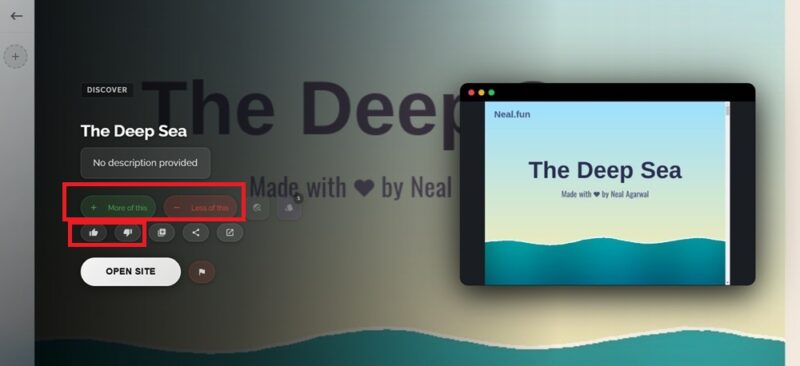
Whenever a suggested site appears, use the thumbs up/down (aka like or dislike) buttons and/or the More of this / Less of This (depending on the mode, it may just be + and – buttons). This tells the platform more about your interests.
All your Likes are listed on your dashboard when you log in.
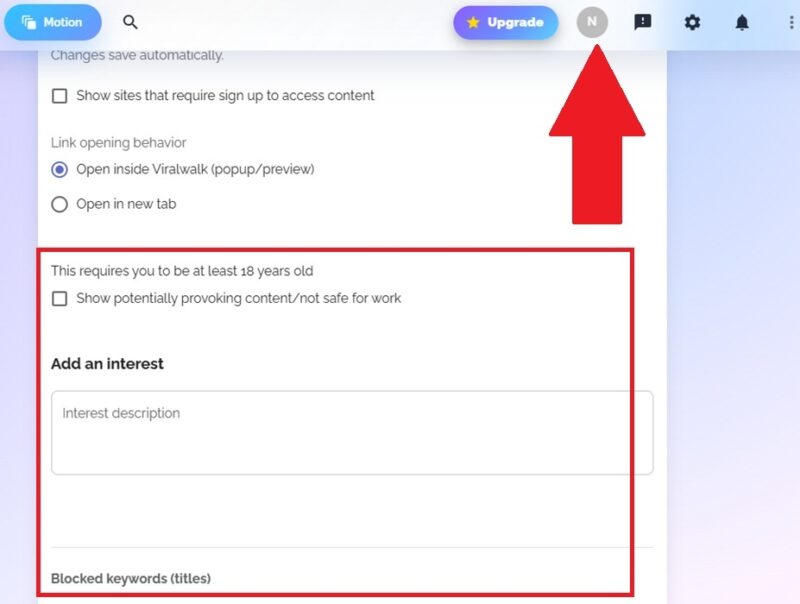
To further personalize your preferences, open your dashboard and click your profile icon at the top right. You have three more ways to customize things:
- Turn on NSFW (not safe for work) options. This is off by default.
- Add Interest – Add interests to get more content in those areas.
- Blocked keywords (premium only) – Hate certain types of content? Use keywords to block those sites from appearing.
Collect and Organize Bookmarks as You Walk
My favorite part of all is collecting bookmarks as you walk. Every site lets you bookmark within Viralwalk. All you have to do is create an album. I suggest creating themed albums to help you find your favorite sites later.
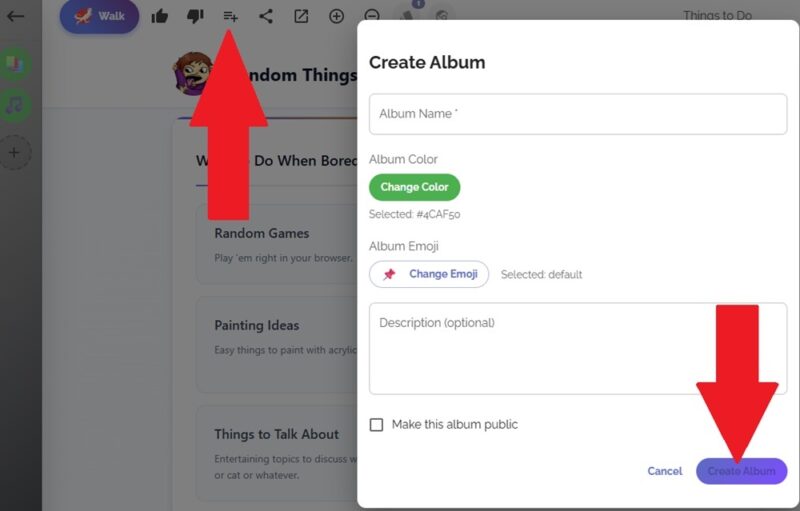
Whenever a site you like loads, click the Add to album button (three lines with a + sign). Choose an existing album or click Add new album to add a new album. I’ve yet to get the color option to work. You can easily change it later though. Add all the details and press Create album.
All albums are private by default. Check the Make this album public box to make it public.
Creating an album doesn’t save the link itself. Instead, click the Add to album button again, choose your album, and choose a list to store your link in. The default list is First list, but you can rename and/or delete this one along with adding other lists to better organize your albums and bookmarks.
Click the list you want to add the link to and it’s automatically added.
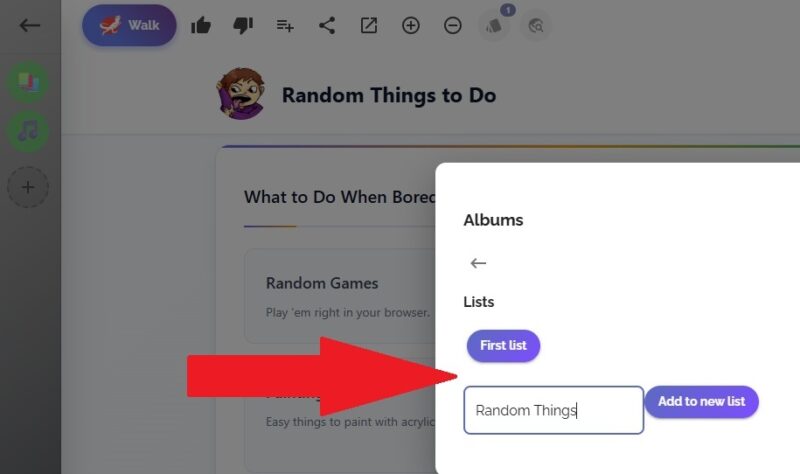
All your albums and lists are available from your dashboard when logged in.
If you want to further customize an album or list, open the album from your dashboard. Just under the album name, you have multiple options, such as adding new lists, moving links to different lists (drag and drop), selecting multiple items to edit, changing the album color, making a list public/private, and even adding a custom album image.
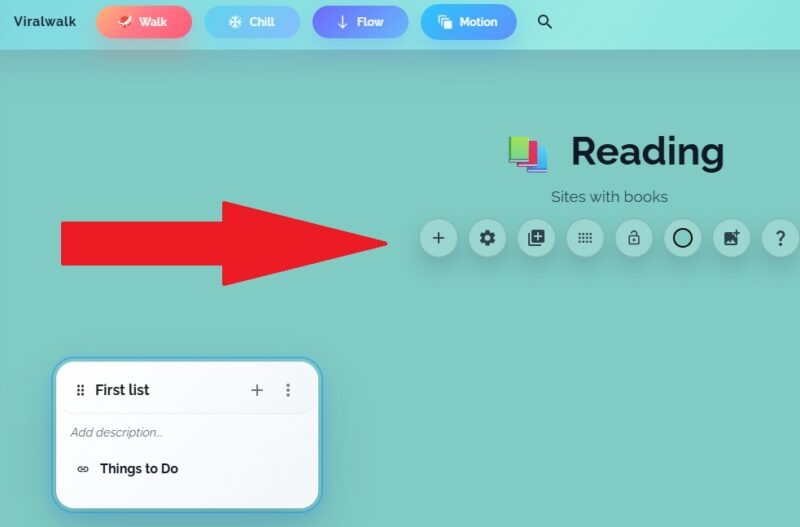
Taking a little time to customize your albums does make it easier to manage your bookmarks so they don’t get out of hand.
Right now, you can’t share an entire album or list with friends. Instead, you have to share sites individually. Click any site you’ve saved to load it and click the Share icon.
Walk for Free or Upgrade to Premium
Free users get five sites per day without an account. Create a free account and get 20 sites per day. The limit does help prevent endless scrolling. Premium users get unlimited walks per day, site visit history, themes, and Motion mode for $8/month. Personally, free has everything I need, though the site visit history is useful.








