
Windows ships with a bunch of features that make life easier, for the users and attackers. If you don’t need any of these features, you should disable them to reduces your attack surface and strengthens your Windows security. This guide lists the most common Windows features that aren’t necessary for most people but can be exploited by malicious actors.
1. Remove Automatic Wi-Fi Connection For Public Networks
By default, your Windows laptop will automatically connect to a Wi-Fi connection that you have previously connected to. This behavior can make your device vulnerable to network attacks like Evil Twin or Man-in-the-Middle attacks. Furthermore, even if you follow public Wi-Fi security practices, your PC can connect to malicious Wi-Fi before your security software or VPN starts.
For public networks or networks you don’t trust, you should disable automatic connection and always manually connect. To do so, open Windows Settings and go to Network & internet → Wi-Fi → Manage known networks. Now open a network and disable the Connect automatically when in range option.
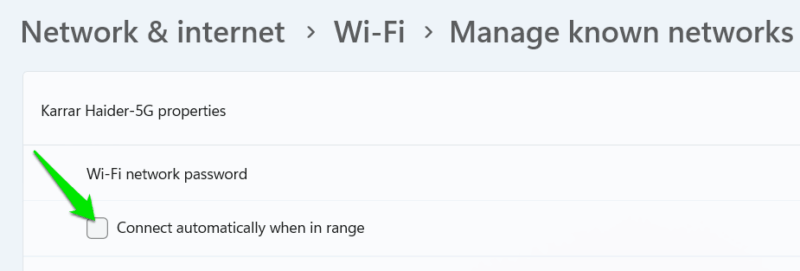
Afterward, you’ll have to manually connect to the network when you are near it.
2. Disable Windows WebClient
WebClient is a Windows service that is used by the WebDAV client for viewing files in File Explorer over the network. Vulnerabilities in WebDAV or its components can allow remote code execution or drive-by attacks, like the recent Stealth Falcon attack.
If you don’t manage data on other PCs over the network, map WebDAV drive, or self-host apps that use the WebClient service, you can safely disable it to improve security. Type “services” in Windows Search and open the Services app.
Here, look for the WebClient service, right-click on it, and select Properties.
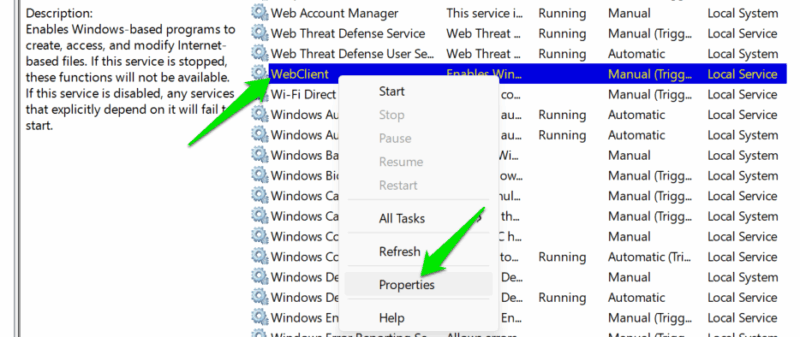
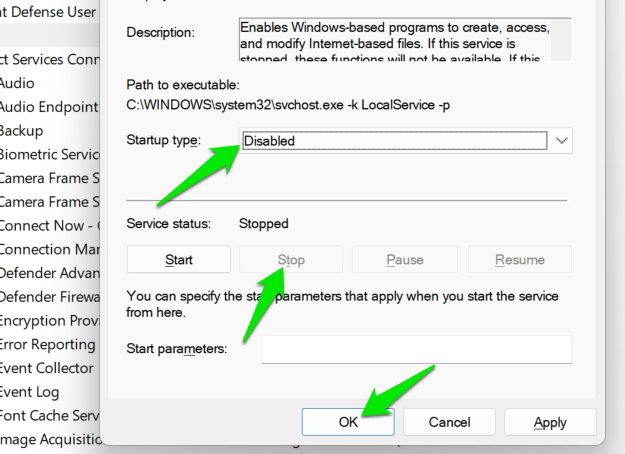
In properties, click on Stop if it’s running and then select Disabled in the Startup type section. This will disable the service, and it won’t start with your next PC boot.
3. Turn off Print Spooler Service
If you don’t use your Windows PC for printing, the Print Spooler is just an extra service consuming resources and acting as a point of entry. This service accepts print jobs from apps and manages printer drivers; it allows you to print locally and work as a print server. Since it works over the network and has high privileges, it can be exploited, like the popular PrintNightmare vulnerability.
You can disable this service if you don’t need the printing service, similar to how you disabled the WebClient service. Open the Services app again. Find the Print Spooler service, open its properties, and set Startup type as Disabled. It will probably be running by default, so you should also click Stop to turn off the current session.
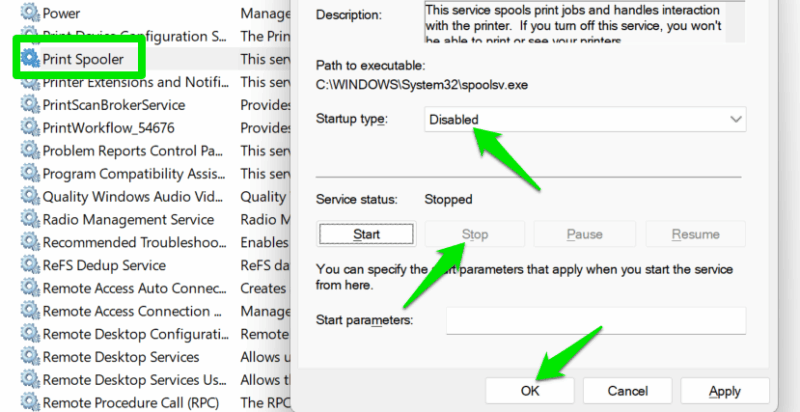
Now, if you try to use any of the printing-related functions, you’ll get the Print Spooler service is not running error.
4. Toggle Off Network Discovery
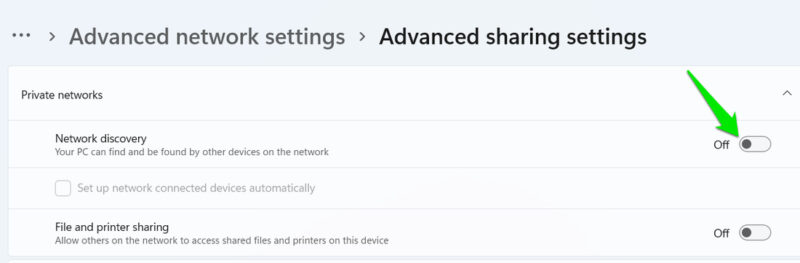
Network Discovery allows your PC to find other devices on the network and be found by them. While it’s a great function if you need to connect with other devices to share data over a network, it also makes your PC available for finding vulnerabilities to exploit. If you don’t connect with other devices on the network constantly, you can disable this function and only enable it when you need to use it.
In Windows Settings, go to Network & internet → Advanced network settings → Advanced sharing settings and disable the Network discovery option.
5. Disable Windows Script Host
Windows Script Host (WSH) is the Windows engine that runs .vbs and .js files, allowing scripts to automate tasks. These scripts are often used by admins to automate tasks, and some legacy tools may utilize them for installation or scheduling. However, they are also notorious for being used in malicious attacks like ransomware or remote access trojans (RAT).
If your workflow doesn’t depend on .vbs or .js scripts and you don’t use any legacy apps that may use them, you should disable WSH completely to prevent possible attacks. You can do this by editing the Windows Registry.
Warning: make sure you back up the Registry before making any changes, as an incorrect change can corrupt the system and even lead to data loss.
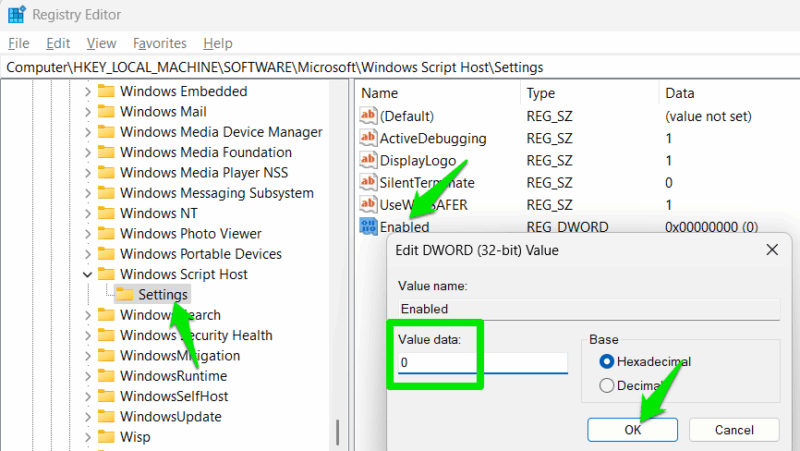
Open the Windows Registry by searching “registry” in Windows Search and opening Registry Editor. Here, move to the following location:
HKEY_LOCAL_MACHINE\SOFTWARE\Microsoft\Windows Script Host\SettingsNow, right-click in the right panel and select DWORD (32-bit) Value and name it Enabled. Double-click on it to open it, and then set its value to 0. Restart the PC for changes to take effect.
If you need to undo the changes, delete the Enabled value or set it to 1.
It’s worth mentioning that these features are not inherently insecure, but they have been used in the past for malicious attacks. So it’s a good idea to disable them if you don’t use them to avoid zero-day attacks. However, disabling these attack surfaces doesn’t eliminate the need to secure Windows.








