In response to a rise in iPhone thefts a few years ago, Apple rolled out Stolen Device Protection, a security feature designed to prevent unauthorized individuals from changing your device’s sensitive settings. While it adds an extra layer of protection, it can also slow things down for legitimate users. If you’d prefer not to use it, here’s how you can turn it off.
Good to know: learn how to use your iPhone’s built-in code generator for 2FA.
Turning Off Stolen Device Protection on iPhone
Stolen Device Protection can hinder access to the following data on your iPhone. At the same time, it can also make it harder for the actual device owners to change these settings if they’re not at a familiar location (like home or work) by imposing a 60-minute delay before granting access and requesting Face ID/Touch ID verification.
Biometric authentication
- Erasing all content & settings
- Accessing your saved passwords
- Auto-filling card or payment details in Safari
- View Apple Card virtual number
- Applying for a new Apple Card
- Setting up new devices
- Turning off Stolen Device Protection
Security Delay
- Change Apple account password
- Sign out of your Apple account
- Update Apple account settings
- Add or remove Face ID or Touch ID
- Resetting all settings
- Enroll in Mobile Device Management
- Turning off Stolen Device Protection
If you’re confident you won’t visit any high-risk areas, you can safely disable Stolen Device Protection. That said, you should make sure your passcode and other verification measures remain active, including 2FA authentication for your Apple account. Stolen Device Protection requires that all these security measures be in place before you activate it, so if you still want to use the feature later, you should retain these settings.
Note: if you ever misplace or suspect someone has taken your iPhone, you can always use Apple’s Find My Device and mark it as lost or erase it remotely.
Anyway, if you’re ready to put the brakes on Stolen Device Protection, here’s how to do so.
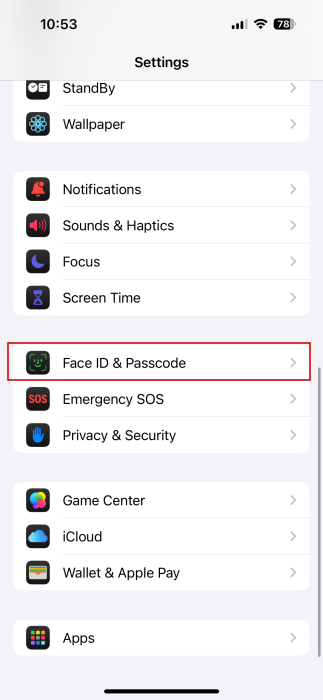
Open the Settings app on your iPhone and select the Face ID & Passcode option towards the bottom.
Type in your passcode.
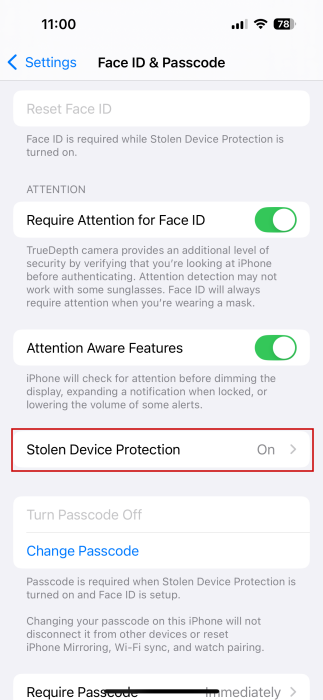
Swipe down until you find the Attention section. You should notice the Stolen Device Protection option that is currently enabled. Tap it.
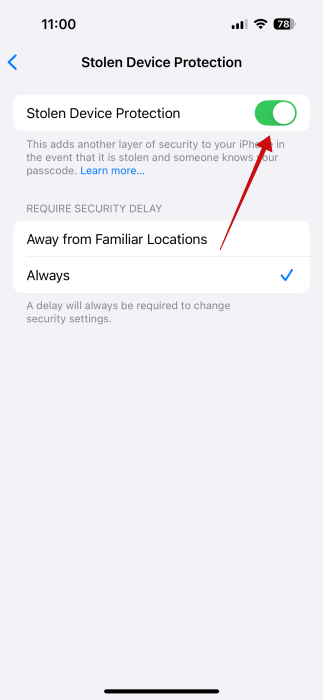
Whether you have the option set to All or Away from Familiar Locations, go ahead and try to toggle off the option at the top.
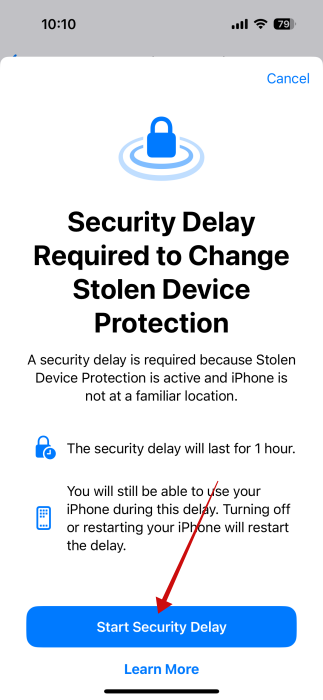
A new pop-up will appear, alerting you that a security delay of 1 hour is required to change Stolen Device Protection preferences. Note that during this time, you can still use your iPhone. Don’t turn off or restart your device, as the delay will also restart. Press the Start Security Delay button to start the countdown.
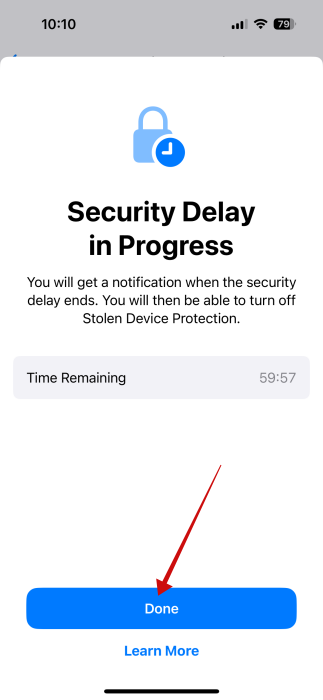
The countdown will begin once you press Done.
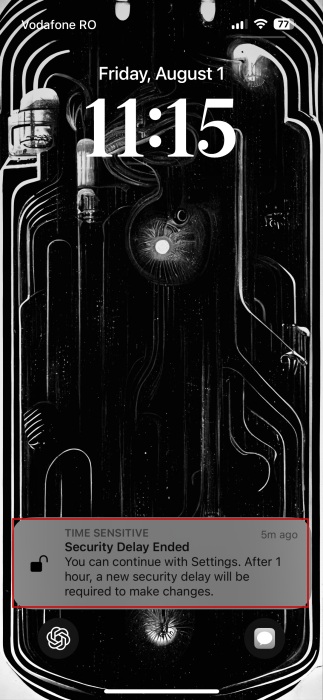
When the time is up, you’ll get a notification on your device that says you can now modify the device’s Settings. But you need to act fast; in 1 hour, a new security delay will be required before making any more changes.
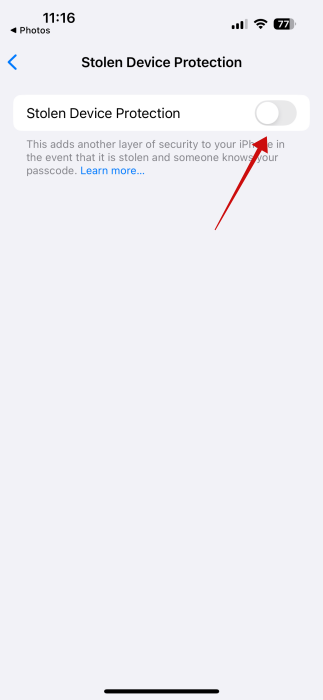
Now you can go back to Settings under Face ID & Passcode and turn off Stolen Device Protection.
Tip: check how to create a passcode and turn on other security measures on your iPhone.
When to Enable Stolen Device Protection on iPhone
You’re likely safe without Stolen Device Protection if you spend most of your time at home or visit friends in private settings. In such low-risk settings, it can be more than a nuisance than a necessity.
However, if you travel often, your risk of losing your device, or worse, having it stolen, goes up. In these situations, Stolen Device Protection becomes much more valuable, especially if your iPhone contains sensitive data like banking apps, private photos, or work-related files.
You should also consider turning the feature back on if you’re heading to a festival, taking public transportation, or spending time in other crowded areas. The same applies if you’re a student or employee working in a shared environment.
Ultimately, if a little extra security helps you feel more at ease, turning on Stolen Device Protection is a smart move, especially since most users probably aren’t adjusting their device’s settings daily anyway.
If you’re looking to enhance the security of your iPhone even more, you might want to consider switching to an eSIM. Also, read up on how to recognize if someone is accessing your iPhone remotely.








