There are times when you might want to turn off your computer display without putting it to sleep – like when playing media or running apps that keep the screen awake. While desktop users can simply switch off the monitor, laptops users usually don’t have that luxury. When no display power off button is available, use these methods to turn off the laptop display in Windows.
1. Run a PowerShell Command to Turn Off the Display
For a one-time use, using a PowerShell command should be your preferred method. You can just copy and paste the command in PowerShell, and it will turn off the display.
Search “powershell” in Windows search and open Windows PowerShell. Here, run the following command:
Add-Type -MemberDefinition '[DllImport("user32.dll")] public static extern int SendMessage(IntPtr hWnd, int Msg, IntPtr wParam, IntPtr lParam);' -Name Monitor -Namespace User32

[User32.Monitor]::SendMessage([IntPtr]0xffff, 0x112, [IntPtr]0xF170, [IntPtr]2)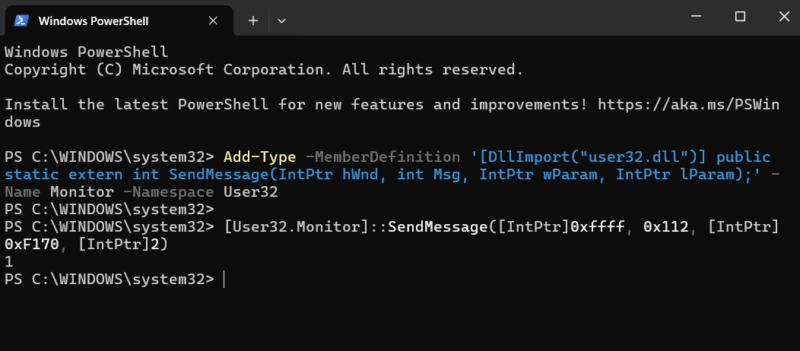
This will immediately turn off the display, and it can be turned back on by pressing a key or moving the mouse cursor. If the display turns back on, you can run the command in the same window to turn it back off.
2. Make the Power Button Turn Off the Display
While the power button is generally used to shut down the PC (or put to sleep on laptops), it can be configured to turn off the screen. This option is worth considering if you mainly use the power menu to shut down the PC. Here’s how:
Search “power plan” in Windows Search and select Choose a power plan from the list.
Now select Choose what the power button does in the left panel and then select Turn off the display option for the When I press the power button setting.
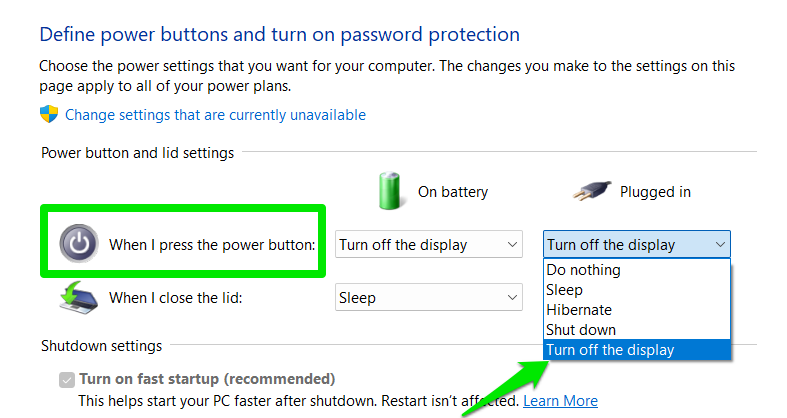
Now, whenever you hit the power button, it will turn off the display. For laptops, you can also select Do nothing for When I close the lid setting here to turn off the display when you close the lid (system will run lid closed).
3. Create a Desktop Shortcut That Turns Off the Display
If you need to turn off the display often and don’t want to override the power button function, then creating a desktop shortcut that turns off the display is better. You’ll just have to double-click on the shortcut to turn off the display.
To do so, right-click on an empty space on the desktop and select New → Shortcut.
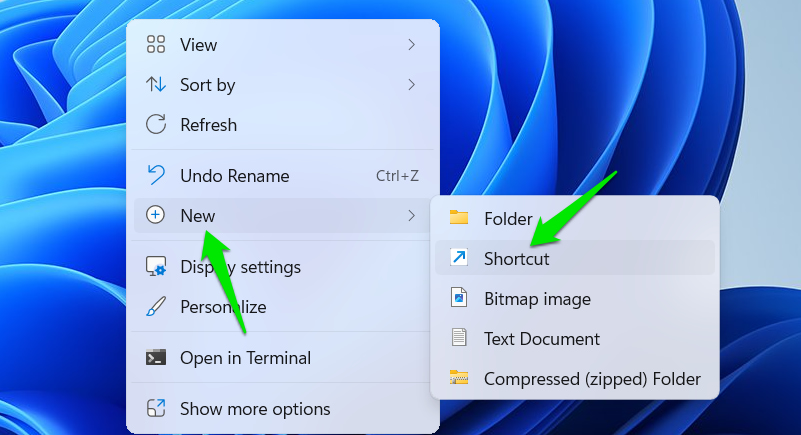
Here, in the Type the location of the item field, enter the following code and click Next.
powershell.exe -Command "(Add-Type '[DllImport(\"user32.dll\")]public static extern int SendMessage(int hWnd,int hMsg,int wParam,int lParam);' -Name a -Pas)::SendMessage(-1,0x0112,0xF170,2)"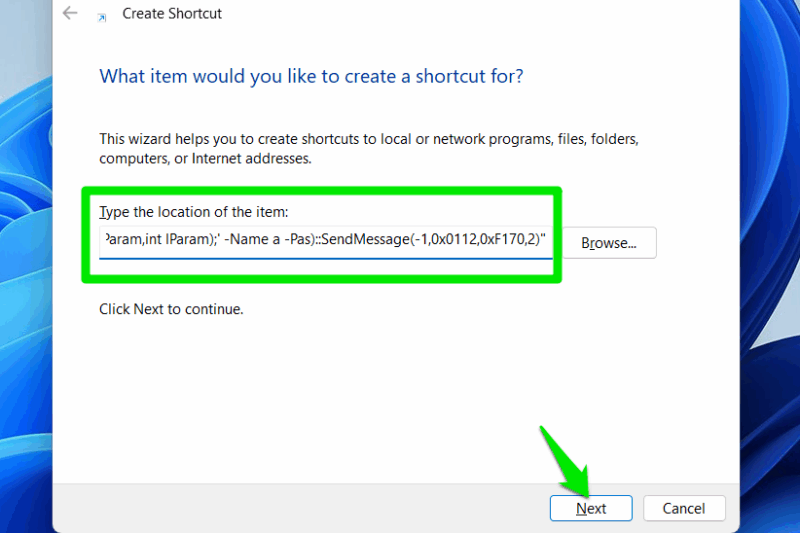
Afterward, give a relevant name to this shortcut – like “Turn Off Display” – and click on Finish. This will create a new shortcut on the desktop that will turn the display off as soon as you open it.
4. Create a Keyboard Shortcut
For even faster access, you can create a keyboard shortcut that will turn off the display when you hit the key combination. The shortcut can also be executed from any screen without needing to open a specific app or access the desktop.
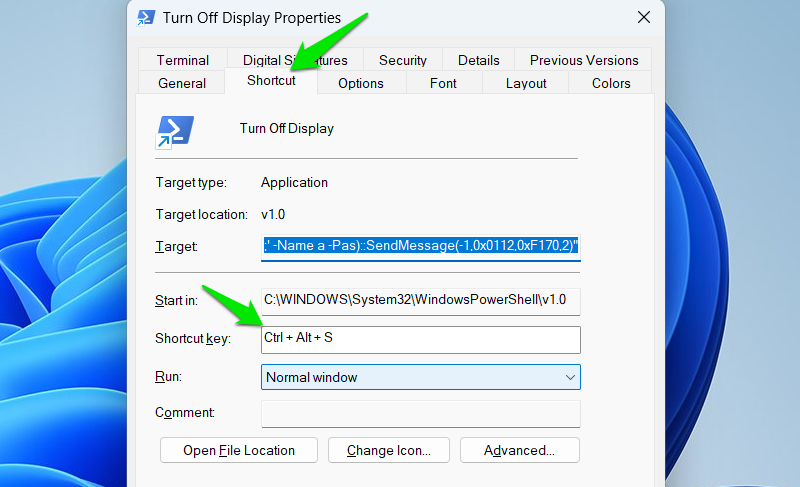
To create the keyboard shortcut, we’ll use the same desktop shortcut we created above, so make sure you create it first. Right-click on this desktop shortcut and select Properties.
Here, under the Shortcut tab, select a key combination in the Shortcut key section. The shortcut will always start with Ctrl + Alt keys, so you just need to select the third key. Now, whenever you press the shortcut keys, the command will launch and turn off the display.
5. Use a Third-Party Tool
If you don’t want to go through the above processes, you can use a dedicated third-party tool to turn off the display on demand. We recommend the ScreenOff App for this. It’s a free and open-source app that will turn off the display on execution.
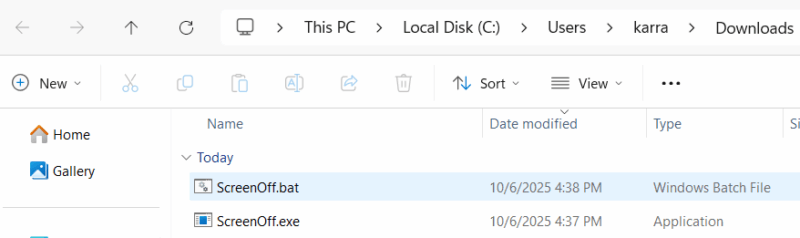
You can either download the .bat script or its executable file; both will turn off the display when opened. Alternatively, you can give the Turn Off Monitor tool a try if you want more functionality. It will let you set shortcut keys and add a context menu entry to turn off the display. However, it comes as a fully-functional trial version, and you need to get the paid version for $6.78 to remove the usage limit.
Having an option to turn off display on demand is especially useful when an app prevents the automatic display turn-off option from kicking in. If you want to turn off display on demand for privacy, you may also want to know these quick methods to put the PC to sleep.








