Microsoft is pushing Windows 11 users to upgrade to version 24H2, which downloads and installs automatically. Most devices will update smoothly. However, if your PC is blocked due to compatibility issues, the jump from 23H2 and earlier won’t happen, leaving you stuck in a frustrating loop. We’ll show you how to bypass the Windows 11 24H2 compatibility block and finish the update.
Understanding the Compatibility Hold Issues in 24H2
Microsoft often prevents certain Windows upgrades when a PC has hardware or software issues that could lead to system instability. These compatibility blocks serve that purpose. Since October 2024, there have been several for 24H2. Users are stuck: they can’t update their device, yet they’re warned that without the update, they shouldn’t be using it.
So, it’s important to know that you can still use your Windows 11 device at 23H2 and earlier, even if the updates are not working. Before May 2025, it did support 23H2 side by side. Microsoft has listed the various 24H2 compatibility blocks, so you should check if your device is affected.
On the hardware end, Windows 11 24H2 has stricter CPU specifications. You might require an 11th-generation Intel processor, and newer. This means that older CPUs could run into compatibility issues with 24H2. However, don’t take that guideline too seriously. Based on our tests, even 10th generation CPUs (released 2020 and earlier) can make the cut. There may be other CPU bottlenecks.
1. Uninstalling Incompatible Applications
Microsoft is flagging applications which have incompatibility with 24H2. You need to take a look on a case by case basis.
For example, one of the compatibility holds affects devices with Dirac Audio and the “cridspapo.dll” file, which could lead to lost sound output. Finding out whether you’re affected is easy. Just open Device Manager, expand the Sound, video, and game controllers section, and check for any Dirac Audio-related drivers.
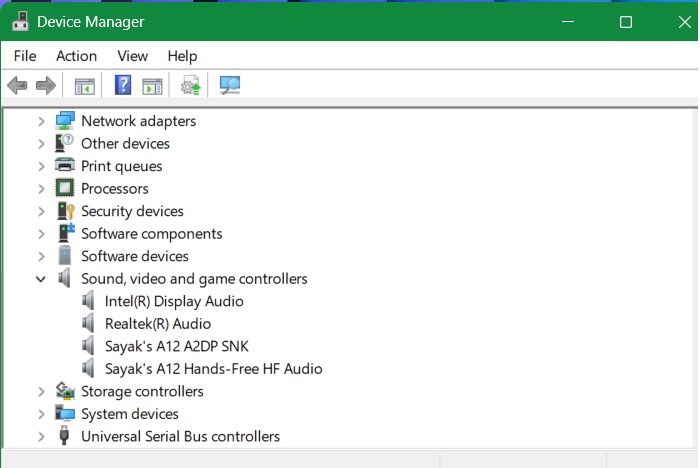
There are other 24H2 compatibility holds that are fairly easy to fix. If you’re using a lesser-known browser called Safe Exam or Easy Anti-Cheat, you can uninstall these applications temporarily until Microsoft provides a workaround. Also, check for “Intel Smart Sound Technology drivers” under System Devices. If the driver version is 10.29.0.5152 or 10.30.0.515, you will encounter a compatibility hold.
Citrix SRA is another applications incompatible with Citrix SRA. Windows Remote Desktop and Quick Assist are neat substitutes.
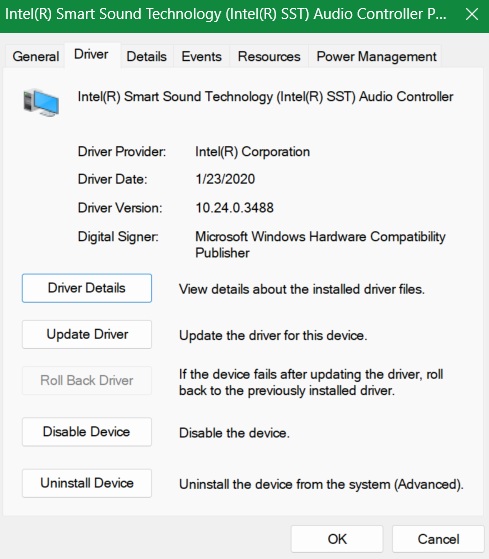
Related: rolling back or updating a driver in Windows is easy, and a quick way to fix most incompatibility issues.
2. Pause 24H2 Update or Go Back to the Previous Version
If you’re unable to migrate smoothly to 24H2, it helps to pause the update for a few weeks. In this mean time, Microsoft would automatically fix any driver or other issues.
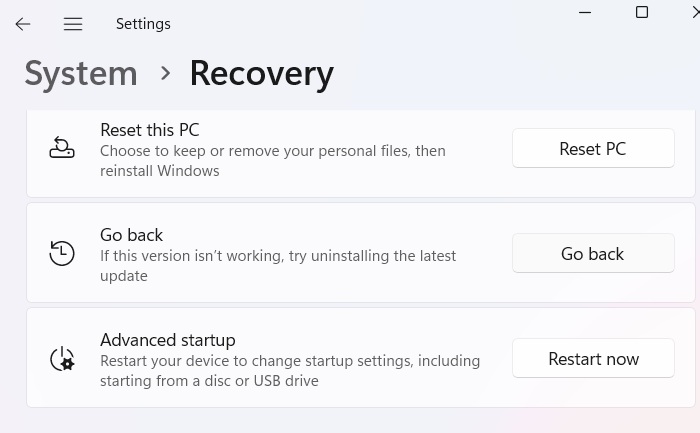
If you’ve run into problems in 24H2, you can easily go back to an earlier build such as 23H2 using Settings -> System -> Recovery -> Go back. Remember that the “Go back” time windows is only open for 10 days.
It is also a good idea to reset Windows update components to resolve problematic updates. You have to stop and restart critical Windows update services using commands like net stop bits and net stop wuauserv. Restart them later as net start bits and net start wuaserv.
3. Use PowerShell to Bypass Compatibility Hold in 24H2
Open PowerShell as an administrator and enter the command below. It changes a registry setting to allow upgrades on unsupported TPM or CPU. This means your PC can update to version 24H2, even if it doesn’t meet the official requirements. However, not all Windows 11 users with older CPUs need this bypass. It depends on the situation, and this method should only be used as a last resort.
New-ItemProperty -Path "HKLM:\SYSTEM\Setup\MoSetup" -Name "AllowUpgradesWithUnsupportedTPMOrCPU" -Value 1 -PropertyType DWORD -Force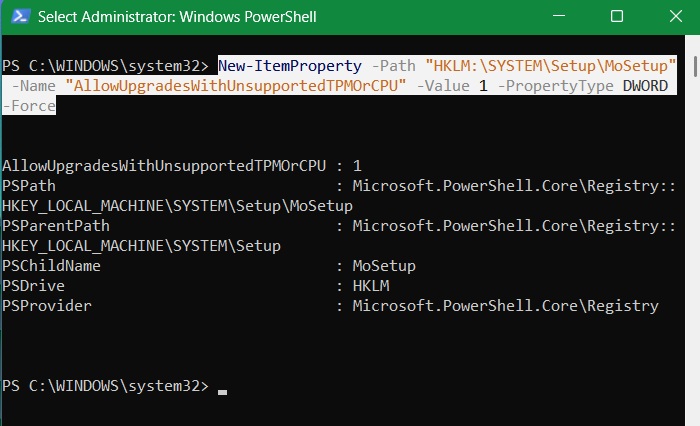
In case you want to roll back this registry setting, use the following command:
Remove-ItemProperty -Path "HKLM:\SYSTEM\Setup\MoSetup" -Name "AllowUpgradesWithUnsupportedTPMOrCPU" -ForceAnother option to bypass compatibility blocks in Windows 11 is reinstalling the operating system. Just download the latest Windows 11 24H2 ISO manually. To prevent system crashes, consider creating a bootable USB drive using a flash drive.
Windows 11 24H2 introduces some unique compatibility holds compared to earlier versions like 23H2, 22H2, and 21H2. For the first time, 24H2 is downloading automatically. This is likely due to a few system architecture changes. Applications like Copilot and Microsoft 365 Copilot are central to 24H2. Also, the 24H2 version fully supports the latest Wi-Fi 7 standard. If you’re still on 23H2 and earlier, you’re missing out on a lot.








