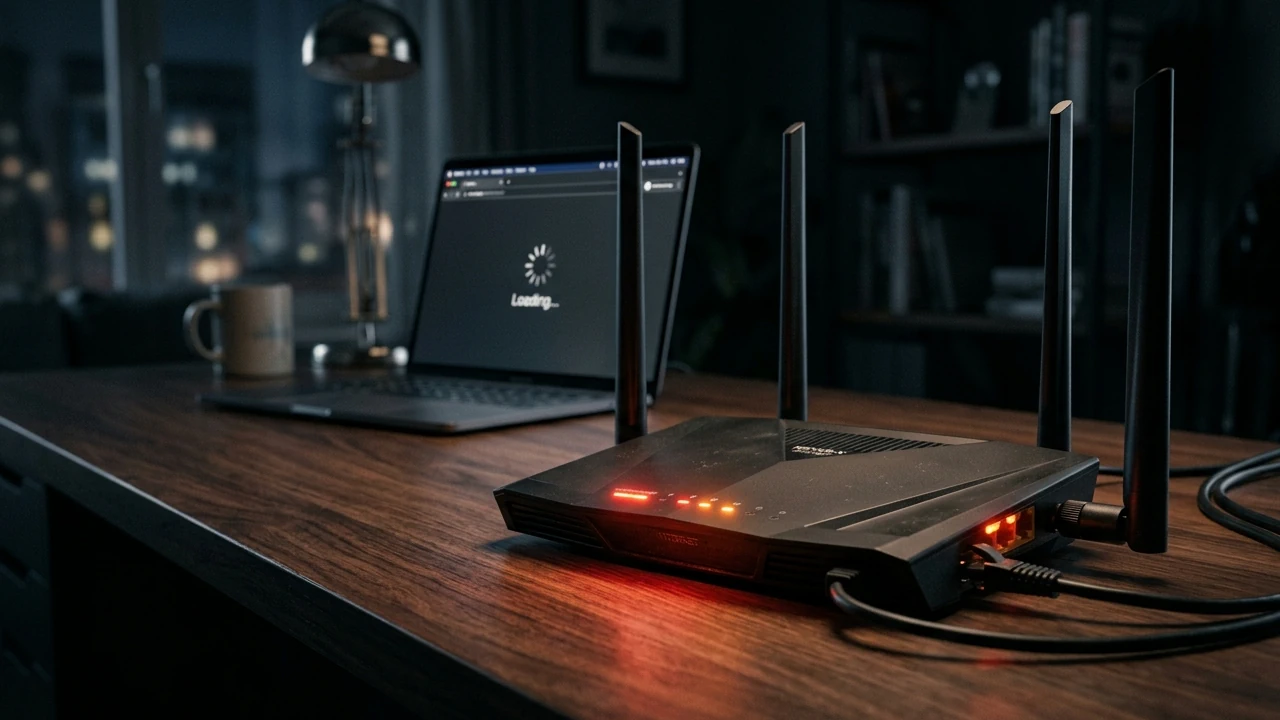
Usually, we connect to the Internet and never think twice. But, when you’ve tried connecting all your various devices with no luck, it’s time to troubleshoot your router. Without your router, your Internet life is over, but troubleshooting gets you back online quickly.
Check Your Service Provider First
Before you blame your router, I suggest checking for any issues with your service provider. For me, 99 percent of the time, it’s my ISP. The easiest way to is to use your favorite search engine to search for “providername outage map.” Some don’t have outage maps and require you to use their chatbots to verify an outage. Use mobile data or someone else’s Wi-Fi to check.
Check Your Router’s Lights
Those flashing lights on your router aren’t for decoration. Instead, they show the working status of the router.
Use the lights to find out if your router is having issues. Light meanings vary based on your router brand, so check the manual to make sure. It’s usually on the manufacturer’s site.
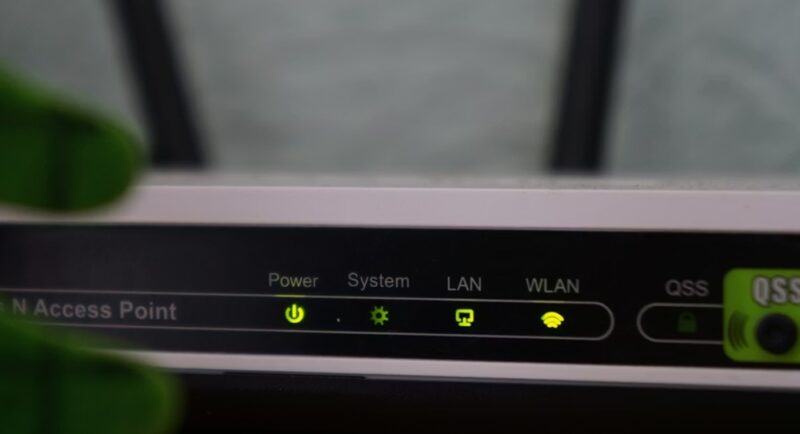
For many models:
- Green – Current process or normal function
- White – Connected to the Internet or firmware update
- Orange – Idle, firmware update, or connection issue
- Red – Connection error or router failure
Another thing to keep in mind is the meanings vary based on whether the light is solid or blinking. I always check lights immediately when troubleshooting router issues.
Restart the Router
I know it’s an incredibly simple way to troubleshoot a router, but it’s also one of the most efficient options. Unplug the power cable to your router for at least 30 seconds and plug it back in. This helps with:
- Slow performance from corrupted temporary data in your router’s RAM
- Resets the connection with your ISP
- Stops a DDoS attack (rare circumstance)
- Clears any outdated routing data
Switch to Ethernet Cables
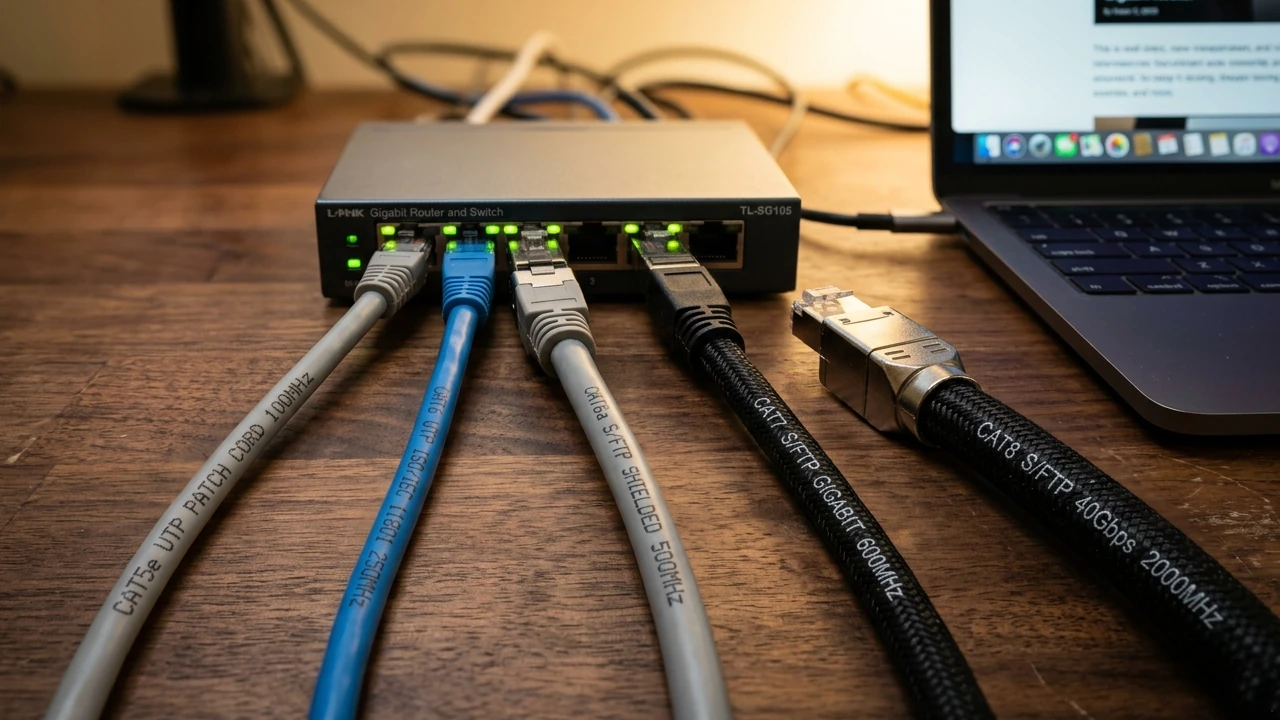
Yes, physical cables aren’t that convenient. But, using an Ethernet cable helps you see if the problem is with the Wi-Fi itself or the router. If an Ethernet cable connected directly from your router to your device still doesn’t work, it’s the router.
If you’re already using Ethernet cables, try a new cable. In my experience, Ethernet cables get damaged way too easily. Plus, simply using a new cable or reconnecting the old cable helps reset the connection.
Change Router Wi-Fi Channel
If you’re still connecting to Wi-Fi, but it’s slow and unreliable, the problem might be your Wi-Fi channel. Conflicting traffic from other Wi-Fi users slows connections.
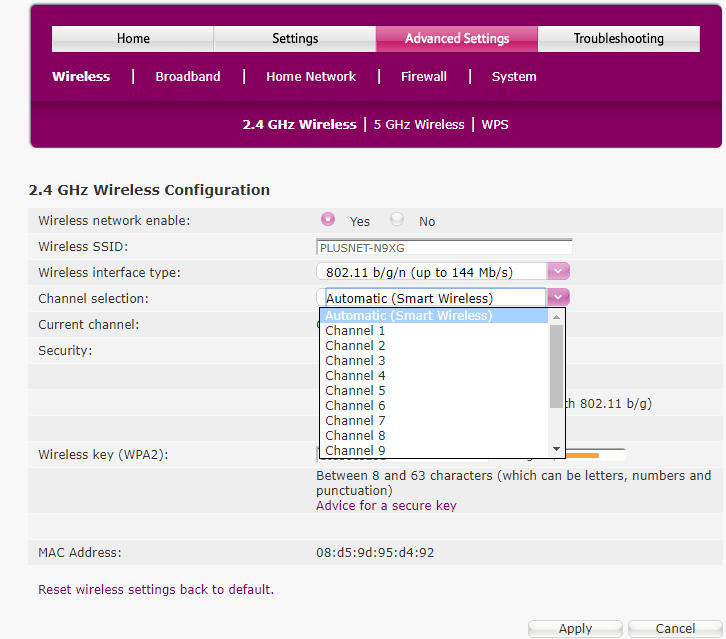
Manually change your Wi-Fi channel through your router’s settings. Access your router’s settings with its IP address. This is usually 192.168.1.1, 192.168.0.1, 192.168.1.254 or similar (check out our cheatsheet here). Enter it into your browser in the address bar. Here’s how to find your router’s IP address on any platform.
If prompted for a login, check the router itself or the user manual. Or, use whatever login you created to better secure your router. If you never changed, search for your router model along with “default login” to get the default login details.
Not sure which Wi-Fi channel to pick? I suggest reading our guide on how to find the best Wi-Fi channel for your network to make this easier. And, try this guide for the best 5GHz Wi-Fi channel.
Some ISPs require you to download a separate app to manage your settings and perform any Wi-Fi and router troubleshooting. If so, you’ll see a prompt on how to download the required app. Also, for ISP-owned routers/modems, some settings/options in this post may not be available to you, such as with Verizon router troubleshooting.
Reset Your Router
Now, resetting your router is not the same as restarting the router. If nothing else works, you might want to reset the router to its default settings and start the setup from scratch again.
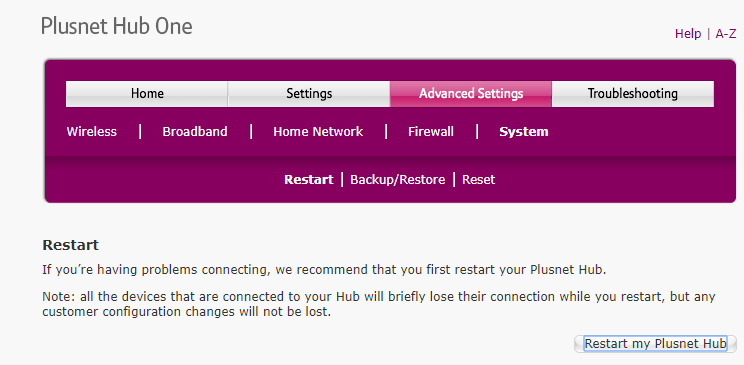
Steps vary depending on your router, but usually involves either pressing a physical button on the router itself or opening your router’s settings and searching for a reset option.
Upgrade Router Firmware
Router firmware doesn’t have to be upgraded often, so it’s easy to forget about. But, firmware often takes care of pesky connection issues.
Upgrade router firmware by going into your router’s settings. Yes, the router does need to be connected to the Internet, even if it’s not passing that connection onto you. The exact location of the firmware upgrade varies. For instance, with NETGEAR router troubleshooting, it’s located in the Home section.
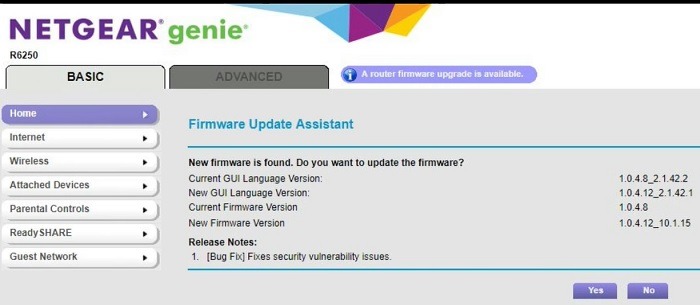
Alternately, if your router’s not working and won’t connect to the Internet, try the offline method. First, download the firmware directly from the router manufacturer’s site. Use someone else’s connection for this. Next, put the firmware on your computer and connect directly to your router via an Ethernet cable.
Every router brand uses a different method. Some don’t allow manually updating at all.
If you hate the firmware you have, try an alternative router firmware.
Diagnostic Tools
I’ve found that router and network diagnostic tools also make it easier to troubleshoot a router. These help me uncover dead spots and other connectivity issues.
If you want to avoid third-party tools, check your router manufacturer’s site for diagnostic and router troubleshooting tools. They’re not always as comprehensive, but may solve the issue.
Third-party diagnostic tools help you create a stronger home network by finding dead spots and suggesting router placement. They quickly help you see if your router is indeed the issue.
A few third-party tools to try include:
- NetSpot – Get detailed Wi-Fi troubleshooting and analysis for macOS and Windows.
- NirSoft – While only for Windows, NirSoft provides a variety of network diagnostics tools. Even when you’re not having router issues, some of these are ideal to have for monitoring traffic and general network health.
- Windows network connection command prompts – Test your connection and help pinpoint issues with Windows built-in tools.
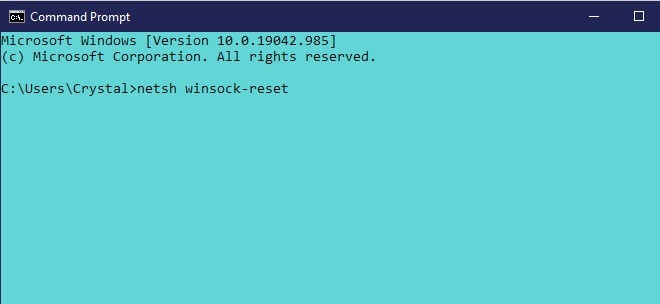
- macOS Wireless Diagnostics – Run a report to test network health on macOS.
Get Back Online Quickly
If you troubleshoot your router with no luck, it may be time for a new one, though there are uses for old routers. When shopping, make sure you know the difference between routers and modems, though the two are often one device now.
If your PC shows you’re connected to Wi-Fi, but you have no Internet and your router is fine, try these fixes. Also, if you’re using a MiFi device, try these steps to troubleshoot connection issues.