Connecting to a public network often feels like a gamble. While most of us rely on a software VPN to stay safe on public Wi-Fi, these apps usually only protect your data after the connection is already established. To truly control your digital life while traveling, you need to move away from connecting your devices directly to public hotspots. Instead, you can use a Sandbox method to create a private, encrypted wall between the public’s network and your personal hardware.
Public Wi-Fi Wake-Up Call
Most travelers don’t realize that a security gap exists the exact moment they join a public network. When you first connect to, let’s say, a hotel Wi-Fi, your device is completely exposed while you navigate the browser login page, commonly known as the captive portal.
During this vulnerable window, your device’s MAC address and sharing settings are visible to anyone else on the network. This is where Evil Twin attacks happen. A hacker can easily set up a fake Wi-Fi network with the same name as the hotel’s network. If you accidentally connect to it, they can intercept your traffic and steal credentials before your VPN even has a chance to turn on.
Why a Travel Router is Better Than a Standard VPN App
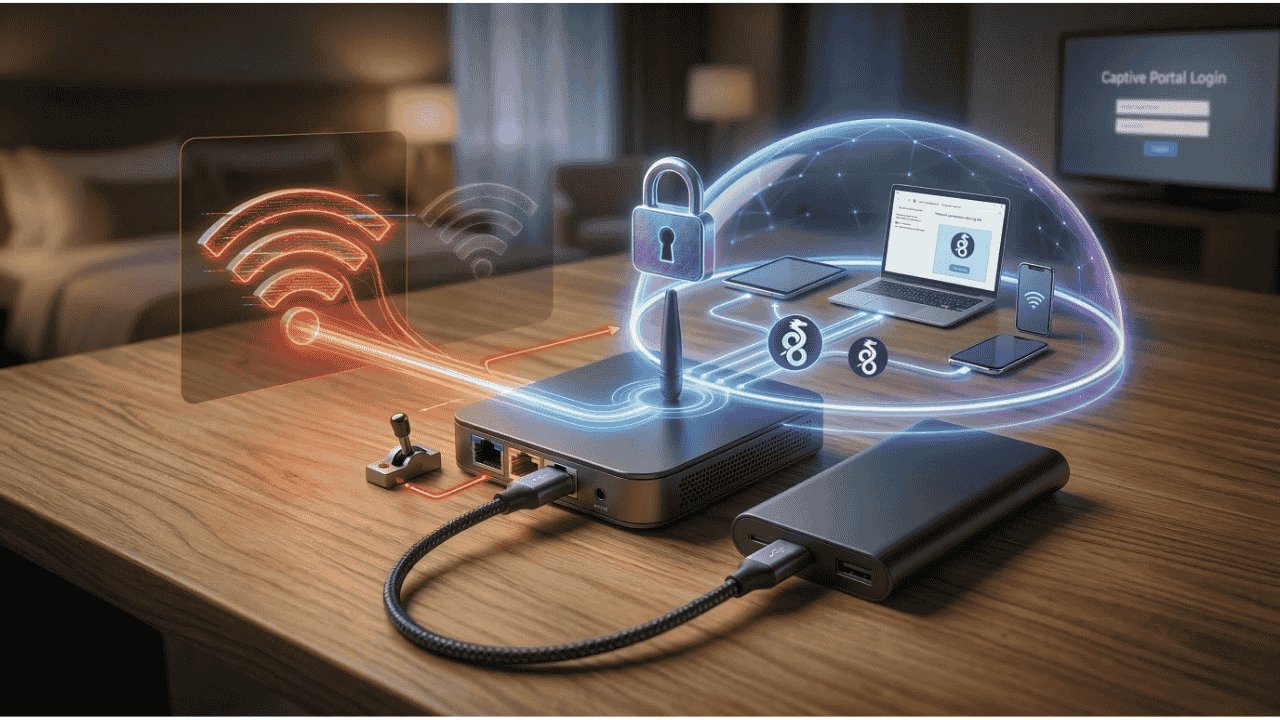
A software VPN only activates after your device has already touched the public network, and that gap is all an attacker needs. A travel router closes it by connecting to the hotel Wi-Fi, while your devices then connect only to the router’s private, password-protected Wi-Fi network. The hotel network sees one single device (the router), while your actual hardware stays hidden securely behind a firewall.
Additionally, a travel router’s built-in kill switch is more reliable than a software app. If the VPN connection drops, the router cuts the internet for every connected device instantly at the hardware level, ensuring no unencrypted data ever leaks onto the hotel network.
Creating Your Own Private Network in a Hotel
The router creates a hardware sandbox using a NAT (Network Address Translation) firewall. NAT gives your devices private IP addresses that the public network cannot see. It also blocks incoming traffic that your devices did not request, preventing other guests from scanning or casting to your screens.
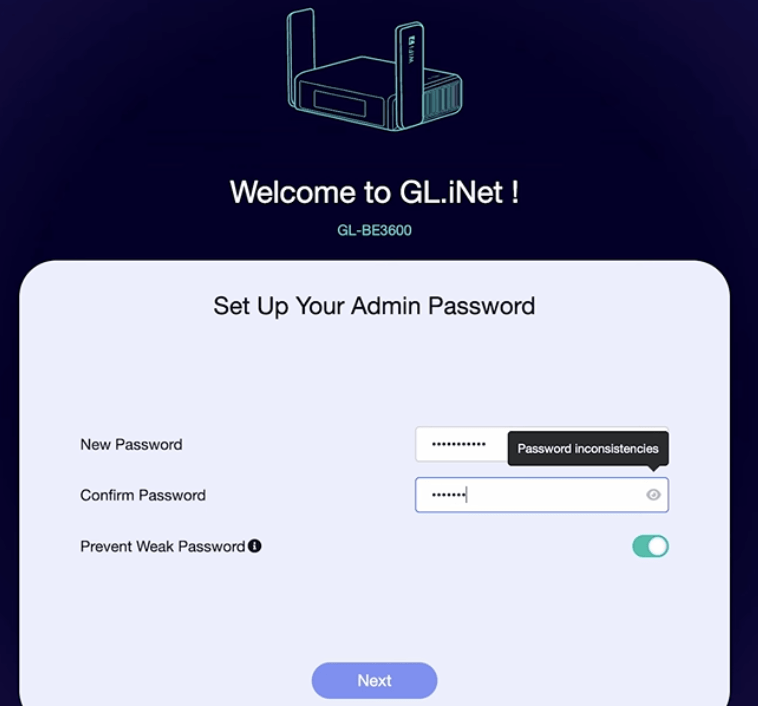
To set this up, simply power on the travel router and connect your phone or laptop to its Wi-Fi. Next, open the router’s web interface in a browser (usually an IP address like 192.168.x.x typed into a web browser) and log in.
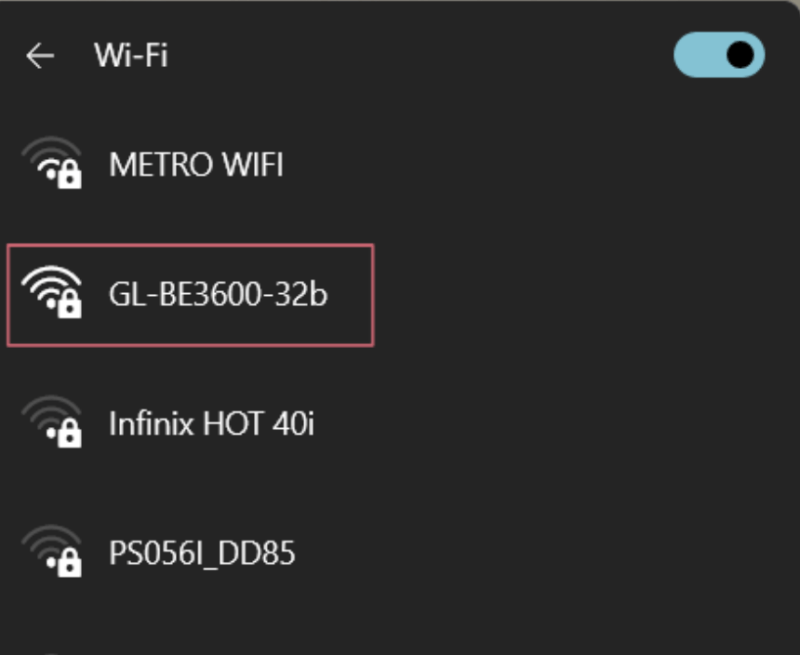
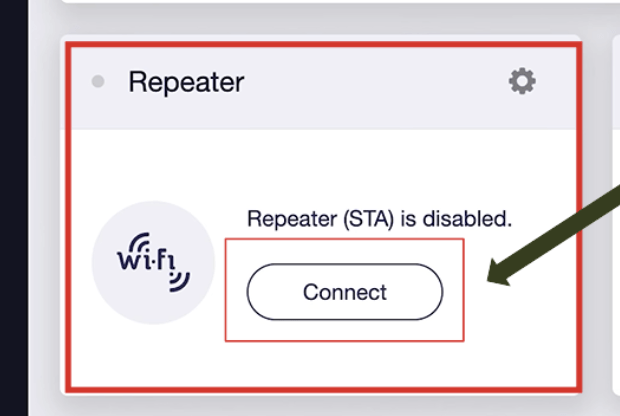
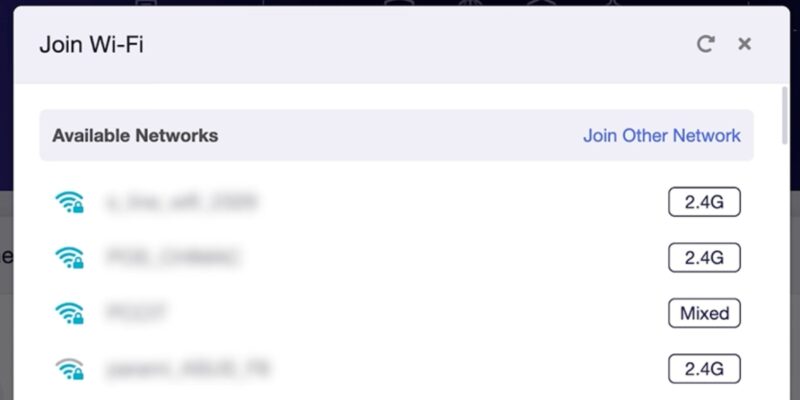
To scan for nearby networks, go to Internet → Repeater, and click Connect. Then, select the Wi-Fi you want to join.
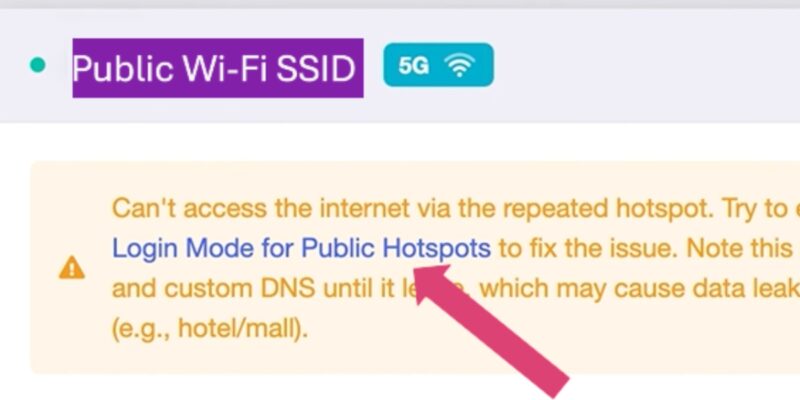
A notification saying “Can’t access internet via the repeated network” will likely pop up. Click Login Mode for Public Hotspots.
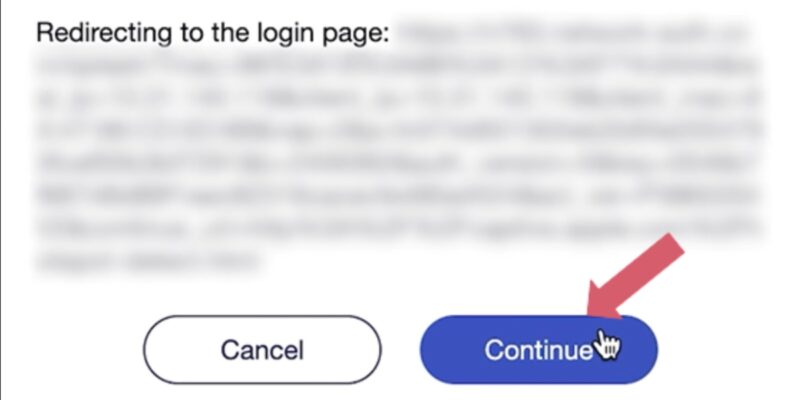
You’ll be redirected to the hotel’s captive portal; click Continue, sign in as you normally would, and you should be connected.
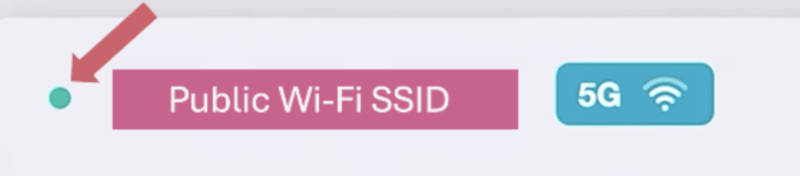
To confirm, look for a green success indicator beside the Wi-Fi’s SSID on your router dashboard.
Note: While the steps here represent a standard workflow for brands like GL.iNet, the interface for your specific travel router may be different. Always check your device’s user manual or the manufacturer’s support page to confirm the exact menu paths for Repeater or WISP mode.
Use the Virtual Gateway in Windows to Replicate a Travel Router
If you don’t want to carry extra hardware or spend money on a travel router, you can achieve the exact same security logic using your Windows PC. This method turns your laptop into a security sandbox, protecting your other vulnerable devices.
Enable MAC Randomization
Before connecting to any public network, you should always enable MAC randomization. This prevents the hotel network from tracking your laptop’s physical hardware ID across different visits.
- Open your Windows Settings app. Navigate to Network & internet, then click on Wi-Fi.
- Toggle the Random hardware addresses switch to On.
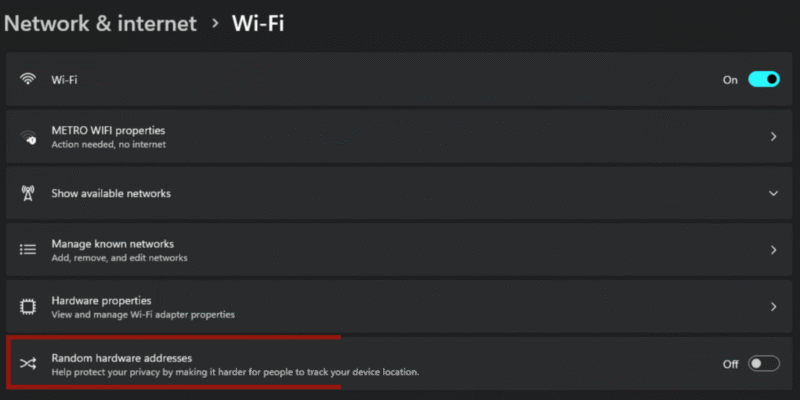
This makes sure that every time you connect to a new travel hotspot, your laptop appears as a completely different, anonymous device.
Set Up a Secure Mobile Hotspot
Once your laptop is connected to the hotel Wi-Fi and you have cleared the captive portal, you can turn it into a private router for your other devices.
- Open your preferred VPN app on your laptop and connect to a secure server. Navigate to Settings → Network & internet → Mobile hotspot.
- Ensure the Share my internet connection from the dropdown is set to Wi-Fi.
- Toggle the Mobile hotspot switch to On.
- Open your preferred VPN app on your laptop and connect to a secure server. I recommend using the WireGuard protocol as your VPN app, because it offers the best speeds and lowest latency for travel.

Note: A travel router’s built-in kill switch is more reliable than a software one.
Route the Hotspot Through the VPN
By default, Windows shares the raw, unencrypted hotel Wi-Fi to your hotspot. So, you have to manually force Windows to share the encrypted VPN tunnel instead.
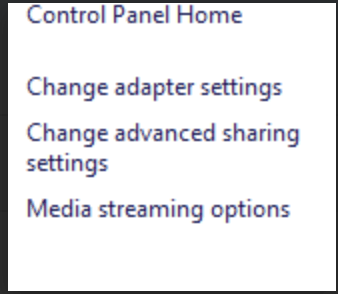
- To start, open the Windows Control Panel. Navigate to Network and Internet, then click on Network and Sharing Center.
- Click on Change adapter settings on the left sidebar.
- Locate your VPN’s virtual network adapter. It will often be labeled as TAP or Wintun, depending on your VPN provider.
- Right-click the VPN adapter and select Properties. Click the Sharing tab at the top of the window.
- Check the box that says Allow other network users to connect through this computer’s Internet connection.
- In the dropdown menu directly below that box, select the Local Area Connection that corresponds to your newly created Mobile Hotspot. Click OK.

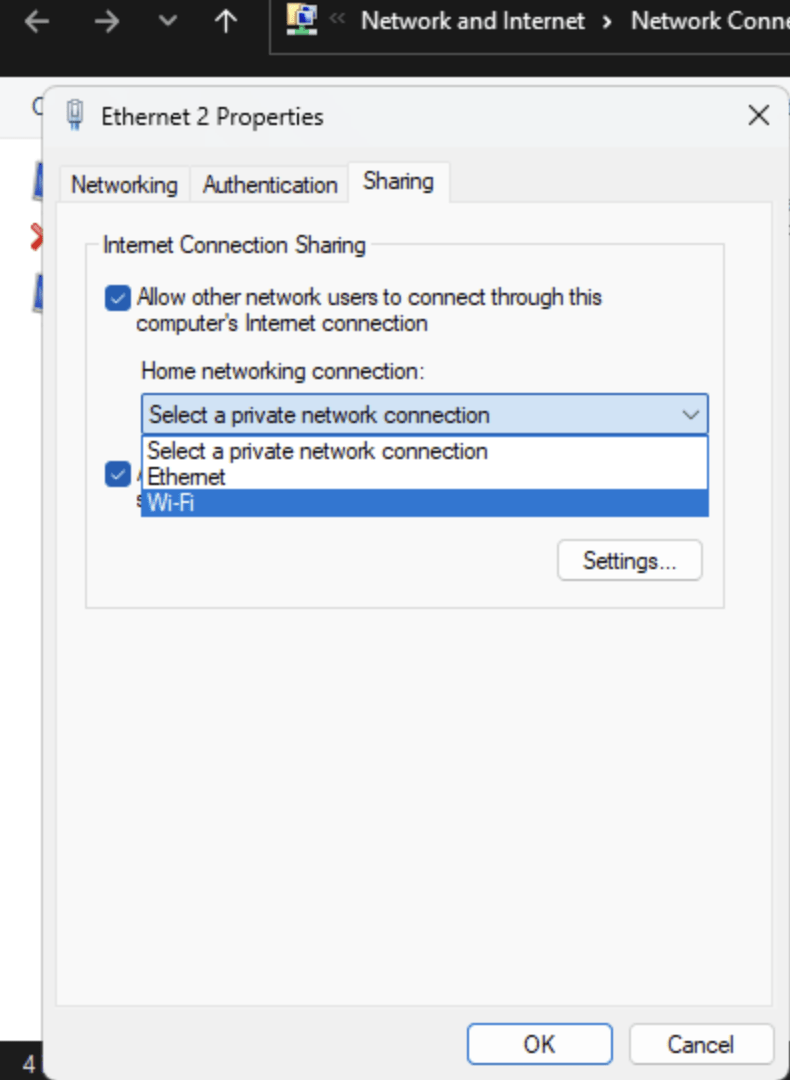
Now, when you connect your phone or tablet to your laptop’s hotspot, all of that device’s traffic is automatically routed through the laptop’s encrypted VPN tunnel.
Pro Tip: If your phone connects to the laptop but has no internet access, double-check that your Windows Firewall is not blocking the Internet Connection Sharing (ICS) service. This is a common issue when using aggressive third-party antivirus software.
Bypassing Captive Portal Device Limits
Many hotels and airports aggressively limit you to two devices, or they attempt to charge you extra daily fees for every new device you connect. By using either the travel router or the Virtual Gateway method, you can bypass these greedy restrictions entirely.
Connect your Windows laptop to the hotel Wi-Fi and complete the login or payment process. The hotel network now recognizes your laptop’s MAC address as an authorized device. Turn on the Mobile Hotspot in your Windows Settings. This creates your own private sub-network that is separate from the hotel.
Why it works: Your laptop uses a process called Network Address Translation (NAT). To the hotel’s system, every data packet leaving your laptop looks like it came from the laptop itself. It cannot see past the laptop to know that your phone or Kindle is actually generating that traffic. Meaning you can connect ten devices to your private network while only registering “one” with the hotel.
Which Sandbox Is Right for You?
Both methods successfully hide your traffic, but they serve different types of travelers. The Virtual Gateway method is completely free and requires no extra luggage, making it perfect for casual vacations. However, it entirely depends on your laptop staying powered on and awake. If the laptop goes to sleep, the hotspot dies.
If you travel frequently, work out of coffee shops, or handle sensitive corporate data on the road, invest in a dedicated travel router. It offers always-on hardware-level protection that does not drain your laptop battery.
Which Travel Router Should You Get?
If you plan to use the sandbox setup, choose a router that supports Repeater or WISP mode. These models let the router connect to hotel Wi-Fi and rebroadcast it as your own private network.
1. GL.iNet Beryl AX (GL-MT3000)
The Beryl AX is a solid choice, especially if you travel a lot. It costs about $100, runs on a regular phone charger, and supports fast Wi-Fi 6, which is more than enough for typical hotel internet.
It also includes a 2.5G port for faster connections at places like Airbnbs and handles WireGuard VPN speeds up to 300 Mbps.
2. GL.iNet Slate AX (GL-AXT1800)
In a situation where you want to connect 7+ devices or want faster VPN speeds, this is your pick. It has a quad-core processor and supports VPN speeds up to 550 Mbps.
It’s a bit bulkier and heavier than the Beryl, but its signal strength is strong enough to cover a small apartment or a large hotel suite. It’s also more expensive, typically costing over $100.
3. GL.iNet Mango (GL-MT300N-V2)
If you want to start without spending a lot of money and prefer the Sandbox setup over the Virtual Gateway method, the Mango might be a good choice, as it costs less than $30 on Amazon.
While it’s small enough to fit in your watch pocket, it only supports the older Wi-Fi 4 (2.4GHz) standard and has slower VPN speeds.
4. TP-Link TL-WR1502X
If GL.iNet feels too advanced, TP-Link offers a more mainstream interface. The TL-WR1502X is a sleek Wi-Fi 6 router that is very easy to set up.
It doesn’t have the same deep VPN customization as the GL.iNet models, but for simple hotspot repeating and bypassing device limits, it is extremely reliable. You can get it for less than $50 on Amazon.
Pro Tip: Choose a router that uses USB-C power. This lets you run it from a phone charger or power bank, making you completely independent of hotel wall outlets.
If your connection becomes sluggish after setting up your secure network, the hotel’s bandwidth limits might be throttling your router. If you suspect the hardware is having configuration issues, you can check out our troubleshooting guide.