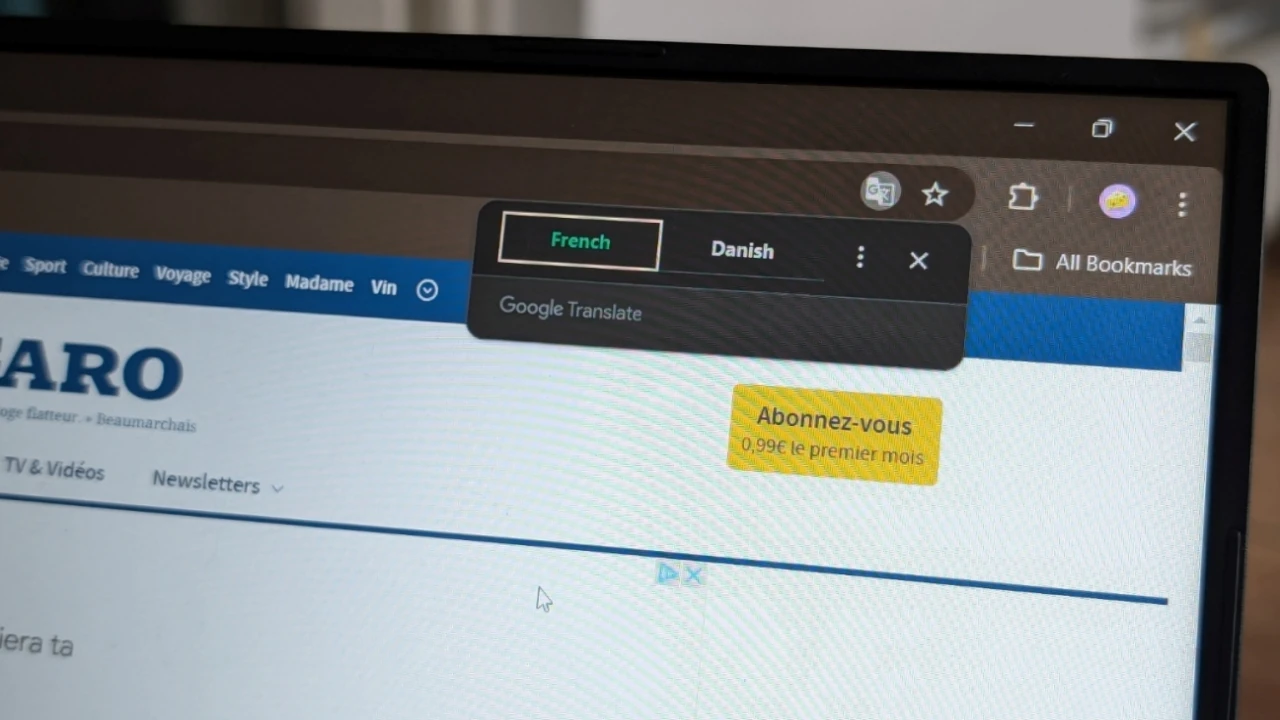
One super useful option is Chrome’s ability to do quick translations on foreign websites so that the language barrier does not prevent you from exploring the Web. This article demonstrates how to translate web pages with the Google Chrome browser on your desktop and mobile device.
Good to know: check out how to restart Chrome without losing your tabs.
Translate Web Pages in Chrome on PC
The translation feature is built in to the Chrome browser, so you don’t have to install an extension or enable any flags.
On your computer, open Chrome and navigate to a webpage in a foreign language. In the address bar on the right, click on the small Translate shortcut icon, and choose your desired language. (it’s your system’s default language.)
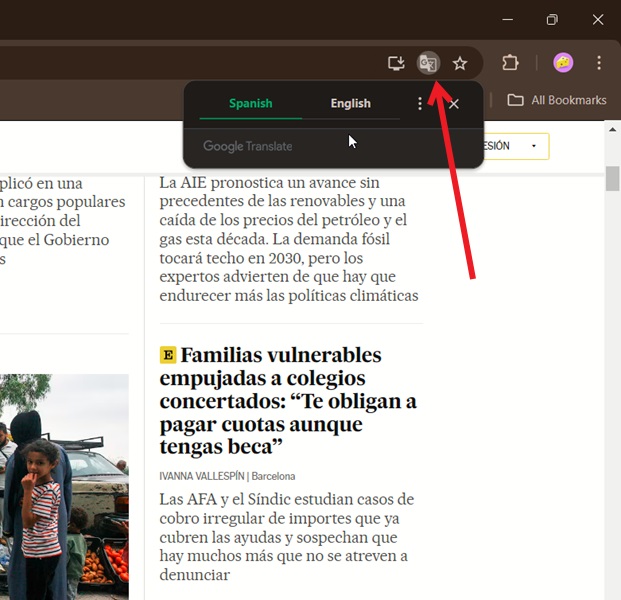
Note: depending on your settings, the pop-up may appear automatically, as Google Chrome detects you’re accessing a page in a foreign language.
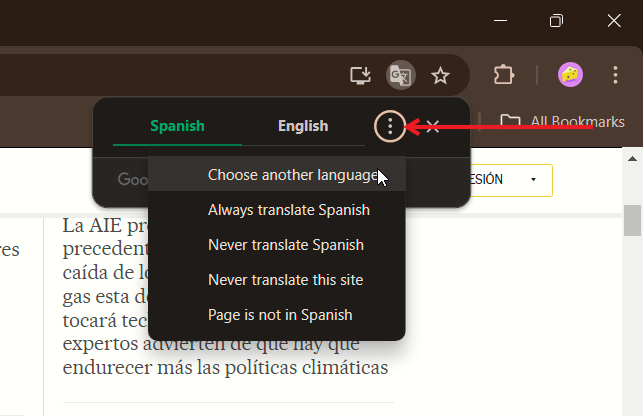
Alternatively, click on the three-dot menu on the right, and select Choose another language.
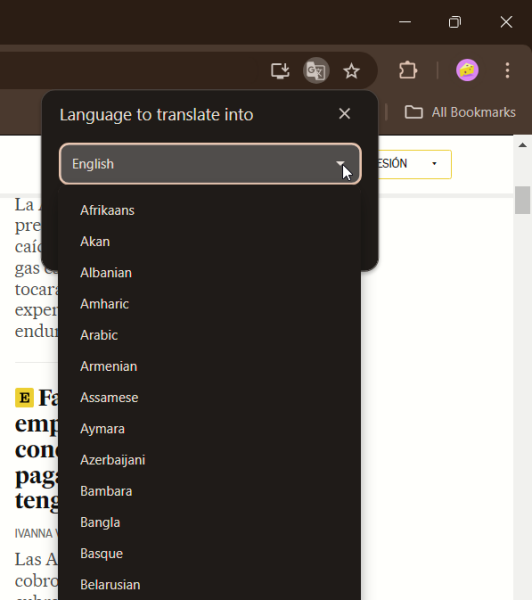
Select a language from the list to read the contents of the entire page in a language that you understand.
If you tend to access multiple web pages in this language, choose the option to Always translate to [language].
If Google Chrome misidentifies the language on the webpage, click Page is not in [language].
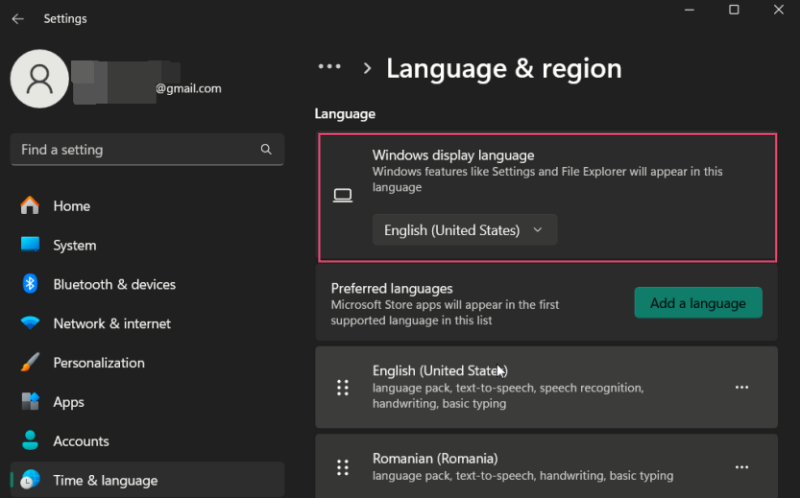
If you are on a Windows PC and wish to change the system language, open Settings -> Time & Language -> Language & region, and change the Windows display language.
Translate Pages in Chrome on Mobile
The translation feature is available in Chrome for both Android and iOS. This option is active by default, so you won’t have to do anything in particular to enable it.
Navigate to a webpage that’s in a foreign language, and activate the translation option. The browser will recognize the source language and translate it into the target language, which is usually the one set as the phone’s default system language. If your phone is set to English, the translation will be as well.
Android
Open Google Chrome on your mobile device, and navigate to a web page in a foreign language.
Depending on your settings, a translation bar will pop up at the bottom of the screen, showing the source and target languages. Tap on the target language (in this case, English – the phone’s system language) to start the translation.

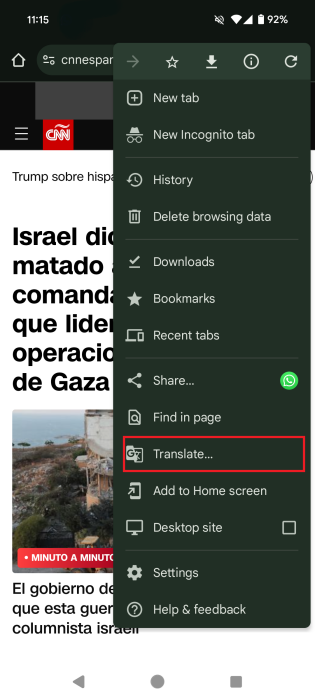
If you don’t see this option pop up automatically, tap on the three dots in the upper-right corner, and select Translate. A bar at the top will show it in progress, then the page will refresh and display in the target language.
If you want to translate the page into different languages, press the gear button in the bar.

Select More languages.
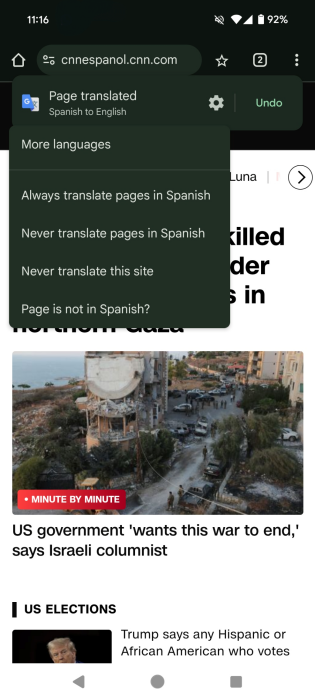
The other options mentioned in the desktop section are also available.
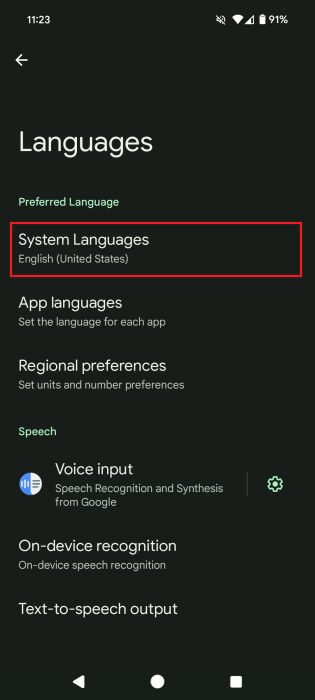
To change the system language on your Android device, navigate to Settings -> System -> Language -> System Languages.
FYI: learn how to remove profiles you don’t use from Google Chrome.
iOS
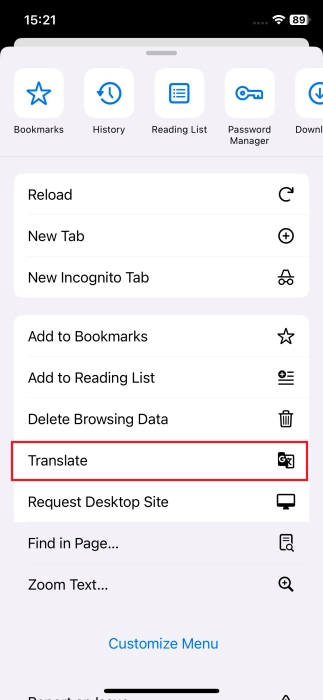
As on Android, Chrome on iPhone or iPad may automatically detect that you’re viewing a page in a foreign language and display the Translate bar at the top. If not, tap the three dots in the lower-right corner to reveal a menu.
You’ll find the Translate option toward the bottom, and the page will automatically translate into your iPhone’s system language.
The Translate bar will show at the top. If you want, you can change the target language from there.

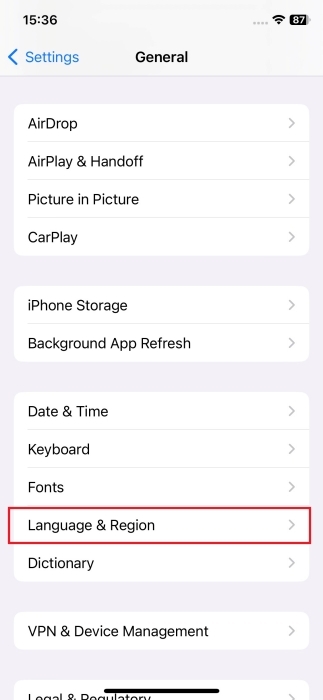
To change your iPhone or iPad’s system language, open Settings -> General -> Language & Region.
Tip: check out more free online translation tools.
Turn Chrome Translation On or Off
On a translated page, click on the Translate icon, and switch to the original language. The page will refresh now and revert to the unaltered text. If it doesn’t work, try clicking the three dots and selecting Never translate this site.
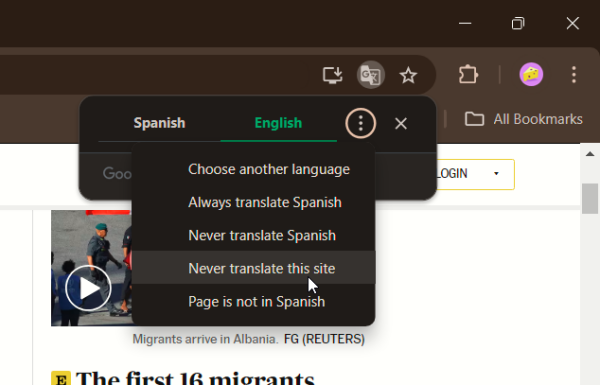
Note: if you use the last method, the Translate icon will disappear from the address bar for this site. If you need to translate the page again, click the three dots in the upper-right corner, and select Translate.
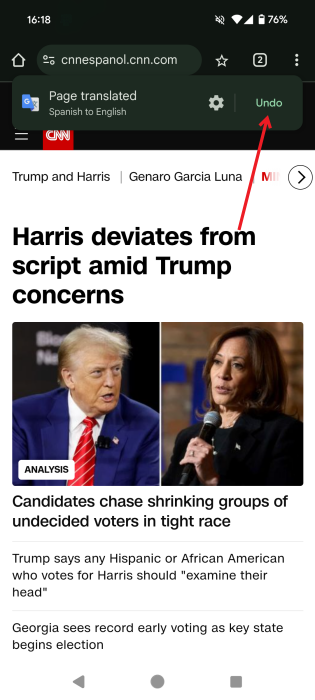
If you’re browsing from Android and want to revert the translation, you probably aren’t seeing the Translation bar at the top. To bring it up again, press the three dots in the upper-right corner, and select Translate.
Once it’s visible again, press Undo.
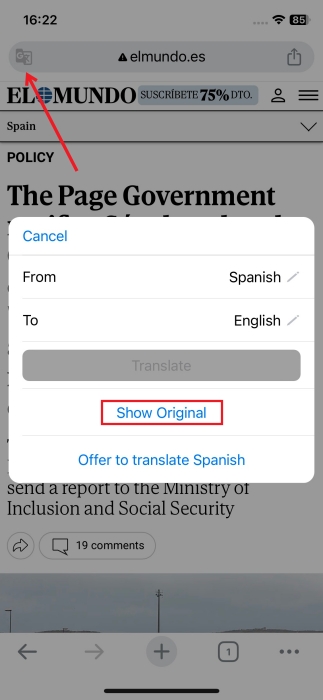
On a translated page on iPhone or iPad, press the Translate icon on the left side of the address bar, then select Show Original.
Tip: check out our Google Translate guide for more tips on how to use this powerful translation tool.
Change Your Preferred Language for Translations
If you usually need to translate pages in a certain language but want to keep your device’s system language set as English, for instance, change your preferred default page translation settings. This is the setup I use, since I like to view translations in my native language (Romanian) but prefer that my device’s preferred language settings remains set to English.
In your Chrome browser, click the three dots in the upper-right corner, and select Settings.
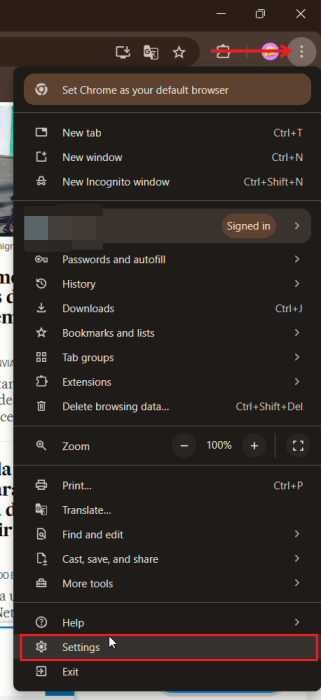
On the left, select Languages, and on the right, check the Google Translate section. Select the language in which you want Google to suggest translations. (It can be different from the device system language.)
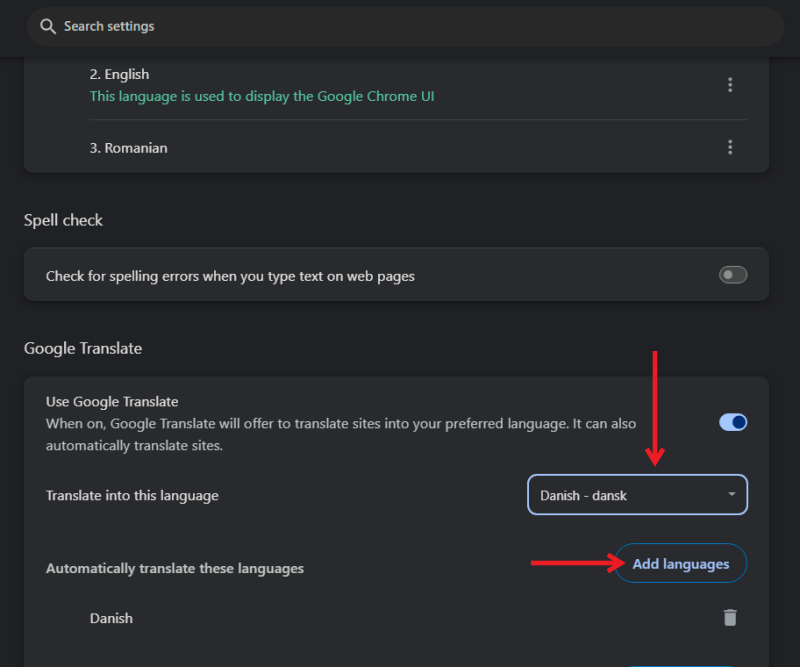
Add additional languages by pressing the Add language button.
On Android, go to Settings by pressing on the three dots in the upper-right corner, then select Languages in the Advanced menu.
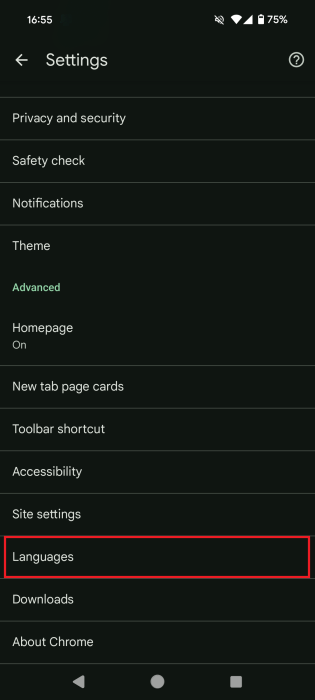
Press Advanced again. In the Translation settings section, tap on Translate into this language. Select your preferred language from there.
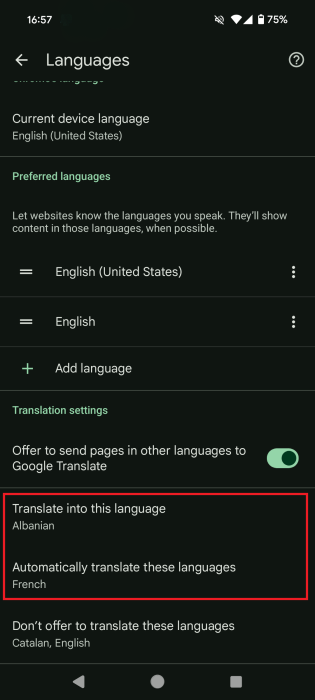
You may also want to tap on Automatically translate these languages. For example, if you come across a French web page, your mobile browser will automatically translate it into English (the system language).
These options aren’t available on iOS at the time of writing.
Good to know: learn how to change your country and language on Amazon.
Knowing how to translate web pages in Google Chrome comes in handy when you stumble upon websites in languages you’re not familiar with. But if you wish to learn a new language, check out the best language-learning apps. If you want to learn more about how to use Google Chrome, check out how to set up sync in Chrome.
All images and screenshots by Alexandra Arici.








