

There’s a good chance you no longer use Microsoft Word. In 2016 you’re more likely kicking back in an independent cafe, working from the cloud and collaboratively editing documents with your co-workers. And you probably use Google Docs to do it.
But are you making the most of Docs, and do you really know what it’s truly capable of? If you’re not sure, then here are five tips and tricks that will make your word-based work in the cloud easier.
1. Edit Word Documents Without Converting to Docs
Google Docs is good at handling Word (.doc and .docx) documents, converting them nicely to “.gdoc” format and letting you continue to work on them.
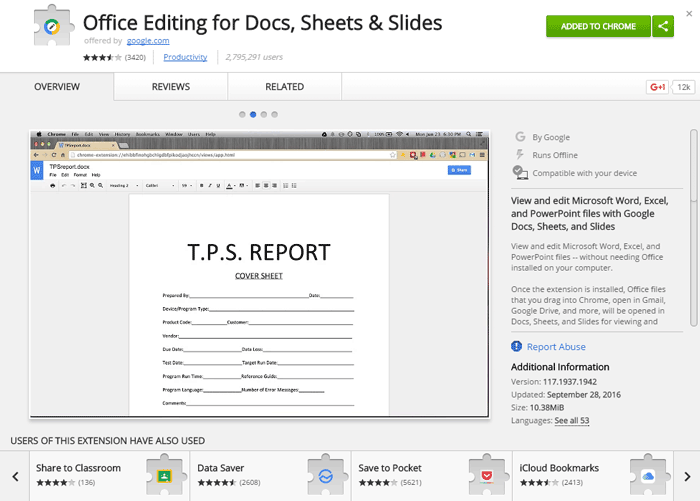
But there are plenty of times when it’s more convenient to keep a Word document in its original format, such as if you need to send a document back to someone who only uses Word. To do this, download the extension Office Editing for Docs, Sheets & Slides, which lets you work on “.doc” documents as if they were Google Docs.
Just install the extension, open a Word document in Google Docs, and work on it as you normally would. It will automatically save in its original Word format.
2. Work on Your Documents Offline
It’s no longer a secret that Google Docs allows you to work offline as effectively as online, but it’s easy to get confused about how exactly to do it.
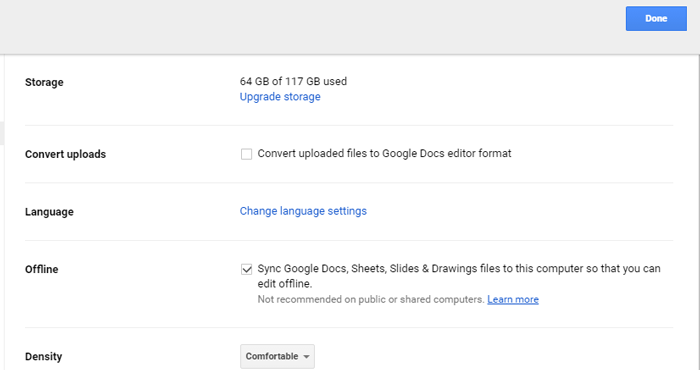
To do it, you actually need to go to drive.google.com rather than docs.google.com. Once you’re there, click the cog icon at the top right, choose Settings, then tick the “Sync Google Docs” box in the “Offline” section.
That’s it! Remember that you can’t pick out individual documents for offline editing, so make sure you have the hard drive space to accommodate all your documents when you sync for offline use.
3. Find and Insert Images You’re Allowed to Use
When you work in online publishing, you come to appreciate the importance of using images that you’re legally allowed to, or there could be trouble down the road when the owner of the image comes knocking at your door with a squad of lawyers!
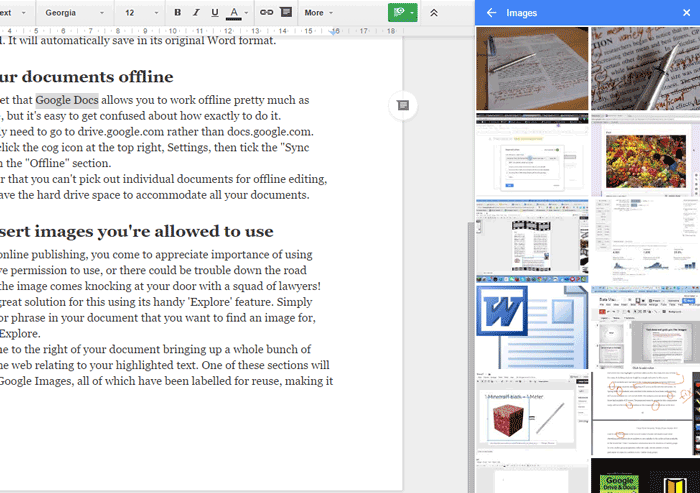
Google Docs has a great solution for this using its handy “Explore” feature. Simply highlight the word or phrase in your document that you want to find an image for, then click “Tools -> Explore.”
This will open a pane to the right of your document bringing up a whole bunch of information from the Web relating to your highlighted text. One of these sections will show images from Google Images, all of which have been labelled for reuse, making it no issue for you to use them. Click “More” next to “Images” to see more, then just click an image to insert it into your document.
4. Suggest Edits
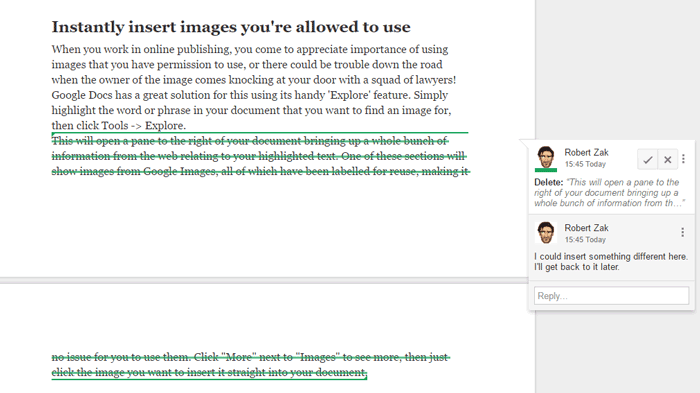
If you’re collaborating on a document, or even if you’re working solo and just want to see if some text works better in your document than what was there before, it’s extremely useful to be able to make a note of suggested edits, which the author can then accept or reject as they please.
Doing this is easy. In Google Docs just click the pencil icon at the top-right (with the word “Editing” next to it), then click “Suggesting.” Any edit you make in this mode will be shown as a comment to the right of the document. Other people (or you) can then reply to the suggestion, leave feedback on it, or use the tick or cross icons to accept or reject the suggestion.
5. Add Special Symbols Into Your Documents
Special symbols are the bane of anyone trying to write them, and are always a guaranteed pain to try and insert. But there are a couple of ways you can do it in Docs.
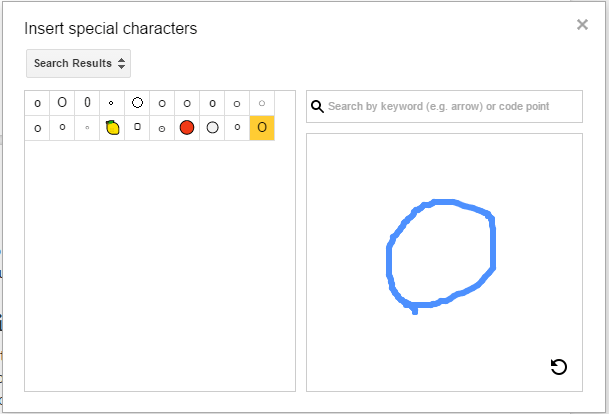
One thing you can do is go to “Insert -> Special characters” where you can search for the symbol you want either by typing in what it’s called or drawing it in the box on the right.
Alternatively, go to “Tools -> Preferences,” and you can write in keyboard shortcuts that convert to symbols, so by default (c) converts to ©, (r) converts to ® and so on. You can insert any symbol you like into the “With” box, then type your preferred shortcut for it into the “Replace” box.
Conclusion
Google Docs will still feel like new territory for a lot of people, and there’s no denying that Microsoft Word has a bigger toolset for your word processing needs. But Docs is constantly growing and improving, and these tips prove that it can do some things that even the great Word can’t!