
Apple hides all kinds of cool tricks in iOS, and some of them don’t get nearly the love they deserve. Like Text Replacement (also known as Text Shortcuts, or Text Expander), a nifty tool that lets you type faster by allowing you to create abbreviations for your most-used words and phrases. Here’s how to set it up on your iPhone, iPad, and your Macs too.
Good to know: hosting a party? Learn how to create a cool event invite on your iPhone.
Create a Text Shortcut with Text Replacement on iPhone
If you’ve noticed that you’re constantly using certain words or expressions while you’re chatting with friends, you should try creating shortcuts for them. These are short abbreviations that you can type instead of the whole phrase. They can save you quite a lot of time!
To set up your first shortcut, open the Settings app on your iPhone or iPad.
Navigate to General -> Keyboard.
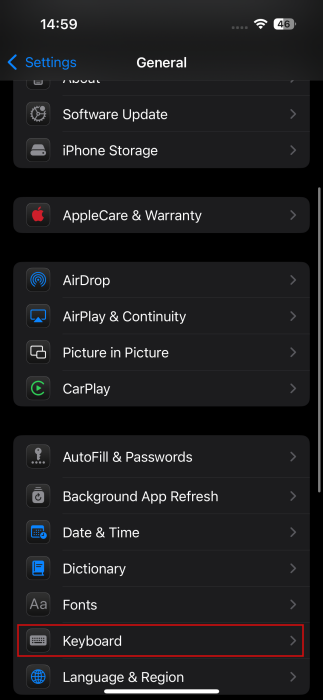
Tap on Text Replacement.
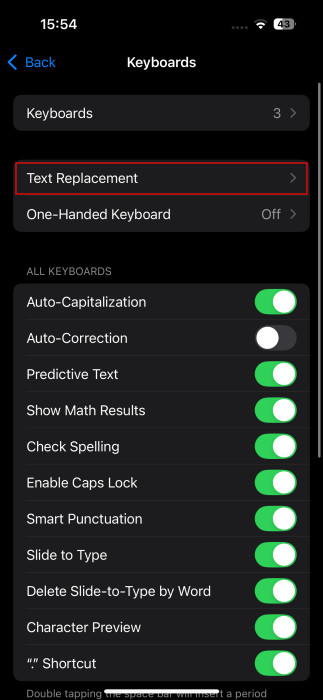
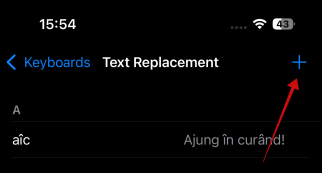
Depending on the language options on your device, you may find a few pre-made shortcuts already available. In my case, I found one that’s in my native language.
Anyway, to create a shortcut, tap on the + button in the top right corner.
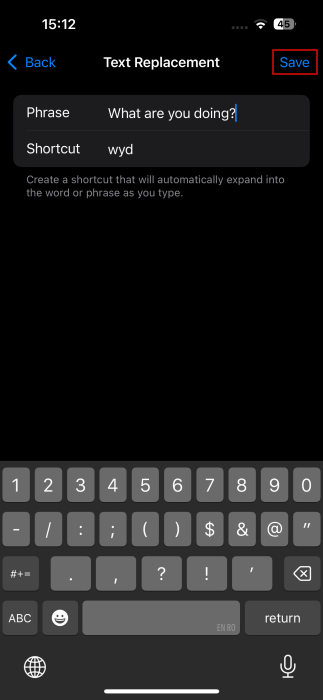
In the window that opens, enter the full phrase you want to create a shortcut for in the Phrase field. Below, add the Shortcut. Here are a few ideas of what you can use for your first shortcut:
Note: Shortcuts can’t contain spaces
- omw = On my way
- iirc = If I recall correctly
- afaik = As far as I know
- wyd = What are you doing
- asap = As soon as possible
Tip: be sure to check that the abbreviation you’re using isn’t another common word, such as “Ah” or “Wow,” as it’ll make the phrase insert by accident.
Once you’re done, hit the Save button.
The cool part about Text Replacement is that it supports creating abbreviations for more than just words or expressions. Here are a few fun examples:
- shrug = ¯\_(ツ)_/¯ (or any other emoji)
- @gm = your Google email address
- @ic = your iCloud email address
- com1 = www.maketecheasier.com
- ## = your phone number
- cr = © (or any other special characters)
- Gael = Gaël (or any other names or words that contain accents)
- Hbmail = Here’s to celebrating you—your kindness, your strength, and all the beautiful things that make you who you are. Happy birthday (or any other long message you might need to reuse)
- Love = Luv (or any other word that might fall victim to autocorrect)
Using Text Shortcuts When Texting
Now, whenever you are texting in an app on your iPhone/iPad in apps such as Messages, WhatsApp, or Facebook, check the bar at the bottom that shows predictive text. When you type in the exact abbreviation, let’s say shrug, you should see the emoji pop up as a suggestion.
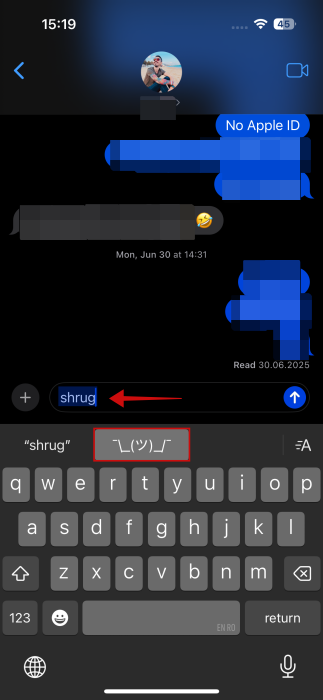
Don’t write anything else, just tap the suggestion to insert it into your message. Then send the message on its way. In our testing, the feature worked really smoothly, and it’s also a breeze to set up.
Tip: here’s how to schedule sending a text message on iPhone.
Remove a Text Shortcut on iPhone
If at any time you decide you want to remove one of these text shortcuts, go back to General -> Keyboard -> Text Replacement.
Tap the Edit button at the bottom.
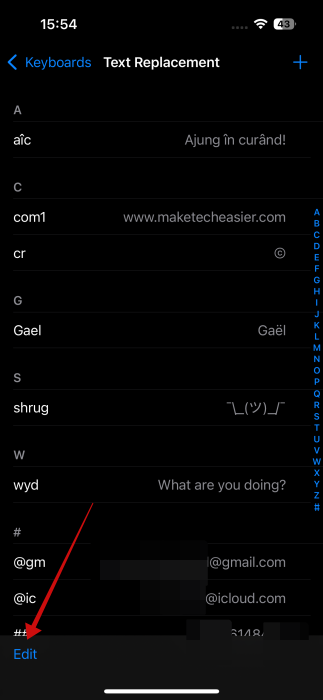
Tap on the “–” button next to the shortcut you want to remove.
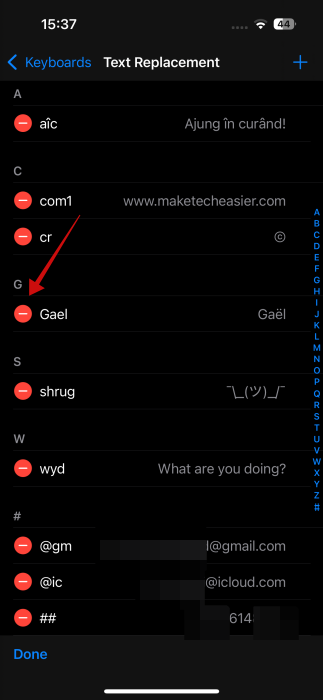
A Delete button will show up on the right. Tap it.
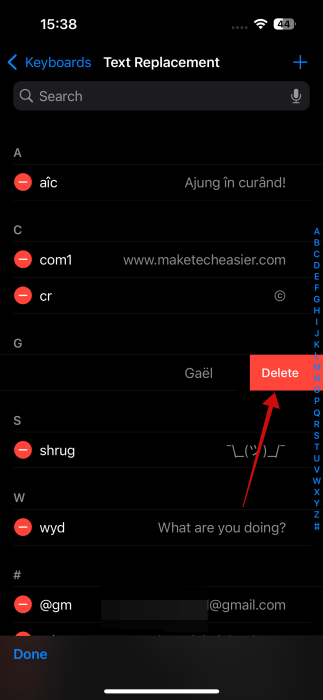
If you want to abandon deleting the shortcut, swipe to the right.
Create a Text Shortcut with Text Replacement on Mac
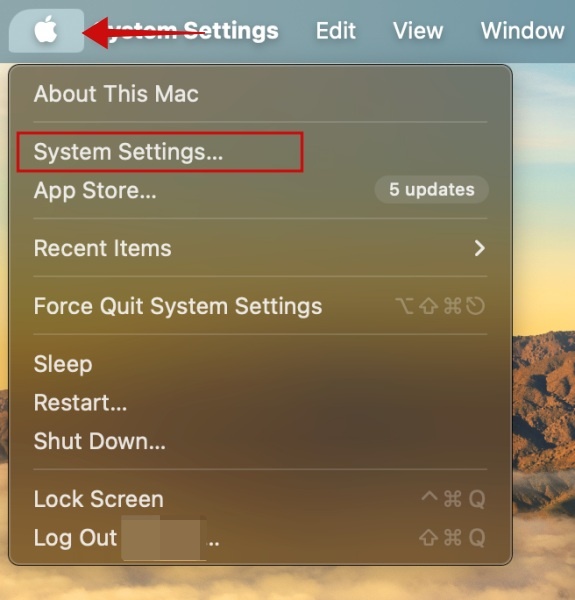
On macOS, click the Apple logo in the upper left corner. Select System Settings.
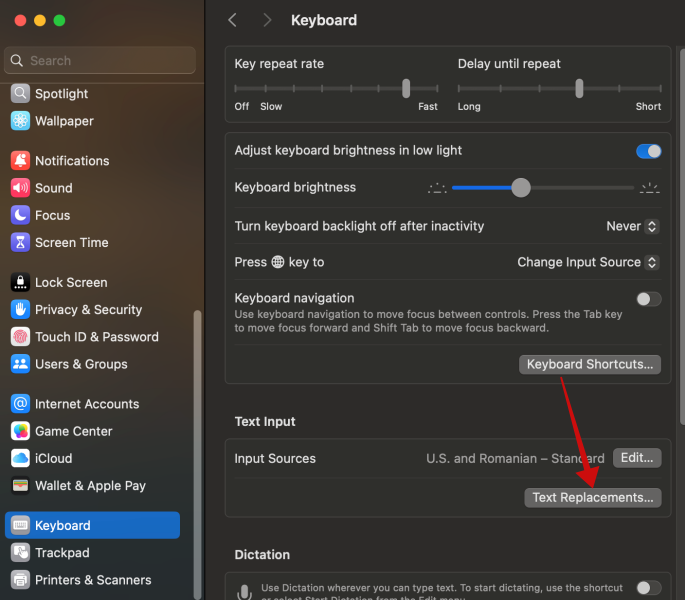
In the new window, go to Keyboard -> Text Replacement.
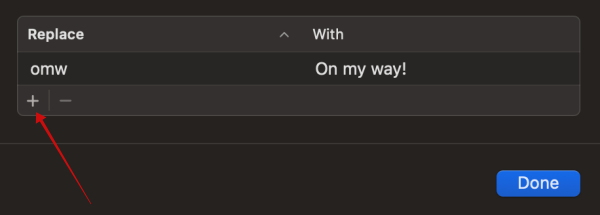
Click the + button to create a new shortcut.
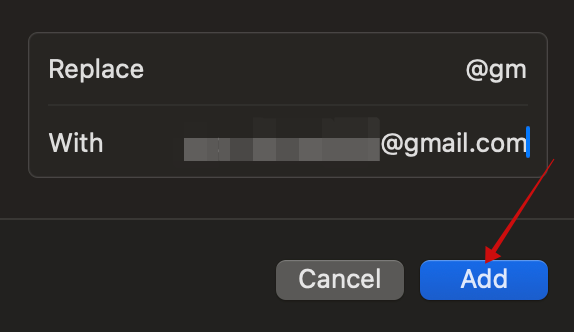
Type your shortcut in the Replace field and the text expansion in the With one. Press Add to save the new shortcut.
Finally, press Done to start using the shortcut.
Note that not all apps on macOS support Text Replacement.
Remove a Text Shortcut on Mac
Access Text Replacement settings again, click the entry you wish to remove, and press the – button.
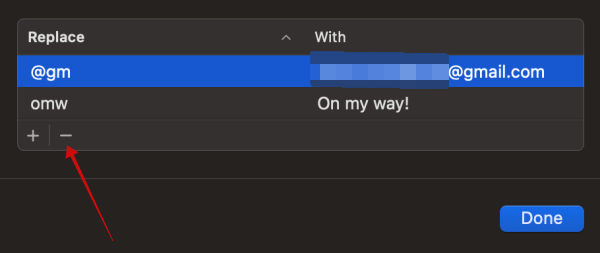
That’s it, the shortcut will be removed from the list.
If you need more useful tricks on how to use your iOS devices to their full potential, check how you can scan documents with WhatsApp. Alternatively, check how to record calls on iPhone and transcribe them.








