

There are so many things you have to do in your day. Most of the time you don’t have a chance to finish everything. Anything that slows you down just gets on your nerves since you lose precious minutes you are never getting back. The same thing applies while you are surfing the web. Anything that results in you losing time just makes you climb the walls. That’s why the cache is our friend; thanks to this the sites you frequently visit load faster since they access the same instructions and data every time you visit, and that is always a good thing.
Even though many don’t consider cache as a bad thing, I’m afraid it does have its dark side. The downside to caching is that it doesn’t let you see what’s new on your favorite site since it uses the cache memory to load the site. Unless you cleared the cache before you started checking your favorite sites, you are going to miss out on things such as a new logo the site might have.
By disabling the cache you don’t have to worry about cache corruption and don’t have to deal with the issues it brings. It can be annoying to see that when you load a site you get an error message, or it just refuses to respond. If the cache is disabled for an individual site, you know that will not happen as long as the cache is disabled. Without cache, there is no poorly written auto-complete algorithm. For example, you’re using your app’s search box, but you notice that it’s slow and not working as good as it usually does, wiping or disabling the cache will give you better performance.
If you disable the cache for a particular site, you will also protect your privacy since other people won’t be able to see what you have been looking at. Disabling the cache is an excellent idea if you share a computer with other people since it won’t give others access to your personal information or preferences.
If what you want to do is deactivate the caching for a particular website, you can and you will see that it’s a very straightforward process. What you need to do is:
1. Go to the website you want to disable the caching for.
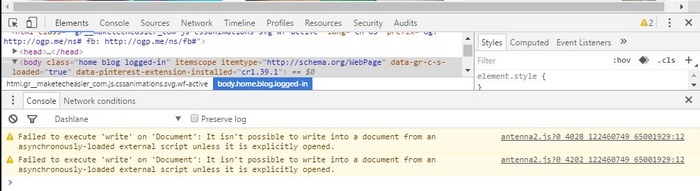
2. Press F12 to make the console appear; you should see the following:
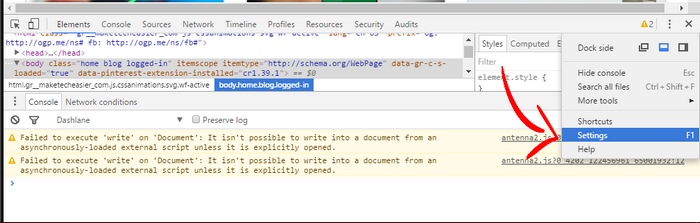
3. Click on the three vertical dots in the upper right-hand corner and select Settings.
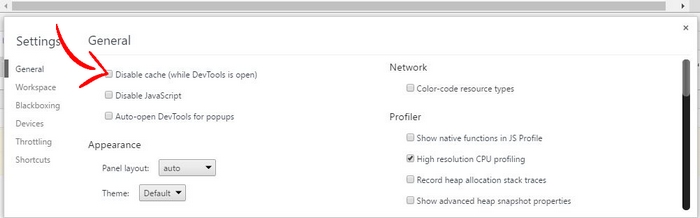
4. Select the option where it says Disable cache (while DevTools is open).
Believe it or not; you are done. Now every time you visit your favorite sites (MTE included), the site won’t load with the stored cache, and you will now see any possible changes made to the site. The site may take a little longer to load since the cache is not involved, but hopefully, it won’t take too long.
Cache Killer
Another way you can disable caching for a specific website or all of them is with the help of Cache Killer. This is a free Chome extension that is easy to use. Just install it, and you can turn it on and off through its Omnibar icon.

If you only want to disable the cache for a particular website, turn it on, and when you feel it’s no longer necessary, just turn it off. If you want all the sites you are visiting to load fresh content every time you visit, leave Cache Killer on permanently; you will always see what’s new. You can also press “Ctrl + F5” to make Chrome load fresh content.
Conclusion
If you always want to be able to see what’s new on the sites you regularly visit, clearing the cache is a must, and with these simple methods you will never miss out. How do you clear the cache for a specific website? Let us know in the comments.